Introduction
insureMO’s HTML Document Generation Service (HTML Docgen Service) uses HTML templates as print templates. Based on the Handlebars template engine syntax, it renders JSON data into HTML templates to generate PDF or HTML files.
Compared to Jasper reports and Word document generation, HTML templates offer the following advantages:
- AI-friendly, supports AI-assisted generation: HTML + Handlebars is a plain-text format that AI models (such as Claude, GPT, etc.) can understand with high accuracy. You can describe your business requirements in natural language and have AI automatically generate complete templates, significantly boosting development efficiency
- More flexible layout control: Uses standard HTML/CSS for layout, supporting arbitrarily complex page designs
- Lower barrier to entry: No need to install specialized design tools (like Jaspersoft Studio); any text editor or IDE is sufficient
- Richer styling capabilities: Full support for CSS3, Flexbox, Grid, and other modern layout technologies
- Handlebars template syntax: Clean and intuitive variable substitution and logic control syntax, which AI can accurately parse and generate
Template Syntax
HTML Docgen Service uses the Handlebars template engine. Below are the commonly used syntax elements:
Basic Variable Substitution
Use double curly braces {{variable_name}} for variable substitution:
<h1>{{policy_holder_name}}</h1>
<p>Policy Number: {{policy_number}}</p>
<p>Effective Date: {{effective_date}}</p>
Accessing Nested Objects
Use dot notation . to access nested properties:
<p>Insured: {{insured.name}}</p>
<p>ID Number: {{insured.id_number}}</p>
Conditional Logic
Use {{#if}} / {{else}} for conditional rendering:
{{#if is_renewed}}
  <p>Renewal Policy</p>
{{else}}
  <p>New Application</p>
{{/if}}
Looping Through Arrays
Use {{#each}} to iterate over arrays:
<table>
  <thead>
    <tr>
      <th>Coverage Name</th>
      <th>Coverage Amount</th>
      <th>Premium</th>
    </tr>
  </thead>
  <tbody>
    {{#each coverages}}
    <tr>
      <td>{{name}}</td>
      <td>{{coverage_amount}}</td>
      <td>{{premium}}</td>
    </tr>
    {{/each}}
  </tbody>
</table>
HTML Escaping
Handlebars escapes HTML content by default. To output raw HTML, use triple curly braces {{{ }}}:
<!-- Default: special characters are escaped -->
<p>{{description}}</p>

<!-- Raw output: HTML tags are not escaped -->
<p>{{{html_content}}}</p>
Built-in Helpers
Handlebars provides several built-in helpers:
{{#with company}}
  <p>Company Name: {{name}}</p>
  <p>Address: {{address}}</p>
{{/with}}

<!-- Use @index to get the loop index -->
{{#each items}}
  <p>Item {{@index}}: {{this}}</p>
{{/each}}
Custom Helpers
HTML Docgen Service supports registering custom helpers through configuration. For details on supported custom helpers, please refer to the service configuration documentation.
Full Syntax Reference
For more Handlebars syntax and advanced usage, please refer to the official documentation: https://handlebarsjs.com/
Quick Start
1. Create an HTML Template
Create an HTML file using any text editor, placing variable placeholders with Handlebars syntax. The template must be a complete HTML document.
💡 Recommended: Use AI to Generate Templates
HTML + Handlebars is a plain-text format that is highly suitable for AI understanding and generation. You can simply describe your business requirements to AI (e.g., “Generate a policy print template with policyholder information, insured information, and a coverage list”), and AI will automatically produce the complete HTML template code.
If you are using AI (such as Claude Code) to generate HTML templates, you can use our provided skill to streamline the process. The skill is named
insuremo-output-service-helper, and the repository is available at: https://gitlab.insuremo.com/insuremo-public/insuremo-skills. Install this skill to invoke it directly from your AI coding assistant.
Tip: You can download sample templates and sample JSON data from the Print Management Service’s Template Maintain page to get started quickly (see Step 2 below).
2. Download Sample Templates (Recommended for Beginners)
You can quickly download sample files from the Template Maintain page of the Print Management Service for testing:
- Log in to insureMO Portal
- Navigate to Catalog > Utility & AI > Output & Document Management
- Click the Print Management Service service card
- Select Template Maintain in the left navigation pane
- Click Download Sample
- Choose HTML Sample
You will receive a compressed package containing a sample HTML template file and a sample JSON data file. Import these files into the system to start testing the feature.
3. Upload the Template
-
Log in to insureMO Portal
infoIf you do not have a personal insureMO account, click Sign up to register one.
-
Click Catalog at the top of the home page
-
In the left navigation pane, navigate to Utility & AI > Output & Document Management
-
Click the Print Management Service service card
-
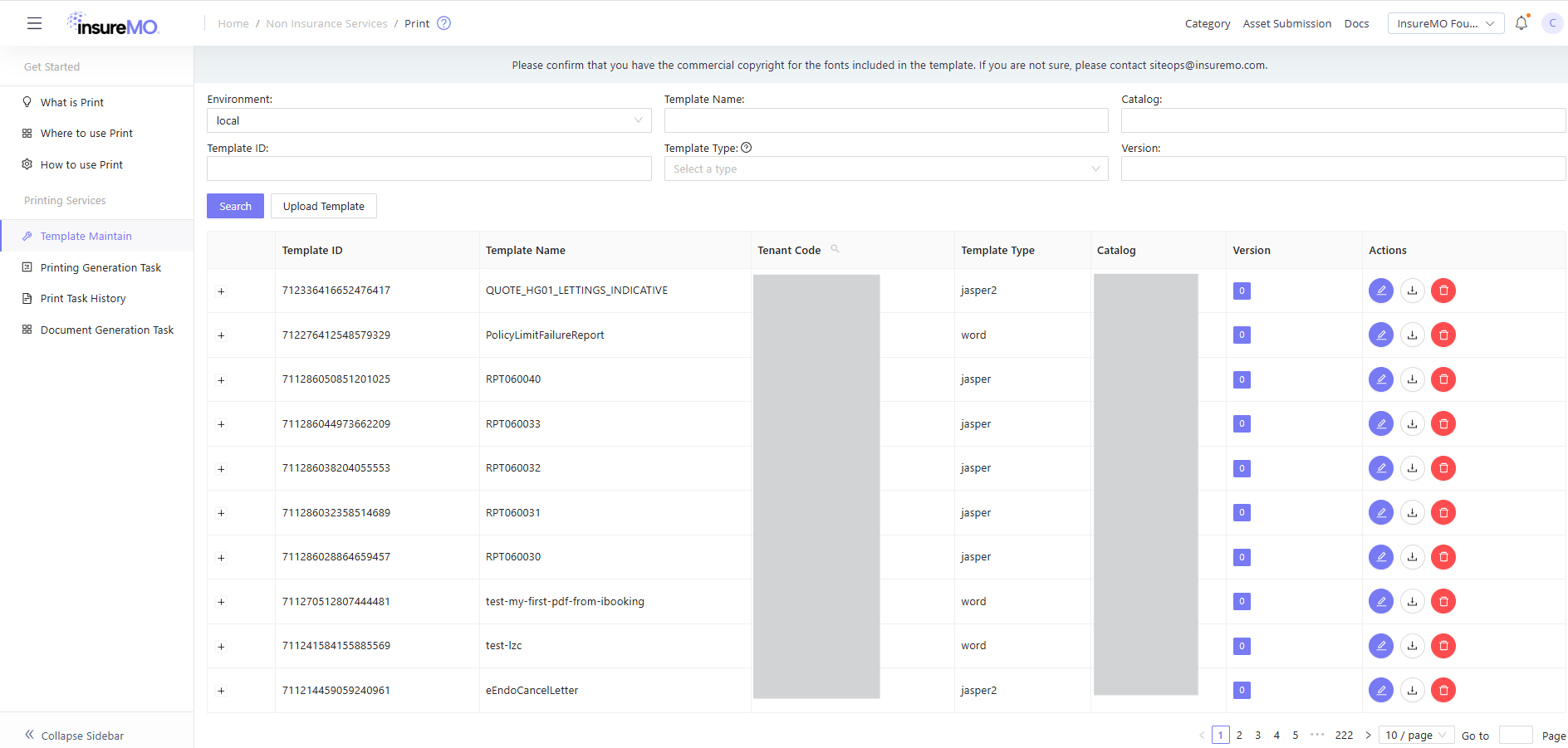
Select Template Maintain
-
Click Upload Template, set Template Type to
html
4. Generate Documents
Via Portal
- Select Printing Generation Task, click Create Task
- Enter the template name and print data (in JSON format)
- Download the generated file from the page once the task is complete
Via API
POST {{insuremo_gw_url}}/mo-fo/1.0/print/v3/printtask/generateRequest body example:
{
  "business_type": "BusinessType2",
  "business_id": "121212121",
  "business_id2": "business_id2",
  "business_id3": "business_id3",
  "business_id4": "business_id4",
  "org_code": "OrgCode2",
  "print_operator": "smktester",
  "template_name": "MyHtmlTemplate",
  "template_version": 0,
  "print_data": {
    "policy_number": "POL-2026-001",
    "policy_holder_name": "John Smith",
    "effective_date": "2026-01-01",
    "insured": {
      "name": "Jane Smith",
      "id_number": "S1234567A"
    },
    "coverages": [
      { "name": "Personal Accident", "coverage_amount": "500,000", "premium": "1,200" },
      { "name": "Medical", "coverage_amount": "100,000", "premium": "800" }
    ]
  },
  "dynamic_data": "{\"name\":\"12345678\"}",
  "export_file_name": "policy_document.pdf",
  "export_file_type": "pdf",
  "print_data_content_type": "json",
  "async_or_sync": "sync",
  "storage_config": "store",
  "print_doc_type": "html"
}Key parameter: print_doc_type must be set to "html".
Retrieve the generated result:
GET {{insuremo_gw_url}}/mo-fo/1.0/print/v3/printtask/get-result-by-id?print_task_id={task_id}&base64=trueFor detailed API documentation, please refer to: Print Management V3 API Doc
Template Design Considerations
CSS Print Styles
Since the final output is PDF, it is recommended to use @page and print-related CSS properties in your template:
@page {
  size: A4;
  margin: 20mm;
}

@media print {
  body {
    font-family: 'Arial', sans-serif;
    font-size: 12pt;
  }

  /* Avoid breaking inside elements */
  table, figure {
    page-break-inside: avoid;
  }

  /* Page break before headings */
  h1 {
    page-break-before: always;
  }
}
Font Support
Fonts used in the template must be available in the HTML Docgen Service runtime environment. It is recommended to use common fonts (such as Arial, Times New Roman) or import deployed font files via @font-face.
Image Handling
If your template needs to reference images:
- Base64 encoding is recommended for embedding images inline, to avoid failures caused by external image references
<!-- Base64 embedded image -->
<img src="data:image/png;base64,iVBORw0KGgoAAAANSUhEUg..." alt="logo" />
Supported Export Formats
| Format | Description |
|---|---|
| The most commonly used format, suitable for printing and archiving | |
| HTML | Raw HTML format output |
Comparison with Other Document Generation Services
| Feature | HTML Docgen | Jasper (v6.20.6) | Word Docgen |
|---|---|---|---|
| Template Type | html | jasper2 | word |
| Template Format | HTML + Handlebars (plain text) | .jrxml / .jasper (binary) | .docx (binary) |
| Design Tool | Any text editor / AI generation | Jaspersoft Studio | Microsoft Word |
| Layout Approach | HTML/CSS (AI can generate directly) | Jasper visual designer | Word formatting |
| Export Formats | PDF, HTML | PDF, HTML, Excel, CSV, Word | PDF, Word |
| AI Generability | ✅ High (plain-text format) | ❌ Low (proprietary binary format) | ❌ Low (binary format) |
| Learning Curve | Low (AI can assist) | Medium | Low |
Recommendation: For new projects, prioritize HTML Docgen for more flexible layout control and lower maintenance costs. HTML, as a plain-text format, is naturally suited for AI understanding and generation — you can describe your requirements in natural language and let AI produce template code automatically. Combined with the insuremo-output-service-helper skill, you can complete upload and testing in one step, significantly shortening the development cycle.
Sample Template
FAQs
Q: The styles in my HTML template don’t render consistently in the generated PDF. What should I do?
A: HTML-to-PDF conversion uses a server-side rendering engine, which may differ from browser rendering. Suggestions:
- Use standard CSS properties and avoid experimental features
- Use
@pagerules to control page size and margins - Use
page-break-*properties to control pagination
💡 AI Tip: You can instruct AI to follow these print style guidelines when generating the template, avoiding manual debugging later.
Q: How do I debug template rendering results?
A: You can first set export_file_type to html and preview the HTML rendering result in a browser. Once confirmed, switch to pdf output.
Q: Can I use JavaScript in templates?
A: Templates only support Handlebars template syntax. JavaScript execution within templates is not supported. For complex logic, preprocess the data in your business system.
💡 AI Tip: Although JavaScript is not available in templates, you can ask AI to help design a reasonable data structure and complete complex calculations at the business layer before passing data to the template, keeping the template itself focused on simple display logic.
Q: I get an error when uploading the template. What should I check?
A: Please verify:
- The template type is set to
html - The HTML file format is correct (complete HTML document structure)
- Handlebars syntax has no spelling errors
💡 AI Tip: If you use AI to generate templates, you can ask AI to validate the template against Handlebars syntax rules during generation, eliminating most syntax errors before importing into the system.
This document may include links to external websites and third-party features for demonstration purposes only. These links and features do not imply our endorsement or recommendation. We do not control and are not responsible for the content, services, or privacy practices of these third parties. Users should independently review their terms and privacy policies.