Overview
What is Audit?
-
Record a series of user operations, and provide a quick query function.
-
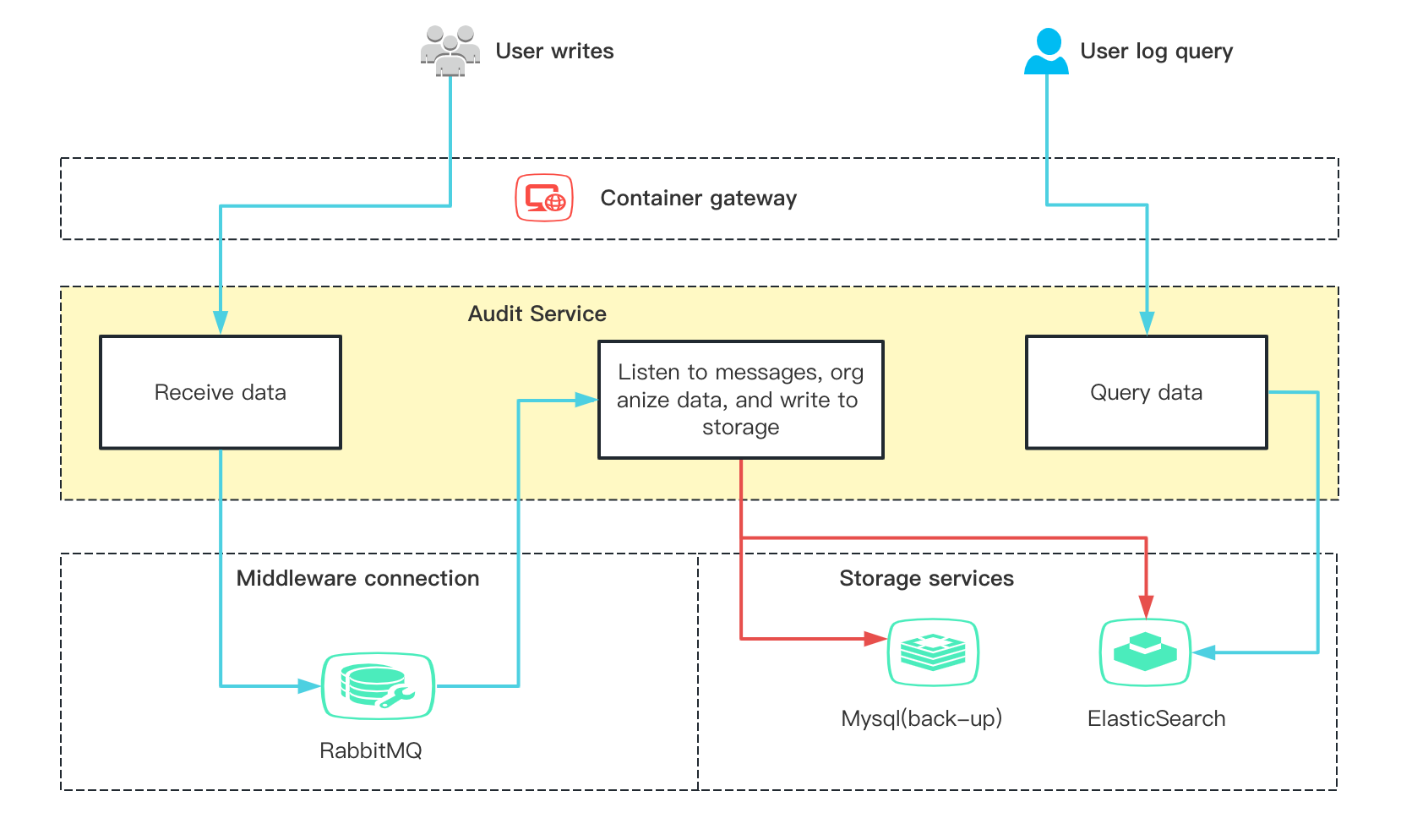
Audit architecture:
1. How to use Audit?
Entry:
- Log in to insureMO Portal with your personal account.
If you don’t have insureMO personal account, click Sign Up to register one. Then log in to the portal.
-
Click Catalog at the top of the home page.
-
In the left panel of the Catalog page, navigate to Catalog > Non Insurance Services > Security.
-
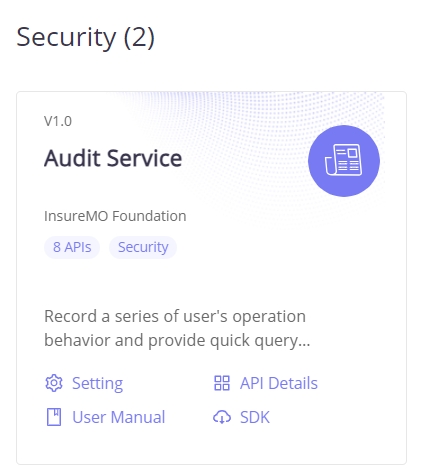
Find the Audit Service card, and click Setting.
Before using the service, you need to create some metadata in the container, which will be used when calling API.
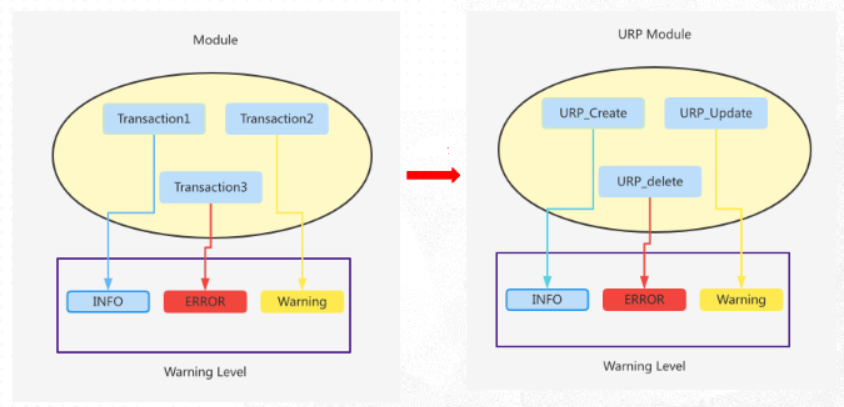
1.1 Module
This is a grouping concept.
Users can group according to their usage, such as their own microservices or business scope. When querying audit data, the module is used as a retrieval condition.
Once you click setting and enter the page of Audit, click Module > Create to create a module.
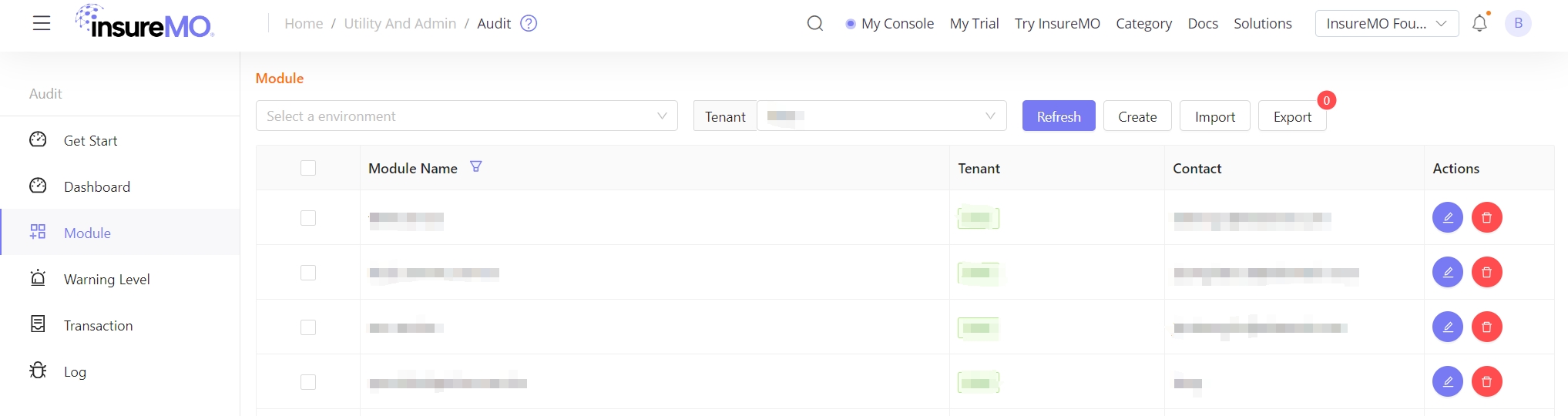
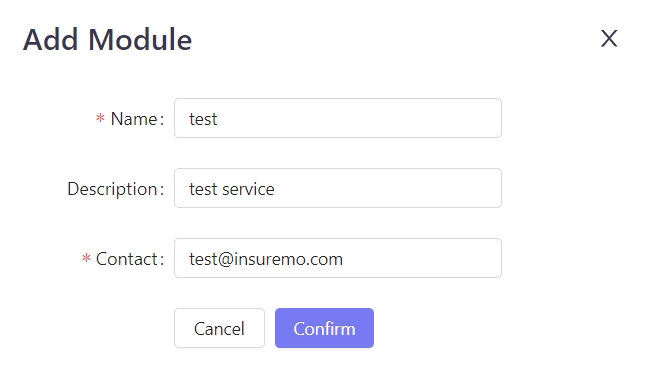
Import/Export module excel format

1.2 Transaction
Transaction is a specific operation behavior under the module. For example, creating an insurance policy can be used as an operation behavior under the insurance policy module.
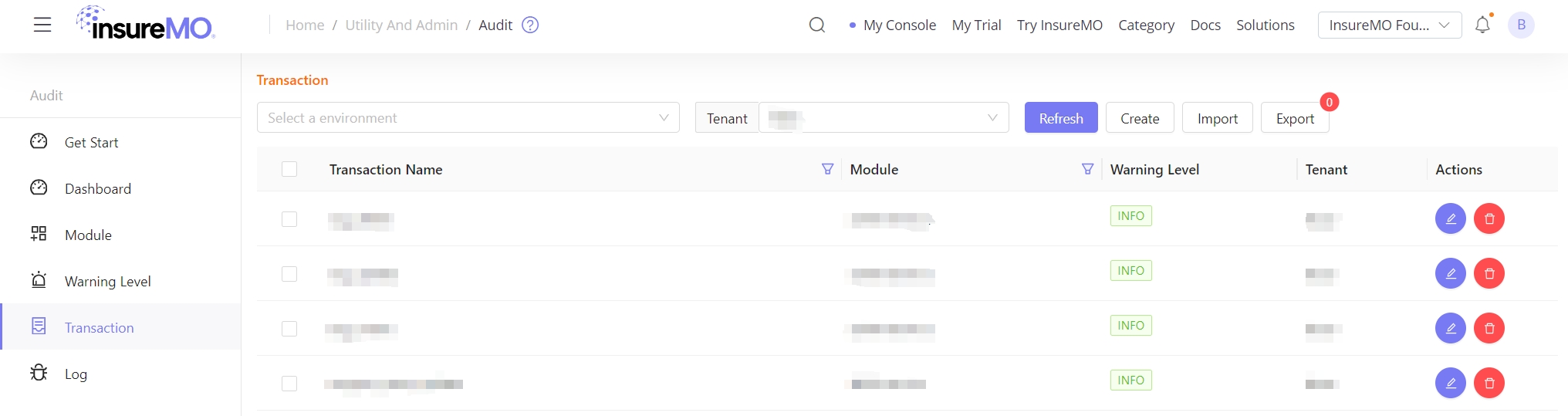
Create transaction.
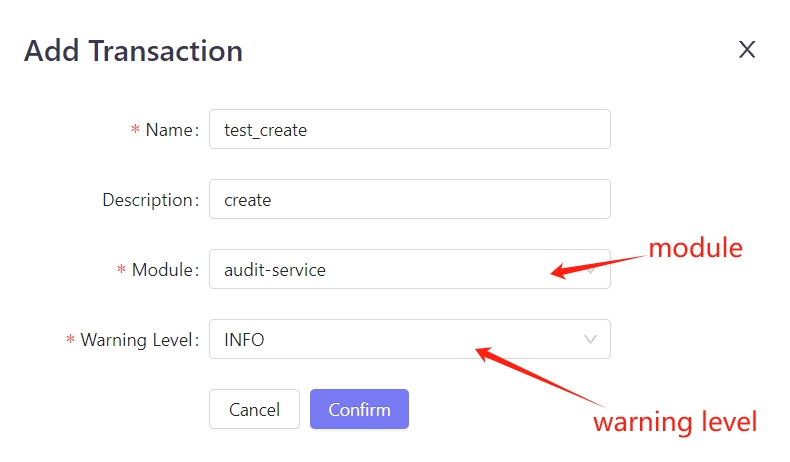
Import/Export transaction excel format.

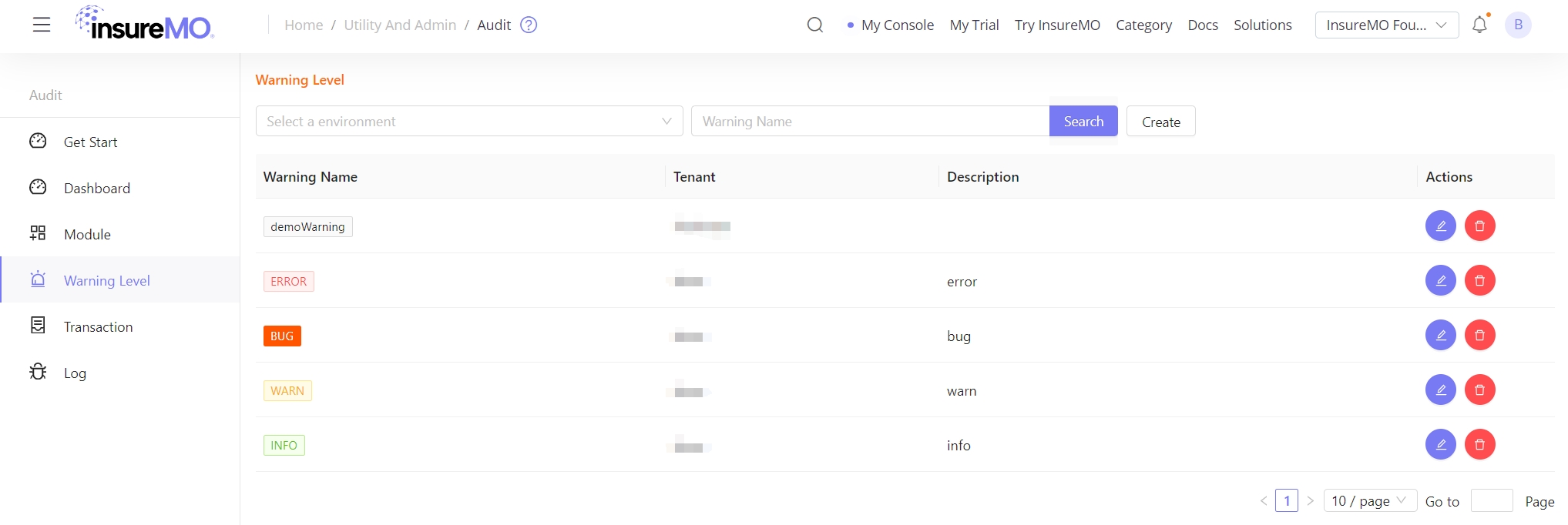
1.3 Warning Level
Two levels of INFO/WARN have been provided. If you need another level, please contact container to create it.
1.4 Metadata Relationship
2. API Access Request
- Choose Utility And Admin.
- Choose Audit Service to request API access.
3. API Integration Testing
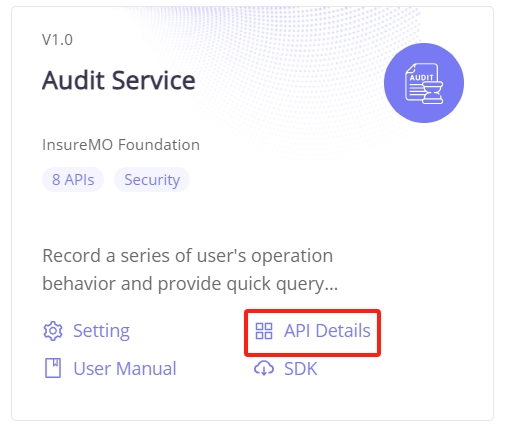
- Click API Details to view the swagger doc and the explain of API parameter.
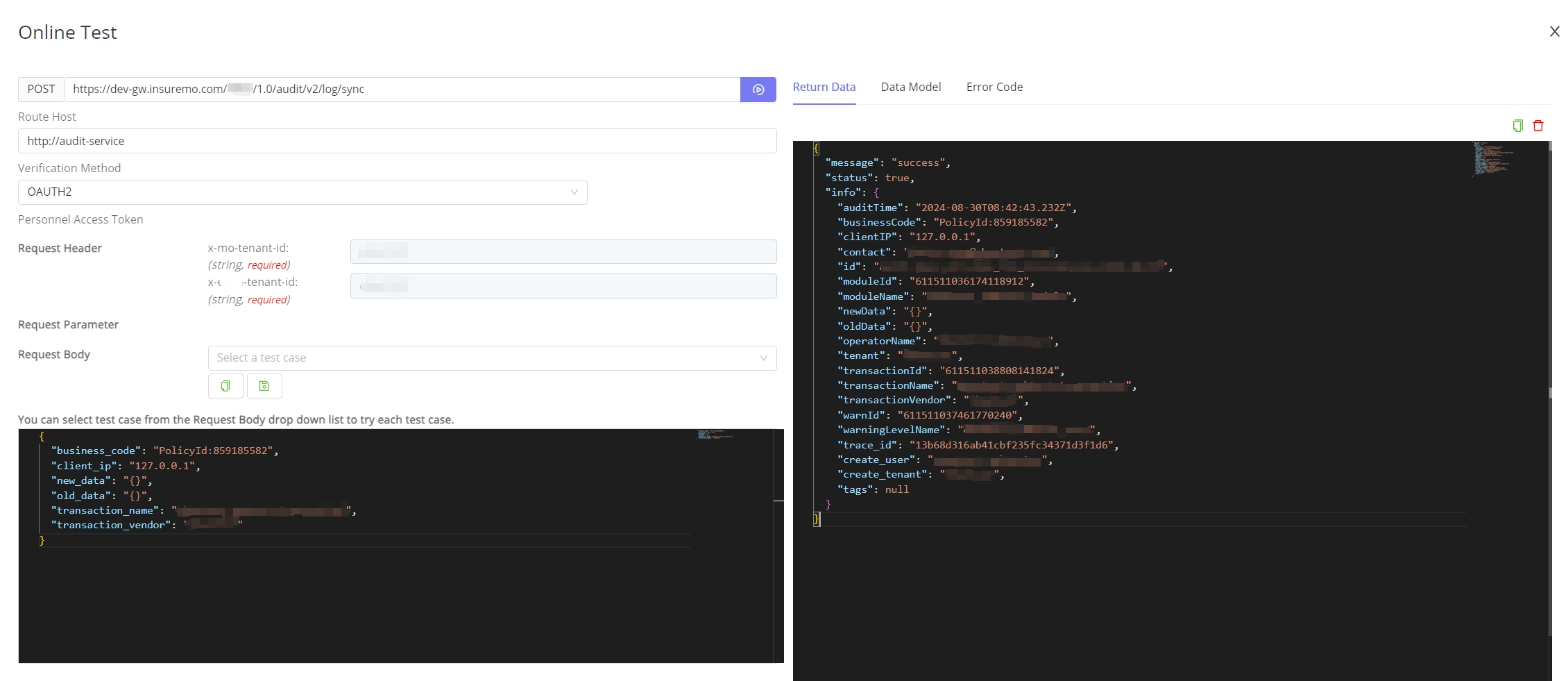
- Click Test API to do the online test.
4. Data Retrieval
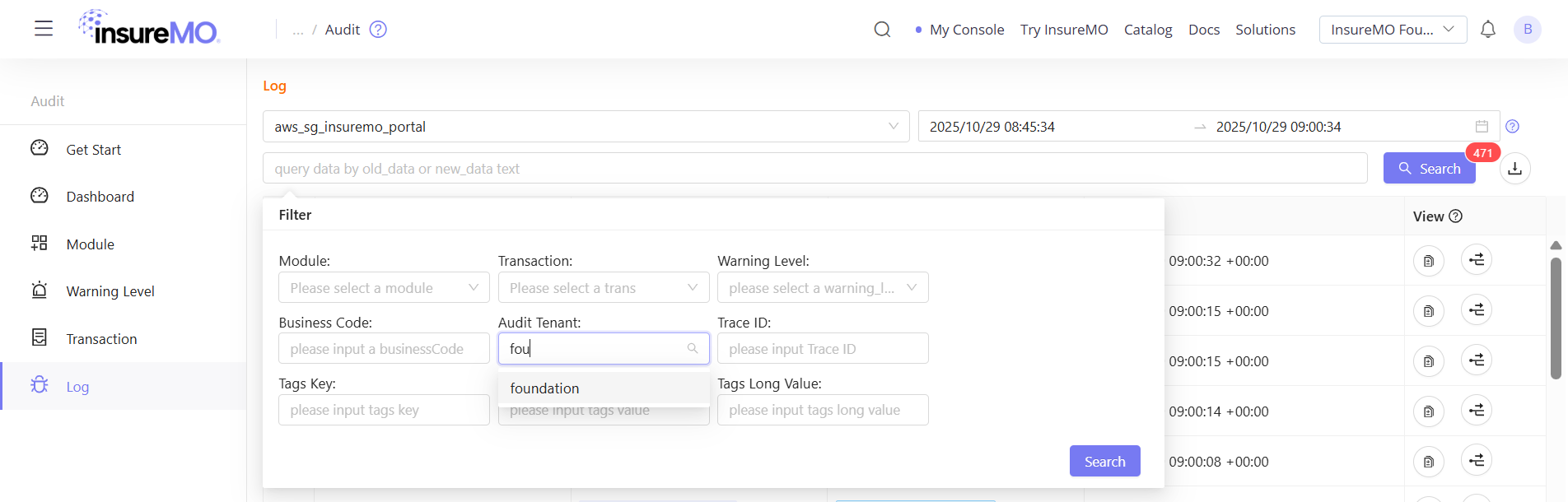
- Cross-environment query in portal, provided that the target environment has an account with the same name (tenant).
- Query the current login tenant code data by default. You can select Target Tenant to query other tenant audit data.
Scenarios
Scenario 1: The developer uses audit to record the usage information of the service
-
Write to log URL.
{{insuremo_gw_url}}/mo-fo/1.0/audit/v3/log/sync
// Body{"business_code": "PolicyId:XXXXXX","client_ip": "127.0.0.1","new_data": "{}","old_data": "{}","transaction_name": "sample_transaction","transaction_vendor": "foundation"}
Scenario 2: Business people record the modification information
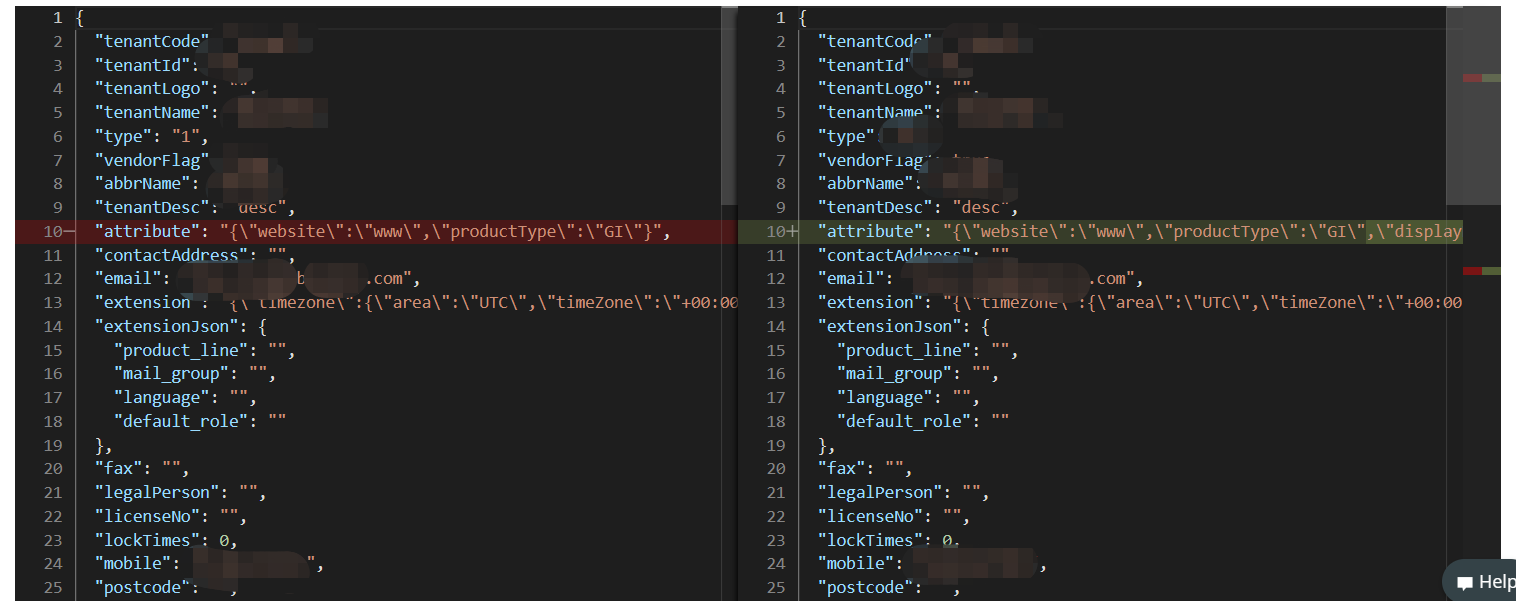
Scenario 3: The security chief monitors violations

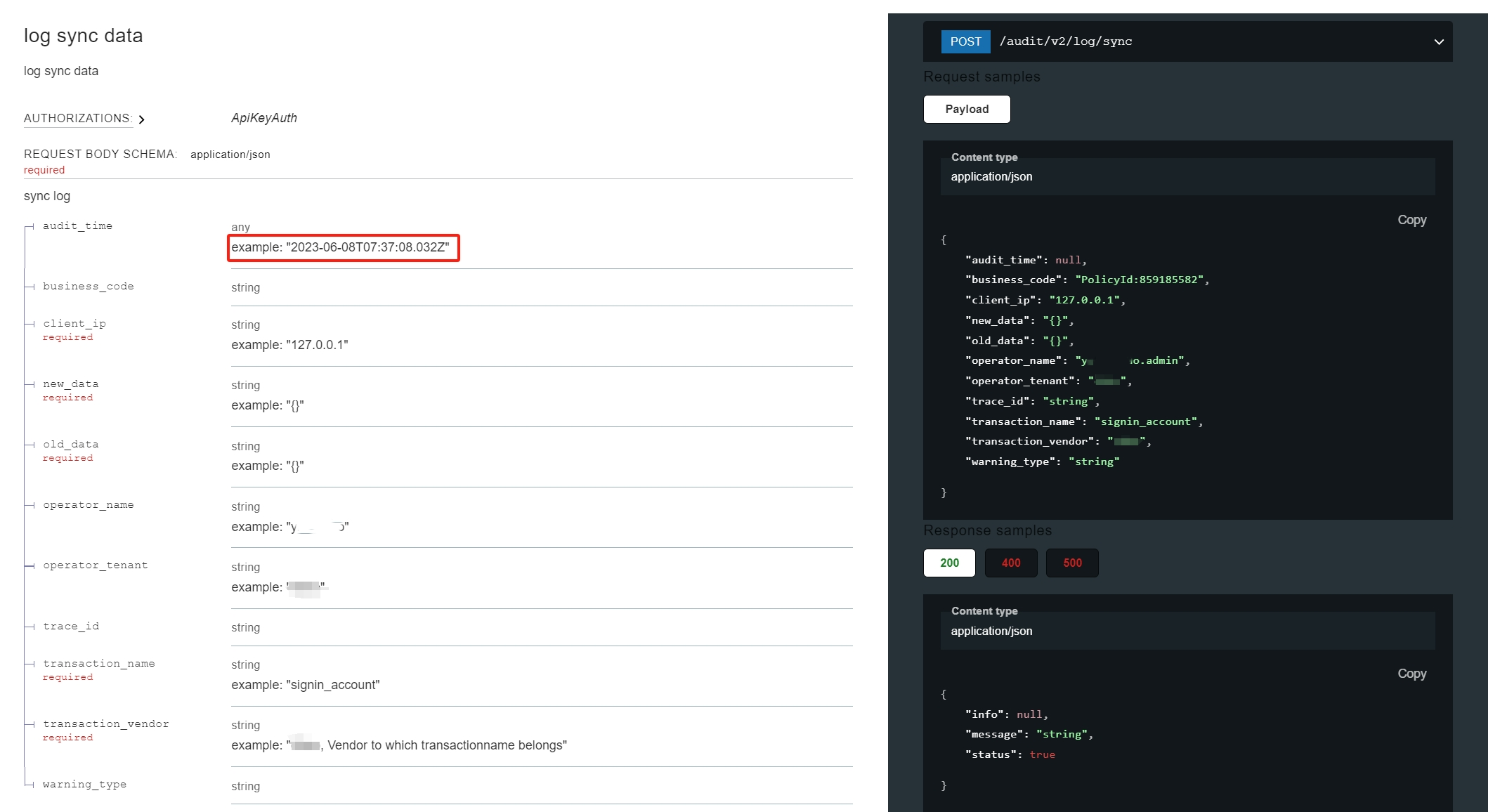
API
Sync Log URL
{{insuremo_gw_url}}/mo-fo/1.0/audit/v3/log/sync
// Body
{
  "transaction_name": "sample_transaction",
  "transaction_vendor": "foundation",
  "business_code": "PolicyId:XXXXXX",
  "client_ip": "127.0.0.1",
  "new_data": "{}",
  "old_data": "{}",
  "warning_type": "INFO",
  "trace_id": "",
  "tags": [],
  "compress_type": ""
}
Query Log URL (Page Mode)
{{insuremo_gw_url}}/mo-fo/1.0/audit/v3/log/query-many
Use page_num for page-based pagination. Suitable for scenarios where you need to jump to a specific page directly (e.g., portal UI with page numbers).
// Body
{
  "module_name": "go-cas-service",
  "transaction_name": "sso_login",
  "start_time": "2024-08-30T09:11:26.891Z",
  "end_time": "2024-08-30T09:26:26.891Z",
  "return_size": 50,
  "page_num": 1
}
Query Log URL (Scroll Mode)
{{insuremo_gw_url}}/mo-fo/1.0/audit/v3/log/query-many
Use scroll_id for scroll-based pagination. Suitable for scenarios where you need to iterate through large result sets sequentially (e.g., data export, batch processing). Pass the scroll_id returned from the previous response to fetch the next batch.
// Body — first request
{
  "module_name": "go-cas-service",
  "transaction_name": "sso_login",
  "start_time": "2024-08-30T09:11:26.891Z",
  "end_time": "2024-08-30T09:26:26.891Z",
  "return_size": 50,
  "scroll_id": ""
}
// Body — subsequent requests (use scroll_id from previous response)
{
"module_name": "go-cas-service",
"transaction_name": "sso_login",
"start_time": "2024-08-30T09:11:26.891Z",
"end_time": "2024-08-30T09:26:26.891Z",
"return_size": 50,
"scroll_id": "DnF1ZXJ5VGhlbkZldGNoAwAAAA..."
}
V2 to V3 Migration Guide
V3 is the latest version of the Audit API. For the two core APIs (log/sync and log/query-many), the migration is straightforward — only the URL path prefix changes, request/response body remains fully compatible.
Endpoint Mapping
| V2 Endpoint | V3 Endpoint |
|---|---|
POST /audit/v2/log/sync | POST /audit/v3/log/sync |
POST /audit/v2/log/query-many | POST /audit/v3/log/query-many |
Key Differences
| Item | V2 | V3 |
|---|---|---|
| URL prefix | /audit/v2 | /audit/v3 |
| Middleware | MustMoUserHandler | MustMoUserWithoutTargetUserHandler |
| Request/Response body | Same | Same (fully compatible) |
- V3 middleware no longer requires the target user header. If your V2 integration was passing it, you can safely remove it.
Migration Steps
1. Update URL
# Before (V2)
{{insuremo_gw_url}}/mo-fo/1.0/audit/v2/log/sync
{{insuremo_gw_url}}/mo-fo/1.0/audit/v2/log/query-many

# After (V3)
{{insuremo_gw_url}}/mo-fo/1.0/audit/v3/log/sync
{{insuremo_gw_url}}/mo-fo/1.0/audit/v3/log/query-many
2. Remove Target User Header (if applicable)
V3 uses MustMoUserWithoutTargetUserHandler, so the target user header is no longer required.
3. Verify
Request body and response structure are identical between V2 and V3. No field changes needed — just update the path and test.