What is CloudDisk
CloudDisk Service is a lightweight and low-cost cloud storage service. You can upload and download data in any application anytime and anywhere by calling the API. It can also be managed simply through the portal. CloudDisk is suitable for storing any type of files, and is suitable for various websites, development companies, and developers.
Usage Scenario
- Storage and access of various documents: electronic policy, electronic documents, etc.
- Temporary storage of document uploading: upload excel to S3 first, and then read it in the background.
- Storage and archiving of critical messages: logs interacting with supervisory services.
- Static files for web pages: pictures and streaming media in pages, etc.
- …
Service Feature
- It is an integration of third-party storage:
- amazon s3(Contains storage compatible with s3 protocols)
- aliyun oss
- azure blob storage
- microsoft sharepoint
- Safety guaranteed
- Client-side encryption
- Tenant isolation
- Easy to access
- Restful API
- Page management
- File sharing
Bucket
A bucket is a container for storing objects.
When creating a bucket, you can enter the name of the bucket, then choose to associate a storage target (s3, oss, azure, sp), and configure the policy of the bucket at the same time.
A CloudDisk bucket is just a mapping of a storage target, and it can have different names. Multiple CloudDisk buckets can correspond to the same storage target.
General configuration
- Compatibility
Turning on the compatibility configuration means that when an error is reported when connecting to the storage target, it is temporarily stored in the database.
- Encryption
When the encryption configuration is turned on, the object will be encrypted by the client before being uploaded to the storage target.
DEFAULTThe same asV2AESV0CONFUSIONDeprecated. Obfuscated Encryption, add some random characters at start of object content.V1ADVANCEDCONFUSIONDeprecated. Advanced Obfuscation Encryption, add some random characters at both start and end of object content.V2AESAES Encryption, encrypt object content with AES_256 encryption.
Objects encrypted by the client can only be uploaded and downloaded through CloudDisk, and cannot be directly accessed after being encrypted in the storage target.
However, the encryption operation will increase API response times when uploading and downloading. Since third-party storage has already provided complete server-side encryption, we do not recommend using client encryption in CloudDisk service if there is no such strong security requirement.
Encryption is not supported for multipart uploaded objects.
AWS S3
Regiondefinition region of aws. compatible S3 is stored as us-east-1.Access KeyS3’s AK.Secret KeyS3’s SK.Bucketbucket’s name in the definition of S3.EndpointS3 is compatible with storage endpoint. When using aws S3, this field does not need to be configured.
Aliyun OSS
Regiondefinition region of OSSAccess KeyAK of OSSSecret KeySK of OSSBucketbucket’s name in the definition of OSS
Azure Blob Storage
Access SecretAzure’s connection string, such asDefaultEndpointsProtocol=https;AccountName=xxx;AccountKey=xxxxx;EndpointSuffix=core.windows.netContainerAzure Blob’s container for storageRoot Dictionaryroot directory for storage
Sharepoint
Usernamesp’s usernamePasswordsp’s passwordSitesp’s group and root directoryDomainsp’s domain
Object
An object is a file and any metadata that describes it.
It consists of a unique “key” and content.
Unlike traditional storage, CloudDisk does not have the folder. When presented, the object key name is presented as a folder structure using prefixes and delimiters.
Basic Operation of the Object
Objects in CloudDisk provide support for the following basic operations.
- Upload
- Download
- Copy
- Delete
Unlike traditional storage, CloudDisk does not support directories moving or renaming, but it can do so through copying and deleting.
Incognito Mode
CloudDisk supports incognito mode to meet special needs of tenants. The difference is as follows.
| Normal Mode | Incognito Mode | |
|---|---|---|
| Local storage | Preserve object’s thumbnail information in CloudDisk. | Do not preserve any information in CloudDisk. |
| Page | Objects in the bucket can be browsed by page. | Page browsing is not supported. |
| Third-party storage | Key will be prefixed with tenant, bucket and suffixed with version. | Key and incoming parameters should be consistent. |
| Client-side encryption | Supported | Supported, but generally client-side encryption won’t be configured. |
| Compatibility configuration | Supported | Unsupported. |
| Usage scenarios | General scenarios | Do not want to keep information in CloudDisk. Need to coordinate with other apps to access the target storage. Need to directly access the target storage in other ways. Only access objects stored in the target storage through CloudDisk. |
Object’s Sharing (pre-signed)
All objects and buckets are private by default. However, you can use pre-signing to selectively share objects without requiring security credentials or permissions.
An expiration time can be set to restrict objects from being permanently accessed.
At the same time, the sharing object also generates a shared/pre-signed URL(Uniform Resource Locator) of the target storage.
- Sharepoint only returns the storage access path, and does not support access without credentials.
- Incognito mode only returns the URL stored by the third party.
Multipart Upload
Multipart upload allows a single object to be uploaded as a set of parts. Each part is a contiguous portion of the object’s data. You can upload these parts independently and in any order. If the transmission of a part fails, that part can be retransmitted without affecting other parts. When all parts are uploaded, they are assembled to create the object. In general, if an object reaches 20 MB, you should consider using multipart uploads instead of uploading an object in a single operation.
Multipart uploads have the following advantages:
- Increased throughput: You can upload parts in parallel to increase throughput.
- Fast recovery from any network issues: Smaller segments minimize the impact of restarting failed uploads due to network errors.
- Pause and resume object uploads: You can gradually upload objects in segments over a period of time. After starting a multipart upload, there is no expiration period; you must explicitly complete or stop the multipart upload.
- Start uploading before you know the final size of the object: You can upload the object when it is created.
Also, pay attention to the following things when using multipart uploads:
- Only S3, OSS and Azure Blob Storage support multipart upload.
- Multipart upload adopts notrace mode.
- It is not recommended to use CloudDisk to download large files. You can download through the pre-signed link after generating the pre-signed link.
Console
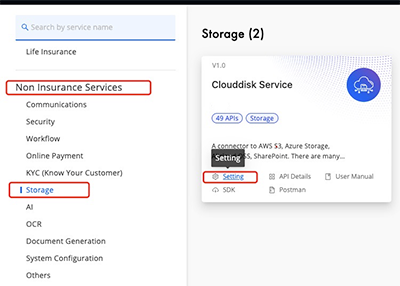
Click Non Insurance Services - Storage - Clouddisk Service - Settings to enter the console.
Bucket Management
Bucket List
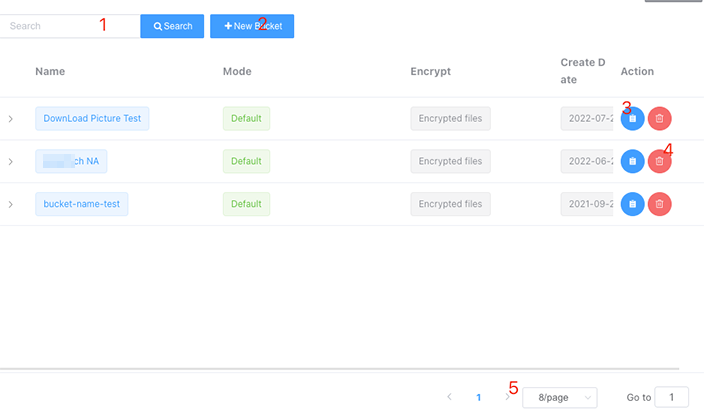
You can check bucket list in the console
- At
1, you can enter the bucket name to filter. - Press
2button to create new bucket. - Press
3button to enter object management. - Press
4button delete bucket. - Press
5button to turn pages.
Create new Bucket
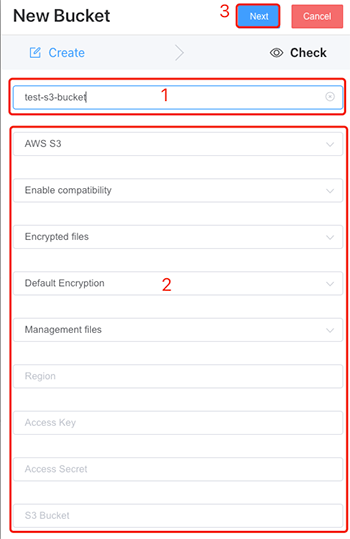
Click +New Bucket on the Bucket List page.
Enter the bucket name in the pop-up box, select the third-party storage to be used, and configure the connection information.
For field descriptions, please check Bucket.
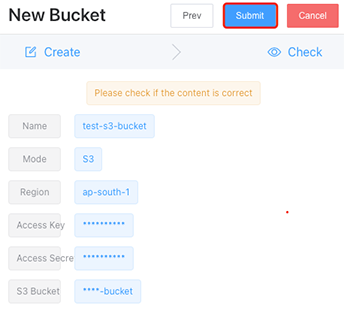
Click Next to confirm the input information.
Confirm the correctness of the information is correct, click Submit to create a bucket.
Delete Bucket
Find the bucket to be deleted in bucket list , click the delete to the right of the bucket, then click Ok to confirm deletion.

Object Management
Object List
On the Bucket list page, find the record that needs to be viewed in the Object list, and click the button to enter the Object list.
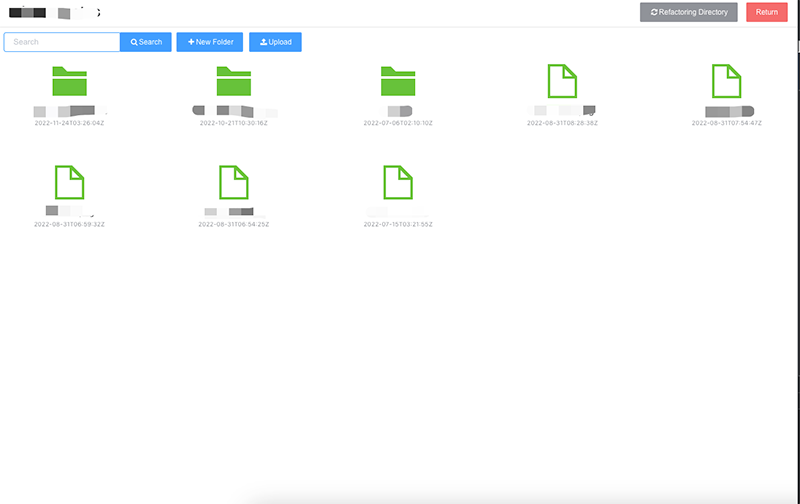
- Click +New Folder, you can create a sub-path under the current path.
- Click Upload, you can upload objects under the current path.
- If the bucket already has data but there is no data on this page, you need to click Refactoring Directory in the upper right corner again to re-establish the virtual directory structure.
Path(Prefix) Operation
Select the Prefix that needs to be operated, and make sure the target is blue.
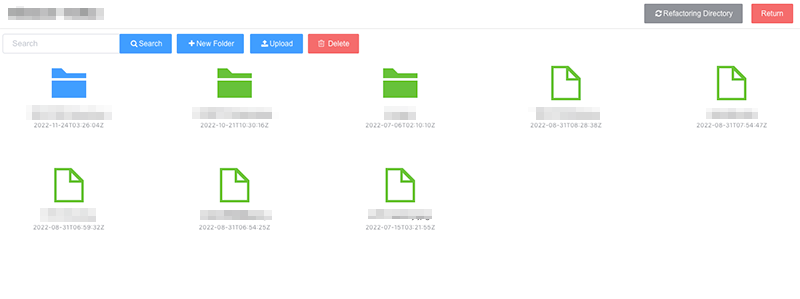
- Double-click Prefix to enter the sub-path management page
- Click Delete to delete it and all objects under it
Object Management
Select the Object that needs to be operated, and make sure the target is blue.
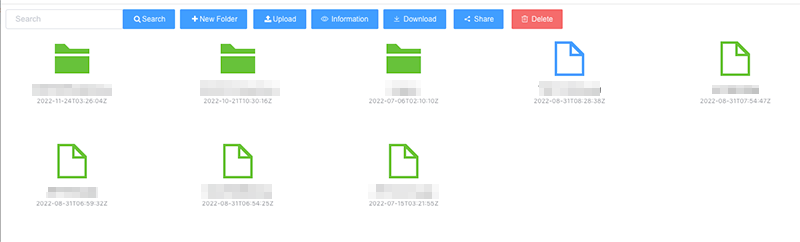
- Click Information or double-click the object to view its basic information.
- Click Download to download a file.
- Click Share to share the Object with others.
- Click Delete to delete an object.