An object consists of data (like a file) and its associated metadata.
It consists of a unique “key” and content.
Unlike traditional storage, CloudDisk does not have folders. When displayed, the object key name is presented as a folder structure using prefixes and delimiters. Unlike traditional storage, CloudDisk does not support moving or renaming directories.
Naming Objects
The object key uniquely identifies the object in a bucket. When you create an object, you specify the key name. The object key name is a sequence of Unicode characters encoded in UTF-8, with a maximum length of 1,024 bytes. Object key names are case sensitive.
The object data model is a flat structure: you create a bucket, which stores objects. There is no hierarchy of sub-buckets or subfolders. However, you can infer logical hierarchy using key name prefixes and delimiters as the CloudDisk console does. The CloudDisk console supports a concept of folders.
Since key is the only way to retrieve and search for objects, we recommend that you add some key information to the key, such as business line, function type, time, search criteria, etc. For example:
policy/2024/05/pid-xxxxx/abc.pdflog/your-bff/2024/console.logimages/Asia/Singapore/Merlion.png
We recommend that key should not start with / and cannot use soap.
An object key name can contain any UTF-8 character, but some characters may cause issues with certain applications and protocols. The following guidelines help you maximize compliance with DNS, web-safe characters, XML parsers, and other APIs.
The following character sets are recommended for safe usage in key names:
- Alphanumeric characters: a-z, A-Z, 0-9
- Hyphen:
- - Underscore:
_ - Period:
. - Forward slash:
/
The following characters in a key name may require additional handling in code and need to be URL-encoded or represented as HEX. Some of these are non-printable characters that your browser can not handle, which also require special handling:
!, *, ', (, ),$,@,=,;,:,+,,,?
For other characters, we recommend that you shouldn’t use them in a key name because of significant special character handling, which isn’t consistent across all applications.
Put Objects (Upload Objects)
You can upload any file type—images, backups, data, movies, and so on—into a bucket. We recommend that you put objects less than 50 MB at a time. In general, when your object size reaches 50 MB, you should consider using multipart uploads.
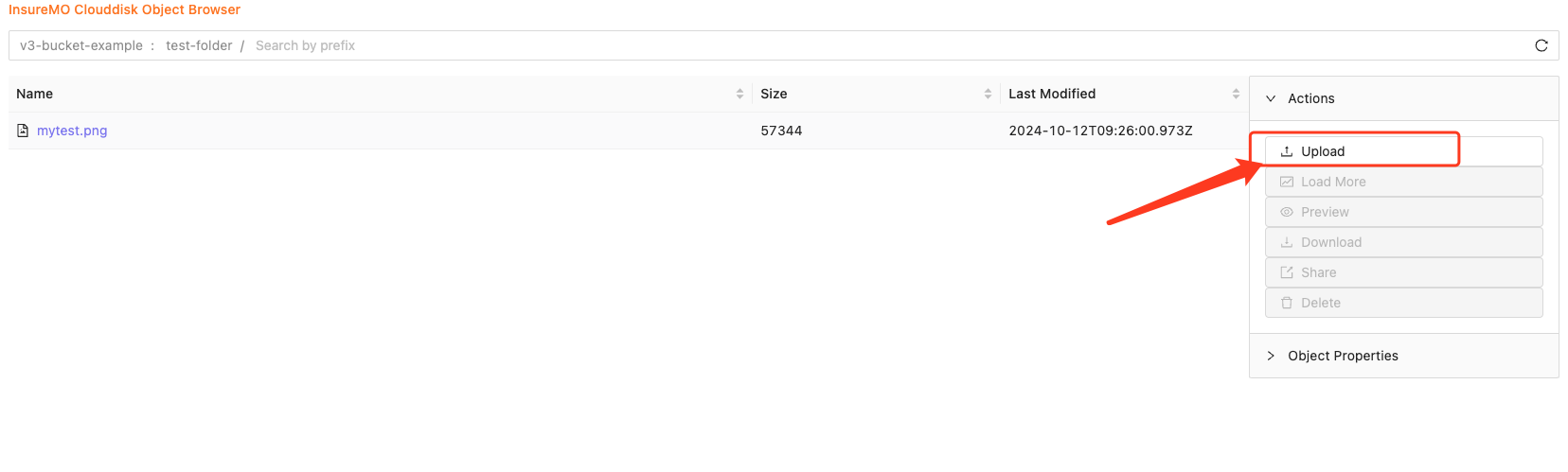
Select the folder (prefix) where you want to upload the file, or enter prefix to enter the folder where you want to upload the file. Click Upload to show Upload Files dialog.
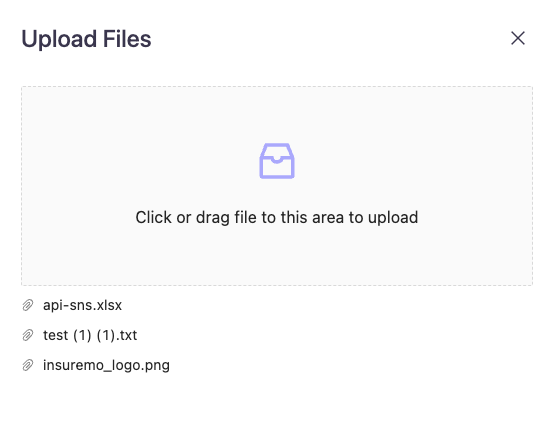
Click and select file or drag file to the area for upload. You can upload five files at a time.
Supported Headers on Upload
You can set object metadata in Amazon S3 at the time of upload. Object metadata is a set of name-value pairs. After you upload the object, you cannot modify object metadata. The only way to modify object metadata is to make a copy of the object and set the metadata.
The following table provides a list of metadata and whether you can specify them.
| Name | Description | Can user specify the value? |
|---|---|---|
Date | The current date and time. | No |
Cache-Control | A general header field used to specify caching policies. | Yes |
Content-Disposition | Object presentational information. | Yes |
Content-Length | The object size in bytes. | No |
Content-Type | The object type. | Yes |
Last-Modified | The object creation date or the last modified date, whichever is later. In the case of multipart uploads, the object creation date is considered to be the date when the multipart upload was initiated. | No |
ETag | An entity tag (ETag) that represents a specific version of an object. For objects that are not uploaded as a multipart upload, the ETag is an MD5 digest of the data. | No |
X-Mo-Tag | The tag-set for the object. The tag-set must be encoded as URL Query parameters. | Yes |
X-Mo-Meta-Xxx | The user-defined metadata for the object. Xxx is the key of metadata. | Yes |
Multipart Upload
Multipart upload allows you to upload a single object as a set of parts. Each part is a contiguous portion of the object’s data. You can upload these object parts independently and in any order. If transmission of any part fails, you can retransmit that part without affecting other parts. In general, when your object size reaches 50 MB, you should consider using multipart upload.
Multipart upload is a three-step process: you initiate the upload, you upload all the object parts, and you complete the multipart upload.
Create a Multipart Upload
When you send a request to create a multipart upload, CloudDisk returns a response with an upload ID, which is a unique identifier for your multipart upload. You must include this upload ID whenever you upload parts, complete an upload, or abort an upload. If you want to provide any metadata describing the object being uploaded, you must provide it in the request to create multipart upload.
Upload Parts
When uploading a part, in addition to the upload ID, you must specify a part number. You can choose any part number between 1 and 10,000. A part number uniquely identifies a part and its position in the object you are uploading. The part number that you choose doesn’t need to be in a consecutive sequence (for example, they can be 1, 5, and 14). If you upload a new part using the same part number as a previously uploaded part, the previously uploaded part is overwritten.
The size of each part must be greater than 5MB. There is no minimum size limit on the last part.
Complete a Multipart Upload
Your complete multipart upload request must include the upload ID and a list of both part numbers and corresponding ETag values. This ETag is not necessarily an MD5 hash of the object data.
Abort a Multipart Upload
You are billed for all storage associated with uploaded parts. It’s recommended to always either complete the multipart upload or abort the multipart upload to remove any uploaded parts.
Get Objects (Download Objects)
When you download an object, you can get both the content of the object and the metadata of the object. Metadata contains the content specified when the object is uploaded and the system-generated content.
In addition to downloading objects normally, we also provide other ways to get objects:
- Get an object with conditional requests.
- Get part of an object.
- Get an object with pre-signed-url (Share objects).
- Get objects as a ZIP packages(This is a new feature in the next version, if you are interested or want to contribute, please contact us).
To Preview Object Content
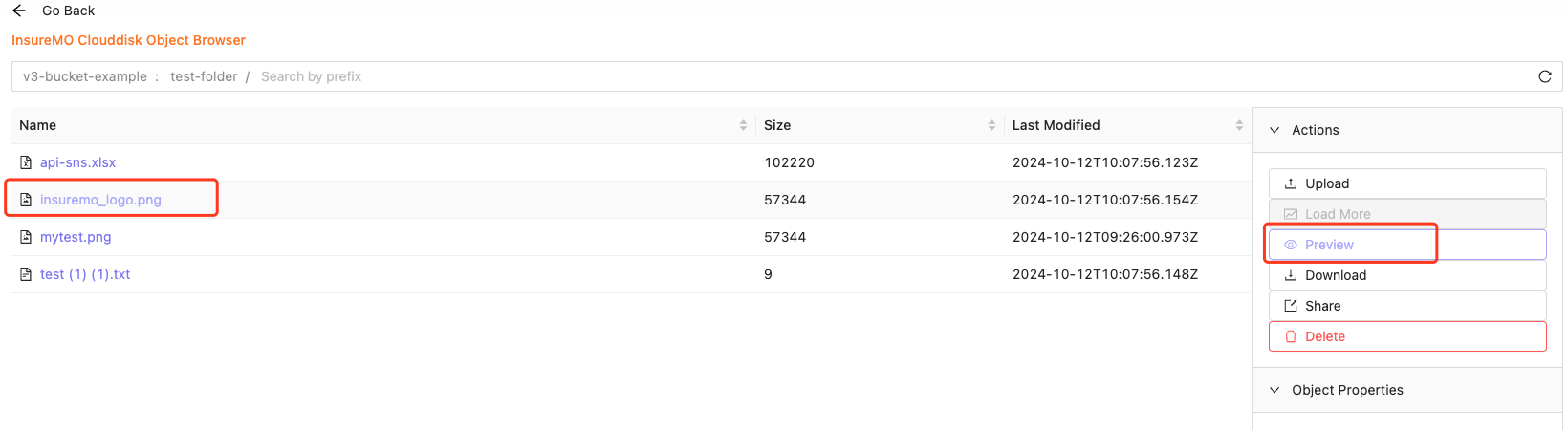
Find and select the object, and then click Preview on the right side. You can preview text and images on the console.
To Download an Object
Find and select the object, and then click Download on the right side.

List Objects
In CloudDisk, you can use prefixes to organize your storage. A prefix is a logical grouping of the objects in a bucket. The prefix value is similar to a directory name that enables you to store similar data under the same directory in a bucket. However, prefixes are not directories.
To Show Objects
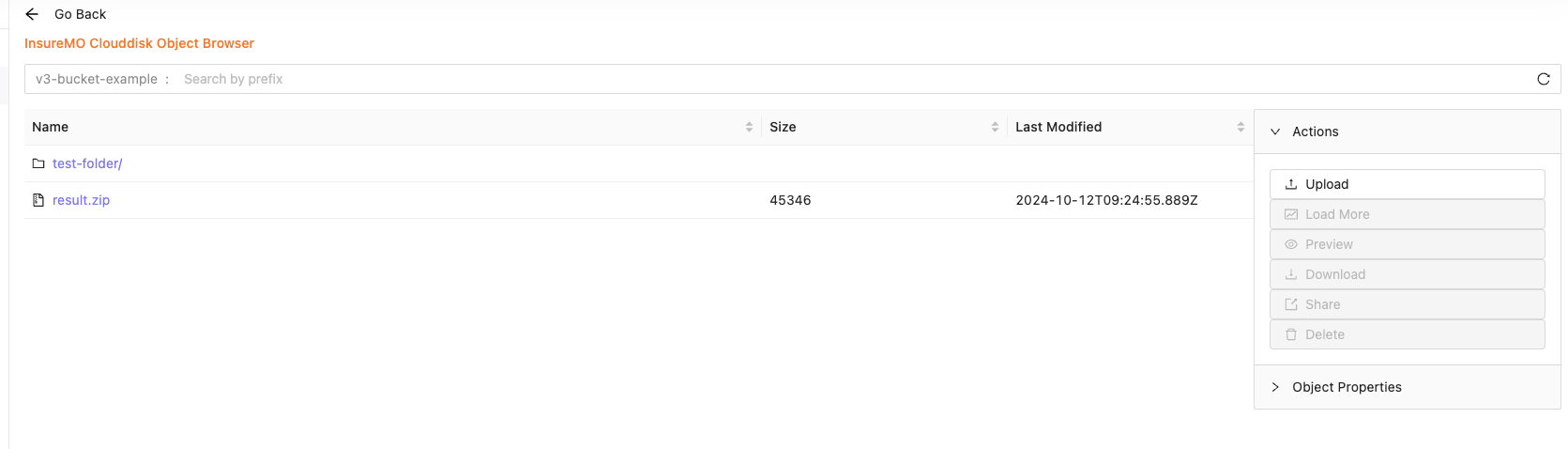
Click Objects on the right side, and then it will open Object Management.

To manage your objects, you should choose a bucket first. You can see objects as the directory structure in the console with ”/” as the delimiter.
To search objects with prefix, you can input the prefix in the search box.
Only 200 objects will be loaded at a time, so click Load More if you need to browse more objects. However, we recommend limiting the maximum number of objects to 200 within the same delimiter.
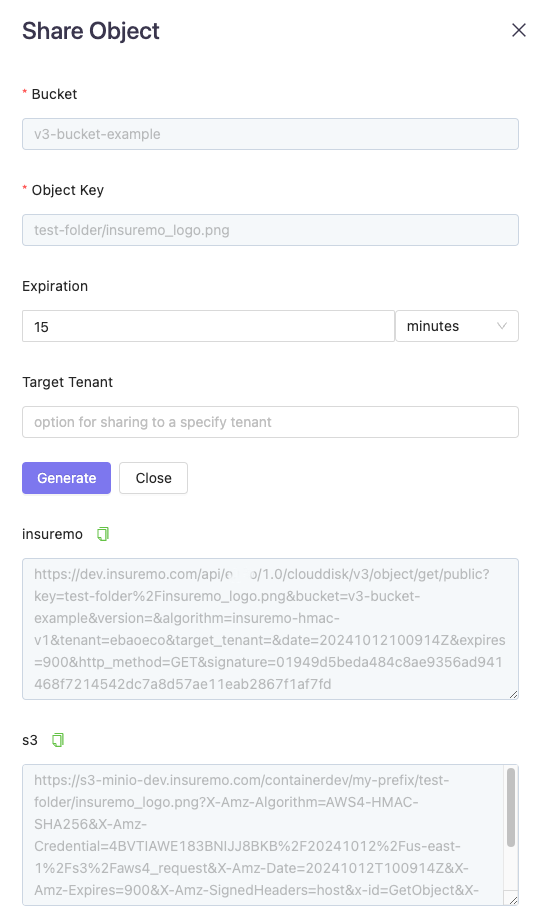
Share an Object
Find and select the object, and then click Share on the right side.
Click Generate on the dialog, and then it will show links. You can copy it and open on the other window.
Delete Objects
Find and select the object, and then click Delete on the right side.
