Where to Use
DMEngine is a tool used to manage transformation script instead of manually writing. When you are struggling to manually manage the script and find it hard to maintain document against script, it is the time to use this.
Besides, DMEngine integrates all the migration steps from data file loading to target database uploading, including reconciliation report.
Who is the Potential Audience
- Migration team members.
- Any developer who is going to do data transfer from one system to another system with transfer logic.
How to Start
Apply to insureMO Portal
- Log in to insureMO Portal with your personal account.
If you do not have a personal account, click Sign up to register one. Then log in to the portal.
-
Click Catalog at the top of the home page.
-
In the left panel of the Catalog page, navigate to Non Insurance Services > Data Consolidation and Utilization.
-
Find the Data Migration Engine card and click Apply to apply for authority.
-
In the left panel of Data Migration Engine page, click Profile Setup. Create a profile space to manage your own profiles with password.
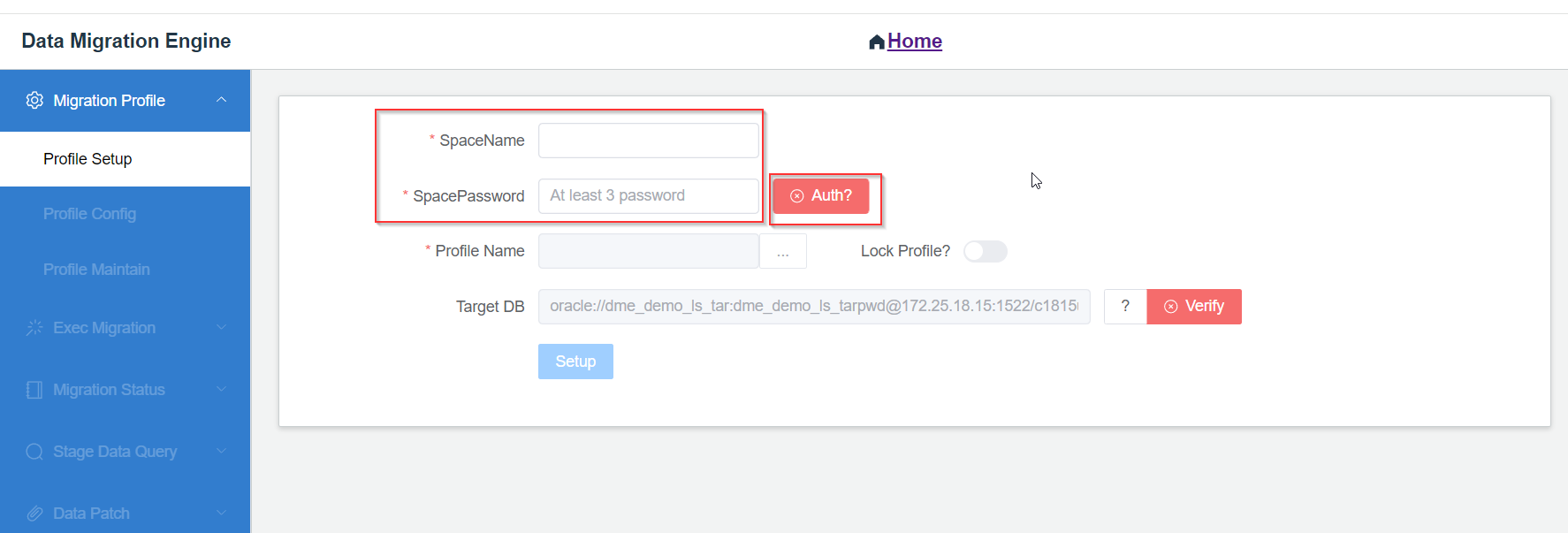
a. Key in any profile name after Auth succeeds.
b. Default system will generate a set of sample configuration for new profile and can run directly.
Now, you can explore the migration world.
Concept or Term Clarification
Profile
It’s a series of configuration data to be used during migration phases, including template, mapping, sequence, report, etc.
Profile name should be unique. If it’s used by other profile space, system will raise errors.
Initial Data
This refers to all kinds of statistical data to be used during migration process, such as product configuration data, reference data, special code table.
Template
It’s a standard format to define the table structure in Excel format.
Mapping Scripts
As key migration script configuration in CVS format, there are 5 files in total to configure the mapping script. DMEngine will generate migration script based on configured files.
Stage
As the area to keep the process and target data during migration process, it’s a memory DB.
Code Table
It will list values to be referred from template or mapping rule.
Report or Verification Abbreviation
| Abbreviation | Name | Description |
|---|---|---|
| DVR | Data Verification Rules | Driven by template definition. |
| BVR | Business Verification Rules | Driven by BVR configuration and maintained manually. |
| MVR | Mapping Verification Report | Verifies that mapping script matches the expected mapping rules. |
| TRR | Technical Reconciliation Report | Verifies whether the migration tables count matches the expected count or not. |
| BRR | Business Reconciliation Report | Verifies the key values between source and target from business users’ points of view. |
| PRR | Premium Recalculation Report | Compares migration premium values against system API recalculated values for Gemini APP. Also, it ensures the alignment between product configuration and migration data. |
High Level Process
Here is the migration high level process.
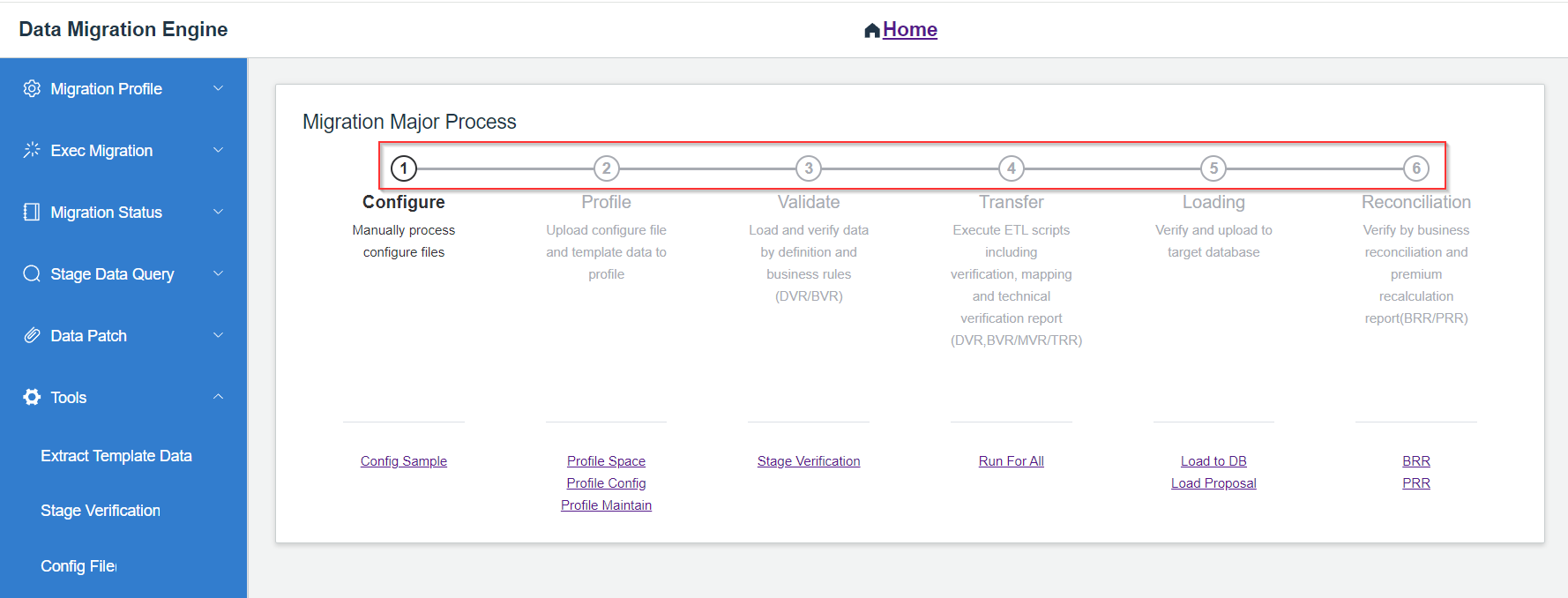
Step 1: Configure Preparation
Download the sample document.
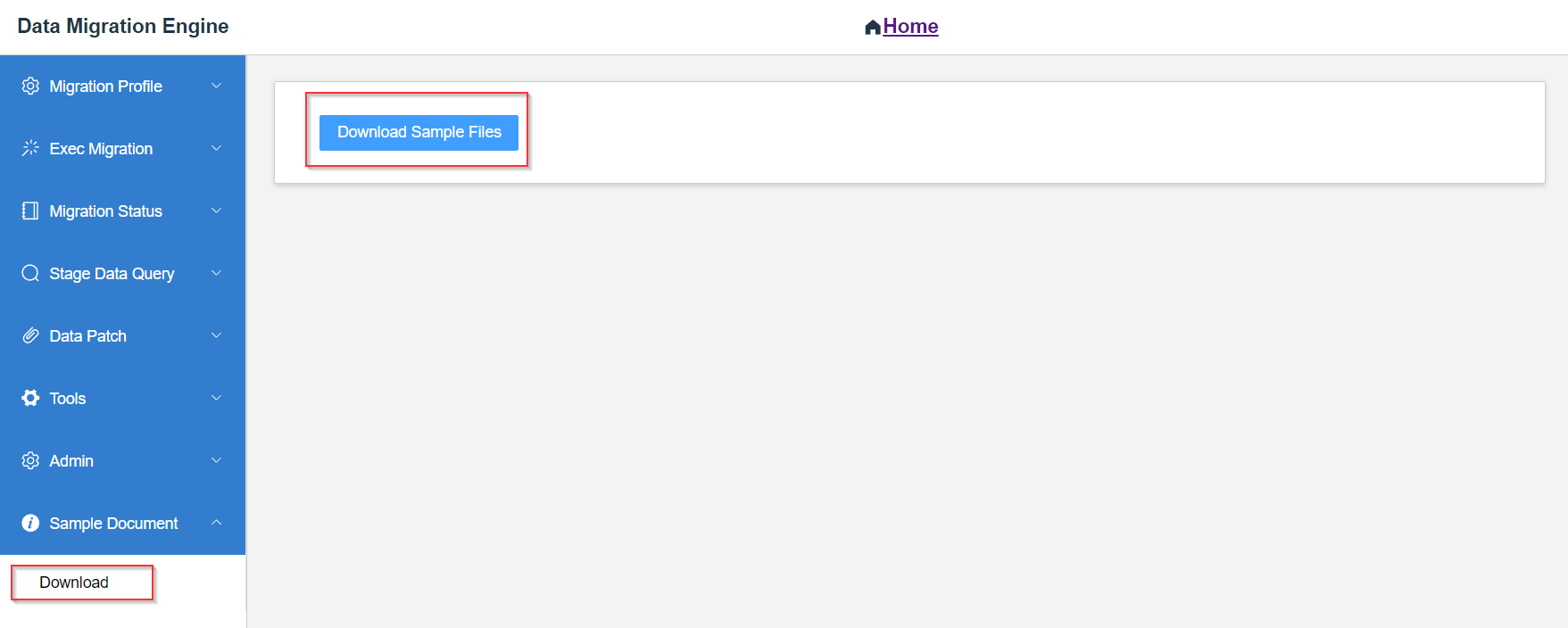
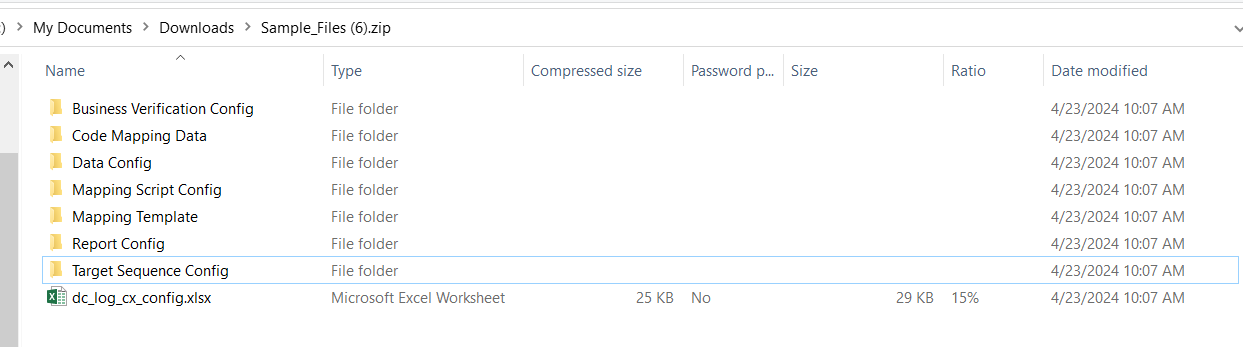
Configure and update based on sample format.
Step 2: Configure Data Clarification and Upload
-
Initial data
This needs to be uploaded to stage and can support CSV files or ZIP files which contain CVS files. The table name will be the same as CVS file name without extension.
Delete Existing Files? will clear all the uploaded data files.

-
Mapping template
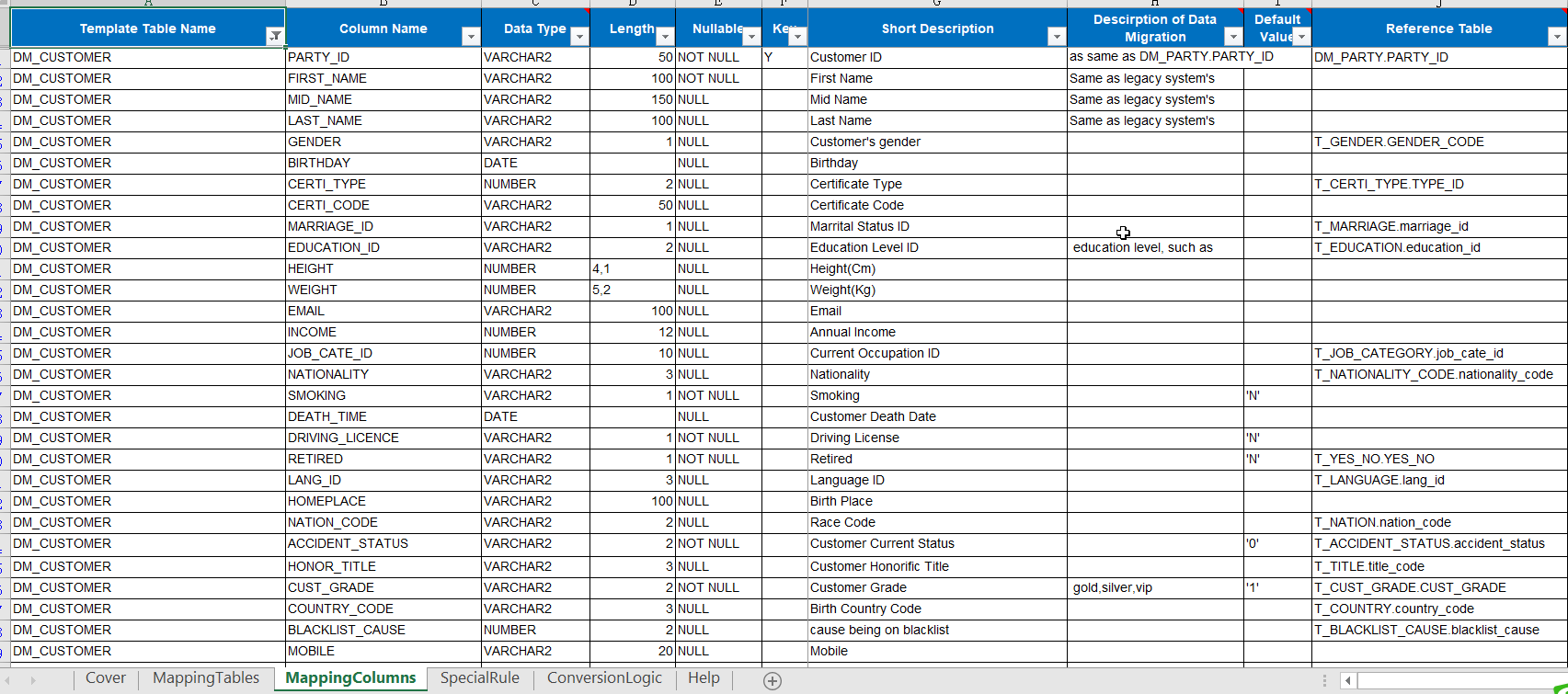
The templates will be processed during migration process, which supports multiple templates uploading. The table will be created based on template definition.
You can search the result after running verification or all steps.

See the template format sample document for detailed format.
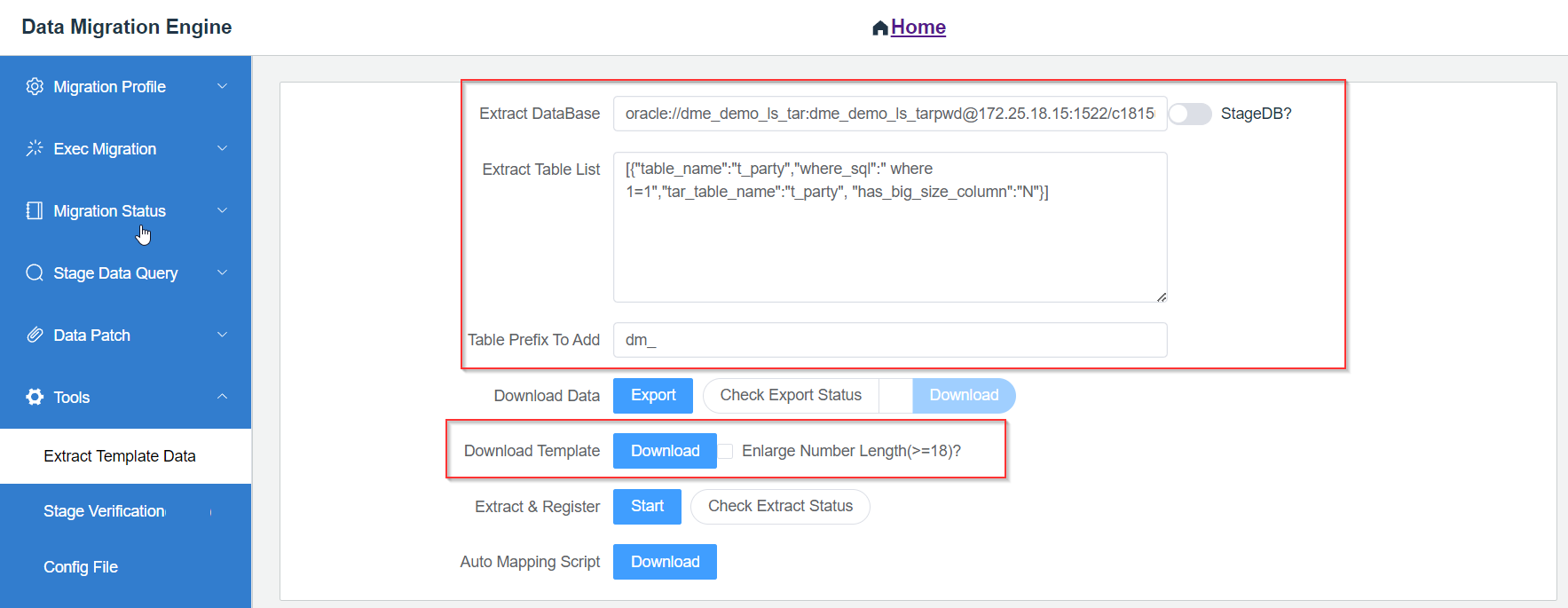
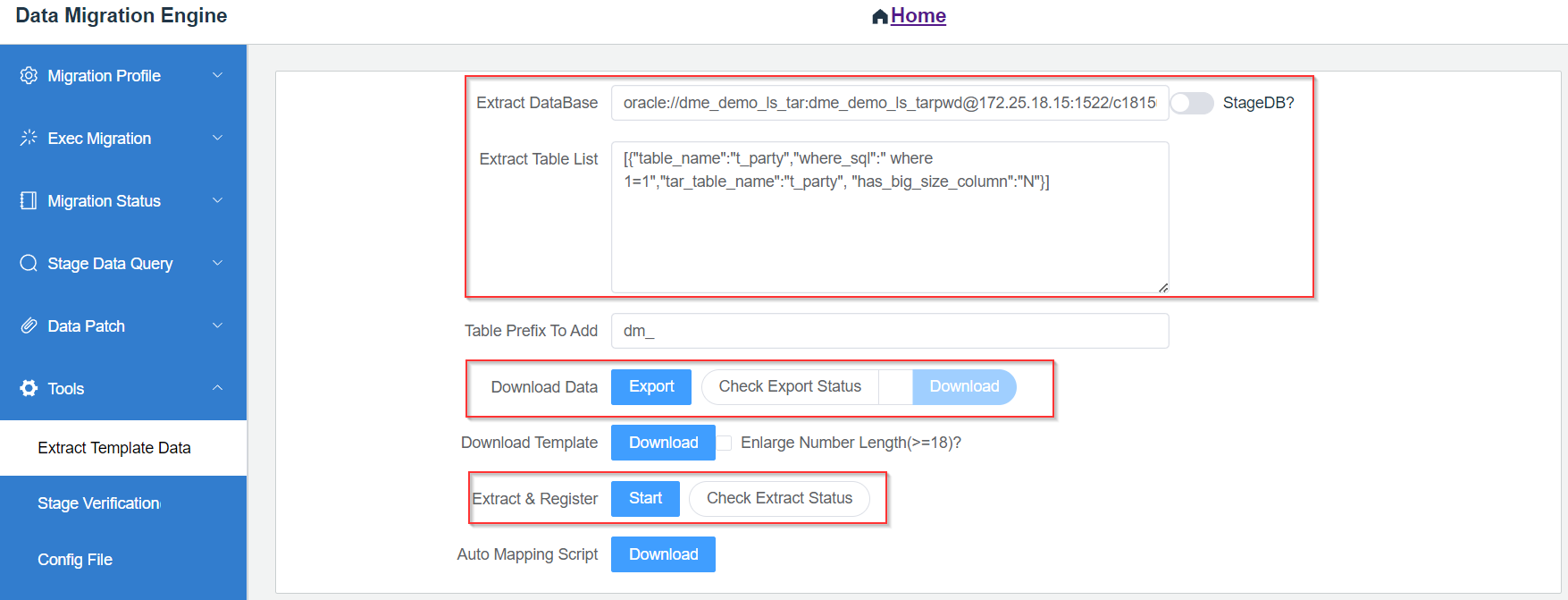
How to generate template format data from database?
-
Key in the DB conn str to extract data.
-
Key in the tables that will be extracted.
-
Click Download Template.
Then the template format file can be generated automatically.
-
-
Data files
There are two options to upload data files (
.csv) to stage, and the data file will be uploaded based on template definition fields:-
Upload from local computer.
Upload ZIP or CVS files.
Data cut-over date is the deadline for providing data.
Support incremental upload (don’t click Del Existing File).
Generate Empty Data Fileis used for fine-tuning mapping script without actual data uploaded.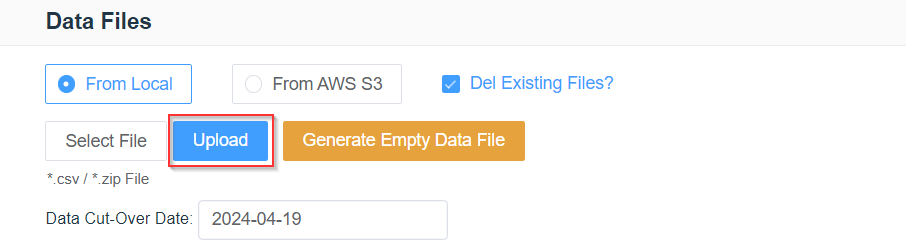
-
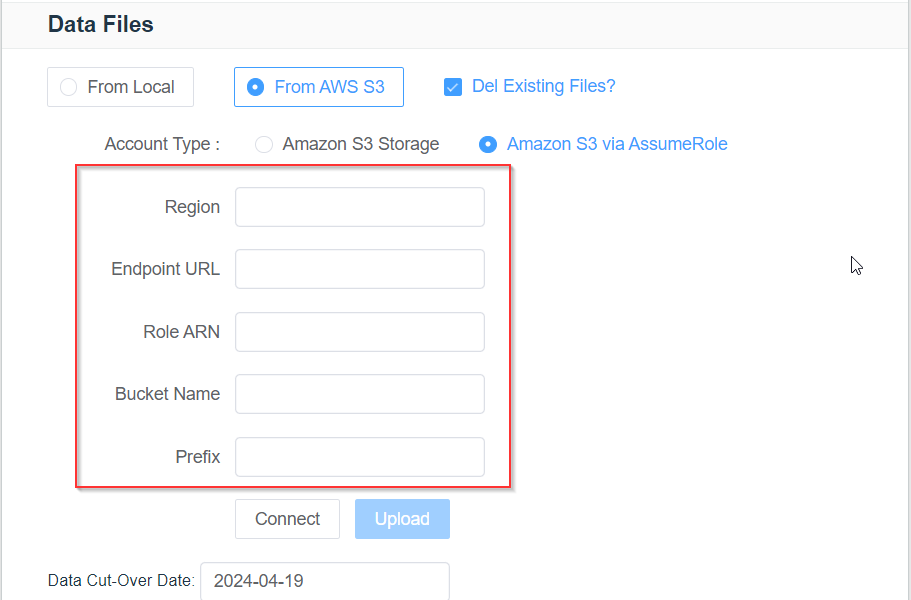
Download from AWS S3 bucket by S3 key or AssumeRole. The options are the same as loading from local files.
Create data files from database/stage.
a. Generate the data file based on the specified tables.
b. Download the data file or directly upload it to server.
-
-
Mapping script
Upload 5 mapping script configuration files from local.

Upload options:
-
Validate?
Check the mapping script files using DVR rules.
-
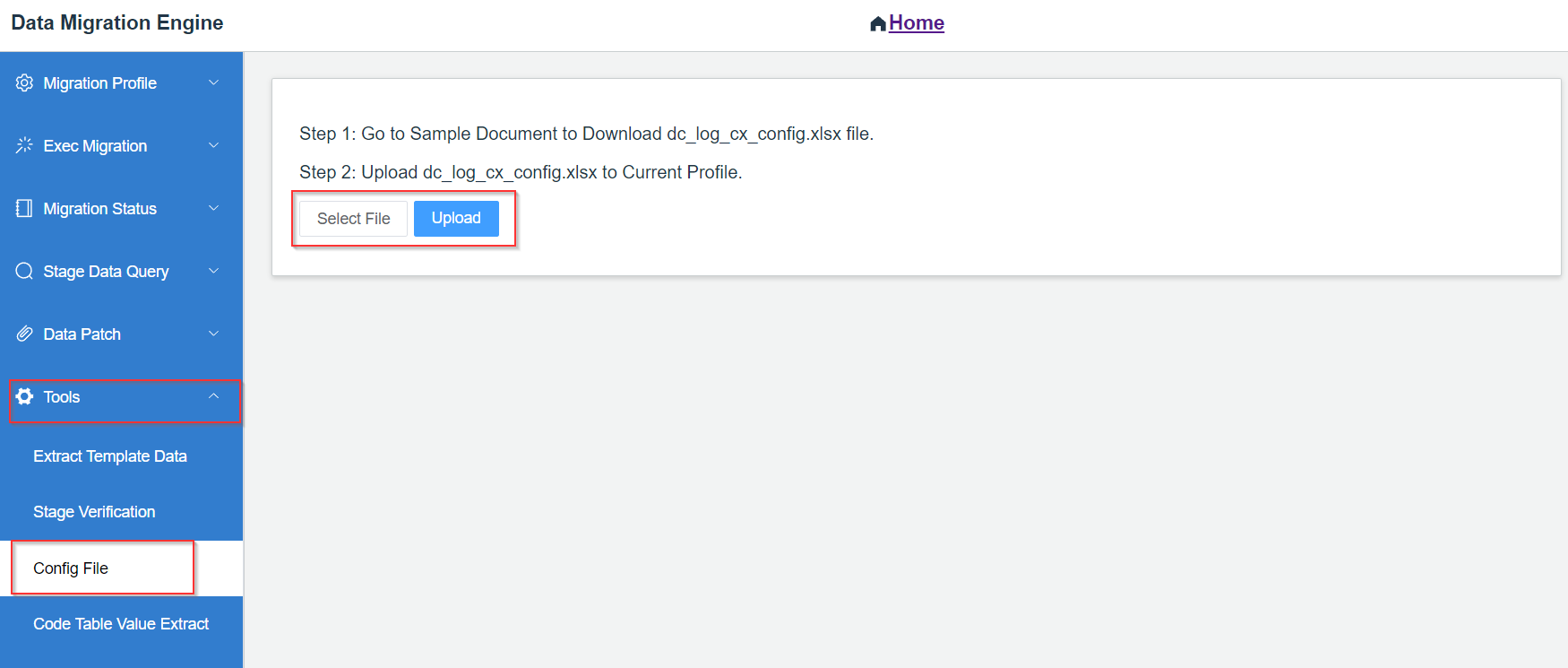
Auto Generate Log and CX Mapping Rule
For Gemini log table to generate mapping rules by configuration files.
Upload configuration files.
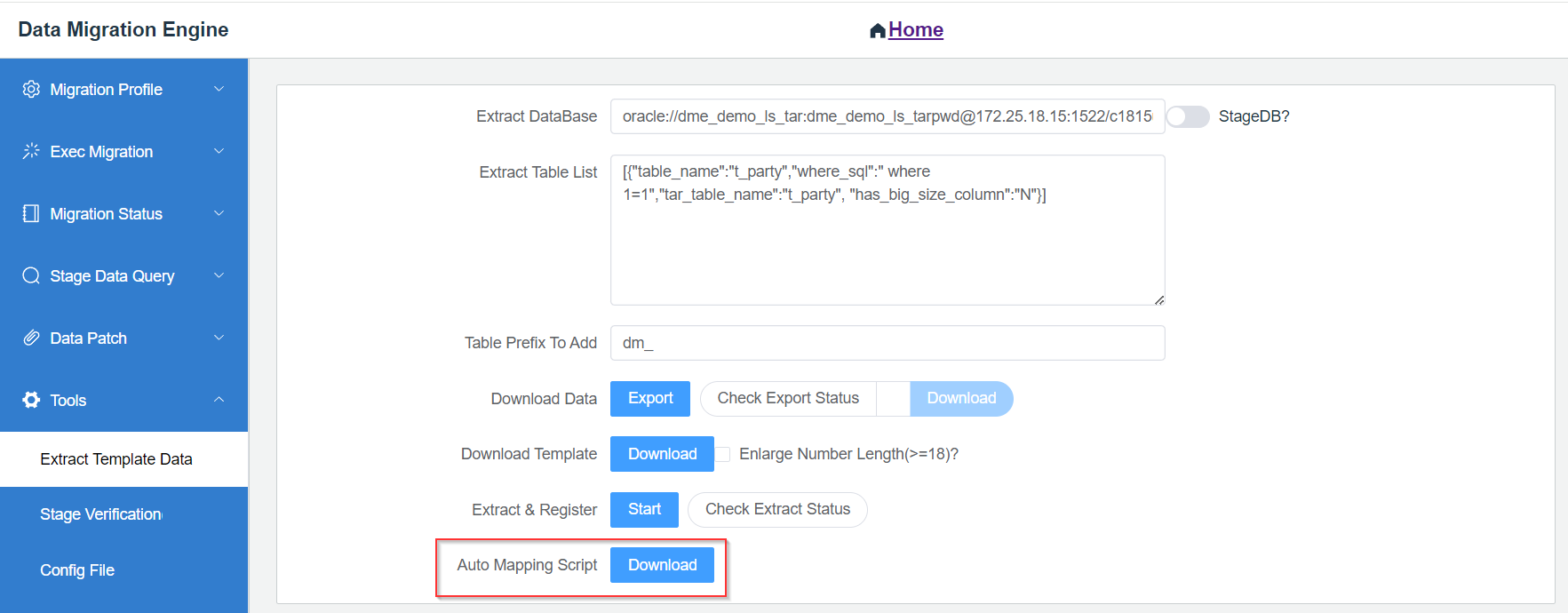
Generate the auto mapping configuration files from tables (for simple and direct mapping).
Tools will generate mapping based on extracted table name, and the column name will be the same.
-
-
BVR configuration
BVR initialization
- For BVR, if
In Project= P, you need to do initialization for one time to decide which to use in this project at beginning.
BVR priorities
-
There are 5 priority codes:
C - Critical, H - High, M - Medium, L - Low, W - Warning. -
C - mandatoryto fix before transformation. -
H - mandatoryto fix before functional testing. -
M, L, W -to be fixed or aligned with solutions before UAT (User Acceptance Testing).
BVR maintenance
- BVR should be updated based on customization function.
BVR verification
-
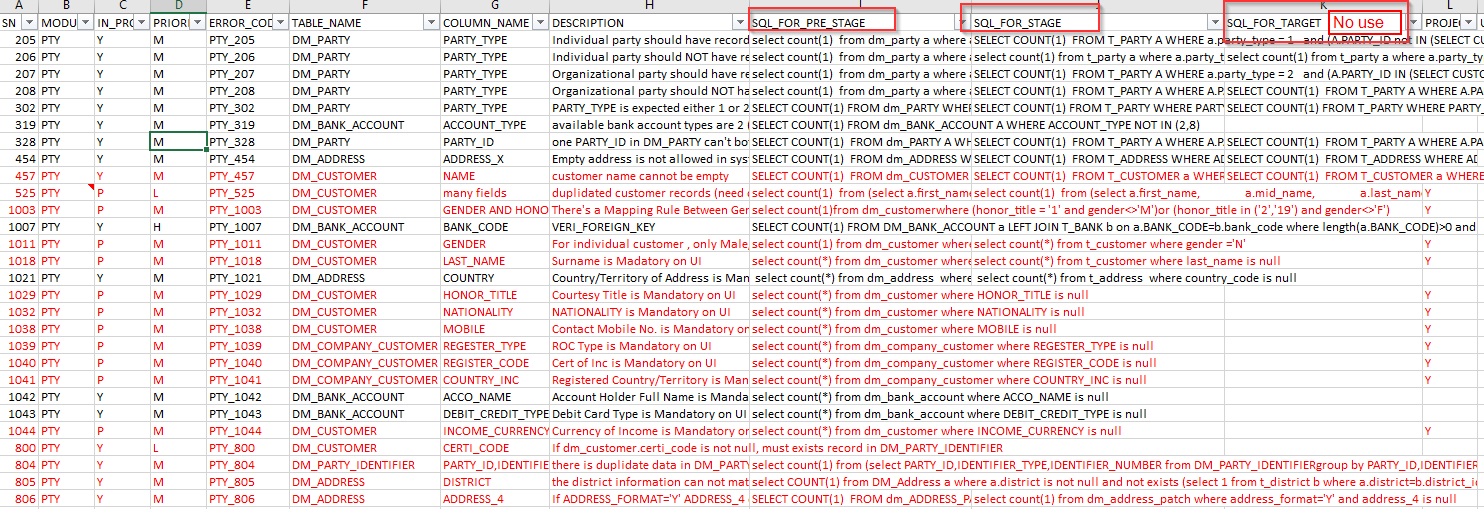
BVR verifies data from two phases: Pre-Stage and Stage.

BVR configuration format
-
Pre-Stage
Verifies template tables with BVR rules, ensuring the data quality before loading transfer.
-
Stage
Verifies target tables with BVR rules, ensuring the data quality with target data business logic.
- For BVR, if
-
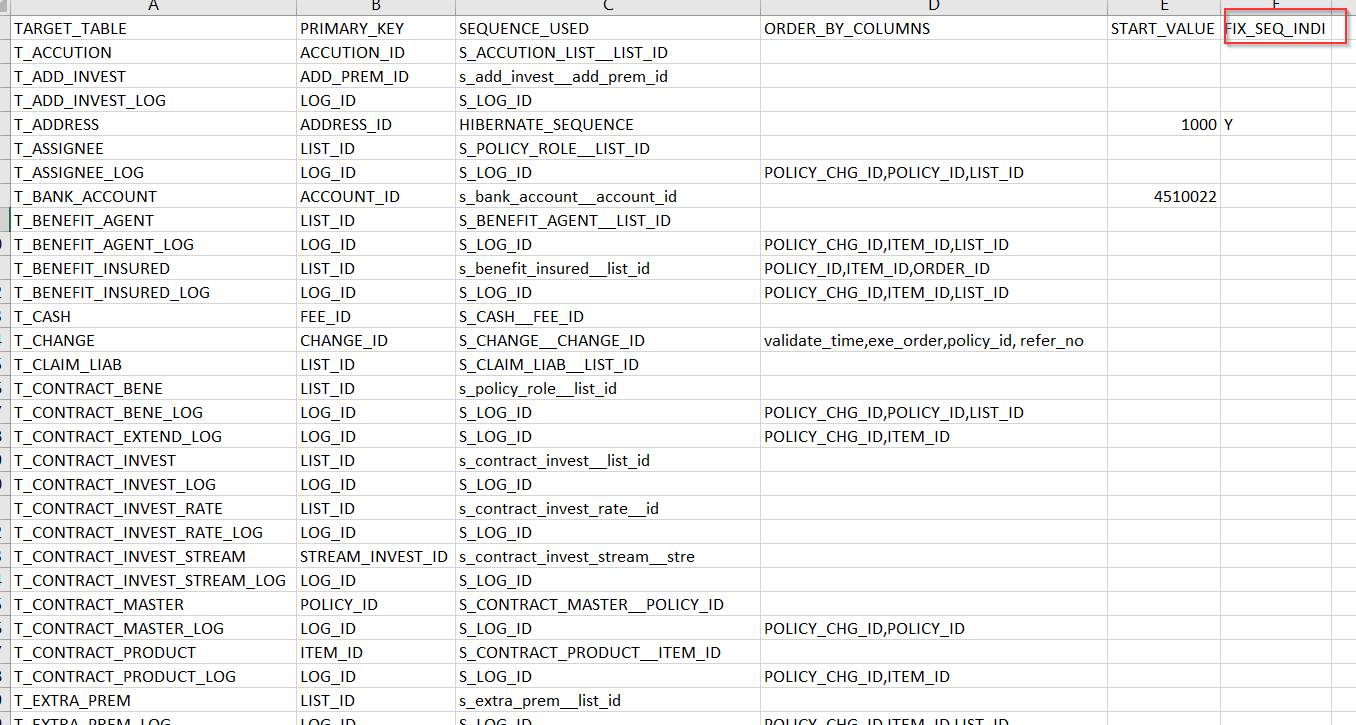
Target sequence configuration
Configure the sequence column for the primary key in target table:

Configuration format:
-
Download the sample to add new one.
-
See the screenshot.
Configuration options:
-
Sync Start Value
When you sync Gemini sequence value and migration data, it will start from the next value. Besides, the configuration start value will be replaced from the database.
-
Fix sequences
For some sequence columns, such as
policy_id,item_id, they can be fixed during different round migration. So, this will make it easier to follow PRR related issues. See the following:-
Set
fix_seq_indito Y in the sequence. This step will fix the sequence. -
Do not click Sync Start Value if the sequence is fixed. It may be invalid because the sequence can possibly exceed the allowed range.
-
The allowed range specifies that the change in the starting value should not exceed 50,000.
-
-
-
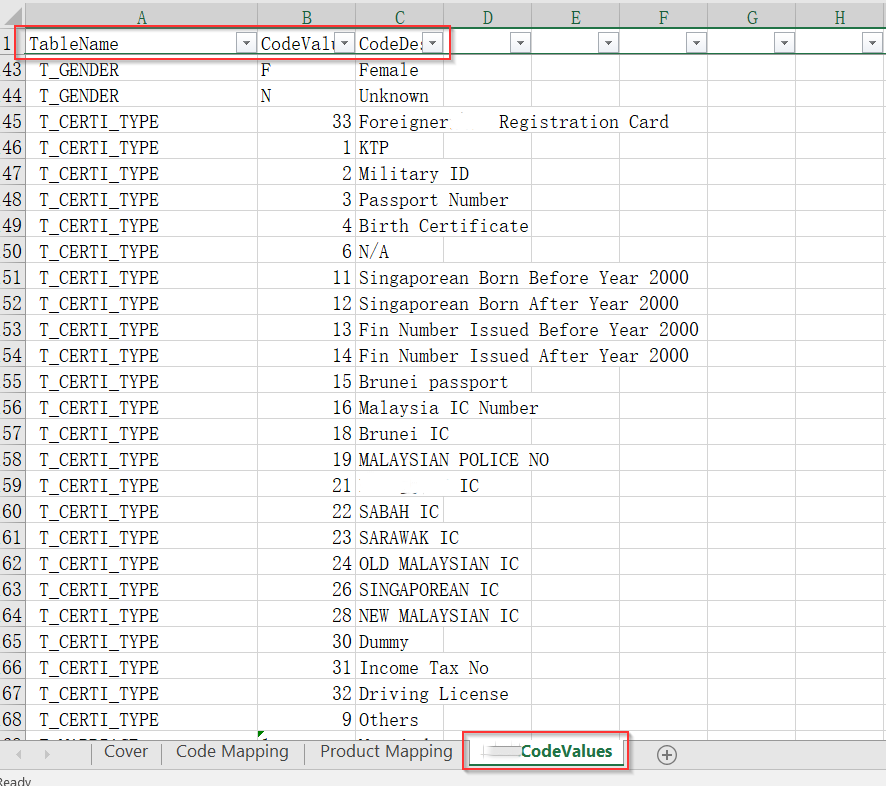
Code table
Upload the code table value to verify the foreign key in DVR code table.

See the sample document for details about code table format:
For code value maintenance, extract from database based on the list.
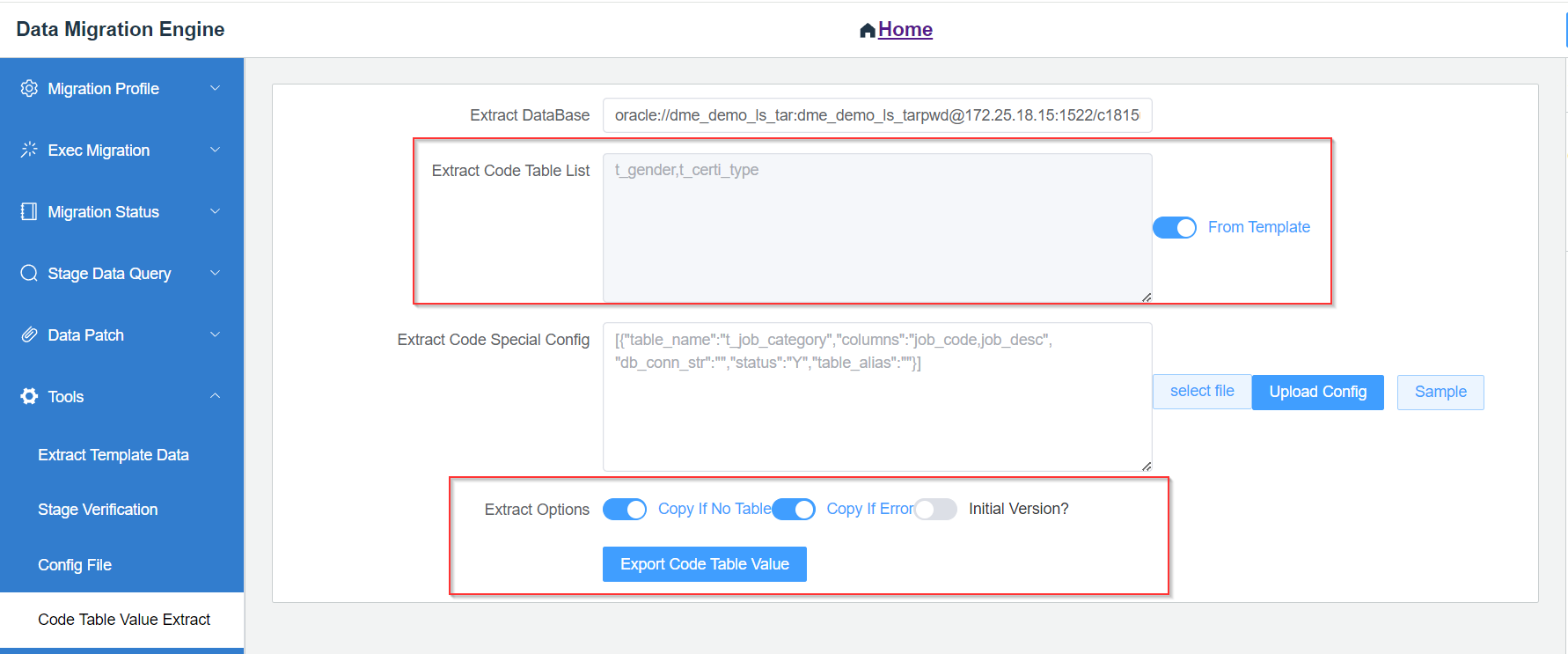
Extract options:
-
Copy If No Table
This will copy from existing value if code tables are not in the code table list.
-
Copy If Error
This will copy from existing value if extract error occurs.
-
Initial Version?
Check if this is the initial version.
-
-
Report configuration
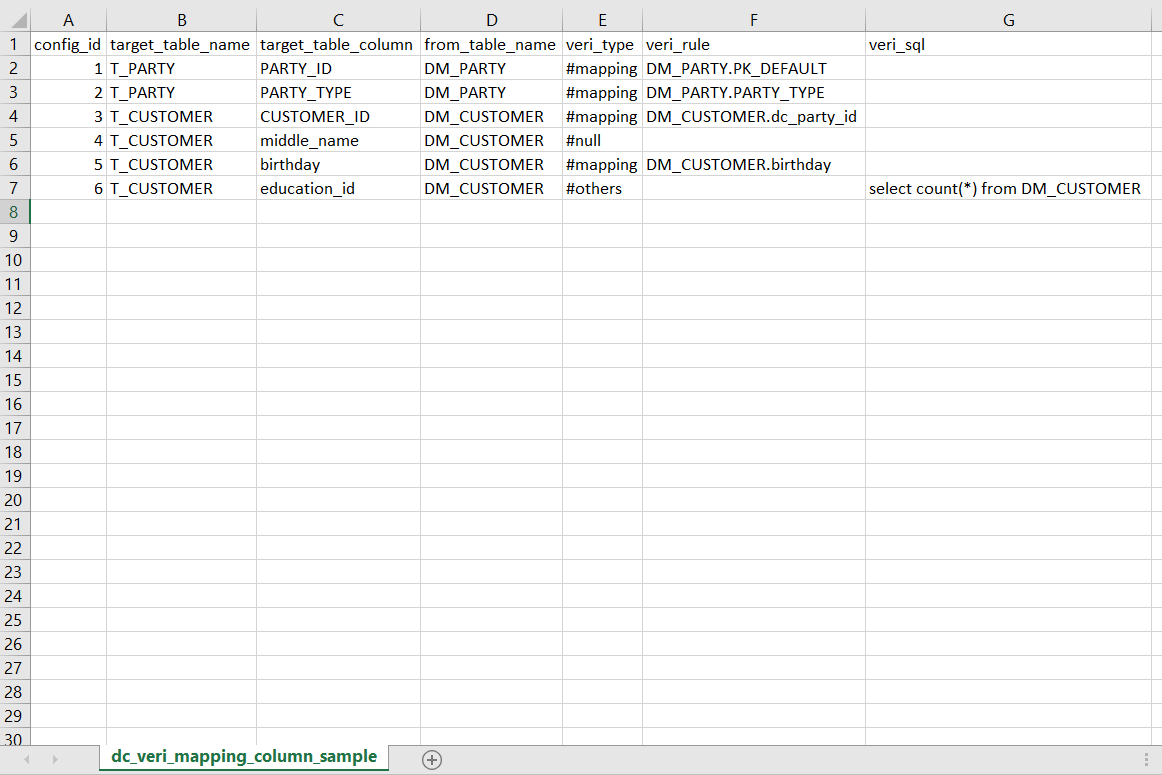
Upload TRR and MVR configuration.

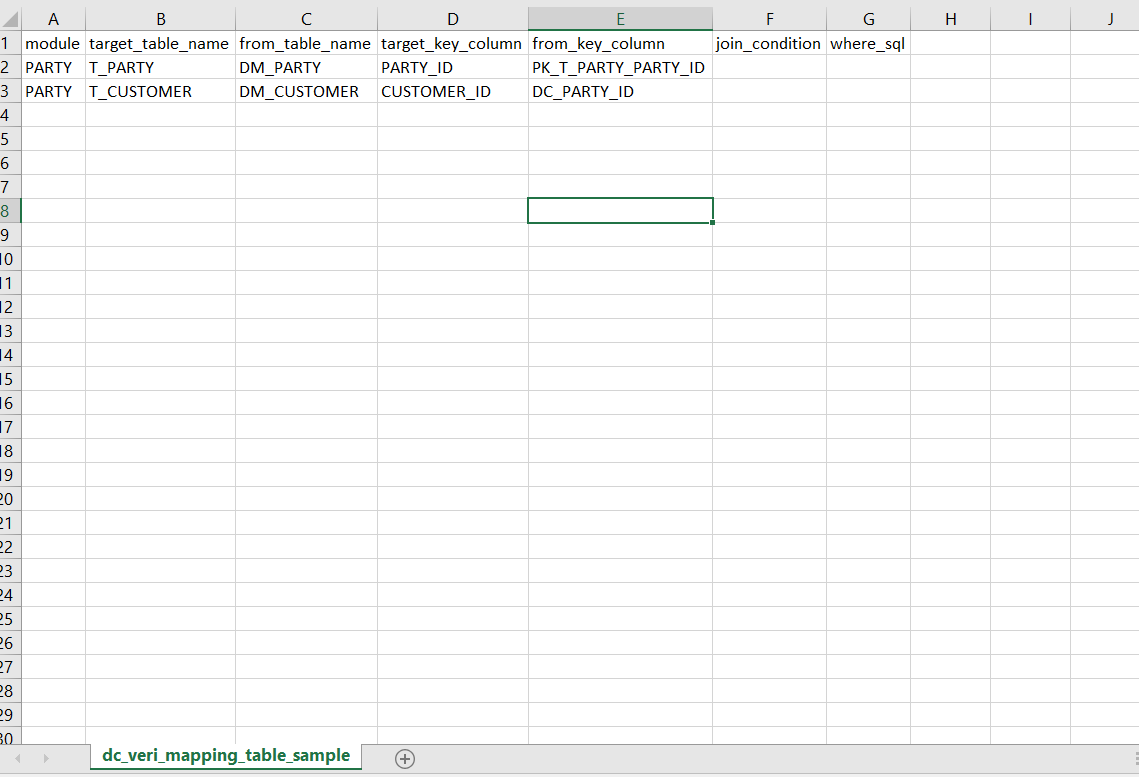
MVR
Configure expectation mapping of table level and column level.
-
Table level
-
Column level
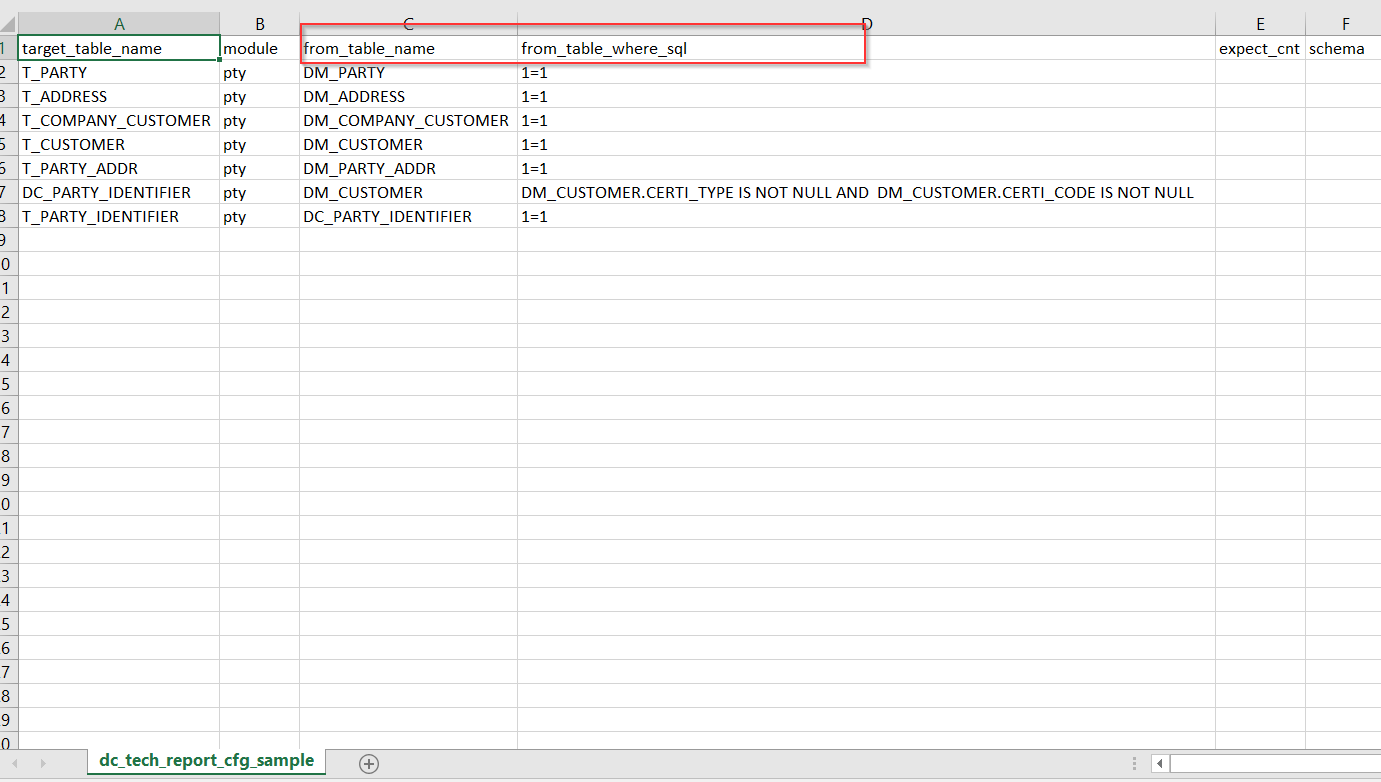
TRR
Reconcile table level count, comparing actual count with expected results.
BRR
See the BRR format
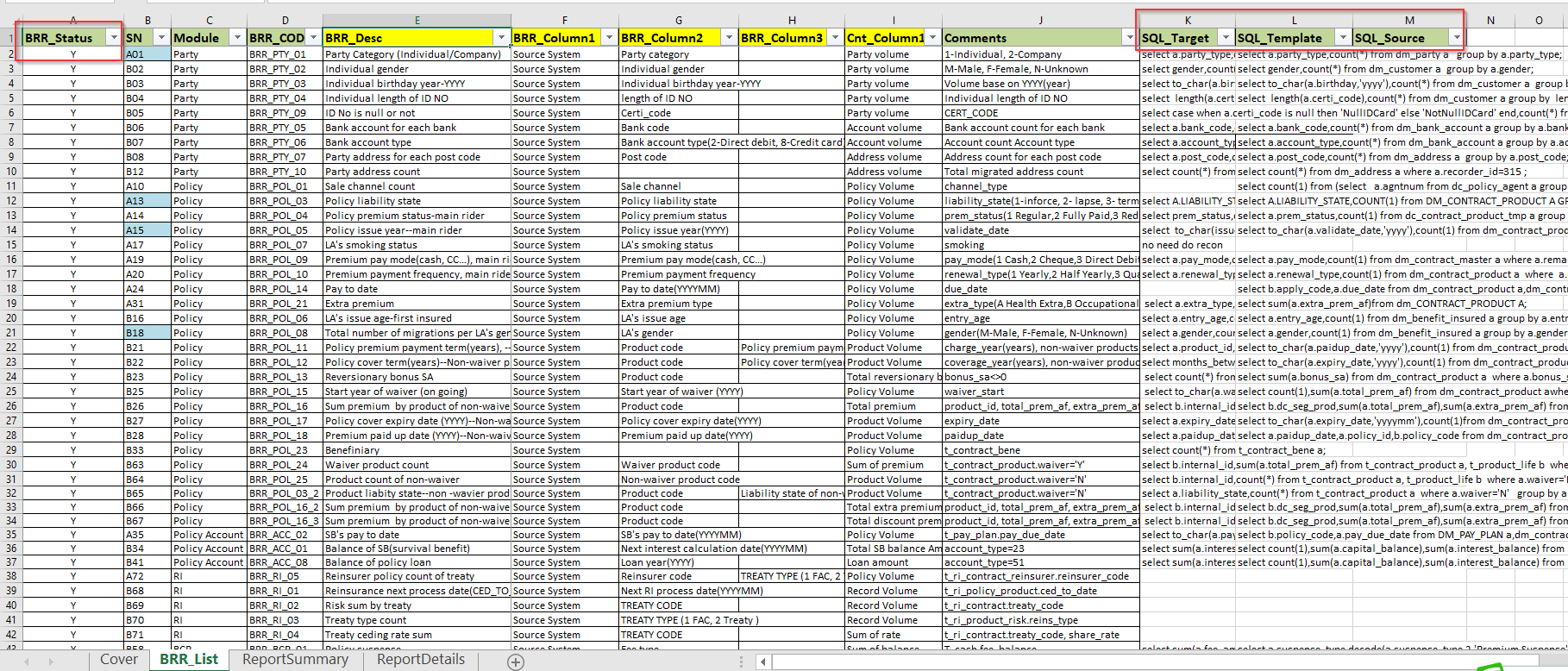
BRR source data will follow a data file named
dm_brr_report.csvto be uploaded from legacy system. -
Step 3: Verification
To verify the data quality of template data file, there are two types of verification: DVR and BVR.
After uploading templates configuration and BVR configuration, click Run under the Stage Verification and then download the report.

-
DVR
Before data loading, passing DVR is mandatory, except for
VERI_MIN_MAX_DATE, which is for warning only and needs to be covered in the mapping.The following are 9 categories of DVR to verify.
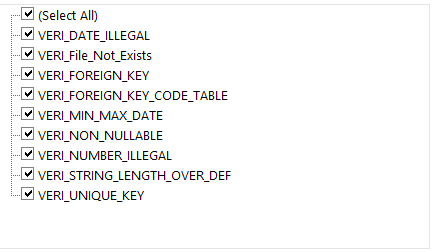
See the DVR report.

-
BVR
For BVR report, filter the BVR.
In_Project='Y'.SQL_FOR_PRE_STAGEis notnull.Values which are not equal to 0 under
SQL_RESULT_FOR_PRE_STAGEare wrong BVR.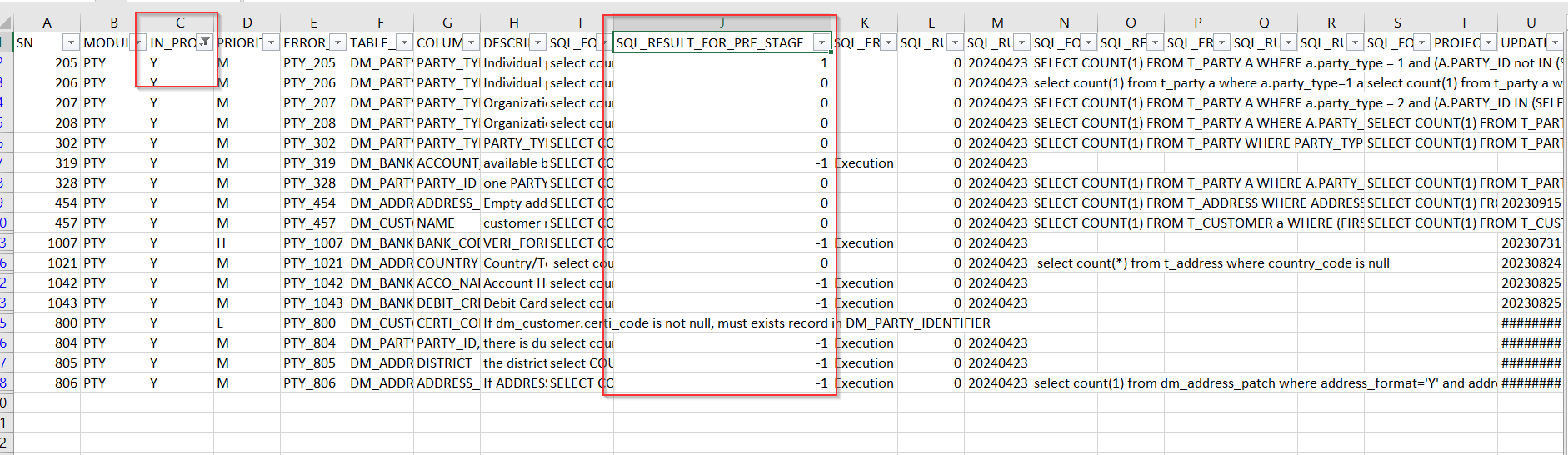
Step 4: Run for All
-
Run all the transfer steps, from data loading, verification, transfer to report.
-
The target table data is ready after execution.
-
Reports will be ready to download after the execution succeeds.

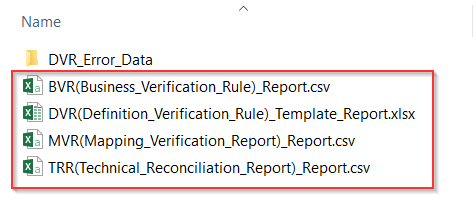
See the Reports for DVR, BVR, MVR and TRR.
-
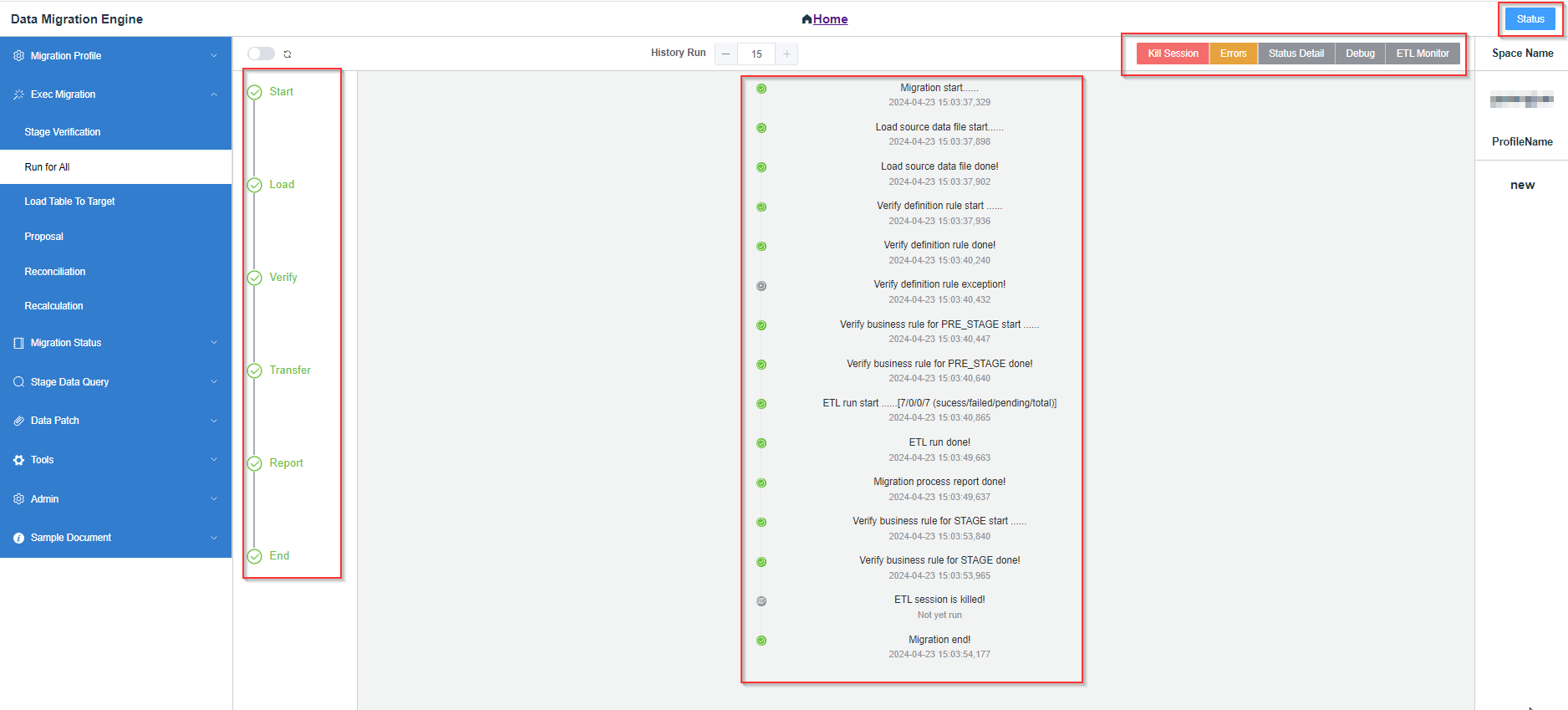
Click Status to check running status. If you don’t run anything, the last running status will be listed.
Step 5: Loading
-
Target table loading
Load the specified tables (
target, stage) into target database (Oracle/MySQL).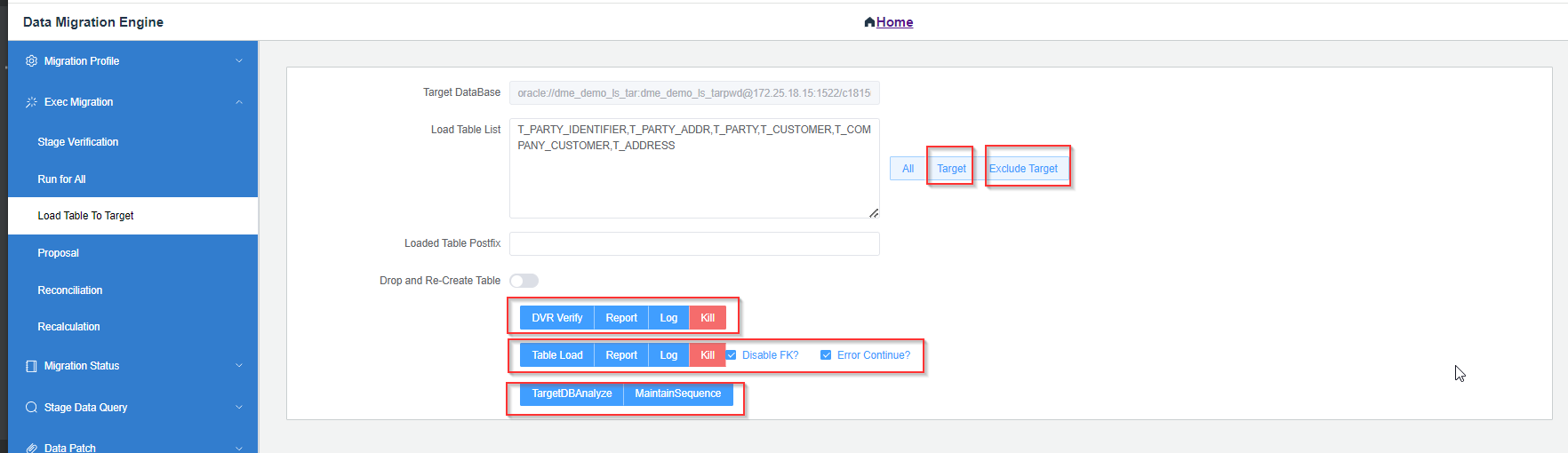
-
DVR check
Verify target table data with DVR before loading to ensure consistency in definitions.
-
Post loading
Analyze the database (
Oracle) after data loading.Sync the sequence after data loading based on migration data volume.
-
-
API call (
proposal)Some data cannot be directly loaded into the target table and will instead be loaded via an API.
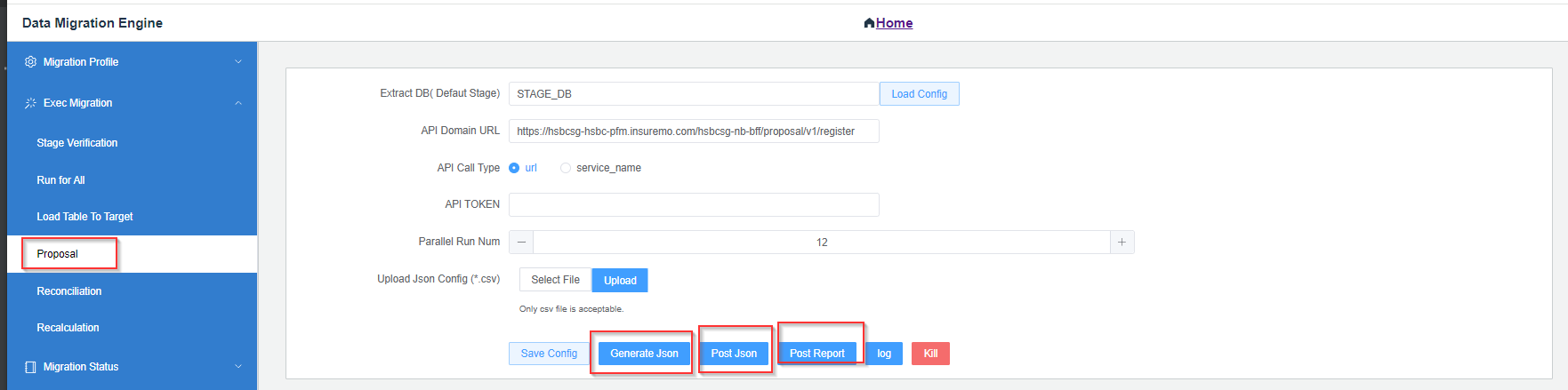
See the following steps:
-
Generate JSON parameters from migration table.
-
Configure JSON relationship configuration table.
-
Call API to transmit JSON data to the specified API.
-
Step 6: Reconciliation
-
BRR report
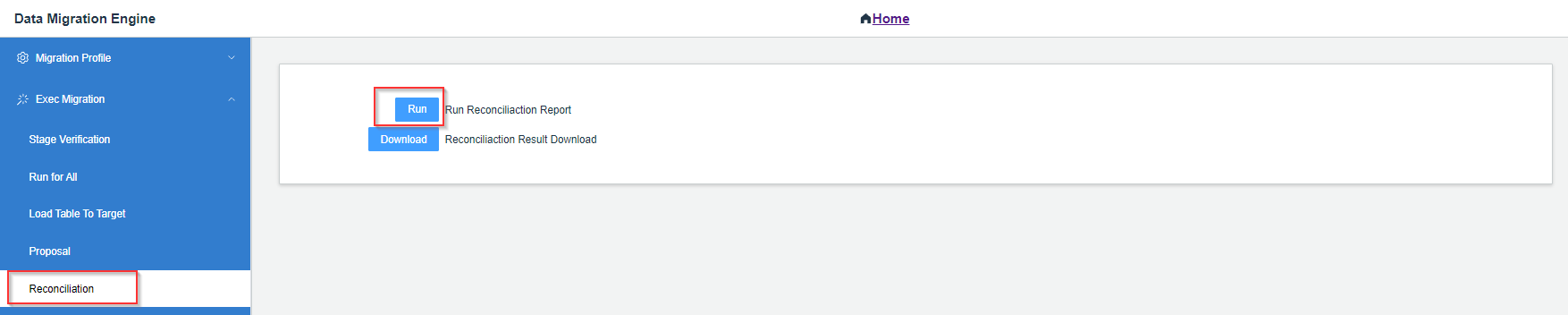
BRR for template to target
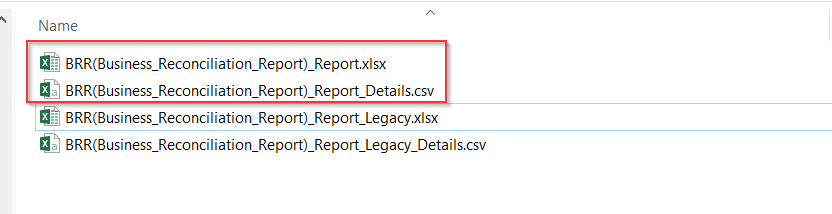
BRR for source to target
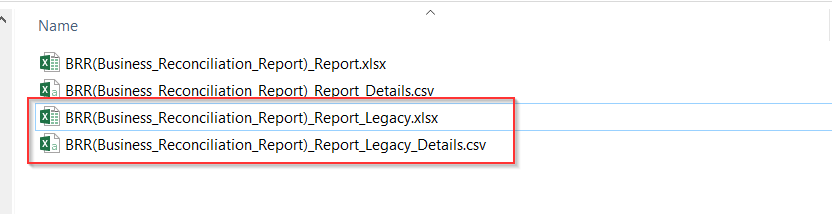
Report sample
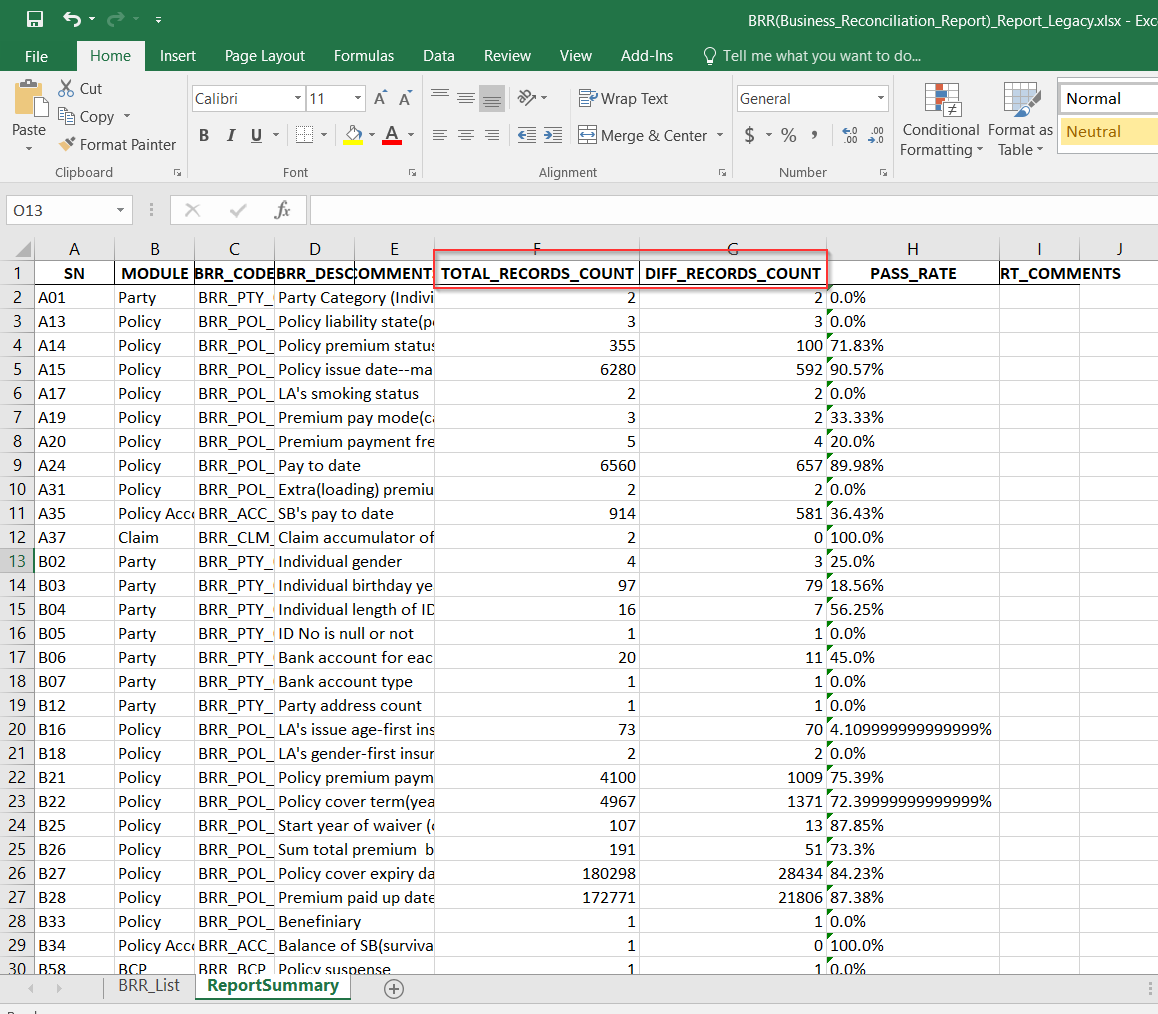
-
PRR report
Pre-condition
-
Migration data has been loaded into Gemini .
-
Product configuration has been deployed the latest version.
Purpose of PRR
-
To verify premium migrated value against system recalculated value.
-
To conduct a policy-level comparison.
-
To ensure that product configuration and policy premium are aligned.
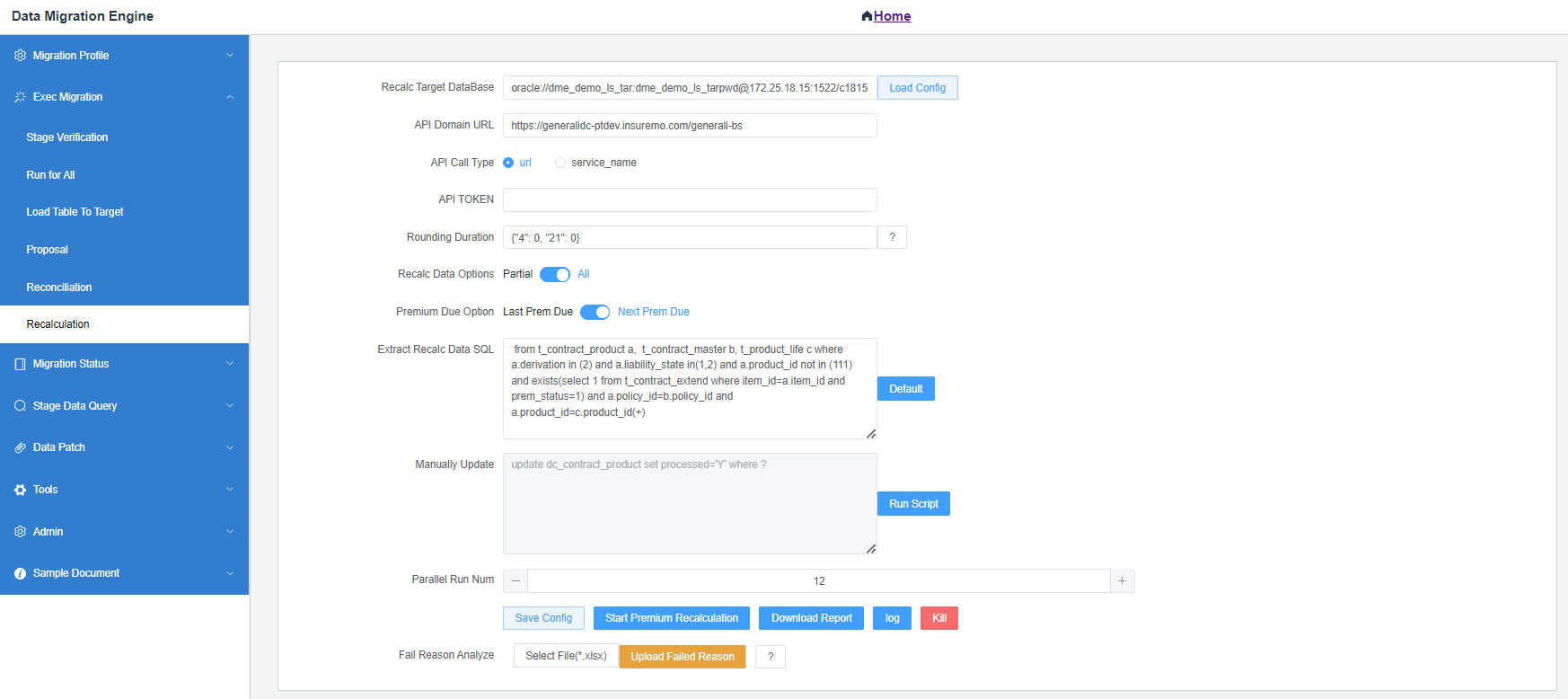
Running options of PRR
-
Fully running
Extract all the records to
dc_contract_producttable based on Extract Recalc Data SQL.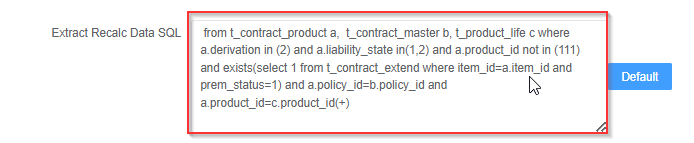
-
Partial running
For failed cases running PRR, you need to update that
processed='N',errorm_msg=''for specified conditions. See the following:
-
Next due
By default, calculate the next due premium to compare it with the migration premium.

Following up on PRR issues
-
Pre-condition.
Sequences of
Item_idandpolicy_idshould be set tofix_seq='Y'.Do not click Sync Start Value? when you re-upload sequence configuration file.

-
Fix sequences.
Ensure that the sequences of
policy_idanditem_idare fixed for each migration. -
Upload failed reasons. Only 4 columns can be used.
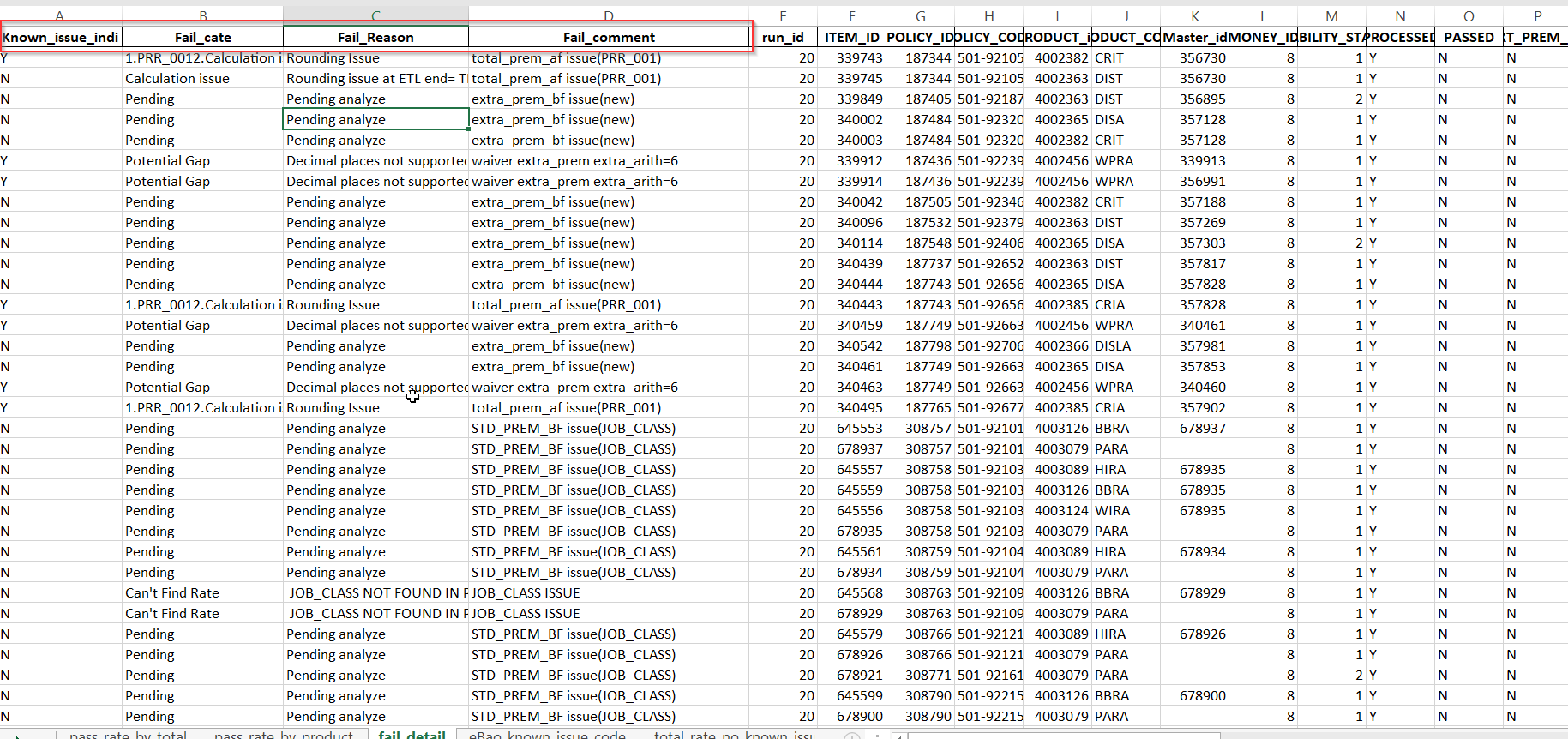
-
Analyze and update the reasons based on system’s PRR report for the first 4 columns.
-
Upload the file before new round PRR report is generated.

-
New report will include the updated reasons to continue analyze.
-
Data Query
See the following for stage query.
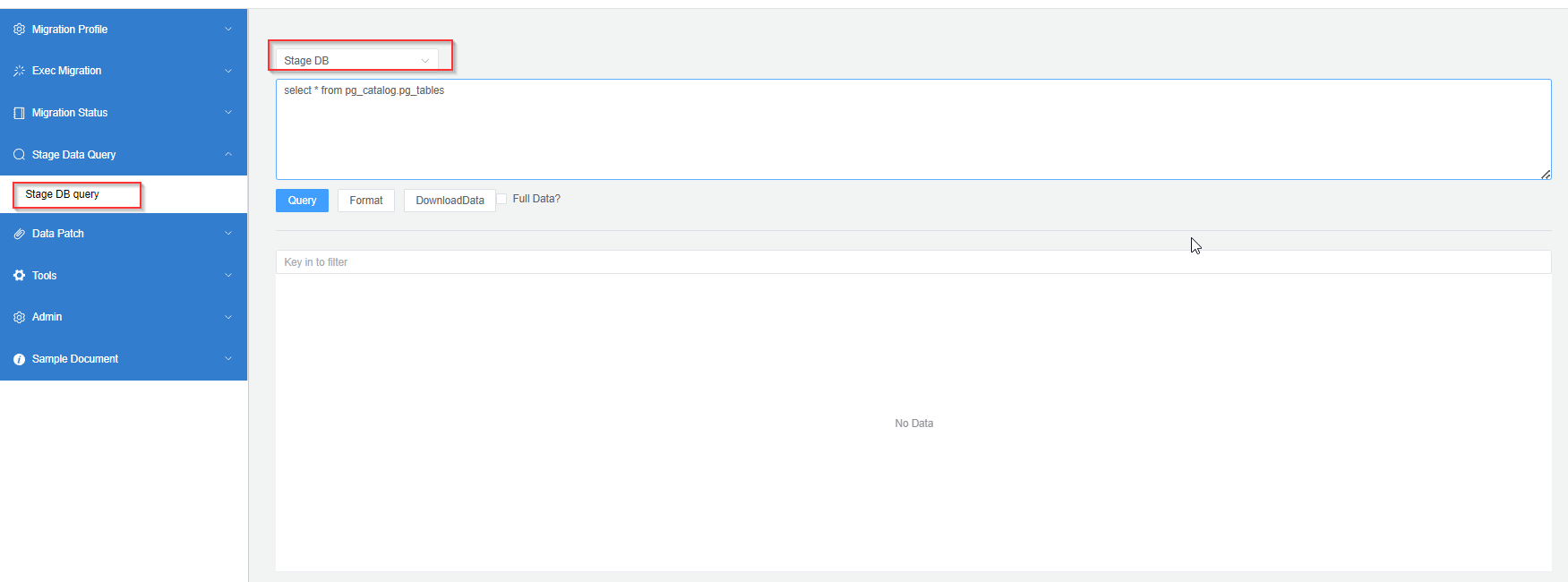
The following pull-down list shows 4 different stage DBs which can be queried.
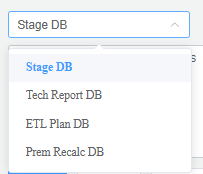
Stage data range:
- All the template tables.
- Target tables if you execute Run for All.
Premium recalculation DB:
-
The latest recalculation results.
-
Historical recalculation results.
-
Recalculation failed reasons.
Debug
-
Check Syntax.
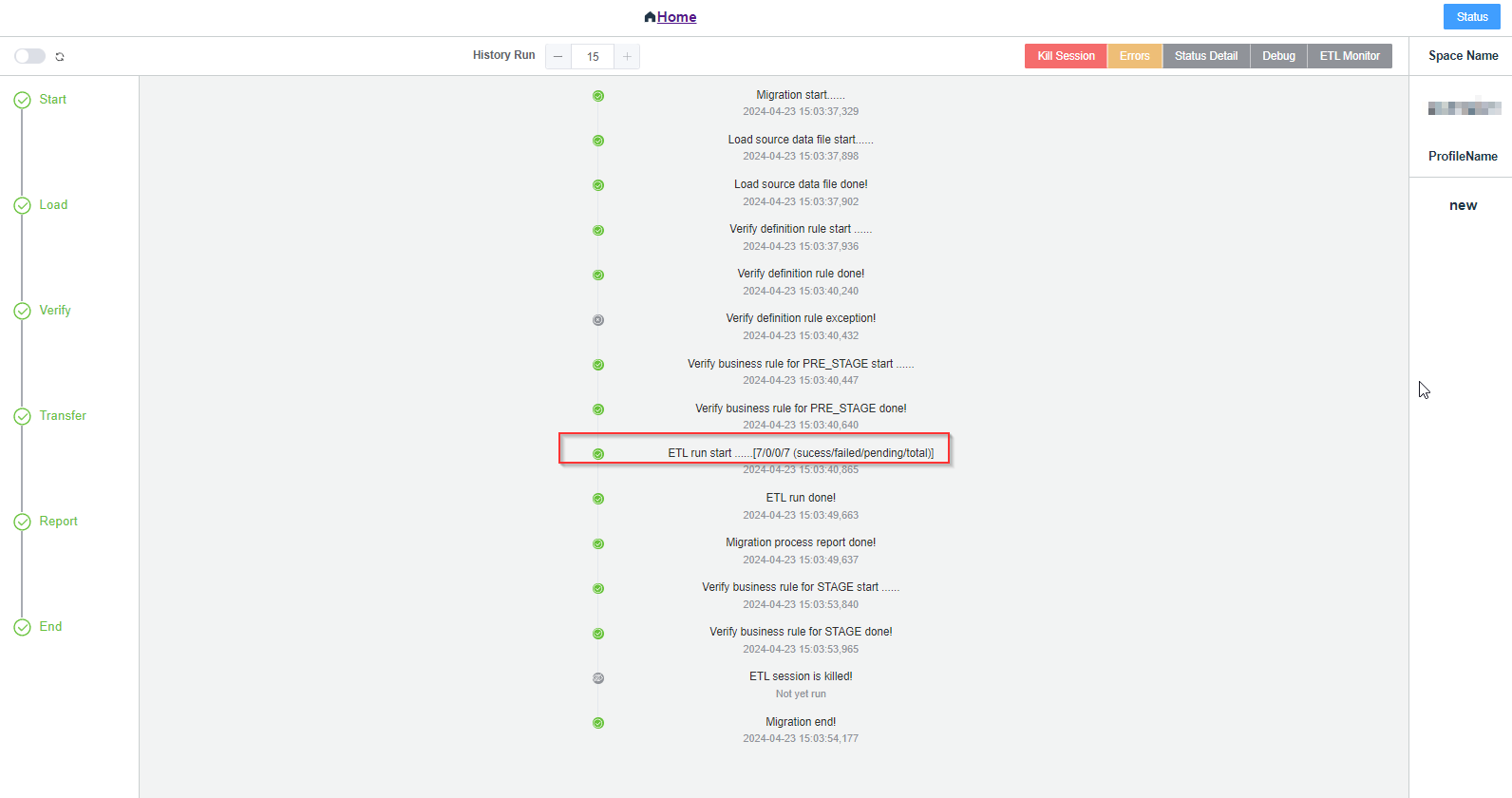
Use
emptyto verify transfer script syntax.Execute Run for All to check the script running status.
-
Check running results.
There are 4 ways to check the running status. See the following navigation bar.

-
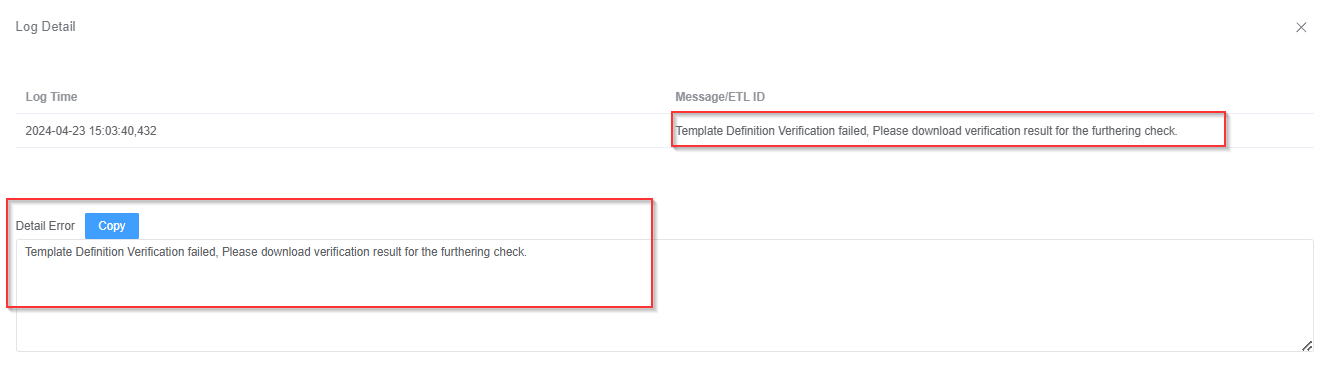
ETL tasks errors summary
Show ETL errors and their information.
-
ETL status detail log
Show each ETL running status.
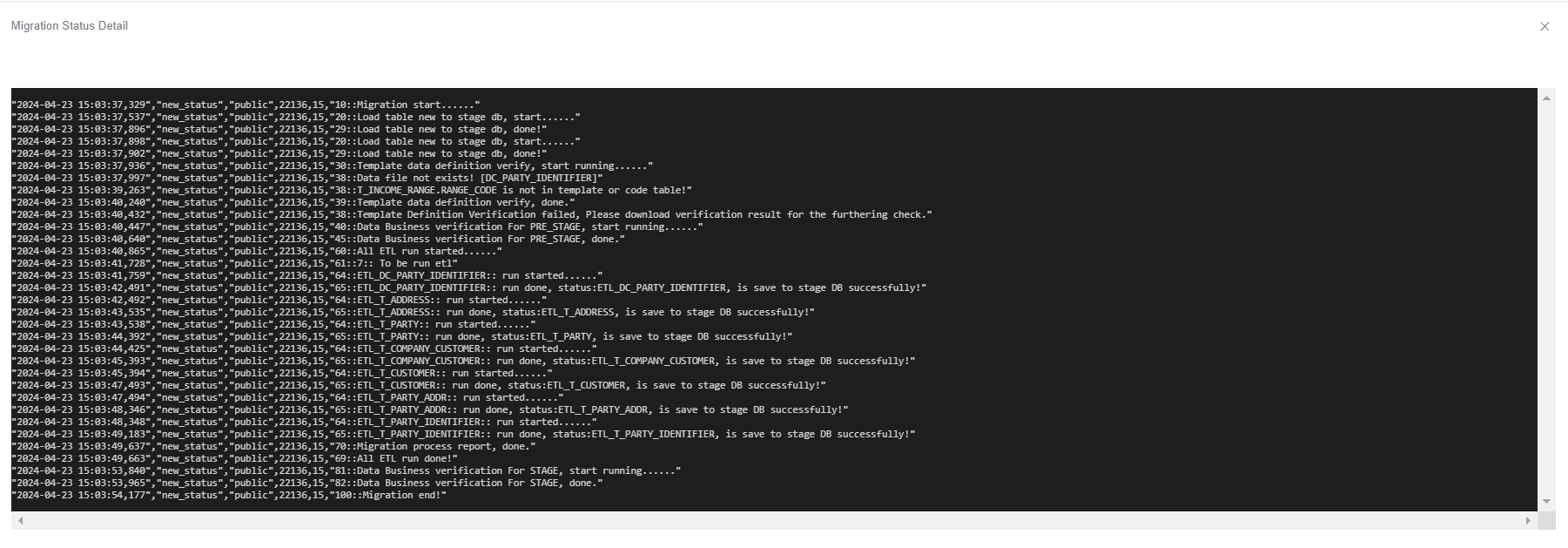
-
ETL status debug log
Show debug information to check for detailed error information.
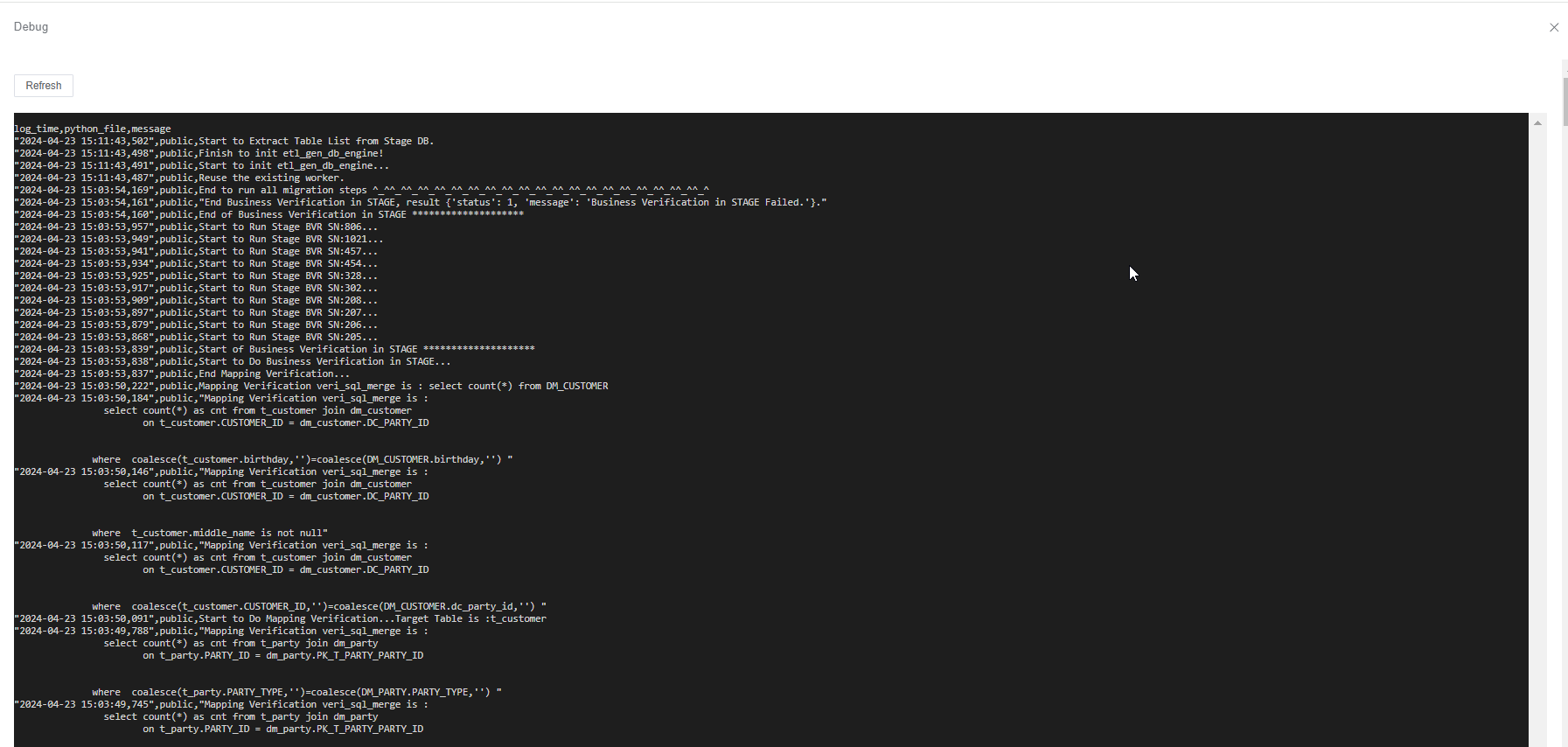
-
ETL running status with dependency diagram
Show the running ETL dependency diagram and status, to check which is the blocked ETL script.
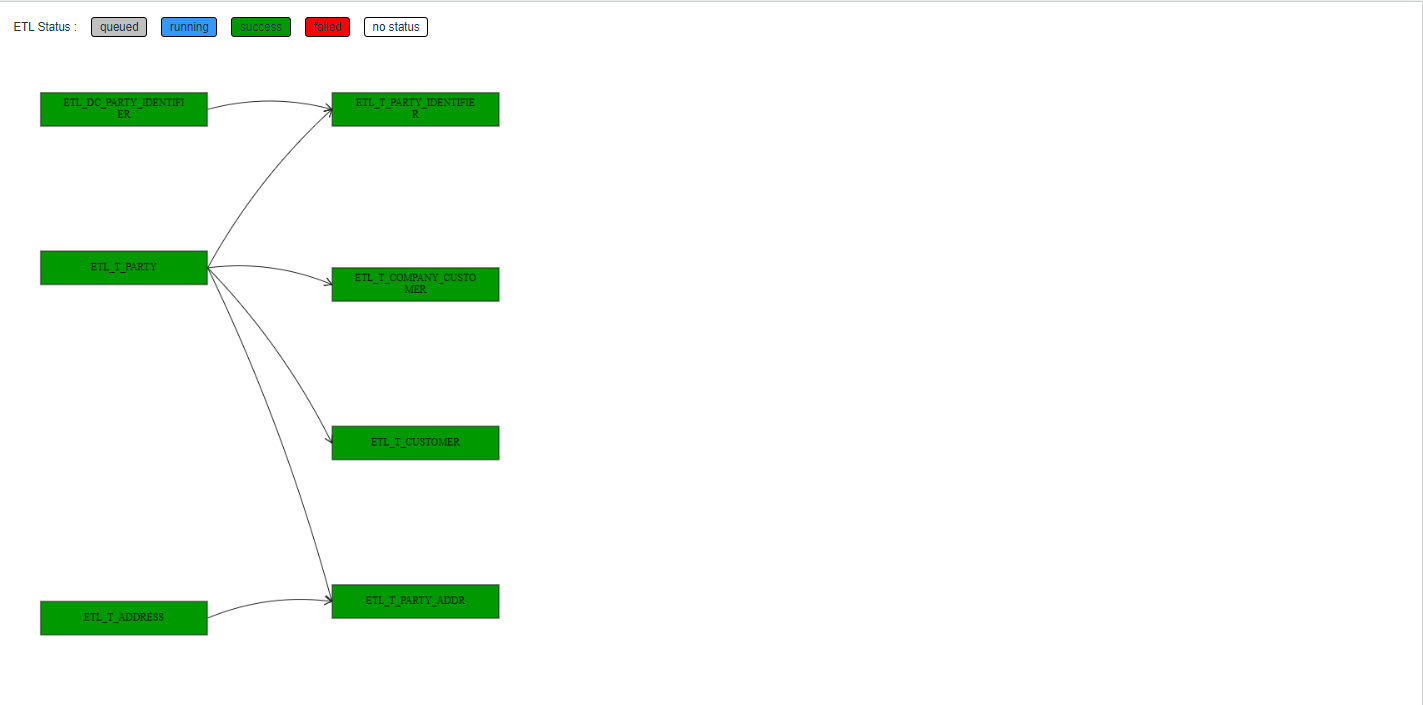
-
Admin Features
To manage exception issues, you need to configure relevant info and address data security concerns.
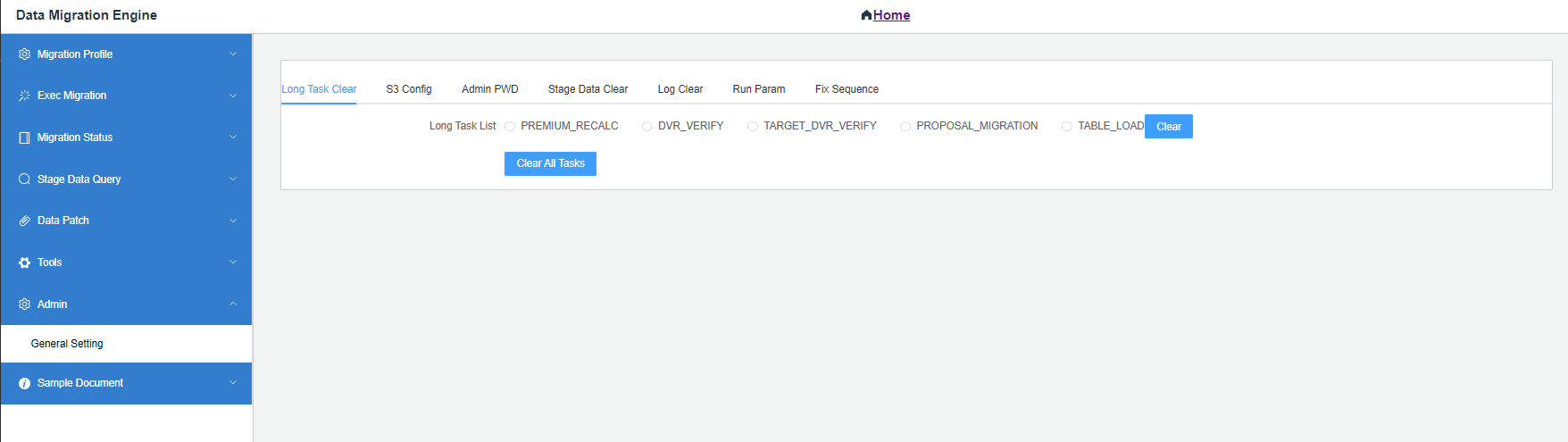
Long Task Clear
Clear some long-run tasks from backend if they are not closed abnormally. You can create a new long run task after clear.
Clear specified tasks or all tasks.

This function will only clear the task-control session itself, instead of the actual running item.
-
End the actual task with task execute function.
-
After clear, the task running status will be updated to close.
-
Ensure that you do not close running tasks. Run the closed one once again. This may cause an unexpected result, since the actual backend tasks are still running.
S3 Config
This will support storing profile-related configuration files, data files and system logs in an S3 bucket. By default, they will be stored in the DMEngine local server.
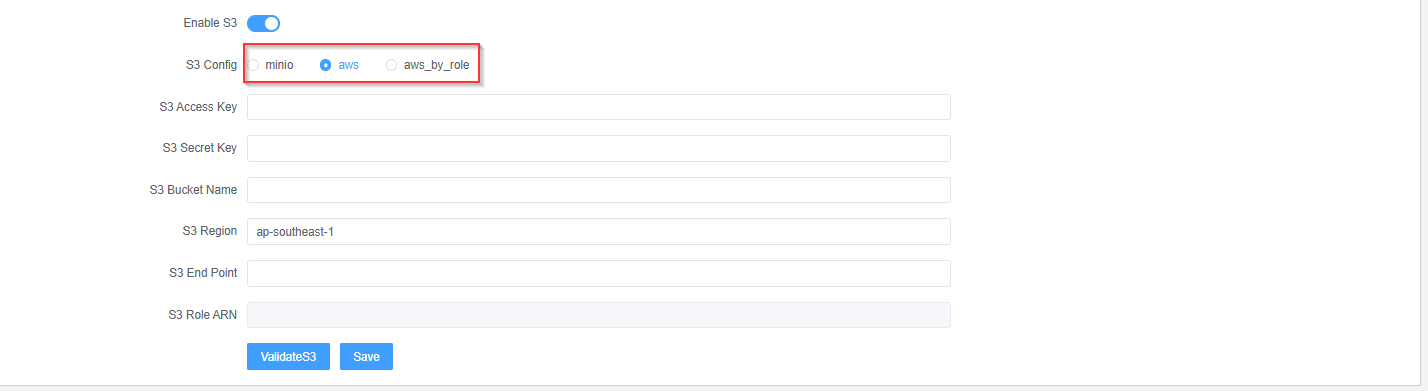
There are 3 options available:
-
MinIO - local S3.
-
AWS-public cloud AWS S3 by key access.
-
AWS-public cloud AWS S3 by assuming role.
noteAWS S3 is NOT suggested because it may cost additional fees.
Admin PWD
This password is used for current profiles only. It is designed for some sensitive processes to ensure that only profile owners have access to the Admin.

Stage Data Clear
To clear the updated data and stage related DB files, you need to key in the profile’s password.
See the following clear options:
-
Stage DB only.
Clear the uploaded data file and stage DB (only stage DB will be cleared if you click Stage DB Only?).
-
DB upgrade.
Clear all stage-related data in the database due to the upgrade of the APP’s memory database, including stages, tasks, recalculations, and more.
Log Clear
Clear profile related backend log. You can also back up and download the log files.

Run Param
Show the backend log level.

Fix Sequence
Do not use this function unless you completely understand its operation.
This operation is based on the DMEngine server level, not on the profile level. So, you will need the DMEngine Admin password. Please check with DMEngine Vendor.

-
Backup
Back up the fixed sequence values for all profiles.
-
Restore
-
You may key in the DMEngine Admin password.
-
It will remove the existing data.
-
Replace the previous data with the uploaded data.
-
Mapping Script Syntax
Mapping rule script syntax
Default to use DuckDB syntax. See SQL introduction.
Customize Keywords.
-
nvl (same as coalesce)
If it’s null, set to a specified default value.
-
autoset
Set the sequence value using target table sequence configuration.
-
rownum
Use the auto-increment sequence.
-
map_code_tableUse code-table-configuration data to map the value automatically.
-
date_over_rangeReplace some key dates (over pandas process range) with allowed values and update back after loading into the target.
Questions and Answers
Q: How to quickly start template data verification?
A: There are 6 steps.
-
Upload initial data (essential for BVR, such as product related configuration data).
-
Upload templates to be verified.
-
Upload code table values.
-
Upload BVR rules. Upload the configuration for one time and update accordingly when there is a change.
-
Upload data files (re-upload after changes).
- Q: How to quickly start a profile?
- A: Start from baseline profile instead of build from zero.
- Get the baseline configure package.
- Upload the package in the new profile.
- Upload the data file and start to run.
- Q: How to refresh the environment and reload data?
- A: If the target environment with migration data and no any modification for migration data by function, then you delete the migration data with Del migration data function.
- If migration data modified by function then need recreate the environment with deployment script.
- Click Stage Verification and download the report.
Q: How to quickly transfer one profile configuration data from one profile to another?
A: Use Profile Maintain.
-
Download the profile using Profile Maintain.
-
Switch to another profile.
-
Upload the file from first step.
Q: How to quickly debug script issues?
A: You can verify script syntax issues using blank data files.
-
Ensure the template file has been uploaded.
-
Generate blank data files using Generate Empty Data File.
-
Execute the Run for All function.
-
Check the running status and identify issues using Status.
-
Update the mapping script, re-upload, and iterate this testing.
Q: How to set fixed sequences for some key columns during different rounds?
A: Set the sequence configuration with fix_seq_indi='Y'.
-
Set specific sequences (e.g.,
policy_id,item_id) withfix_seq_indi='Y'. -
Ensure the update range for target environment sequences is less than 50,000 during different rounds.
-
Avoid clicking Sync Start Value? during loading.
Q: How to quickly initiate a profile?
A: Start from baseline profile instead of starting from scratch.
-
Obtain the baseline configuration package.
-
Upload the package into the new profile.
-
Upload data files and commence running.