A bucket is a container for storing objects. To store an object, you create a bucket and then upload it to a bucket.
A CloudDisk bucket is just a mapping of a storage target, and it can have different names. Multiple CloudDisk buckets can correspond to the same storage target.
Create a Bucket
Before creating a bucket, make sure that you already have a bucket on the cloud, otherwise you need to apply for it first.
Apply for a Bucket
We provide a bucket of type non-prod testing in non-production environments for testing. Objects in a bucket are retained only for about one year and cannot be uploaded in parts. If you need to use the preceding features, you still need to apply for a separate bucket on the cloud.
Storage resources on the cloud need to be created manually, so you need to submit an application to create a bucket on the cloud.
Send an email to siteops@insuremo.com with below form:
| Title | Example | Description |
|---|---|---|
| Project Code | 1234567 XXX project | - |
| Bucket Name | imo-kic-ptdev-tenant-clouddisk-bucket | A bucket name formatted with {env_name}-{tenant/workspace_name}-clouddisk-bucket. |
| Site / Env | ptdev | The site or environment that the bucket will be used on. |
| Type of Documents | Policy PDF | Briefly describe the documents that will be stored. |
| Size of Documents | 1Mb per document 20Mb per day 20Gb for all | Estimated document size. |
| Other Requirements | None | Such as enable versioning, configure lifecycle rule, specify the region. |
Naming a Bucket
Unlike the bucket name in the cloud, the bucket name in CloudDisk is more like an alias. Bucket names cannot be duplicated in the same environment or tenant. This means that you can use the same bucket name in different environments.
The following naming rules apply to general-purpose buckets.
- Bucket names must be between 6 (minimum) and 63 (maximum) characters long.
- Bucket names can consist only of lowercase letters, numbers, underscores (
_), and hyphens (-). - Bucket names must begin with a letter and end with a letter or number.
- Bucket names must not start with the prefix
mo-. - A bucket name is unique in a tenant or environment.
Bucket Integrate with Cloud Storages
CloudDisk supports the following cloud storages:
- Amazon S3
- S3-compatible storage (MinIO, Ceph, OCI Storage, Google Cloud Storage, etc)
- Alibaba Cloud OSS
- Azure Blob Storage
- SFTP (Private Cloud Only)
- Database (Private Cloud Only)
Property descriptions for each cloud storages.
| Property | S3 | Azblob | OSS |
|---|---|---|---|
source_bucket | S3 Bucket Name | Container | OSS Bucket Name |
source_user | Access Key | Account Name | Access Key |
source_secret | Secret Key | Account Key / Connection String | Secret Key |
source_region | Region | Client Type, connection-string or shared-key-cred | Region |
source_endpoint | Endpoint | Service Url | Endpoint |
source_prefix | Object prefix | Blob prefix | Object prefix |
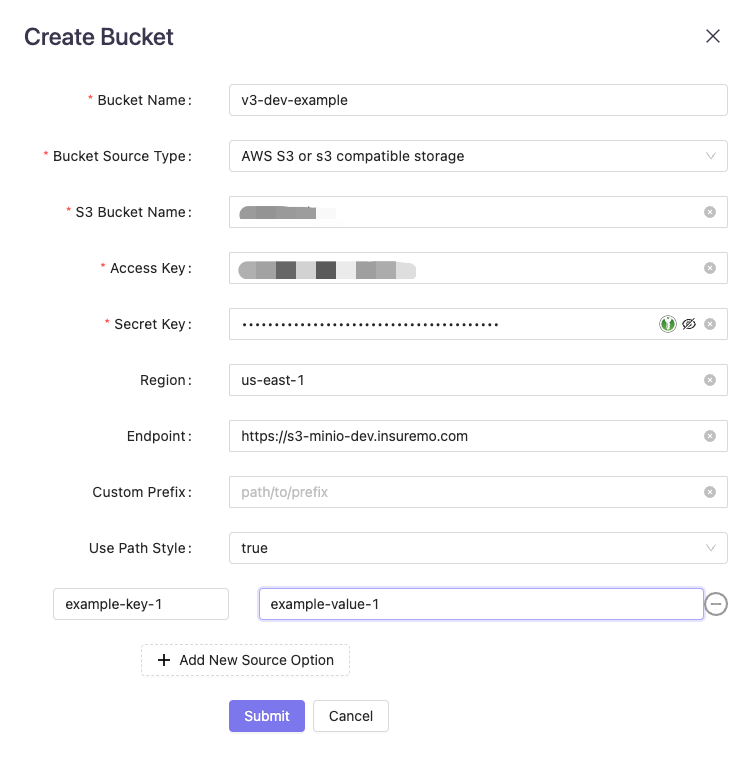
source_properties.aws_use_path_style | true means use path style, default false | - | - |
For MinIO bucket, region should be us-east-1 and use path style should be true.
For OCI storage bucket, endpoint should contain namespace and use path style should be true.
Operations
Using insureMO Portal (Console)
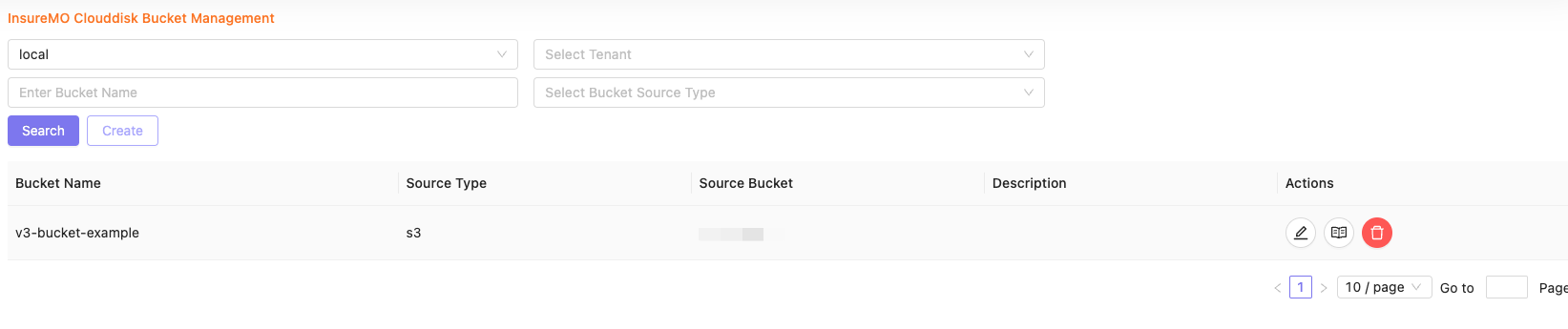
- Log in to insureMO Portal, find CloudDisk card or open https://portal.insuremo.com/#/home/non-insurance-services/clouddisk-v3.
- Click Create.
- Fill the form in Create Bucket dialog and click Submit.
Using insureMO API
You can call CreateBucket API to create a bucket.
Below is an example of using curl command to create a bucket.
# set gateway url and access token
insuremo_gw_url="https://portal-gw.insuremo.com" \
insuremo_access_token="Bearer your-access-token" \
curl -X POST \
"$insuremo_gw_url/mo-fo/1.0/clouddisk/v3/bucket/add-one" \
-H "Content-Type: application/json" \
-H "Authorization: $insuremo_access_token" \
--data '{
    "description": "description of this bucket",
    "name": "your-bucket-name",
    "source_type": "default",
    // options ...
}'
Using insureMO SDK for JAVA
import com.insuremo.sdk.core.client.SDKClient;
import com.insuremo.sdk.core.exception.ApiException;
import com.insuremo.sdk.services.clouddisk.ClouddiskSdkClient;
import com.insuremo.sdk.services.clouddisk.bundle.CreateBucketResponseBundle;
import com.insuremo.sdk.services.clouddisk.model.CreateBucketRequest;

public class BucketApi_createBucket {

    public static void main(String[] args) {
        System.out.println("----- Example for BucketApi.createBucket -----");
        System.out.println("----- building api -----");

        // spec gateway url, default http://gateway.mo-fo
        String gateway = "https://portal-gw.insuremo.com";
        String accessToken = "your-access-token";

        SDKClient sdkClient = SDKClient.builder().
                defaultConfigs().
                gateway(gateway).
                accessToken(accessToken).
                build();
        ClouddiskSdkClient client = new ClouddiskSdkClient(sdkClient);

        System.out.println("----- createBucket -----");
        try {
            CreateBucketResponseBundle responseBundle = client.bucketApi().newCreateBucketRequestBuilder().
                    body(new CreateBucketRequest().
                            sourceType("default").
                            name("sdk-example").
                            description("for sdk example testing")).
                    doRequest();
            System.out.println(responseBundle.getBody());
        } catch (ApiException e) {
            System.out.println("error when call api");
            System.out.println(e.getResponseBody());
            System.out.println(e.getCode());
            throw e;
        }
        System.out.println("----- Done. -----");
    }
}
Delete a Bucket
Deleting a bucket in CloudDisk does not actually delete the bucket on cloud storage. This means that if you re-create the same bucket, you will also be able to see the previously uploaded objects.
If you want to delete a bucket and objects on the cloud, you need to call the API Delete Objects /clouddisk/v3/object/delete to delete objects first and then delete the bucket on the cloud.
If you want to delete a bucket in CloudDisk that is used for non-production testing, you need to delete the objects in it first, and then delete the bucket.
Using insureMO Portal (Console)
Find the bucket you will delete, and click Delete on the right side. Click Ok for double-checking.
