What is Activiti8
Workflow refers to an orchestrated sequence of tasks and activities designed to achieve a specific business goal.
As a java framework based on the BPMN 2.0 standard, Activiti8 can be used for workflow control and management, assisting in processing business flows in the system and providing supports.
What is Workflow Microservice
The independent Activiti8-based microservice is workflow “engine” to enable the reuse of Activiti8 functions. It is called as workflow “engine” for two reasons:
- First, Activiti8 is used to process business flows, which are collectively called as workflow;
- Second, workflow microservice exposes easy-to-use APIs only by highly encapsulating codes and completely shielding underlying layers. You can process complex business flows with simple calls (with a great number of complex codes in the underlying layers though). It works like an engine, user-friendly yet with complex internal structures.
Use Scenario
- If the workflow involves many nodes, you can apply workflow engine to process handling, control and management.
- If there are changes in flow nodes, the original code can keep unchanged with workflow engine.
- If the workflow is complex, you can use simple codes with workflow engine to simplify the process.
How to Use Workflow Microservice
BPMN
BPMN: Business Process Model and Notation is the industry-standard graphical notation used in Activiti for visually modeling business processes. It ensures clarity and consistency in the whole process.
Definition
Learn about BPMN 2.0 norm, create a workflow definition file, and publish it to the target environment.
- Learn about BPMN 2.0 norm and create workflow definition file. Most of development tools have plugins for designing workflow files and can convert them to XML. There are many online tutorials available.
- You can see the following sample Easy PA workflow definition file:
Key Concepts
Process: The process is the structured definition of a workflow, outlining the steps and logic required to complete a business task.
Task: Tasks represent individual actions or pieces of work within a process that may require user input or automated actions.
Query Variable: These variables enable the querying of data during process execution, allowing for dynamic decision-making based on the current state of the process.
Control Variable: Control variables are used to influence the process flow, dictating the paths that are followed based on conditions or outcomes.
Deployment
Once users have prepared the workflow definition file, there are two ways user can use to deploy the process file data into environment:
- Via API
API below support users to import the file into the environment.
curl —location https://<URL>/api/platform/workflow/workflow/v1/deployment' \ --form 'files=@"/D:/My Documents/desktop/src_main_bizdata_wf_activiti_wf_zip_TenantCode_proposal_workflow.bpmn20.xml"
- Via DataIO Engine
User need submit your xml files to business data directory of “bizdata/wf_activiti/wf_zip”.
For example, https://gitlab.insuremo.com/tenantCode/pa/pa-data/***/bizdata/wf_activiti/wf_zip
For more details, user can refer to DataIO guide.
If you update the workflow and deploy it to other environments but it doesn’t take effect, please first try deleting the deployment step and redeploying it. We will resolve this deployment issue as soon as possible.
Index Definition
Configure index definition of workflow and publish the configuration to the target environment
-
To configure index corresponding to functional modules and publish business data to the target environment, see Index Management.
-
The following table shows the minimum index field sets in workflow (or necessary configuration field). You can extend configuration based on project requirements. You can reference the index configuration in Easy PA workflow—PolicyAdminWorkflow.
| INDEX_FIELD_NAME | TYPE | INCLUDE_ALL | Description | Note |
|---|---|---|---|---|
| TaskId | String | Y | Task Id. | No input required at request, with workflow’s autoindex function. |
| TaskName | String | N | Task name. | No input required at request, with workflow’s autoindex function. |
| Status | String | Y | Task status. | No input required at request, with workflow’s autoindex function. |
| Owner | String | Y | Task owner. | No input required at request, with workflow’s autoindex function. |
| Assignee | String | Y | Task assignee. | No input required at request, with workflow’s autoindex function. |
| Description | String | N | Task description. | No input required at request, with workflow’s autoindex function. |
| CreatedDate | Date | N | Task created date. | No input required at request, with workflow’s autoindex function. |
| ClaimedDate | Date | N | Task claimed date. | No input required at request, with workflow’s autoindex function. |
| DueDate | Date | N | Task due date. | No input required at request, with workflow’s autoindex function. |
| Priority | String | Y | Priority. | No input required at request, with workflow’s autoindex function. |
| ProcessDefinitionId | String | Y | Process definition Id. | No input required at request, with workflow’s autoindex function. |
| ProcessInstanceId | String | Y | Process instance Id. | No input required at request, with workflow’s autoindex function. |
| ParentTaskId | String | Y | Parent task Id. | No input required at request, with workflow’s autoindex function. |
| FormKey | String | Y | - | No input required at request, with workflow’s autoindex function. |
| CompletedDate | Date | N | Task completed date. | No input required at request, with workflow’s autoindex function. |
| Duration | String | N | Task Id. | No input required at request, with workflow’s autoindex function. |
| ProcessDefinitionVersion | String | Y | Process definition version. | No input required at request, with workflow’s autoindex function. |
| SaveTime | Date | N | Task saved time. | No input required at request, with workflow’s autoindex function. |
| TaskDefinitionKey | String | Y | Task Type Definition key. | No input required at request, with workflow’s autoindex function. |
| TaskType | String | Y | Task type. | Input required at request to mark task type. |
| WorkflowBusinessKey | String | Y | Workflow business key. | Input required at request to relate to business key. |
API Call
Learn about workflow microservice APIs and apply them to business process management.
- For workflow API list and detailed information, see workflow service from InsureMO portal.
Please note that for an existing tenant to adopt workflow, you need to further confirm with InsureMO support team to check on database connection status corresponding to the tenant. If it’s not ready, it needs to pre-set then publish the configuration information to the configuration center, and trigger the hot update operation of the data.
Difference Between Old Workflow (Activi) Service
| Characteristics | Activiti-Service | Workflow MicroService | Competitive Advantage |
|---|---|---|---|
| Team to Manage | Non Insurance Service. | ICS. | |
| Activiti Middleware Version | 7 | 8 | Upgrade into latest middleware version and new feature. |
| DB Data Segregation | Logical Segregation. | Schema Segregation. | Data more secure, better performance. |
| DB Data Storage | Part of data stored in DB and part in ES. Once ES is down, data cannot be recovered. | Refactor activiti underlying storage logic to achieve full db storage. | Improve taskVariable search performance. |
| ES Index Mgt | Hard Coding. | Index Management. | Flexible configuration and auto deployment. |
| ES Index Field | Cannot support index rebuild. | Physical segregation, can rebuild index. | Support index rebuild. |
Code Development Detail Analysis
In this section, we will take policy issuance process for Easy PA as an example, which will be shown as the red lines illustrated: Entry-Bind-Issue.
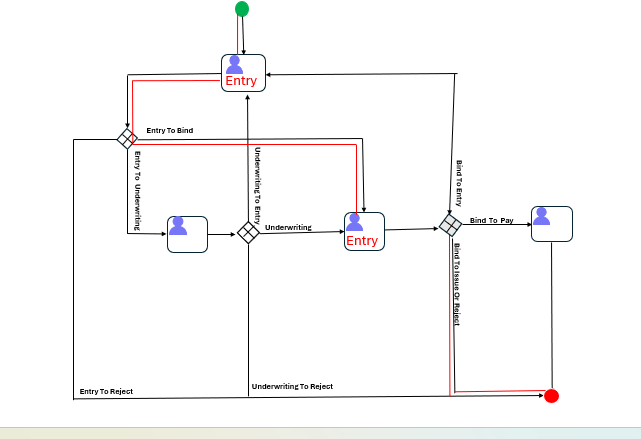
Start Process - Entry
Any execution of a workflow will be considered as a new process instance. So users need to call process instance API to create a new process.
RestTemplate Code Example
/**
 * startworkflow request url
 */
protected String startWFUrl = "http://workflow/workflow/v1/process-instances";

/**
 * RestTemplate Implementation
 */

@Resource(name = "restTemplateWithLoadBalance")
private RestTemplate restTemplate;

/***
 * Invoke API to start workflow
 */

Map<String, Object> startWorkflowResponse = restTemplate.postForObject(startWFUrl,  new HttpEntity(startWorkFlowRequest), Map.class);

/**
 * Process TaskId from startWorkflow Response Body
 *
 */

    String taskId=null;
    if(startWorkflowResponse!=null&&startWorkflowResponse.get("content")!=null){
    List<Map> list= (List<Map>) startWorkflowResponse.get("content");
    if(list!=null&&list.size()>0) {
        taskId = (String) list.get(0).get("id");
    }
}
SDK V2 Code Example
    cloudStartProcessPayload.setProcessDefinitionKey(WorkFlowConstants.getWorkflowConstants("PROCESS_DEF_PROPOSAL"));
    cloudStartProcessPayload.setQueryVariables(this.generateDataMapForPolicy(infoMap, new HashMap()));
    cloudStartProcessPayload.setAssignee(String.valueOf(AppContext.getCurrentUser().getUserId()));
    cloudStartProcessPayload.setIndexSchema(WorkFlowConstants.getWorkflowConstants("INDEX_SCHEMA_NAME"))
    workflow.processInstanceApi().newStartProcessRequestBuilder().cloudStartProcessPayload(cloudStartProcessPayload).doRequest().getBody();
StartWorkflowRequest Request JSON Example
{
    "assignee": "1100010440951",
    "indexSchema": "PolicyAdminWorkflow",
    "processDefinitionKey": "gi_proposal_workflow",
    "businessKey": "24202902844",
    "queryVariables": {
        "Branch": "10001",
        "EffectiveDate": "2023-08-08",
        "ExpiryDate": "2024-08-07T23:59:59",
        "PolicyHolder": "1234567890",
        "PolicyId": 24202902844,
        "PolicyStatus": 1,
        "ProductCode": "TBTI",
        "ProductId": 351925022,
        "ProposalNo": "PABTBTI0000012103",
        "ProposalStatus": "1",
        "TaskType": "New Business",
        "WorkflowBusinessKey": "24202902844"
    }
}| Important Fields | Implication |
|---|---|
| assignee | Task assignee. |
| indexSchema | WorkflowTask index name. |
| processDefinitionKey | Process definition ID. |
| businessKey | The unique Task-related business key (the same as queryVariables. WorkflowBusinessKey). |
| queryVariables | Task Query Variables indexes the data source of business-related fields (some index information about the Task itself has been encapsulated inside workflow). |
| queryVariables. WorkflowBusinessKey | The unique Task-related business key (the same as businessKey). The key query fields are usually used in combination with queryVariables. TaskType. |
| queryVariables. TaskType | Workflow process identification. |
StartWorkflowResponse Response JSON Example
{
    "content": [
        {
            "assignee": "1100010440951",
            "claimedDate": "2023-08-08T08:08:52",
            "createdDate": "2023-08-08T08:08:51",
            "id": "cf8e96dd-35c2-11ee-82ef-ae8c9acfae74",
            "links": [
                {
                    "href": "http://10.2**:8080/workflow/v1",
                    "rel": "home"
                }
            ],
            "name": "Entry",
            "priority": 0,
            "processDefinitionId": "gi_proposal_workflow:1:131ced78-3296-11ee-8355-aeef91ca0aa6",
            "processInstanceId": "cf8b898d-35c2-11ee-82ef-ae8c9acfae74",
            "queryVariables": {
                "Branch": "10001",
                "EffectiveDate": "2023-08-08",
                "ExpiryDate": "2024-08-07T23:59:59",
                "PolicyHolder": "1234567890",
                "PolicyId": 24202902844,
                "PolicyStatus": 1,
                "ProductCode": "TBTI",
                "ProductId": 351925022,
                "ProposalNo": "PABTBTI0000012103",
                "ProposalStatus": "1",
                "TaskType": "New Business",
                "WorkflowBusinessKey": "24202902844"
            },
            "status": "ASSIGNED",
            "taskDefinitionKey": "UserTask_18dicc2"
        }
    ],
    "links": []
    }
Complete Task and Continue - Bind
Scenario 1 - Complete with ControlVariable
When users want to go to the next workflow stage, there can be two options:
-
If there’s only one way to go, users can directly call complete API without the need of controlVariable. The system will automatically transition.
-
If there are multiple ways to go, user need to call complete API with controlVariable to control which flow to go to.
RestTemplate Code Example
/**
 * completeWFUrl request url
 */
protected String completeWFUrl="http://workflow/workflow/v1/tasks/{taskId}/complete";

/**
 * RestTemplate Implementation
 */

@Resource(name = "restTemplateWithLoadBalance")
private RestTemplate restTemplate;

 completeWFUrl = completeWFUrl.replace("{taskId}", "cf8e96dd-35c2-11ee-82ef-ae8c9acfae74");

/***
 * Call API to go to next workflow
 */

Map<String, Object> completeWorkflowResponse = restTemplate.postForObject(completeWFUrl,  new HttpEntity(completeTaskRequest), Map.class);

/**
 * Process TaskId from completeWorkflowResponse
 *
 */

    String taskId=null;
    if(completeWorkflowResponse!=null&&completeWorkflowResponse.get("content")!=null){
    List<Map> list= (List<Map>) completeWorkflowResponse.get("content");
    if(list!=null&&list.size()>0) {
        taskId = (String) list.get(0).get("id");
    }
}
SDK V2 Code Example
    cloudCompleteTaskPayload.setControlVariables(actionMap)
    cloudCompleteTaskPayload.setIndexSchema(WorkFlowConstants.getWorkflowConstants("INDEX_SCHEMA_NAME"))
    cloudCompleteTaskPayload.setTaskId(taskId)
    workflow.taskApi().newCompleteTaskRequestBuilder().cloudCompleteTaskPayload(cloudCompleteTaskPayload).doRequest().getBody()
CompleteTaskRequest Request JSON Example
{
    "assignee": "1100010440951",
    "controlVariables": {
        "action": "bind"
    },
    "indexSchema": "PolicyAdminWorkflow",
    "queryVariables": {
        "Branch": "10001",
        "DuePremium": 0.3,
        "EffectiveDate": "2023-08-08",
        "ExpiryDate": "2024-08-07T23:59:59",
        "PolicyHolder": "1234567890",
        "PolicyId": 24202902844,
        "PolicyNo": "POTBTI00021223",
        "PolicyStatus": 2,
        "ProductCode": "TBTI",
        "ProductId": 351925022,
        "ProposalNo": "PABTBTI0000012103",
        "ProposalStatus": "3",
        "SumInsured": 111,
        "TaskType": "New Business",
        "WorkflowBusinessKey": "24202902844"
    }
}| Important Fields | Implication |
|---|---|
| assignee | Task assignee. |
| indexSchema | WorkflowTask index name. |
| controlVariables | Control variable set of workflow node flow. |
| controlVariables. action | The flow control variables in workflow node correspond with the variables in workflow definition. |
CompleteTaskResponse Response JSON Example
{
    "content": [
        {
            "assignee": "1100010440951",
            "claimedDate": "2023-08-08T08:08:52",
            "createdDate": "2023-08-08T08:08:51",
            "id": "cf8e96dd-35c2-12cd-82dc-ae8c9acfae74",
            "links": [
                {
                    "href": "http://10.2***:8080/workflow/v1",
                    "rel": "home"
               }
            ],
            "name": "Bind",
            "priority": 0,
            "processDefinitionId": "gi_proposal_workflow:1:131ced78-3296-11ee-8355-aeef91ca0aa6",
            "processInstanceId": "cf8b898d-35c2-11ee-82ef-ae8c9acfae74",
            "queryVariables": {
                "Branch": "10001",
                "EffectiveDate": "2023-08-08",
                "ExpiryDate": "2024-08-07T23:59:59",
                "PolicyHolder": "1234567890",
                "PolicyId": 24202902844,
                "PolicyStatus": 1,
                "ProductCode": "TBTI",
                "ProductId": 351925022,
                "ProposalNo": "PABTBTI0000012103",
                "ProposalStatus": "1",
                "TaskType": "New Business",
                "WorkflowBusinessKey": "24202902844"
            },
            "status": "ASSIGNED",
            "taskDefinitionKey": "UserTask_18dicc2"
        }
    ],
    "links": []
}
Scenario 2 - Query By Business Key
If users cannot get the TaskId from the previous transaction and need to fetch a new one, it’s suggested that users call our query by business key API (query from DB) instead of search API because there’s a latency in ES response and it might lead to system error for high-frequency operation.
RestTemplate Code Example
protected String queryTasksByBusinessKeyUrl = "http://workflow/workflow/v1/tasks/byBusinessKey" +

"?processDefinitionKey={processDefinitionKeyStr}&workflowBusinessKey={workflowBusinessKeyStr}";


@Resource(name = "restTemplateWithLoadBalance")
private RestTemplate restTemplate;

public Map queryTasksByBusinessKey(String processDefinitionKey, String workflowBusinessKey) {
    String requestUrl = queryTasksByBusinessKeyUrl.replace("{processDefinitionKeyStr}", processDefinitionKey)
        .replace("{workflowBusinessKeyStr}", workflowBusinessKey);
    try {
        ResponseEntity<Map> queryWFResult = restTemplate.exchange(requestUrl, HttpMethod.GET, null, Map.class);
        return queryWFResult.getBody();
    } catch (Exception e) {
        throw e;
    }
}

public String getTaskIdFromActionResult(Map queryWFResult) {
    String taskId = null;
    if (queryWFResult != null && queryWFResult.get("content") != null) {
        List<Map> list = (List<Map>) queryWFResult.get("content");
        if (list != null && list.size() > 0) {
            taskId = (String) list.get(0).get("id");
        }
    }
    return taskId;
}


public String getTaskIdFromActionResult(Map queryWFResult) {
    String taskId = null;
    if (queryWFResult != null && queryWFResult.get("content") != null) {
        List<Map\> list = (List<Map\>) queryWFResult.get("content");<map\>
        if (list != null && list.size() > 0) {
            taskId = (String) list.get(0).get("id");
        }
    }
    return taskId;
}
Response JSON Example
{
    "links": [],
    "content": [
        {
            "docId": null,
            "id": "0607bcd8-3fcd-11ee-b029-0e2636c433c5",
            "name": "Entry",
            "status": "ASSIGNED",
            "owner": null,
            "assignee": "10000000221007",
            "description": null,
            "createdDate": "2023-08-21T02:47:09",
            "claimedDate": "2023-08-21T02:47:10",
            "dueDate": null,
            "priority": 0,
            "processDefinitionId": "gi_proposal_workflow:2:01feffc0-3d79-11ee-b5a7-5e6990cde618",
            "processInstanceId": "06048878-3fcd-11ee-b029-0e2636c433c5",
            "parentTaskId": null,
            "formKey": null,
            "completedDate": null,
            "duration": null,
            "processDefinitionVersion": null,
            "businessKey": null,
            "taskDefinitionKey": "UserTask_18dicc2",
            "queryVariables": {
                "ExpiryDate": "2024-08-20T23:59:59",
                "ProductCode": "TBTI",
                "ProposalNo": "PABTBTI0000012714",
                "ProductId": 351925022,
                "PolicyHolder": "10000562210739374",
                "Branch": "10001",
                "WorkflowBusinessKey": "24211332814",
                "PolicyStatus": 1,
                "TaskType": "New Business",
                "IndexSchema": "PolicyAdminWorkflow",
                "ProposalStatus": "1",
                "PolicyId": 24211332814,
                "EffectiveDate": "2023-08-21"
            },
            "links": [
                {
                    "rel": "home",
                    "href": "http://10.2***/workflow/v1"
                }
            ]
        }
    ]
}
Complete Task - Issue
If users want to close the process, as long as there’s only one final flow, they can call complete task API without controlVariable and the whole process will end.
RestTemplate Code Example
/**
 * completeWFUrl request url
 */
protected String completeWFUrl="http://workflow/workflow/v1/tasks/{taskId}/complete";

/**
 * RestTemplate Implementation
 */

@Resource(name = "restTemplateWithLoadBalance")
private RestTemplate restTemplate;

    completeWFUrl = completeWFUrl.replace("{taskId}", "cf8e96dd-35c2-12cd-82dc-ae8c9acfae74");

/***
 * Call API to start workflow
 */

    restTemplate.postForObject(completeWFUrl,  new HttpEntity(completeTaskRequest), Map.class);
SDK V2 Code Example
Same as Above
CompleteTaskRequest Request JSON Example
{
    "assignee": "1100010440951",
    "controlVariables": {
        "action": "bind"
    },
    "indexSchema": "PolicyAdminWorkflow",
    "queryVariables": {
        "Branch": "10001",
        "DuePremium": 0.3,
        "EffectiveDate": "2023-08-08",
        "ExpiryDate": "2024-08-07T23:59:59",
        "IssueDate": "2023-08-08T16:15:49",
        "PolicyHolder": "1234567890",
        "PolicyId": 24202902844,
        "PolicyNo": "POTBTI00021223",
        "PolicyStatus": 2,
        "ProductCode": "TBTI",
        "ProductId": 351925022,
        "ProposalNo": "PABTBTI0000012103",
        "ProposalStatus": "3",
        "SumInsured": 111,
        "TaskType": "New Business",
        "WorkflowBusinessKey": "24202902844"
    }
}
Search Task - WorkList
RestTemplate Code Example
/**
 * queryWFUrl request url
 */
protected String queryTasksUrl="http://workflow/workflow/v1/tasks";

/**
 * RestTemplate Implementation
 */

@Resource(name = "restTemplateWithLoadBalance")
private RestTemplate restTemplate;

/**
 * Organize query condition
 */
    SearchCondition searchCondition = new SearchCondition();
    searchCondition.setModule("PolicyAdminWorkflow");

    Map<String, Object> conditions = new HashMap<>();
    conditions.put("TaskType","New Business");
    conditions.put("WorkflowBusinessKey","24202902844");
    searchCondition.setConditions(conditions);


/***
 * Call API to query Task
 */

    Map<String, Object> queryWFResult = restTemplate.postForObject(queryTasksUrl,  new HttpEntity(searchCondition), Map.class);

    /**
     * Process TaskId from queryWFResult
     *
     */
    QueryResult queryResult=null;
    if(queryWFResult!=null){
    queryResult= JSONUtils.fromJSON(JSONUtils.toJSON(queryWFResult), QueryResult.class);
    }

    String taskId = null;
    if(queryResult!=null&&queryResult.getTotal()>0&&  queryResult.getResults()!=null
    &&  queryResult.getResults().get(0)!=null&&queryResult.getResults().get(0).getEsDocs()!=null
    &&queryResult.getResults().get(0).getEsDocs().size()>0){

taskId=(String)queryResult.getResults().get(0).getEsDocs().get(0).get("TaskId");
    }
SDK V2 Code Example
workflow.taskApi().newGetTasksBySearchConditionRequestBuilder().searchCondition(searchCondition).doRequest().getBody()SearchCondition Request JSON Example
- For searchCondition example, see Base Query Business Data for data structure reference.
{
    "Module": "PolicyAdminWorkflow",
    "Conditions": {
        "TaskType": "New Business",
        "WorkflowBusinessKey": "24202902844"
    },
    "FuzzyConditions": {},
    "FromRangeConditions": {},
    "ToRangeConditions": {},
    "PageNo": 1,
    "PageSize": 10,
    "SortField": "index_time",
    "SortType": "desc"
}
SearchCondition Response JSON Example
{
    "pageNo": 1,
    "pageSize": 10,
    "total": 1,
    "groupField": "entity_type",
    "results": [
        {
            "groupValue": "PolicyAdminWorkflow",
            "groupTotalNum": 1,
            "esDocs": [
                {
                    "Assignee": "1100010440951",
                    "Branch": "10001",
                    "claimedDate": "2023-08-08T08:08:52",
                    "createdDate": "2023-08-08T08:08:51",
                    "EffectiveDate": "2023-08-08",
                    "ExpiryDate": "2024-08-07T23:59:59",
                    "PolicyId": 24202902844,
                    "PolicyStatus": 1,
                    "Priority": 0,
                    "ProcessDefinitionId": "gi_proposal_workflow:1:131ced78-3296-11ee-8355-aeef91ca0aa6",
                    "ProcessInstanceId": "02e5d970-35b3-11ee-82ef-ae8c9acfae74",
                    "ProductCode": "TBTI",
                    "ProductId": 351925022,
                    "ProposalNo": "PABTBTI0000012103",
                    "ProposalStatus": "1",
                    "SaveTime": "2023-08-08T08:08:51",
                    "Status": "ASSIGNED",
                    "TaskDefinitionKey": "UserTask_18dicc2",
                    "TaskId": "cf8e96dd-35c2-11ee-82ef-ae8c9acfae74",
                    "TaskName": "Entry",
                    "TaskType": "New Business",
                    "WorkflowBusinessKey": "24202902844",
                    "entity_id": "cf8e96dd-35c2-11ee-82ef-ae8c9acfae74",
                    "entity_type": "PolicyAdminWorkflow",
                    "id": "PolicyAdminWorkflow_cf8e96dd-35c2-11ee-82ef-ae8c9acfae74",
                    "index_time": "2023-08-08T06:15:49.354Z",
                    "index_timestamp": 1691475348442,
                    "tenant_code": "xxxxxx"
                }
            ],
            "innerDocs": []
        }
    ],
    "maxPageCount": null
}
Troubleshooting Guide: “No outgoing sequence flow” Error
Understanding the Error
When completing a workflow task, you may encounter the following error:
No outgoing sequence flow of the exclusive gateway 'ExclusiveGateway_1gex3l2' could be selected for continuing the processThis error occurs when the workflow engine cannot determine which path to take at a gateway (decision point) in your workflow process. The simple reason is that the workflow control variables passed in the current request do not match any of the conditions defined in the workflow definition.
How Workflow Gateways Work
A workflow definition often contains gateways (decision points) that control the flow based on conditions. For example:
[Entry] → [Exclusive Gateway] → [Bind]     (if action='bind')
                               → [Reject]   (if action='reject')
                               → [Review]   (if action='review')
At the Exclusive Gateway, the workflow engine evaluates the controlVariables you pass in the complete task request against each outgoing sequence flow’s condition expression. Only if the variables exactly match one of the conditions will the flow proceed to the next node.
Root Causes
This error typically occurs due to one of three reasons:
1. Duplicate Request Submission
Problem: The same request is being resubmitted, possibly due to:
- User clicking the submit button multiple times
- API calls being retried without proper idempotency checks
- Frontend not preventing duplicate submissions
Solution:
- Implement idempotency checks on the backend
- Add frontend validation to prevent duplicate submissions
- Log and review the request history to identify duplicate calls
2. Mismatch Between Control Variables and Workflow Definition
Problem: The control variables passed in the request do not match the workflow definition’s conditions. Common issues include:
- Missing control variable (e.g., not passing
actionparameter) - Incorrect variable name (e.g., using
actininstead ofaction) - Incorrect variable value (e.g., passing
"binding"when definition expects"bind") - Type mismatch (e.g., passing string when number is expected)
Solution:
- Review the workflow definition file (.bpmn20.xml) to understand the expected conditions
- Check the condition expressions on sequence flows (e.g.,
${action == 'bind'}) - Verify your request payload includes all required control variables with correct names and values
- Add logging to print the controlVariables before calling the complete task API
3. Workflow Definition Version Mismatch
Problem: The workflow definition deployed in the environment does not match the version your business code expects. This can happen when:
- Code is deployed but workflow definition is not updated
- Workflow definition is updated but code is not synchronized
- Different environments have different workflow versions
Solution:
- Verify the
processDefinitionIdand version in the response matches your expectations - Confirm that the workflow definition version matches the business code version
- Redeploy the correct workflow definition if needed
- Ensure all environments (dev, test, prod) have consistent versions
Step-by-Step Troubleshooting Process
When you encounter this error, follow these steps:
Step 1: Check the Error Message
The error message includes the gateway ID (e.g., ExclusiveGateway_1gex3l2). Use this to locate the gateway in your workflow definition.
Step 2: Review the Workflow Definition
Open your BPMN file and find the gateway by its ID. Examine all outgoing sequence flows and their condition expressions.
Example from BPMN:
<exclusiveGateway id="ExclusiveGateway_1gex3l2" name="Decision Gateway"/>
<sequenceFlow id="Flow_1" sourceRef="ExclusiveGateway_1gex3l2" targetRef="Bind">
    <conditionExpression xsi:type="tFormalExpression">${action == 'bind'}</conditionExpression>
</sequenceFlow>
<sequenceFlow id="Flow_2" sourceRef="ExclusiveGateway_1gex3l2" targetRef="Issue">
    <conditionExpression xsi:type="tFormalExpression">${action == 'issue'}</conditionExpression>
</sequenceFlow>
Step 3: Verify Your Request Payload
Check the controlVariables in your complete task request:
{
    "taskId": "cf8e96dd-35c2-11ee-82ef-ae8c9acfae74",
    "controlVariables": {
        "action": "bind"  // ← This must match one of the conditions
    }
}
Step 4: Add Debugging
Add logging to capture the exact control variables being passed:
logger.info("Completing task {} with control variables: {}", taskId, controlVariables);
try {
    taskService.complete(taskId, controlVariables, false);
} catch (Exception e) {
    logger.error("Failed to complete task. Control variables were: {}", controlVariables, e);
    throw e;
}
Step 5: Test with Correct Variables
Once you’ve identified the correct variables and values, test again:
- Ensure variable names match exactly (case-sensitive)
- Ensure variable values match the condition expression expectations
- Check for any whitespace or encoding issues
By following this troubleshooting guide, you should be able to quickly identify and resolve “No outgoing sequence flow” errors in your Activiti workflow implementation.
Troubleshooting Guide: “Error while evaluating expression: ${assignee}” Error
Understanding the Error
When starting or continuing a workflow process, you may encounter the following error:
org.activiti.engine.ActivitiException: Error while evaluating expression: ${assignee}This error occurs when the Activiti workflow engine attempts to execute a UserTask but cannot determine who the task should be assigned to. The BPMN file uses the expression language ${assignee}, which tells Activiti: “Please look for a variable named ‘assignee’ from the process variables and use its value as the task assignee.” When starting a process instance or flowing to the next task node, if the assignee variable does not exist, Activiti cannot evaluate this expression and throws an exception.
How UserTask Assignment Works
In a workflow definition, UserTasks typically define who should handle the task using the activiti:assignee attribute. For example:
<userTask id="UserTask_Entry" name="Entry" activiti:assignee="${assignee}"/>
<userTask id="UserTask_Create" name="Create" activiti:assignee="${assignee}"/>
<userTask id="UserTask_Close" name="Close" activiti:assignee="${assignee}"/>
The ${assignee} expression means the workflow engine will look for a process variable named assignee at runtime and use its value to assign the task. If this variable is not provided, the expression evaluation fails.
Root Causes
This error typically occurs due to one of the following reasons:
1. Missing Assignee Variable in Process Startup
Problem: When starting a new process instance, the assignee variable is not provided in the request payload.
Solution: Include the assignee variable in both the root-level and controlVariables when starting a process:
{
    "assignee": "10000104613177",
    "indexSchema": "SubmissionWorkflow",
    "processDefinitionKey": "submission_workflow",
    "controlVariables": {
        "assignee": "10000104613177"
    },
    "queryVariables": {
        "ExpiryDate": "2027-04-12T23:59:59",
        "WorkflowBusinessKey": "41329720497",
        "TaskType": "New Submission",
        "SubmissionId": "41329720497",
        "NameInsured": "Ja",
        "EffectiveDate": "2026-04-13"
    }
}
2. Missing Assignee Variable in Task Completion
Problem: When completing a task and flowing to the next UserTask node, the assignee variable is not provided in the controlVariables.
Solution: Include the assignee variable in the controlVariables when completing a task:
{
    "taskId": "cf8e96dd-35c2-11ee-82ef-ae8c9acfae74",
    "assignee": "10000104613177",
    "indexSchema": "SubmissionWorkflow",
    "controlVariables": {
        "assignee": "10000104613177",
        "action": "approve"
    },
    "queryVariables": {
        "TaskType": "New Submission",
        "WorkflowBusinessKey": "41329720497"
    }
}
3. Incorrect Variable Name or Scope
Problem: The assignee variable is provided but with incorrect naming or in the wrong scope:
- Using
assignedToinstead ofassignee - Placing
assigneeonly inqueryVariablesinstead ofcontrolVariables - Case sensitivity issues (e.g.,
Assigneeinstead ofassignee)
Solution: Ensure the variable name is exactly assignee (case-sensitive) and is included in controlVariables:
{
    "controlVariables": {
        "assignee": "10000104613177"  // Correct: lowercase, in controlVariables
    }
}
Best Practices to Avoid This Error
1. Always Provide Assignee Variable
Make it a practice to always include the assignee variable in both locations when starting a process or completing a task:
- At the root level of the request payload
- Inside the
controlVariablesobject
2. Use Consistent User Identification
Ensure the assignee value matches the user identification system used in your environment:
- User ID (e.g., “10000104613177”)
- Username (e.g., “john.doe”)
- Email (e.g., ”john.doe@company.com“)
3. Validate Before Workflow Execution
Add validation in your code to ensure the assignee variable is present before calling workflow APIs:
public void validateAssignee(String assignee) {
    if (assignee == null || assignee.trim().isEmpty()) {
        throw new IllegalArgumentException("Assignee cannot be null or empty");
    }
}
4. Log Assignee Information
Add logging to track assignee assignments for debugging:
logger.info("Starting process for assignee: {}", assignee);
logger.info("Completing task {} with assignee: {}", taskId, assignee);
Step-by-Step Troubleshooting Process
When you encounter this error, follow these steps:
Step 1: Check the Error Message
The error message will indicate which expression failed evaluation. For ${assignee}, it means the assignee variable is missing or null.
Step 2: Review Your BPMN Definition
Open your BPMN file and verify the assignee expression:
<userTask id="UserTask_Entry" name="Entry" activiti:assignee="${assignee}"/>Confirm that the variable name in the expression matches what you’re providing.
Step 3: Verify Your Request Payload
Check your API request payload to ensure:
assigneeis included at the root levelassigneeis included incontrolVariables- The variable name is exactly
assignee(case-sensitive) - The assignee value is not null or empty
Step 4: Test with Valid Assignee
Use a valid user ID from your system:
- Confirm the user exists in your user management system
- Use the correct user ID format
- Test with a known active user
Step 5: Check for Dynamic Assignment
If your workflow requires dynamic assignment (e.g., assignment based on role, department, or business logic), consider:
- Using a listener to set the assignee dynamically
- Implementing a task listener to calculate the assignee
- Using candidate users/groups instead of direct assignment
Example: Correct Implementation
Starting a Process
CloudStartProcessPayload payload = new CloudStartProcessPayload();
payload.setProcessDefinitionKey("submission_workflow");
payload.setIndexSchema("SubmissionWorkflow");
payload.setAssignee("10000104613177");
payload.setBusinessKey("41329720497");

// Set controlVariables with assignee
Map<String, Object> controlVariables = new HashMap<>();
controlVariables.put("assignee", "10000104613177");
payload.setControlVariables(controlVariables);

// Set queryVariables
Map<String, Object> queryVariables = new HashMap<>();
queryVariables.put("TaskType", "New Submission");
queryVariables.put("WorkflowBusinessKey", "41329720497");
queryVariables.put("SubmissionId", "41329720497");
payload.setQueryVariables(queryVariables);

workflow.processInstanceApi()
    .newStartProcessRequestBuilder()
    .cloudStartProcessPayload(payload)
    .doRequest();
Completing a Task
CloudCompleteTaskPayload payload = new CloudCompleteTaskPayload();
payload.setTaskId(taskId);
payload.setIndexSchema("SubmissionWorkflow");
payload.setAssignee("10000104613177");

// Set controlVariables with assignee and action
Map<String, Object> controlVariables = new HashMap<>();
controlVariables.put("assignee", "10000104613177");
controlVariables.put("action", "approve");
payload.setControlVariables(controlVariables);

workflow.taskApi()
    .newCompleteTaskRequestBuilder()
    .cloudCompleteTaskPayload(payload)
    .doRequest();
By following this troubleshooting guide, you should be able to quickly identify and resolve “Error while evaluating expression: ${assignee}” errors in your Activiti workflow implementation.