Basic Concept
I18n stands for internationalization, with the first letter “i,” the last letter “n,” and the remaining 18 letters in between.
From the system-wide perspective, i18n acts as a configuration module to maintain multilingual translations, including UI and code table translations, in a centralized manner.
User Scenario
It is for anybody who wants to use our platform to define and maintain multilingual translations.
Composition of I18n Translation
I18n translation normally refers to the configuration data that has been pre-defined in the system.
If the system is regarded as a whole, there are at least the following kinds of data that need to be translated:
- UI Display Label or UI Message Translation
It refers to the translation related to UI, including UI labels and UI prompt messages. It can be configured in the i18n module, and the UI can call the i18n API to display it.
- Code Table Translation
It refers to the translation of drop-down lists. If they are configured in the code table, the translation of the lists can then be configured in the i18n module, and the UI can call the i18n API to display it.
If it is a fixed drop-down list hardcoded in the UI, it will be categorized as the UI translation.
If multiple columns of a data table need to be translated, you have to set up different code tables for each column and then maintain the translations separately.
- Message Translation
It refers to the translation of system messages which are prompted to the UI from the back-end service. These messages are different from UI messages which control the UI behavior, but are more related to the system back-end behavior.
In the current design, such messages are not configured in the i18n module but in the message module. For more details, see Message Code.
- Business Configuration Data
It is a more complex topic. For example, branch name, product name, coverage name or plan description are configuration data maintained in each business module, not at the framework level.
Basically, there can be three scenarios:
- Without any support - It means that there’s only one name field maintained in the backend and no need to change language.
- With bilingual support - It means that there can be local name and english name two fields maintained in the backend. Front-end app can take both fields to achieve bilingual effect.
- With multi-lingual support - We would generally suggest user to create another layer to support it mostly through our data table/code table feature. For example, besides coverage definition in product management, user can create a seperate coverage master list code table and its i18n to maintain coverage name in diffeent languages. Of course, this also requires front-end app change to adopt the code table.
In short, if you want to realize multilingual display, you need to consider all the above aspects to form a proper and suitable multilingual solution.
Translation UI Operation Guide
- All operations in this text need to be performed in the portal master configuration environment (MC environment). They are not allowed in other environments unless for troubleshooting purposes.
- Please make sure you have all read and write authority to make the operation beforehand.
UI Label Translation
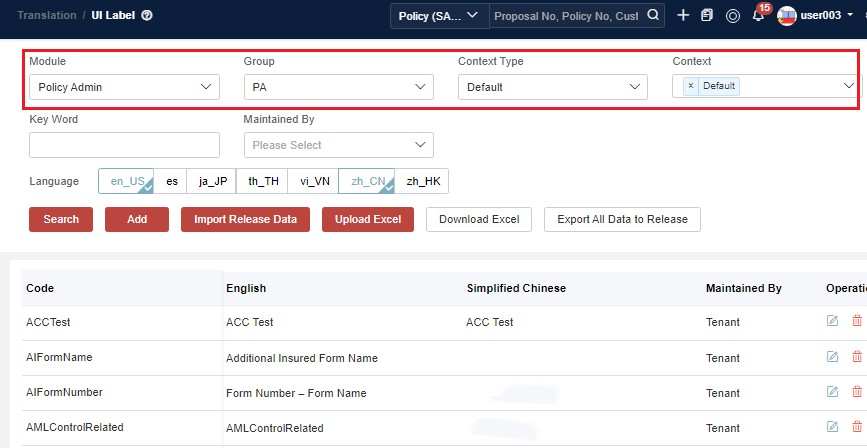
Select Module and Context Type. Then click Search to view the existing translations.
-
If you want to extend the configuration group, see Context for more details.
-
If you want to extend the available languages, see Language Setting for more details.
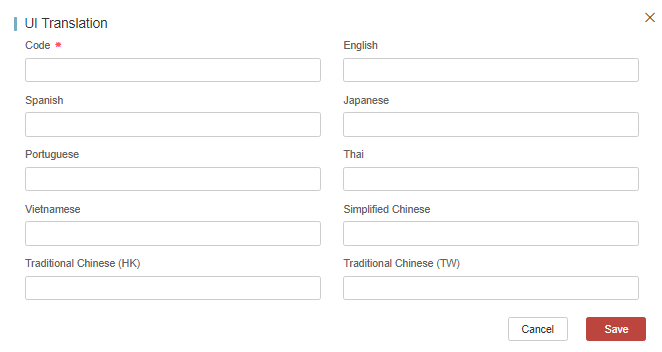
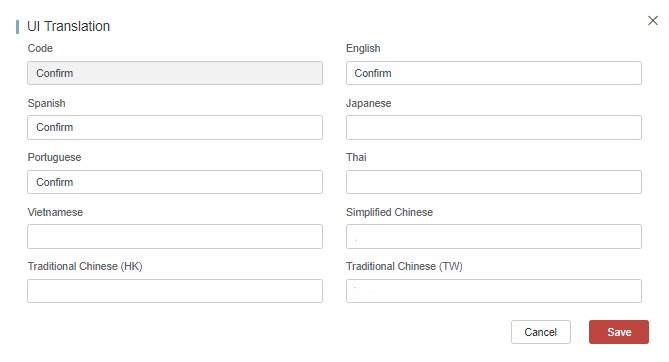
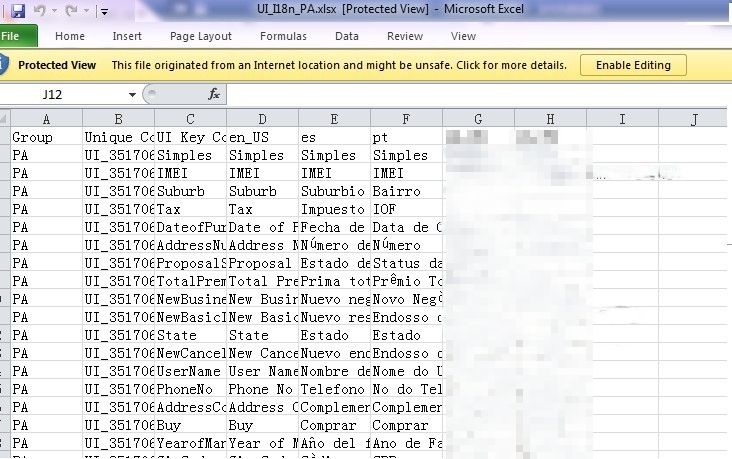
The UI operation of single records, Excel upload, and Excel download is supported to add or update records.
Click Add to add a new code.
Click  to edit the record.
Click Download Excel to download items.
Menu Translation
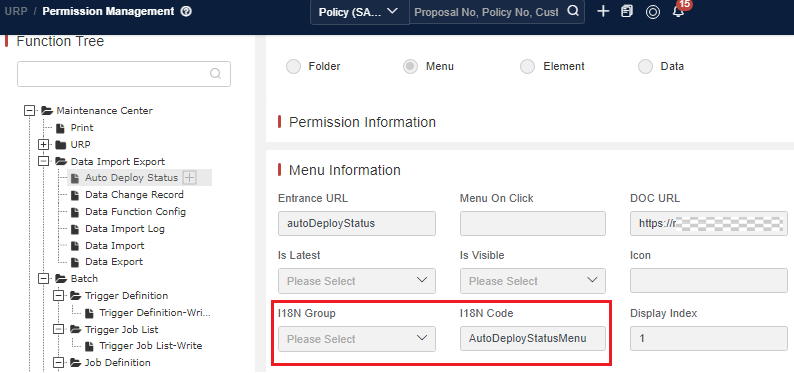
Menus related to i18n codes can be defined if they are added in URP.
Click Translation > UI Label. Then you can set I18N Group and I18N Code
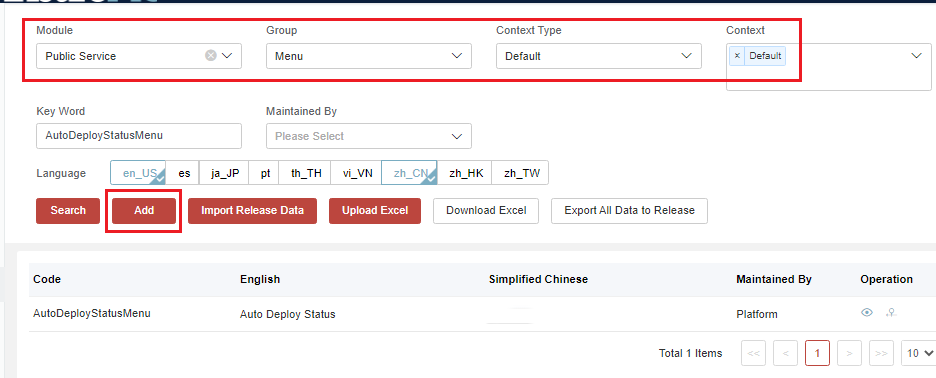
Select Group as Menu, Context Type and Context as Default. Then click Search to view the existing translations. You can also click Add to add multiple languages for a newly-added menu related to a i18n code.
Platform Translation Override
If you want to add tenant layer translation into data tables and codes tables both provided on the platform side, you should override the code tables before setting up your own tenant-level translation.
This is quite a complex scenario. The following table displays an overview of the status:

UI Label Help Text Translation
Pre-requisite: This feature is only applicable for Rainbow 4 or Rainbow 5.
If any label needs help text, you need to first define a label for it. Then you can use it in a UI project as described in UI Label Translation.
For the ease of adding help text, the system supports automatically loading help text for labels if the help text exists from Version23.03.x. Therefore, if you need to add help text for a label (define the i18n code as A), you do not need an application developer (AD) to change the UI project code. Instead, you can simply define the label code as A_helpText. Then the UI will automatically show it on the target label.
Take the Customer/Company Name UI label as an example.
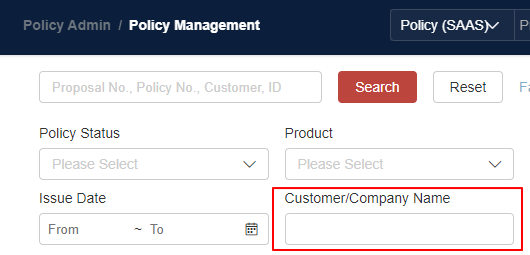
The related i18n code is CustomerCompanyName.
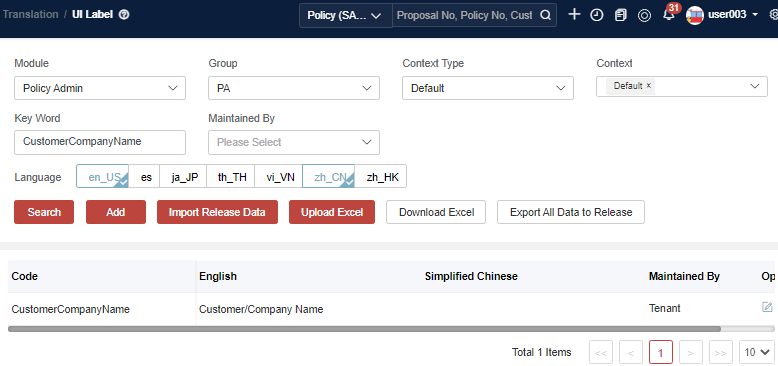
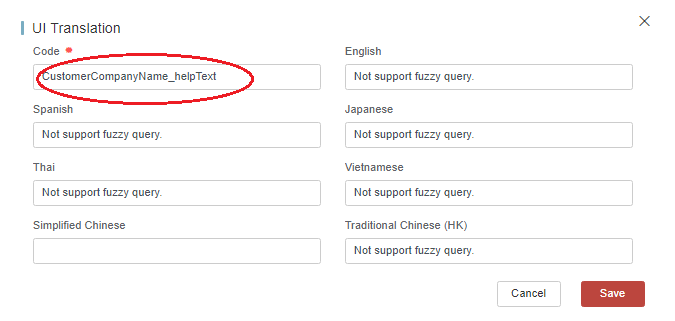
Add _helpText as an i18n code for the label.
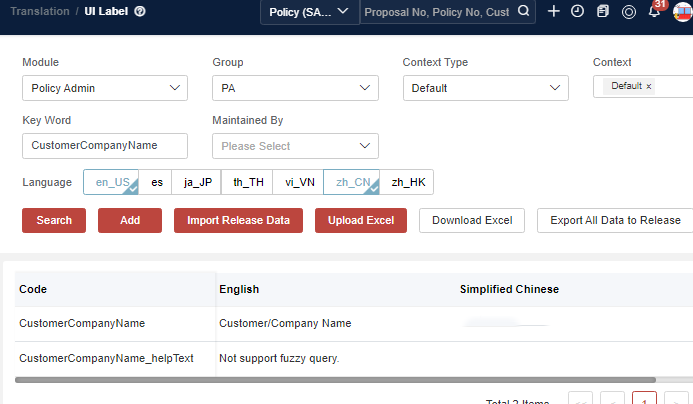
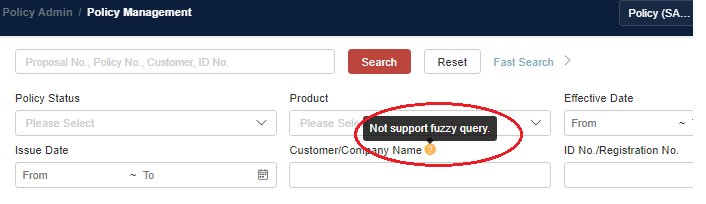
Log in again. You will find the label displayed with the help text.
Code Table Translation
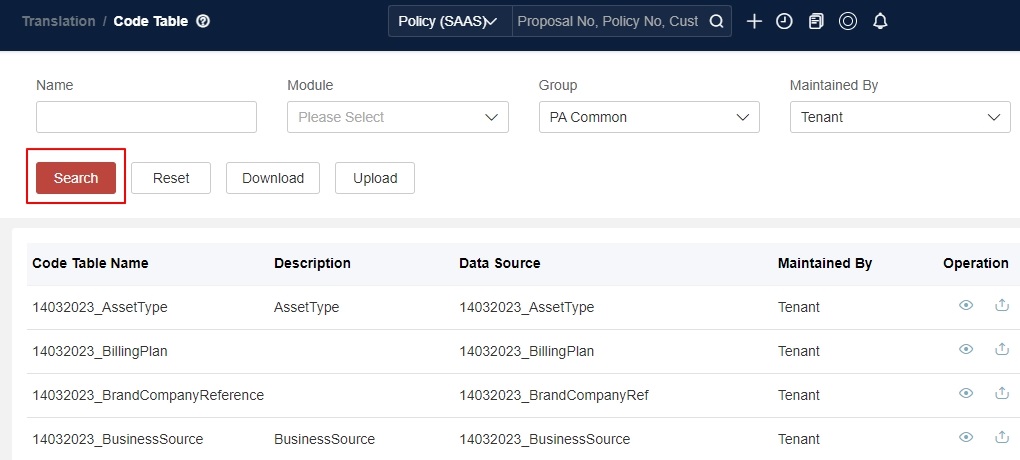
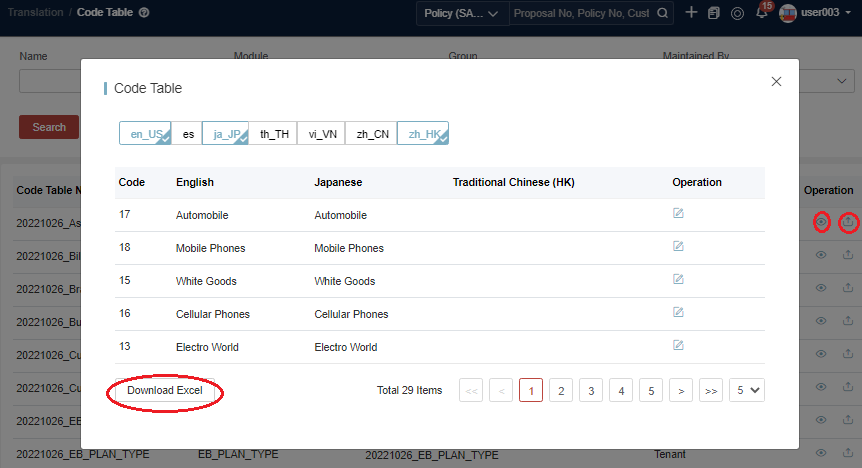
Fill in the Search criteria to query the corresponding data.
Click  . The system will display all code values whether there is a translation configured or not.
In addition, the system provides a checkbox for you to filter out those code values without translation so that you can quickly add it.
If you want to add or modify single record data via Excel, click Download Excel > Modify > Upload.
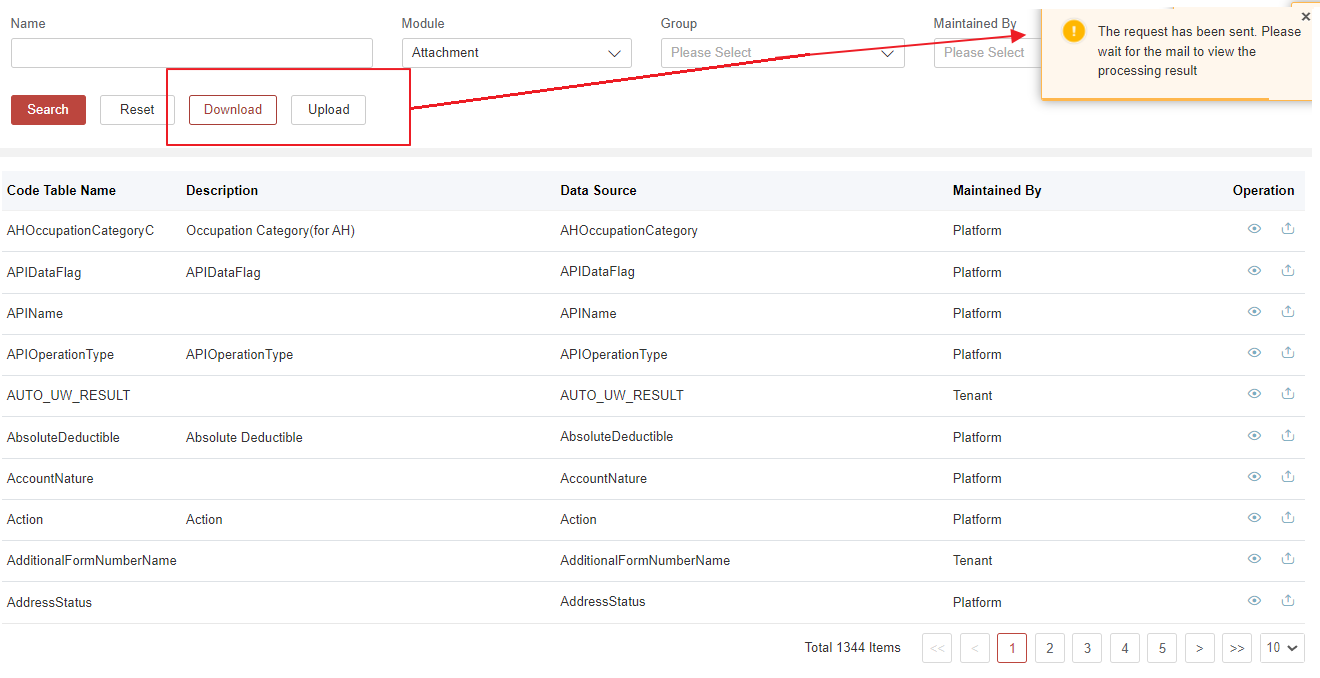
If you want to add or modify multiple record data via Excel, you should first select Module or Configuration. Then click Download Excel > Modify > Upload.
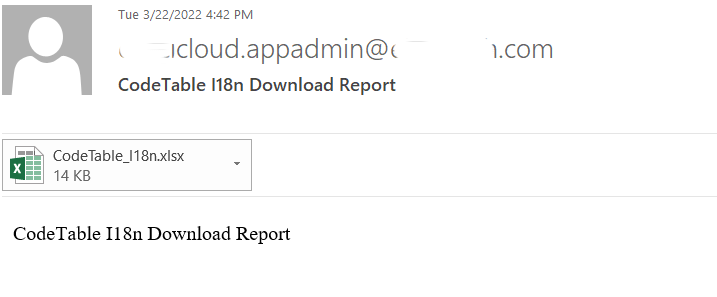
Because there can be many records in Excel, they will run in batch process. The processing result will be sent to your email address shortly.
Message Translation
See Message Code for message and translation configuration.
Export and Check in
The export and import of UI translations are maintained in the i18n module.
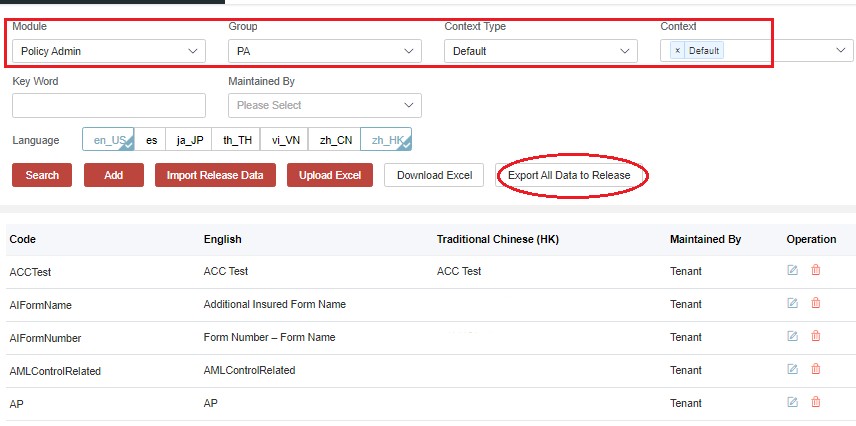
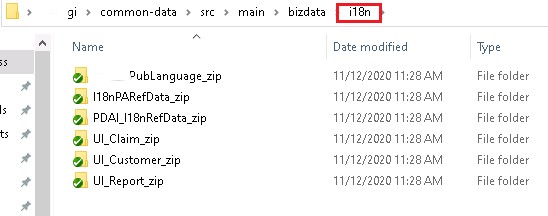
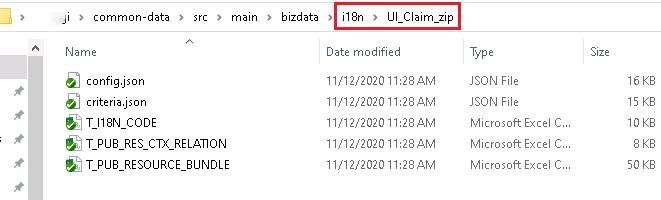
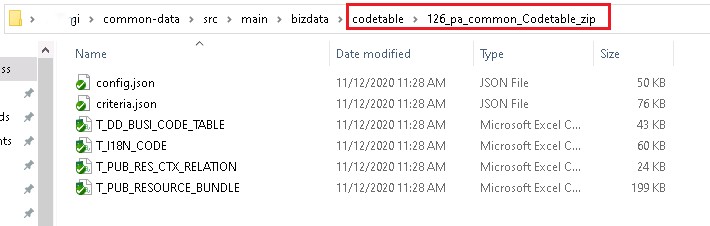
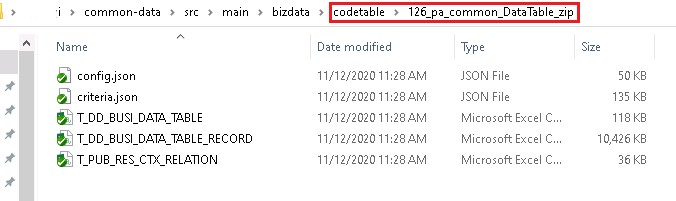
The export and import of code table translations are maintained in the code table module. Therefore, when updating an code table or its translations, we just export the code table.
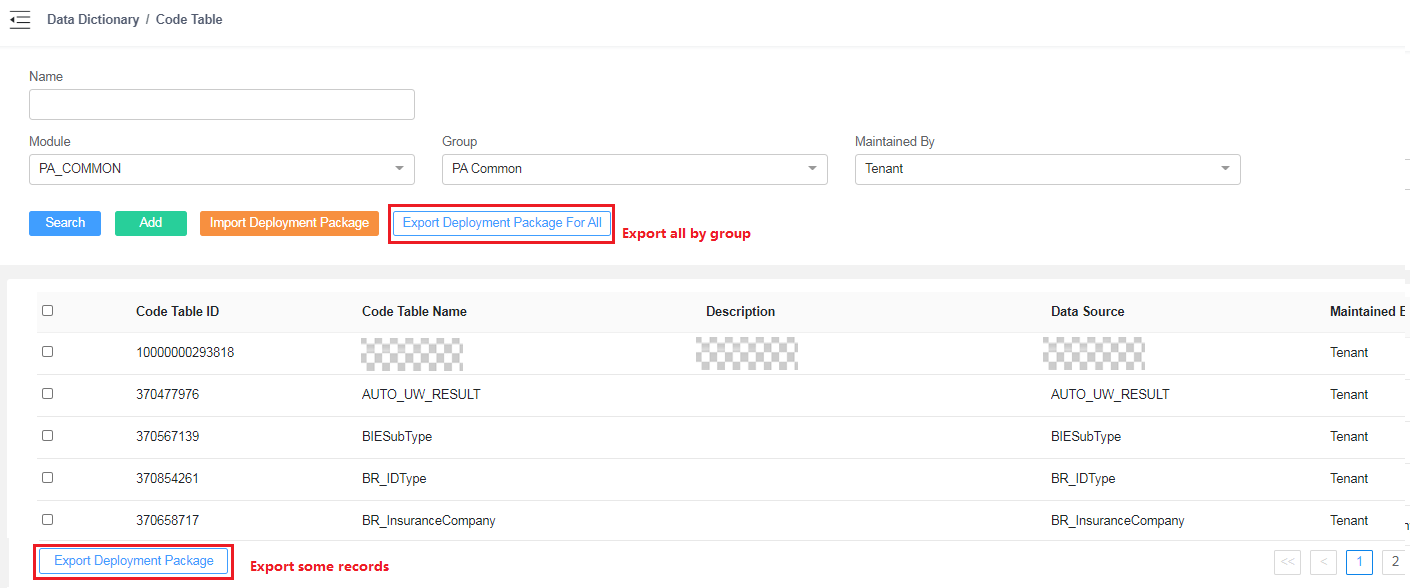
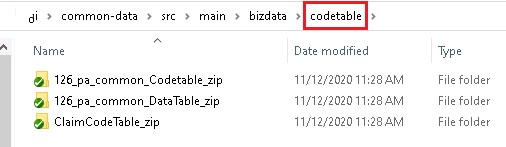
AI Translation
Now system support AI auto translation leveraging LLM capabilities.
Single Translation via UI
Applicable: UI label translation, code table translation, message translation
- Add
Each time when user add a new translation, from UI prospective, as long as user enter data for anyone of the language, after several seconds waiting, system will auto translate all rest of language.
Please notice that translation will only happen on those language with blank value. If any of language already has value, there will not be any auto translation happen for it.
- Modify
Once translation is saved and user want to trigger auto translation again, there can be couple of scenarios:
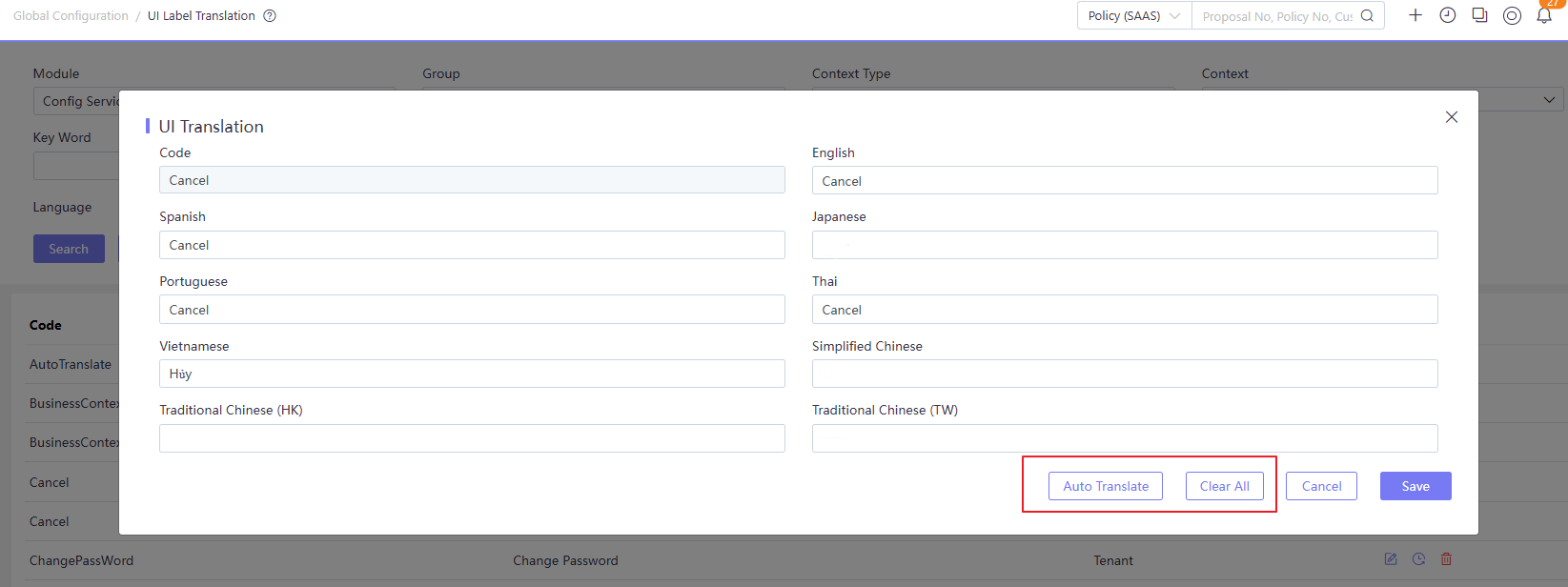
- Click “Clear All” to remove all existing language, then manually input one of language to auto translate the rest.
- Copy one of the good translation, then click “Clear All” to remove all existing language, then paste the copied translation to auto translate the rest.
- Remove any of the existing translation, then click “Auto Translate” to trigger translation again.
Batch Translation via Excel
Applicable: UI label translation, code table translation
Now in the UI, there will be a button called “Export with AI translation”. Once user clicks the button, system will try to export all the data via excel and call AI to translate all the blank field of different languages.
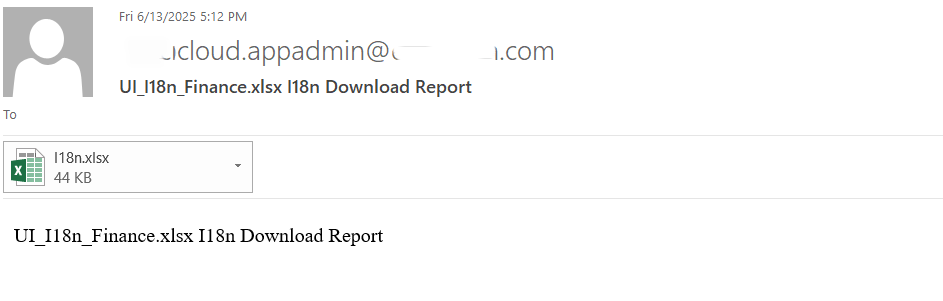
Once it’s finished, an email with attachment will be generated and sent to login user email account with all blank field translated.After user got the translated excel, user can upload it to make it effective.
Of course, if user has batch of records to modify, user can download the excel first, then remove those wrong translation, then upload it before using this “Export with AI translation” feature.
Since the code table data can be huge, the export is an asynchonous process and it might take minutes to process. Please be patient and wait enough time until it’s finished.
Translation Correction
If you found some key word is not well translated by LLM, you can try to add your preferred translation by overriding data table named “AI_Translation_Suggest”.
I18n Development in UI App
The Rainbow UI framework provides three ways to integrate i18n.
Using I18n in UI Label
The display slogans of the Rainbow UI components can be configured in multiple languages in UI Label. The steps are as follows:
Step 1: Click Translation > UI Label to configure your group.
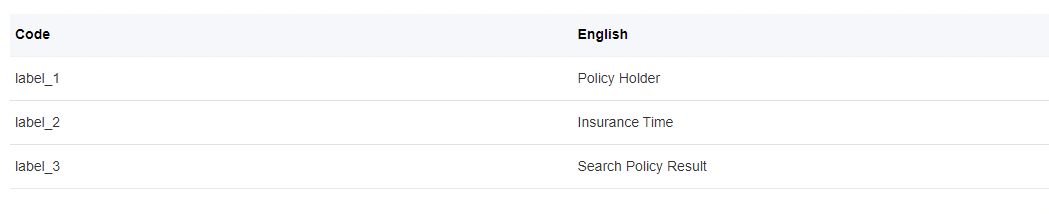
Step 2: Pass the configured code into components.
<Box mode='topcard'>
    <Grid cols={4}>
        <Input label='label_1' value='Susan'/>
        <DatePicker label="label_2" format="YYYY/MM/DD hh:mm:ss" />
    </Grid>
    <Space style={{ marginTop: '16px', padding: '4px 0' }}>
        <Button value='label_3' type='primary' />
    </Space>
</Box>
Step 3: Run the web app and then open the page.
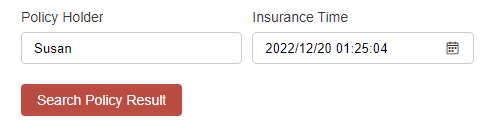
Using I18n in Code Table
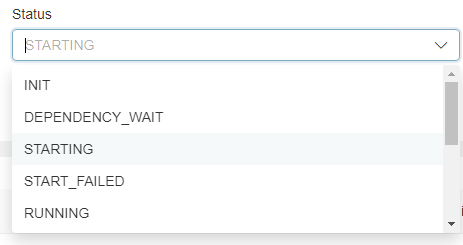
The options of drop-down lists are configured in Code Table. The steps are as follows:
Step 1: Click Dictionary > Data Table to add data sources.
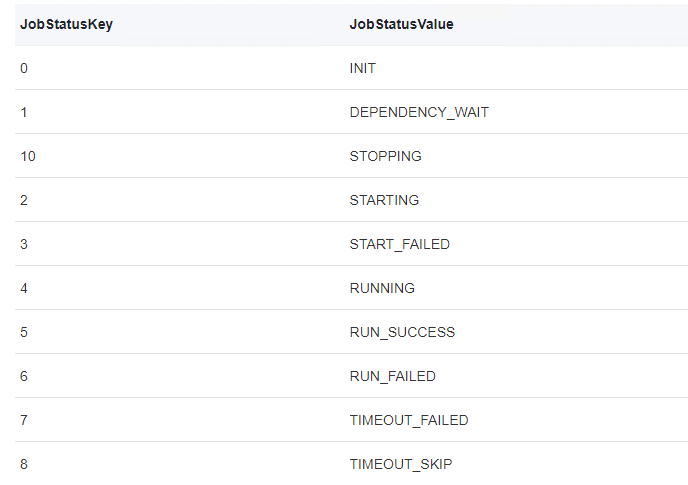
Step 2: Click Dictionary > Code Table to build relationships between Code Table and Data Table. Then click Translation > Code Table to configure multiple languages.
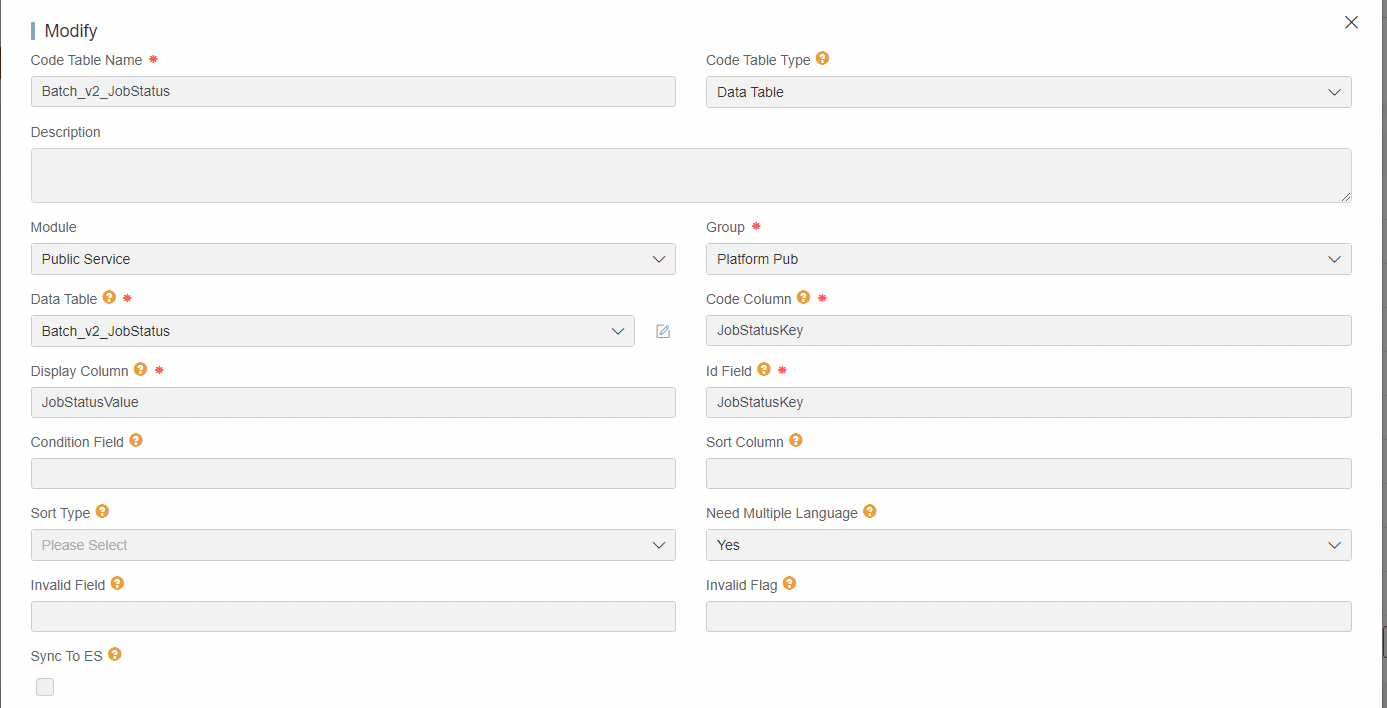
Step 3: Pass this code table and option values to selected components.
<Select label='Status' codeTableName='Batch_v2_JobStatus' value={2}/>Step 4: Run the web app and then open the page.
Using I18n by Calling the Module
The UI Message maintenance is configured via i18n translation module instead of message module. The steps are as follows:
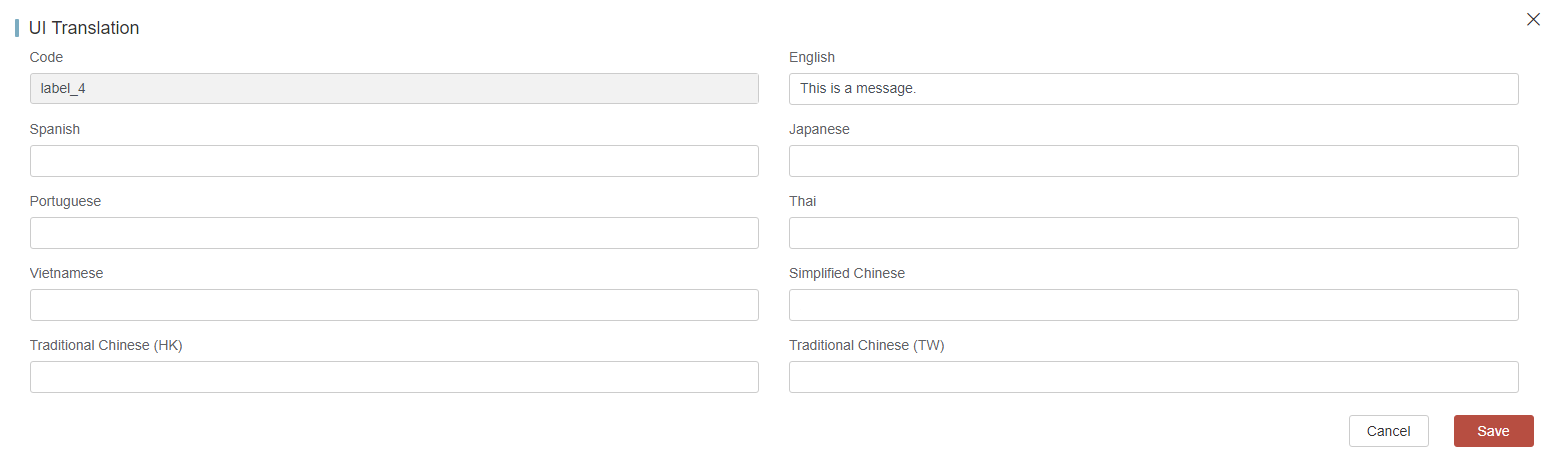
Step 1: Click Translation > UI Label to configure multi-language messages in your group.
Step 2: Get message content from the i18n module.
import {Message} from '@insuremo/rainbowui-sugar-etmoui';
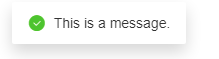
Message.success(i18n.label_4);
Also, you can regard the message as a string and put it in HTML elements.
<div>{i18n.label_4}</div>
<p>{i18n.label_4}</p>
Step 3: Run the web app and then open the page.
I18n Development in Service App
Using I18n in Message
For system messages and back-end messages, only the latter, such as rule messages or system exception messages, are maintained.
After configuring in Global Configuration > Message, you can use the massage as follows:
MessageUtils.toMessage(i18nCode, params);throw new BusinessException(i18nCode, params);Using I18n in Menu
When the UI app is running in the managed mode, the app has a menu entry in the left navigation. The menu text also needs the i18n configuration. See InsureMO Development Training: UI Related System Configuration in Travel Business Scenario for an example of how to configure menus and i18n.
Q&A
- How to Batch Update Translation Content for a Specific Language in i18N ?
- Use the “Download Excel” function to download the i18N data in the corresponding group.
- Clear the existing data in the column of the language that needs translation in the downloaded Excel sheet.
- Upload the processed Excel sheet to the system via the “Upload Excel” function.
- Use the “Download Excel With AI” function to download the data again; the system will automatically translate the empty data entries according to the language requirements.
- Upload the translated Excel sheet to the system using the “Upload Excel” function, and the process will be completed.