Basic Concept
Batch is a core module designed to execute predefined sets of system programs at scheduled times. It enables the automation of system program execution and mitigates performance pressure through asynchronous processing.
Functioning as a scheduling component, it provides a set of SDKs based on the Spring Batch framework, allowing users to schedule batch programs either automatically or manually. This simplifies the development of batch applications.
For information on SpringBatch, please visit the official documentation: https://docs.spring.io/spring-batch/reference/domain.html
User Scenario
This module is designed for users who need to:
- Develop batch processes on our platform.
- Schedule execution times for these batch jobs.
Training Videos
Here are the training videos for the configuration table.
## Composition of Batch
Batch Concept
Batch Definition
A system job that performs specific operations, automatically triggered and executed at predefined times using Cron expressions.
Batch Dependency
- Specifies jobs that the current job depends on.
- Execution occurs when the dependent job’s next execution time is reached.
- Supports two dependency mods
- completion mode,regardless of whether the dependent job execution result is successful or failed, it will be triggered as long as the execution is completed
- success mode, indicates that it will only be triggered when the dependent job is executed successfully
- Supports multiple job dependencies
- Job groups cannot directly depend on other groups.
- For inter-group dependencies, define start/end jobs in each group.
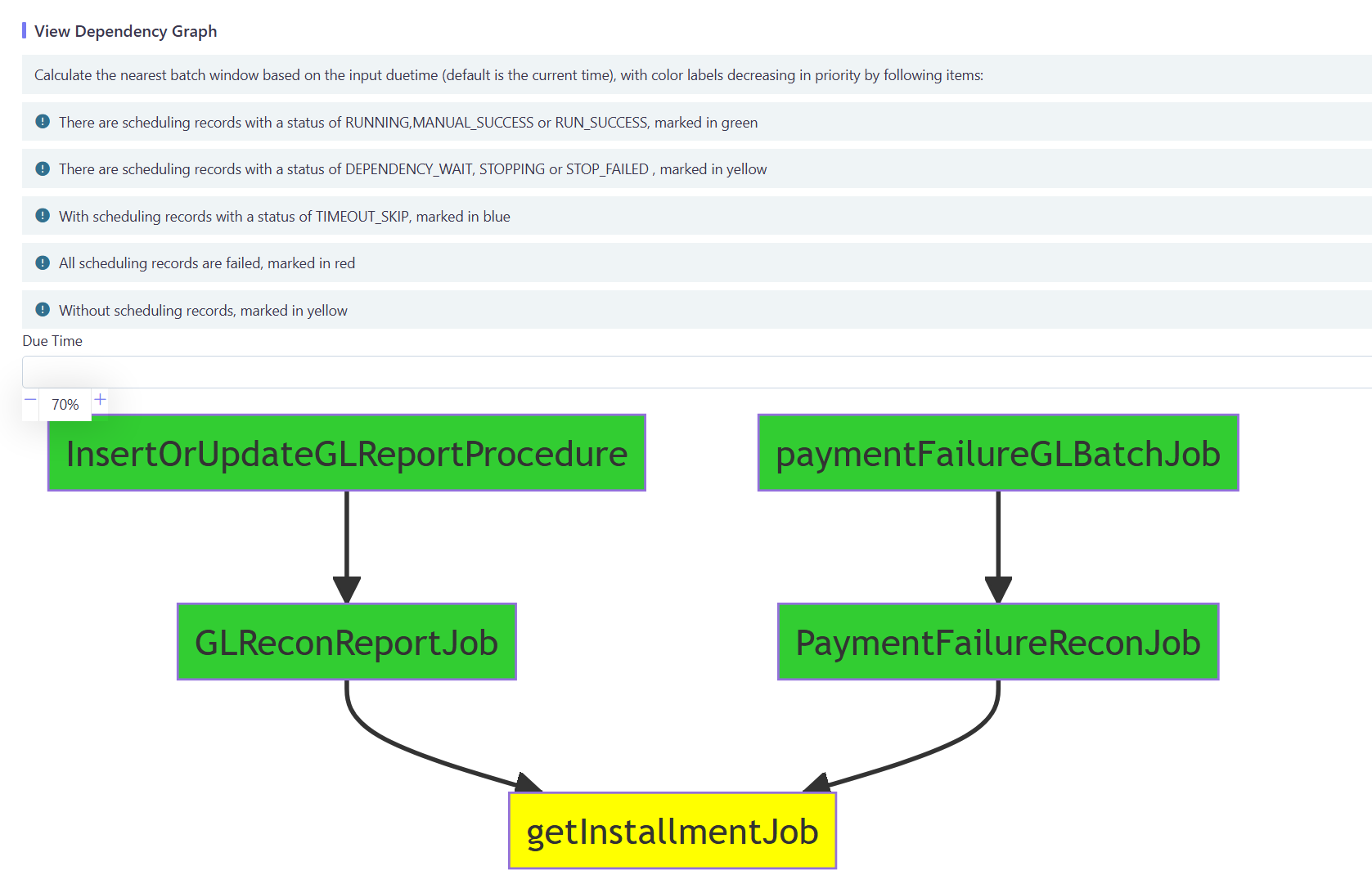
- Includes Dependency View functionality.
Batch Window
Controls batch execution availability while maintaining individual job schedules:
- Not designed for traditional working day concepts (to support 24/7 operations):
- Implement day-specific logic within jobs if needed.
- Configured via global parameters with default values:
- Start: 00:00 Day 1
- End: 12:00 Day 2
- Time interpretation:
- ≤12:00 = current day
- >12:00 = next day
- Handles overdue executions:
- Terminate or continue based on configuration.
Batch Monitor
-
Displays execution details based on the batch instance table.
-
Supports the Dependency View function.
Execution Scenarios
Furthermore, there can be two business scenarios based on when a batch is triggered, and we can define jobs in the master configuration (MC) environment and then deploy them together to other runtime environments.
-
Pre-scheduled batch: The trigger is defined in advance to run at a fixed time and configured as Cron expressions. It is called Scheduled Task.
-
Ad-hoc batch: No predefined trigger exists, and it is mainly triggered manually in production at a random time. For ad-hoc batches, it’s unnecessary to define the trigger in advance, and the job can be submitted to the corresponding runtime environment at a suitable time. We call it Manual Task.
User Interface
The batch configuration UI allows users to define batch jobs, set triggers, and run ad-hoc batch jobs. In most scenarios, users can monitor and check the execution status and history in case any unusual conditions occur.
Technically, we recommend using the Spring Batch framework to implement batch client processing, and the platform also provides a standard SDK for rapid integration. If the client does not use the Spring Batch framework, they need to develop some integration interfaces according to the platform specifications to complete the integration.
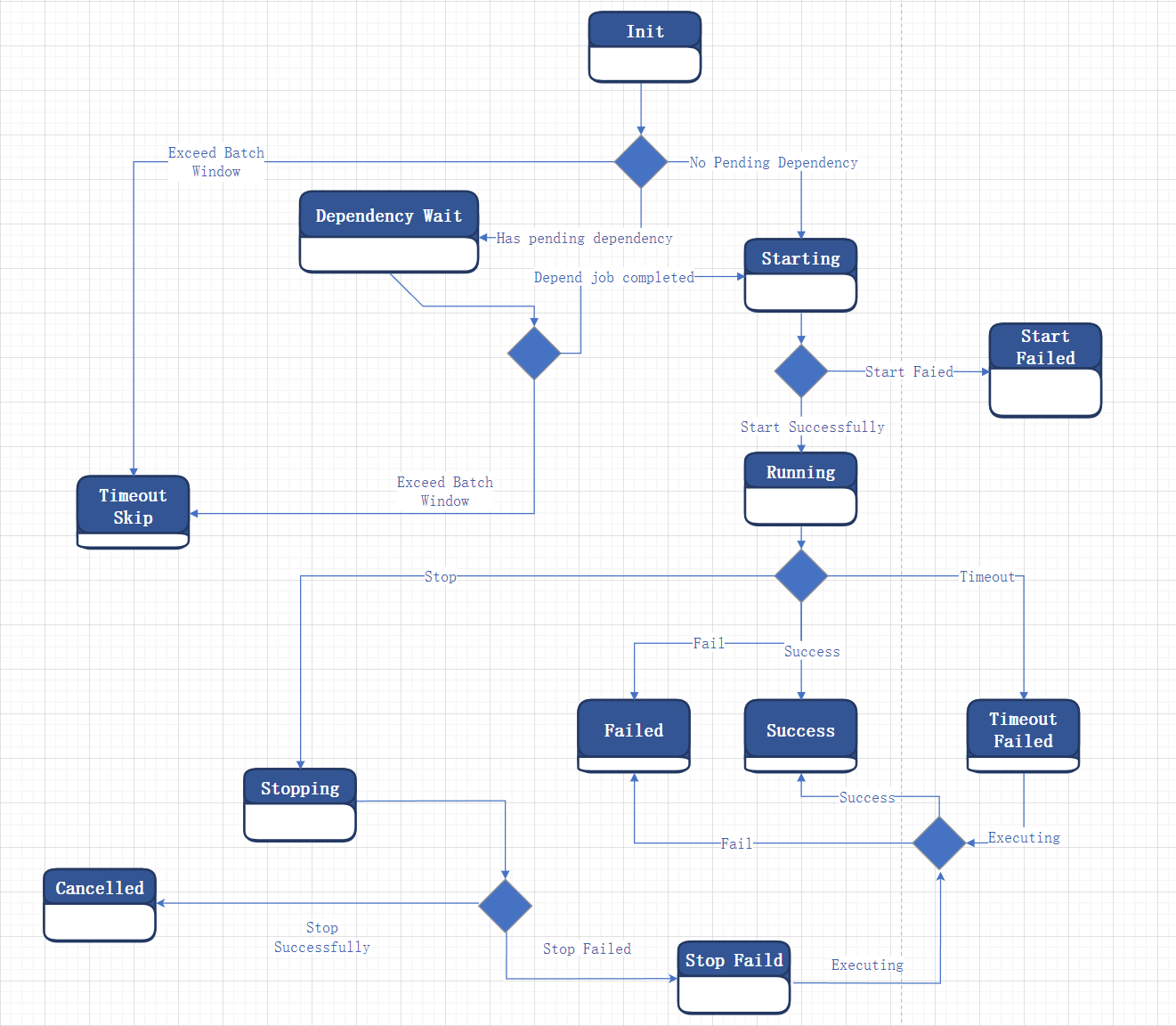
Batch Operation Status
| Code | Value | Explanation |
|---|---|---|
| 0 | Init | The initial state of batch processing being submitted |
| 1 | Dependency Wait | The waiting state when batch processing does not meet the triggering conditions due to dependency relationships |
| 2 | Starting | Batch processing triggering and waiting for response result |
| 3 | Start Failed | Batch processing triggered failed |
| 4 | Running | Batch processing triggered successful and processing |
| 5 | Success | Batch processing execution successful |
| 6 | Failed | Batch processing execution failed |
| 7 | Timeout Failed | Batch processing execution time exceeds the preset maximum execution time |
| 8 | Timeout Skip | Exceeding Batch Window, batch processing still does not meet triggering conditions |
| 9 | Canceled | Submit stop operation and stop operation successful |
| 10 | Stopping | Submit stop operation and wait for response result |
| 11 | Stop Failed | Submit stop operation and stop operation Failed |
| 12 | Manual Success | Manual operation and maintenance status is equivalent to success |
Basic UI Operation
All batch definition operations described in this section must be performed in the Portal Master Configuration environment (MC env). These operations are strictly prohibited in other environments except for troubleshooting scenarios.
Ensure you possess all required read and write permissions before proceeding with any operations.
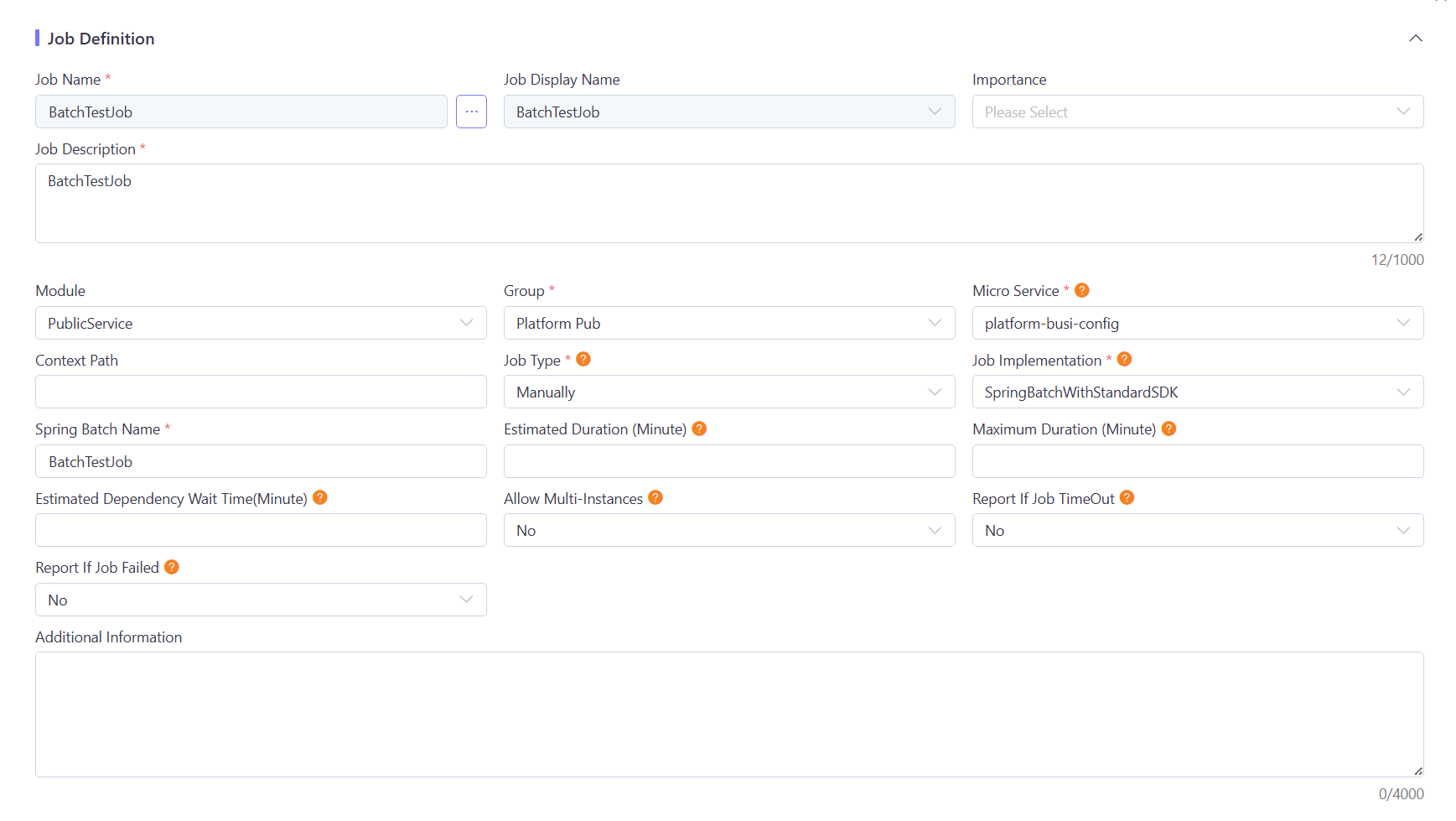
Job Definition

| Job Definition Field | Description |
|---|---|
| Job Name | It must be unique. |
| Job Display Name | i18n code used to display the batch actual business name in multiple languages. Additional translations of the Job Display Name can be added as UI label codes. For more details, see Multiple Language Job Definition Name. |
| Micro Service | The name of the microservice running by the batch instance. Users can select the name from existing ones or enter a new one manually (names must be in lowercase). |
| Context Path | The path context required for integration with the client. |
| Job Type | Specifies the job type: Scheduled Task or Manual Task. |
| Job Implementation | The batch processing framework type, whether to utilize the standard SDK. |
| Spring Batch Name | The bean name from the backend code. |
| Estimated Duration (Minute) | Estimated execution time. If the batch processing exceeds this time, it may trigger a timeout. |
| Maximum Duration (Minute) | Maximum allowable execution time. If the maximum execution time is exceeded, the execution will be terminated,it may trigger a time out failed. |
| Allow Multiple Instances | Determines if the system allows starting the job while the same job is already executing. Yes indicates allowance. |
Job Time Out Alert Time Calculation
During the design process, we optimized the alert time calculation considering various factors and user alert experience:
TimeOutMinutes = Max(Estimated Duration * estimateMinutesMultiple, minExecuteMinutes);TimeOutFailedMinutes = Maximum Duration;Where: estimateMinutesMultiple defaults to 3; minExecuteMinutes defaults to 30 ; Both parameters can be adjusted per tenant in the configuration center.
To make alerts trigger based on the set estimated time, you can configure the following parameters in the Batch-v2 configuration center:
tenantCode.platform.batch.scheduler.timeoutWarning.minExecuteMinutes=1
tenantCode.platform.batch.scheduler.timeoutWarning.estimateMinutesMultiple=1
Additional logic:
- If TimeOutFailedMinutes < TimeOutMinutes, then TimeOutMinutes= TimeOutFailedMinutes / 3 * 2
- If TimeOutFailedMinutes < 30, the system will not perform TimeOut Alert, but only TimeOut Failed Alert
Current Enviroment Defination

Only valid for the current environment, not published with business data
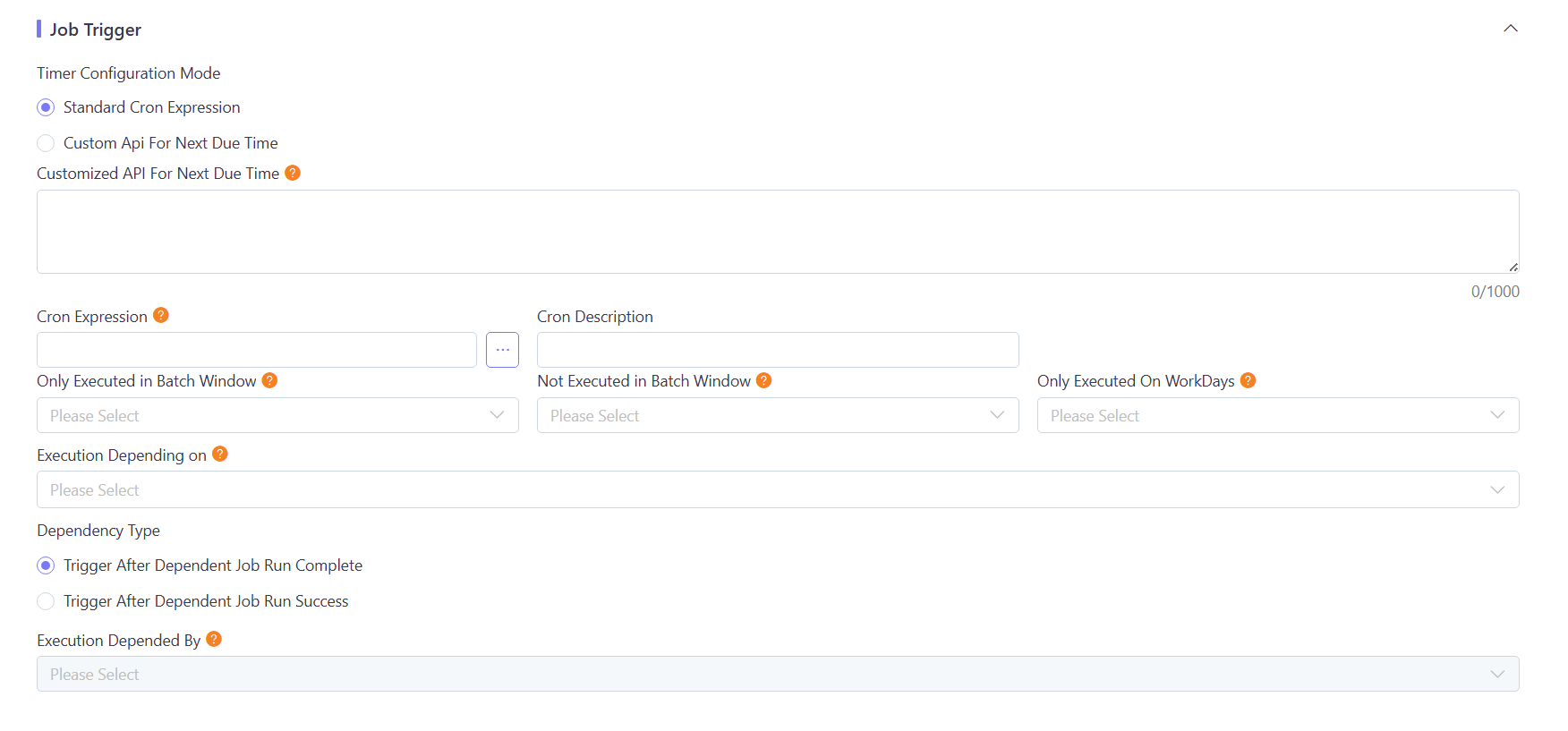
Job Trigger
| Job Trigger Field | Description |
|---|---|
| Timer Configuration Mode | Supports two modes, Standard Cron Expression Or Customer Api For Next DueTime |
| Cron Expression | The Cron expression represents the execution frequency of the batch processing;If choose Standard Cron Expression Mode ,It is required. |
| Customer Api For Next DueTime | Customized API URL, GET method, returns a time string in ‘yyyy-MM-dd’T’HH:mm:ss’ format;If choose Customer Api For Next DueTime mode ,it is required. |
| Only Executed in Batch Window | Determines whether the batch processing is only executed during a specific window time period. Y stands for Yes and N for No. Please configure the Batch Window in the global parameters: The parameter table is SystemConfigTable, and the relevant parameter items are batchWindow.start and batchWindow.end. |
| Not Excecuted in Batch Window | Determines whether the batch processing is executed during a specific window time period. Y stands for No and N for Yes. Please configure the Batch Window in the global parameters: The parameter table is SystemConfigTable, and the relevant parameter items are batchWindow.start and batchWindow.end. |
| Only Executed in WorkDay | Determines whether the batch processing is only executed during on workday. Y stands for Yes and N for No. Please configure the Worday via Global Configuration/Calendar. |
| Dependency Type | Supports two modes, completion mode means that regardless of whether the dependent job execution result is successful or failed, it will be triggered as long as the execution is completed; The success mode indicates that it will only be triggered when the dependent job is executed successfully |
| Execution Depending on | Dependent batch processing. The execution of this job starts only after the dependent batch processing is completed. |
| Execution Depended by | It means which batch processing depends on this job. |
Job Parameter

- Job Parameter(optional): Ignore this if the job has no parameters. If it has parameters, fill in the parameters according to the format.
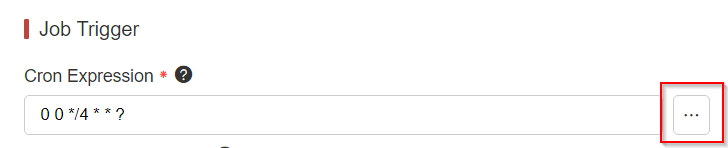
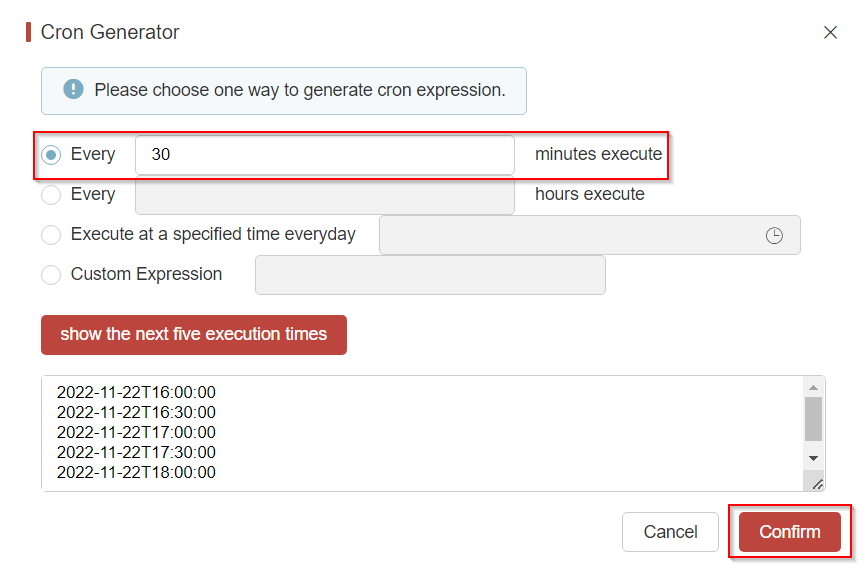
Cron Expression Tool
The expression can be quickly generated according to the execution frequency of the scheduled batch.
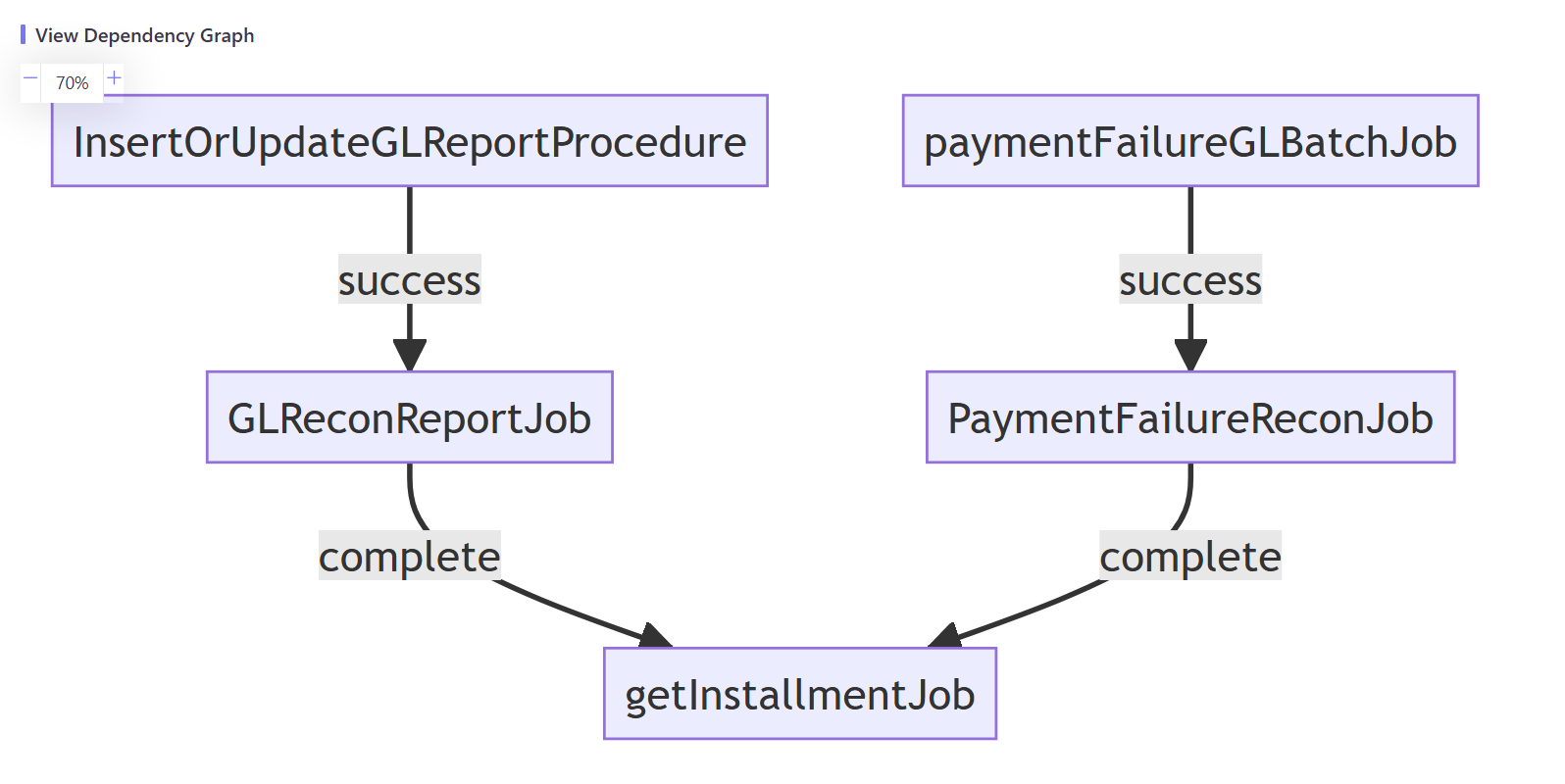
Click Dependency View as follows.

Multiple Language Job Definition Name
Our batch definition names use English as the standard format, though we understand client IT teams may need more user-friendly display names.
Currently, our batch names function akin to a Batch Codes, and there’s a separate Job Display Name which offers a more concrete business name for the batch.
To configure localized display names:
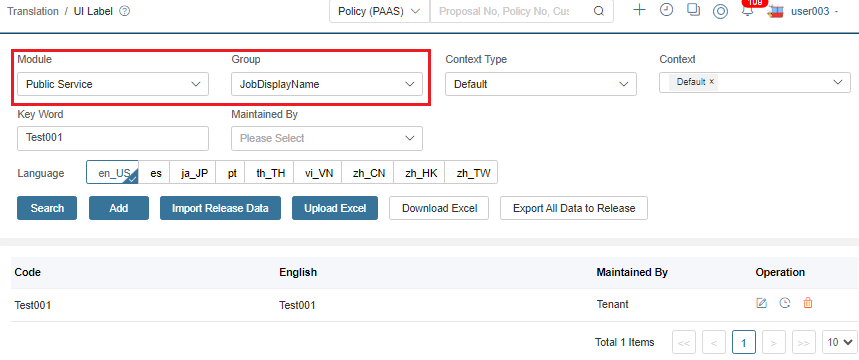
- During batch definition, click the button next to Job Display Name.
- This redirects to the i18n module for translation management.
- Critical: Always select JobDisplayName as the translation group.
Add the code together with its target language content.
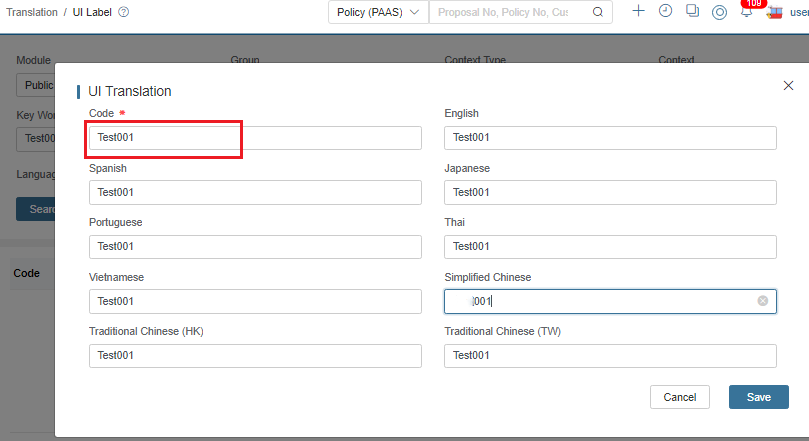
Then you can find the updated display name for this job in the target language.
Job Submission
-
Navigate to the menu and click search to find the job.

-
Click Submit.
Job Parameter(optional):
Ignore this if the job has no parameters.
Otherwise, fill in the parameters according to the format. When a scheduled job is submitted, the system will automatically calculate the
FirstDueTimeandLastDueTimeas parameters.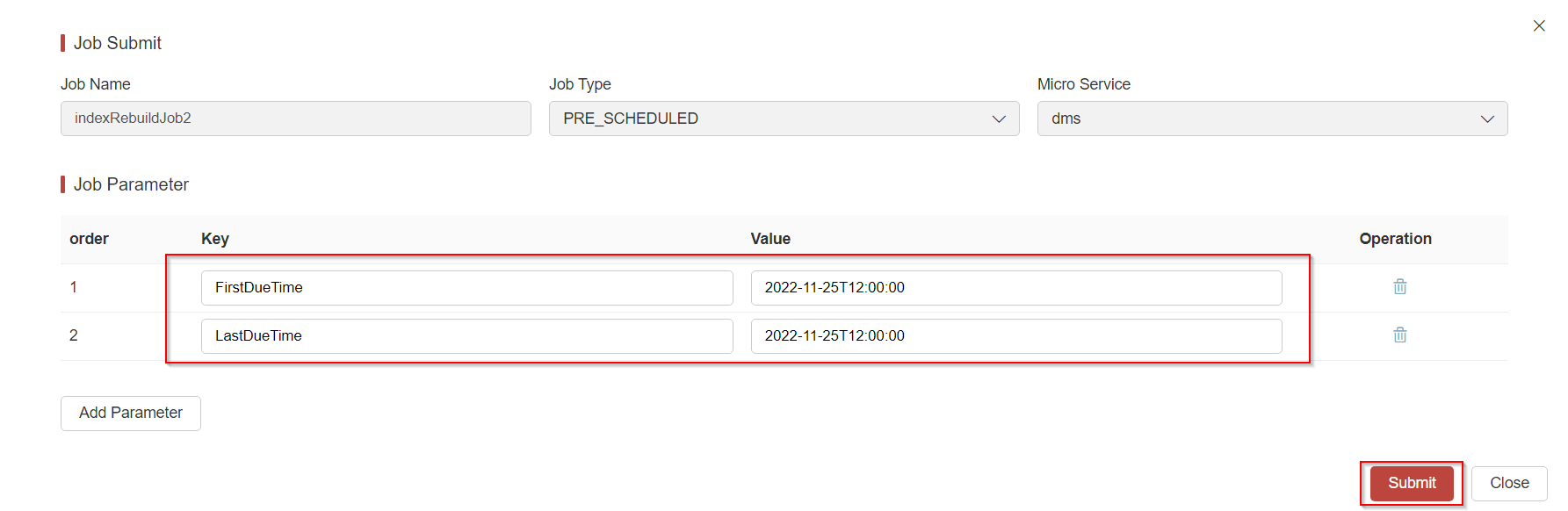
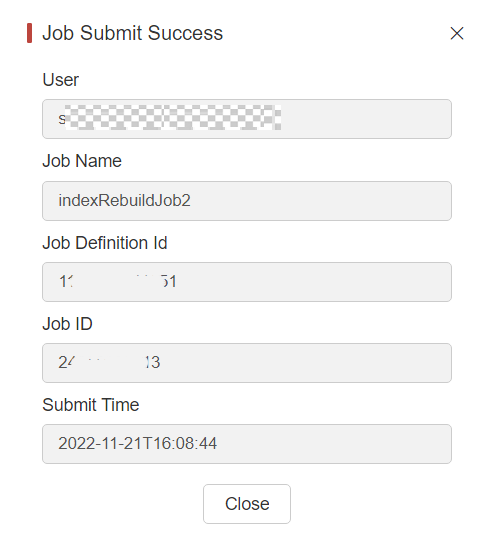
A dialog box will pop up when the job is successfully submitted.
noteExecution will fail with an exception if the job ID is null or empty.
Job Monitoring
-
Find the menu and then query by condition.
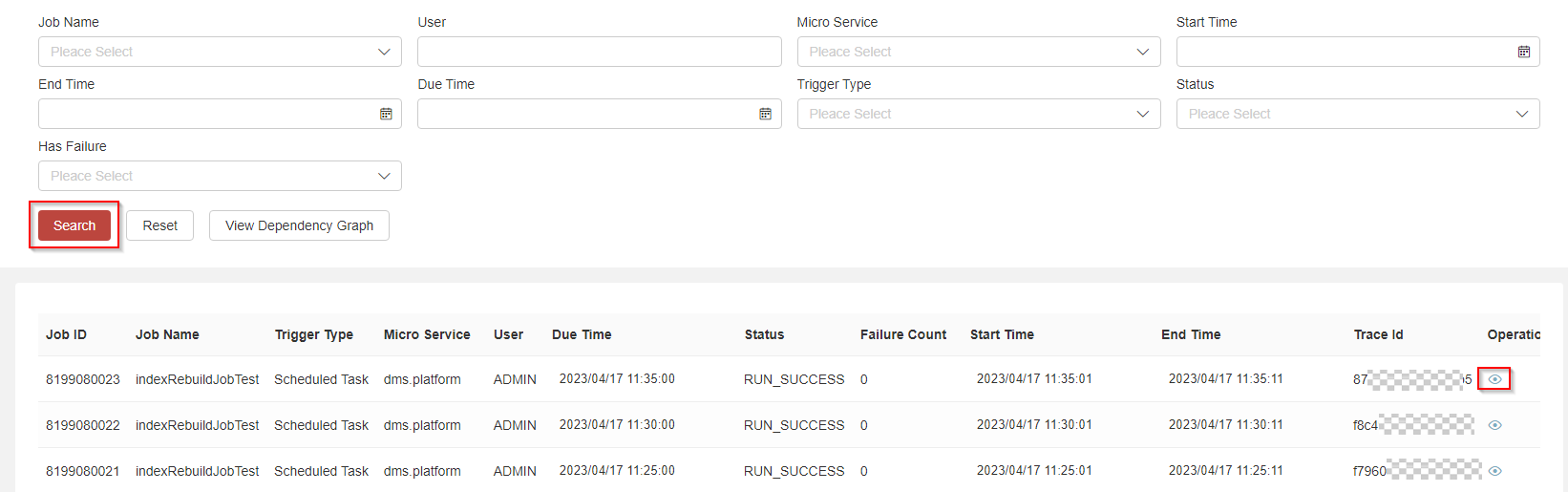
- Has Failure: Business data processing exception during batch execution.
- Failure Count: The count of business records that failed processing during batch execution, obtained from Spring Batch’s ‘Write-Skip-Count’ metric in chunk processing mode. In Spring Batch’s chunk processing, skip and retry mechanisms are implemented: when a record processing exception occurs, the system first attempts retries based on configuration, and if retries fail, skips the record. The framework allows configuration of maximum skip limits - exceeding these thresholds causes the step or entire job to fail.
-
Click View of the record to display the detailed UI.
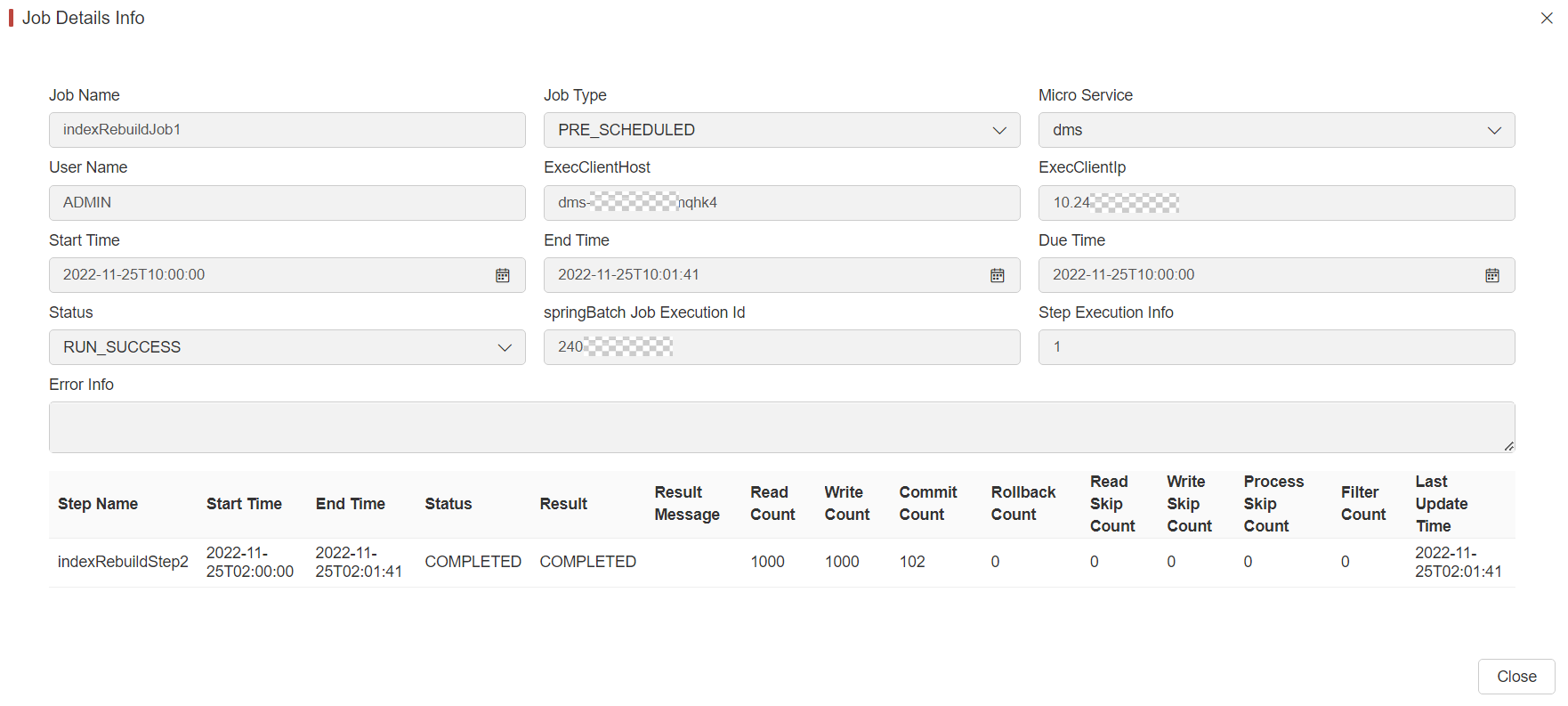
Filed Name Description Step Name Name of the step being executed, as defined in the job configuration Sart Time The current system time when the execution was started. This field is empty if the step has yet to start. End Time The current system time when the execution finished, regardless of whether or not it was successful. This field is empty if the step has yet to exit. Status A BatchStatusobject that indicates the status of the execution. While running, the status isBatchStatus.STARTED. If it fails, the status isBatchStatus.FAILED. If it finishes successfully, the status isBatchStatus.COMPLETED.Result Exit code returned by the step upon completion (typically “COMPLETED”, “FAILED”) Result Message Detailed exit message providing additional context about the step’s completion or failure Read Count The number of items that have been successfully read Write Count The number of items that have been successfully written Commit Count The number of transactions that have been committed for this execution Rollback Count The number of times the business transaction controlled by the Stephas been rolled backRead Skip Count The number of times readhas failed, resulting in a skipped itemWrite Skip Count The number of times writehas failed, resulting in a skipped itemProcess Skip Count The number of times processhas failed, resulting in a skipped itemFilter Count The number of items that have been “filtered” by the ItemProcessorLast Update Time Timestamp of the last update to this step execution record The above information are all from the springbatch system table batch_step_execution. For more information, please visit:https://docs.spring.io/spring-batch/reference/domain.html#step
Dependency View
-
You can query a job’s execution status for a specific date.
-
The status indicators use color coding: green indicates healthy execution, yellow represents warnings, and red denotes failures.

My Job
My Job is similar to Job Monitor, with the difference being that My Job only allows you to view the jobs submitted by yourself.
Batch Global Setting
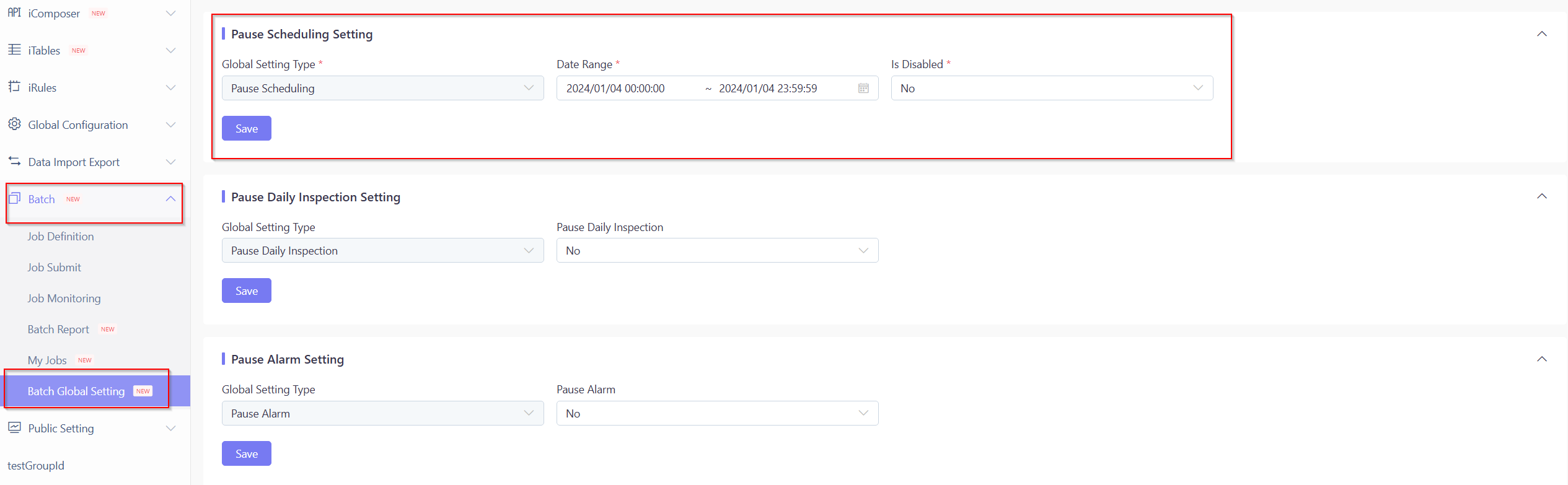
Pause Scheduling Setting(From Ver 23.04 Released on August 2023)
- Date: The duration when all the scheduled batch executions are disabled.
- Is Disabled(For Current Setting):
- Yes: All scheduled batches are executable.
- No: Disable scheduled batch executions, ensuring all scheduled batches are NOT executable.
Batch Report and Alarm
The batch execution status represents a critical operational concern. IT operations teams must monitor this closely and respond immediately to any reported failures. The system currently provides multiple levels of mechanisms to facilitate rapid batch-related operations.
Batch Alarm
Our alarm system consists of two components:
- Batch processing execution failures
- Batch timeout real-time alarms
When either condition is triggered (timeout or failure), the system generates a real-time email alert with a 10-minute suppression window to prevent duplicate notifications.
Batch Report
There’s a system menu called Batch Report, displaying batch processing execution in chart format.
By freely specifying different date ranges, users can quickly locate important execution information such as:
- Whether any batch has not been run.
- Whether any batch has a failure record.
- Whether any batch execution duration is longer than estimated.
- The report only displays batches scheduled to run on the selected date(s).
- For accurate failure tracking, batch programs must adhere to standard implementation patterns.
Batch Patrol
The batch patrol function serves as an automated monitoring layer that analyzes batch reports and proactively notifies users of any abnormal conditions detected in the previous day’s batch executions.
On a daily basis, at 8 am (detailed timing is configurable in the global parameter - batch.daily.inspection.time), a regular inspection program is executed to summarize and analyze the previous day’s batch executions.
An email notification, with an attached Excel file, will be sent containing essential information including:
- Successful job executions
- Failed job executions
- Abnormal execution frequencies - We will determine whether there is an abnormal execution frequency based on the execution quantity of each scheduled task. If the execution frequency is not correct, it will be displayed in the report.
Recommendation:
If a user identifies information requiring further investigation, we advise logging into the system and navigating to the Batch Report menu for detailed analysis—regardless of whether an abnormality was detected in the batch patrol notification.
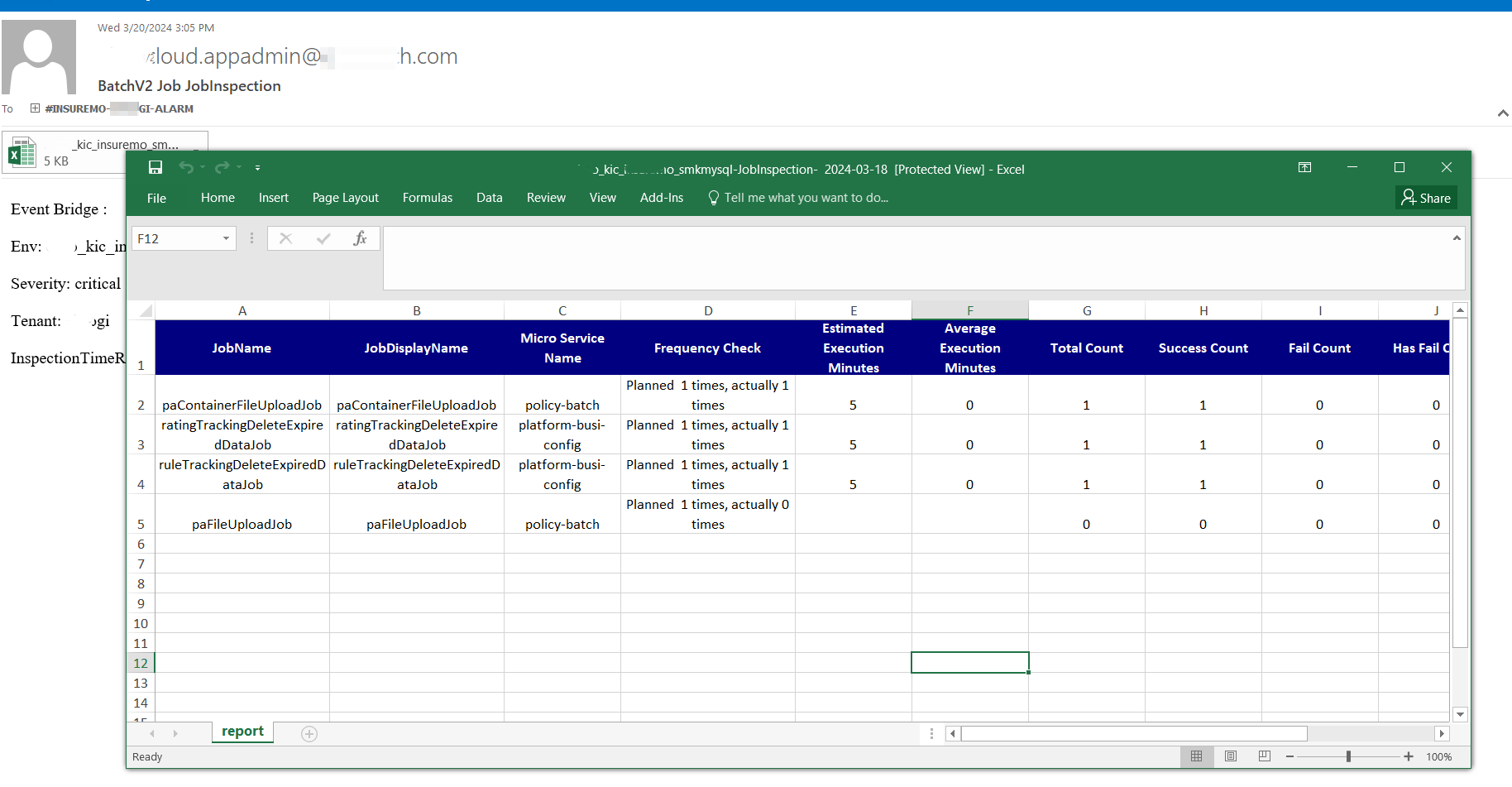
| Field Name | Description | DataSource |
|---|---|---|
| JobName | Batch processing definition name | Batch processing definition |
| JobDisplayName | Batch display name, multilingual configuration | Batch processing definition |
| Micro Service Name | The microservice name where the batch processing implementation is located | Batch processing definition |
| Frequency Check | Is the scheduling frequency abnormal during the scheduling period | Batch Server Statistics Data |
| Estimated Execution Minutes | Batch processing estimated execution time (in minutes) | Batch processing definition |
| Average Execution Minutes | Average execution time of batch processing within the scheduling cycle (in minutes) | Batch Server Statistics Data |
| Total Count | The number of times scheduled within the scheduling cycle | Batch Server Statistics Data |
| Success Count | The number of successful batch processing executions within the scheduling cycle | Batch Server Statistics Data |
| Fail Count | The number of batch execution failures within the scheduling cycle | Batch Server Statistics Data |
| Has Fail Count | The number of data processing failures during batch execution within the scheduling cycle | Batch Server Statistics Data |
| Total Read Count | Total batch data read during the scheduling period | Summary of SpringBatch System Table Data |
| Total Write Count | Total batch data written during the scheduling period | Summary of SpringBatch System Table Data |
| Total Commit Count | Total number of batch submissions during the scheduling period | Summary of SpringBatch System Table Data |
| Total WriteSkip Count | Batch processing write skipping data total within the scheduling cycle | Summary of SpringBatch System Table Data |
| Total Rollback Count | Total batch rollback data within the scheduling cycle | Summary of SpringBatch System Table Data |
-
For markets with daylight savings/clocks, on the day of switch, there might be slight differences between expected and actual execution times. You can disregard these discrepancies.
-
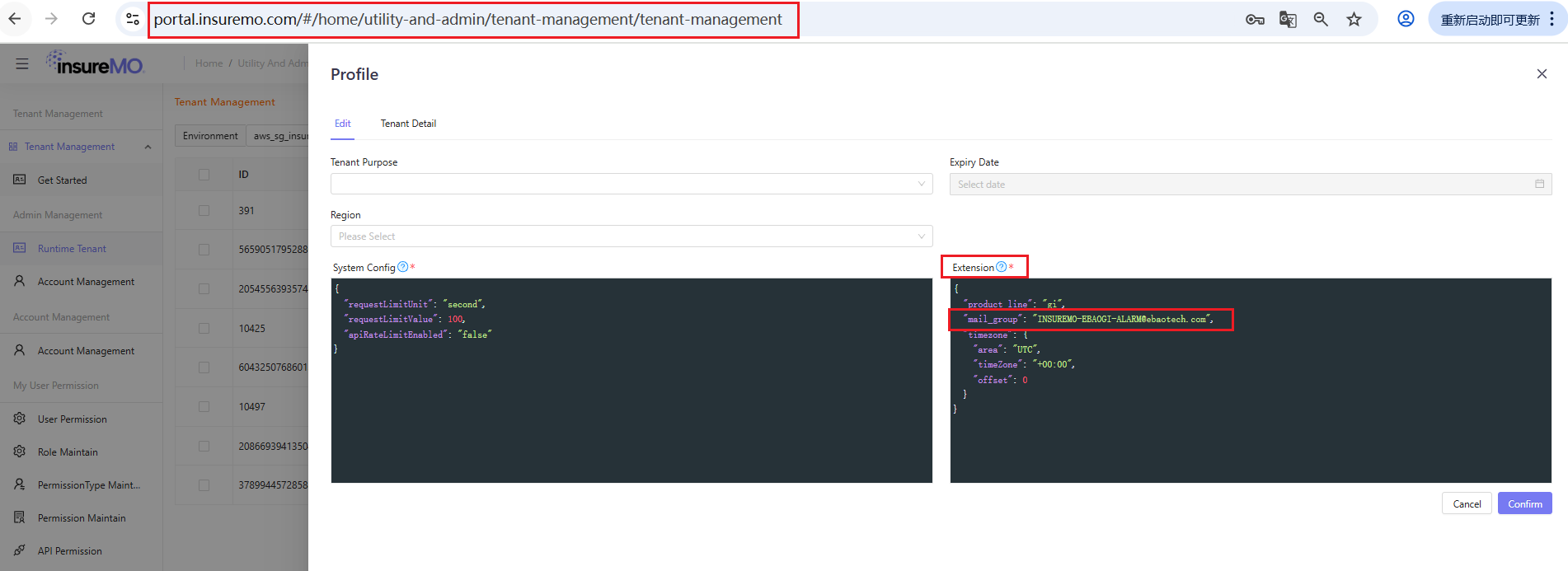
If you fail to receive the email, please contact the InsureMO support team-siteops to check especially the alarm mail group configuration in your tenant setting.
Batch Development Step
Understand Functional Requirement
Before beginning development, teams must precisely define the system requirements, including:
- The specific operation type (e.g., daily import of policy issuance data into Excel)
- The intended recipients (e.g., sales personnel)
- The triggering conditions for job execution
Develop Batch Code
Understand the Overall Architecture of Spring Batch
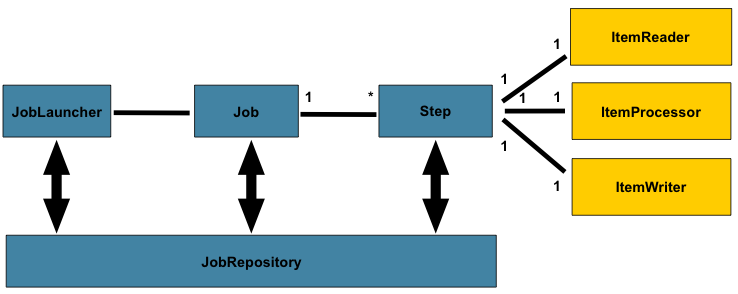
Understand the Flow Diagram of Typical Batch Job Steps
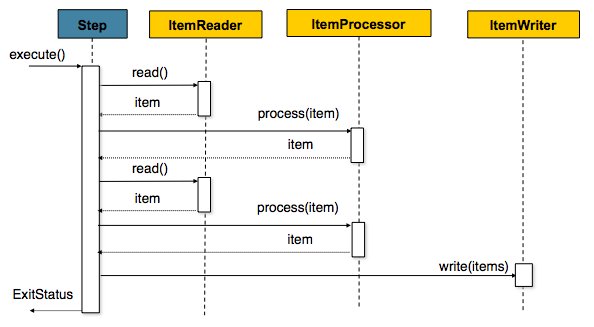
Understand the Flow Diagram of Batch-v2-Client Customization Content
The following beans have been defined in the BatchClient (BatchClientAutoConfig.class):
JobBuilderFactory, JobExecutionDao, JobExplorer, JobInstanceDao, JobLauncher, JobOperator, JobParametersIncrementer, JobRegistry, JobRegistryBeanPostProcessor, JobRepository, StepBuilderFactory, StepExecutionDao, StepLocator, TaskExecutor
The application code should not redefine these beans. Only the Spring Batch Job and Step require definitions.
Understand How to Develop Your Code with Reference to the Sample
-
Sample URL
You can ask the InsureMO team for the source code of the developed batch samples as a reference.
-
Main Points for Development
Ensure you have added the ICS common dependency.
-
Add batch-client dependency
-
For clients depending on GI-Foundation
<dependency><groupId>com.ebao.vela</groupId><artifactId>vela-batch-v2-client</artifactId><version>${vela.version}</version></dependency> -
For clients never depending on GI-Foundation
<dependency><groupId>com.ebao.vela</groupId><artifactId>vela-batch-v2-client</artifactId><version>${vela.version}</version></dependency><dependency><groupId>com.ebao.vela</groupId><artifactId>vela-sdk-base-impl-for-app-without-gi-foundation</artifactId><version>${vela.version}</version></dependency>
tipThis mode requires implementation of
com.ebao.cloud.sdk.basein JAR packageThreadContextAPIand registered as Spring Bean.For example:
@Componentpublic class SimpleThreadContextAPIImpl implements ThreadContextAPI {private final static ThreadLocal<Map<String,Object>> threadLocal=new ThreadLocal<>();@Overridepublic String getCurrentUserName() {Map<String, Object> map = getMap();return (String) map.get("CurrentUserName");}@Overridepublic void setCurrentUserName(String userName) {getMap().put("CurrentUserName",userName);}private Map<String, Object> getMap() {Map<String, Object> map = threadLocal.get();if(map==null){map=new HashMap<>();threadLocal.set(map);}return map;}@Overridepublic Long getCurrentUserId() {Map<String, Object> map = getMap();return (Long) map.get("CurrentUserId");}@Overridepublic Date getLocalTimeForCurrentUser() {return new Date();}@Overridepublic String getCurrentTenantCode() {Map<String, Object> map = getMap();return (String) map.get("CurrentTenantCode");}@Overridepublic void setCurrentTenantCode(String tenantCode) {getMap().put("CurrentTenantCode",tenantCode);}@Overridepublic String getTraceId() {Map<String, Object> map = getMap();return (String) map.get("TraceId");}@Overridepublic String getCurrentRequestURI() {Map<String, Object> map = getMap();return (String) map.get("CurrentRequestURI");}@Overridepublic Object getThreadLocalVariable(String key) {return getMap().get(key);}@Overridepublic void setThreadLocalVariable(String key, Object value) {getMap().put(key,value);}@Overridepublic Object removeThreadLocalVariable(String key) {return getMap().remove(key);}@Overridepublic String getAccessToken() {return (String) getMap().get("AccessToken");}@Overridepublic void setAccessToken(String accessToken) {getMap().put("AccessToken",accessToken);}} -
-
Take the batch process
workflowIndexRebuildJobas an example. The main configuration class isWorkflowIndexRebuildConfig.java.@Configuration//@EnableBatchProcessing (Version later than 22.11.XXX removed)public class WorkflowIndexRebuildConfig {//Inject Writer Bean@Bean@StepScopepublic WorkflowIndexRebuildWriter workflowIndexRebuildWriter() {return new WorkflowIndexRebuildWriter();}//Inject Reader Bean@Bean@StepScopepublic WorkflowIndexRebuildReader workflowIndexRebuildReader() {return new WorkflowIndexRebuildReader();}//Inject Processer Bean@Bean@StepScopepublic WorkflowIndexRebuildProcesser workflowIndexRebuildProcesser() {return new WorkflowIndexRebuildProcesser();}//Inject JobBuilderFactory Bean@Autowiredpublic JobBuilderFactory jobBuilderFactory;//Inject StepBuilderFactory Bean@Autowiredpublic StepBuilderFactory stepBuilderFactory;//Inject Step Bean@Beanpublic Step workflowIndexRebuildStep() {return stepBuilderFactory.get("workflowIndexRebuildStep").<CloudTask, CloudTask>chunk(10).reader(workflowIndexRebuildReader())//.processor(customerIndexRebuildProcesser()).writer(workflowIndexRebuildWriter()).faultTolerant().skipLimit(Integer.MAX_VALUE).skip(Exception.class).build();}//Inject Job Bean@Beanpublic Job workflowIndexRebuildJob(@Qualifier("workflowIndexRebuildStep") Step workflowIndexRebuildStep) {return jobBuilderFactory.get("workflowIndexRebuildJob").start(workflowIndexRebuildStep).build();}} -
Reader Bean example
public class WorkflowIndexRebuildReader implements ItemReader<CloudTask> {@Autowiredprivate WorkflowIndexRebuildService workflowIndexRebuildService;@Value("#{jobParameters['ProcessDefinitionKey']}")private String processDefinitionKey;@Value("#{jobParameters['WorkflowBusinessKey']}")private String workflowBusinessKey;@Value("#{jobParameters['("#FirstDueTime']}")private String firstDueTimeStr;@Value("#{jobParameters['("#LastDueTime']}")private String lastDueTimeStr;private List<CloudTask> cloudTasks = null;private boolean isInit = true;private static Logger logger = LoggerFactory.getLogger(WorkflowIndexRebuildReader.class);@Overridepublic CloudTask read() {CloudTask cloudTask = getWorkflowCloudTask();logger.info("*******reader get one :"+ JSONUtils.toJSON(cloudTask));return cloudTask;}private CloudTask getWorkflowCloudTask() {if (cloudTasks == null && isInit) {cloudTasks = workflowIndexRebuildService.queryAllTasksByCondition(processDefinitionKey, workflowBusinessKey);isInit = false;}if (cloudTasks.size() > 0) {CloudTask cloudTask = cloudTasks.get(0);cloudTasks.remove(0);return cloudTask;} else {cloudTasks = null;isInit = true;return null;}}} -
Processor Bean example
public class WorkflowIndexRebuildProcesser implements ItemProcessor<CloudTask, CloudTask> {@Overridepublic CloudTask process(CloudTask cloudTask) throws Exception {if (cloudTask != null) {return cloudTask;}return null;}} -
Writer Bean example
public class WorkflowIndexRebuildWriter implements ItemWriter<CloudTask> {@Autowiredprivate WorkflowIndexRebuildService workflowIndexRebuildService;private static Logger logger = LoggerFactory.getLogger(WorkflowIndexRebuildWriter.class);@Overridepublic void write(List<? extends CloudTask> list) throws Exception {List<CloudTask> cloudTasks = new ArrayList<>();for (CloudTask cloudTask : list) {cloudTasks.add(cloudTask);}workflowIndexRebuildService.rebuildWorkflowIndexInOneIndexSchema(cloudTasks);}} -
For Step Bean
-
Single-thread mode
@Autowiredpublic StepBuilderFactory stepBuilderFactory;@Beanpublic Step workflowIndexRebuildStep() {return stepBuilderFactory.get("workflowIndexRebuildStep").<CloudTask, CloudTask>chunk(10).reader(workflowIndexRebuildReader())//.processor(customerIndexRebuildProcesser()).writer(workflowIndexRebuildWriter()).faultTolerant().skipLimit(Integer.MAX_VALUE).skip(Exception.class).build();} -
Multi-thread mode
@Autowiredpublic StepBuilderFactory stepBuilderFactory;@Resource(name="batchTaskExecutor")ThreadPoolTaskExecutor batchTaskExecutor;@Beanpublic Step workflowIndexRebuildStep() {return stepBuilderFactory.get("workflowIndexRebuildStep").<CloudTask, CloudTask>chunk(10).reader(workflowIndexRebuildReader())//.processor(customerIndexRebuildProcesser()).writer(workflowIndexRebuildWriter()).faultTolerant().skipLimit(Integer.MAX_VALUE).skip(Exception.class).taskExecutor(batchTaskExecutor).throttleLimit(4) //Used to control the maximum number of threads //that the current task can use.build();}
-
-
Multi-thread Mode for Batch Step
Spring Batch’s default processing uses single-thread execution, but supports multi-threading through chunk mode by configuring a task executor for the step.
When implementing multi-threaded batch steps, developers must ensure thread safety and can control concurrency through throttle limits that specify maximum thread pool size. Enabling this feature requires injecting one of two available task executor types into the batch step configuration.
There are two types of injected task executors:
-
The first way is to use Spring Native:
@AutowiredTaskExecutor taskExecutor;When using Spring Native mode, certain platform-specific custom initializations may be absent, potentially leading to operational issues, such as missing logs, incomplete links, or even failures in remote calls caused by insufficient necessary context.
-
In the second mode, the platform is overloaded:
@Resource(name="batchTaskExecutor")TaskExecutor taskExecutor;In mode 2, the platform initializes the executor and provides necessary context information to make up for the deficiency in mode 1.
Therefore, the platform recommends using mode 2 to enable multi-threading.
-
-
For the main configuration class, in the file
spring.factories.org.springframework.boot.autoconfigure.EnableAutoConfiguration=\com.ebao.platform.workflow.batch.indexRebuild.WorkflowIndexRebuildConfig -
Two configuration parameters in
application.properties.spring.batch.job.enabled=falsebatch.client.enabled=true
-
Two Ways for Client Code Directly Triggering Batch Processing:
-
Add the dependency
vela-batch-v2-client.@Autowiredprivate BatchClientAPI batchClientAPI;batchClientAPI.submitJob(batchName, batchParams); -
Directly call the RESTful API.
private String submitJobExecuteHistoryWithBusinessKeyByJobExecuteUrl="http://batch-v2.platform/batchRuntime/v2/submitJob";private RestTemplate restTemplate;String submitJobExecuteUrl=submitJobExecuteHistoryByJobExecuteUrl+"?jobName="+jobName;Map<String, Object> batchExecutionBase = restTemplate.postForObject(submitJobExecuteUrl, jobParameters, Map.class);
Configure the Batch in the MC Environment According to the Above Guidelines
Deploy the Batch to the Runtime Environment, Run it and View the Status
Implement Migration from Batch to Batch-V2
Because there are some complex scheduler logic required from Life business which current batch framework cannot generically support. Hence, we have re-factored our batch framework to optimize several points which are headaches from our past implementation.
Below table shows the difference between batch v1 and v2:
| Characteristics | Batch | Batch-v2 |
|---|---|---|
| Allow sequential running and dependency | No | Yes |
| Allow batch window | No | Yes |
| Batch data segregation | Logical – Single Schema | Physical – Multiple Schema |
| Allow one tenant config data deploy to another for setup | No | Yes |
| Whether must dependent on batch client JAR | Must | Can or can use API |
| Allow one batch multiple trigger | Yes | No |
| Rainbow UI | 4 | 5 |
| Cron expression Component | No | Yes |
-
At the code level, theoretically speaking, you only need to replace the Maven dependency. For example:
Replace<dependency><groupId>com.ebao.vela</groupId><artifactId>vela-batch-client</artifactId><version>${vela.version}</version></dependency>with
<dependency><groupId>com.ebao.vela</groupId><artifactId>vela-batch-v2-client</artifactId><version>${vela.version}</version></dependency>tipIf the client version is later than 22.11.XXX, the annotation
EnableBatchProcessingshould be removed.@Configuration//@EnableBatchProcessing (Version later than 22.11.XXX removed)public class CustomerIndexRebuildConfig {......}In some special scenarios, batch jobs are directly triggered by the business application that calls the SDK, so the calling method needs to be replaced.
Replace
@Autowiredprivate JobTriggerResource jobTriggerResource;jobTriggerResource.triggerByName(batchName, batchParams);with
@Autowiredprivate BatchClientAPI batchClientAPI;batchClientAPI.submitJob(batchName, batchParams); -
At the business data level, the migration of batch processing definition data can be done by clicking Migrate Old Batch Data in the MC environment.
Users can click on it and verify upon completion if necessary. Of course, they can also create new batches manually.

-
Disable all triggers in the legacy batch.
-
Export both the legacy batch and batch-v2 data into the GIT repository. Then, deploy the repository to the runtime environment.
-
Test the batch is running correctly under batch-v2 and disabled in the legacy batch framework.
Publish Business Data
The batch job needs to be defined in the MC environment first, and then be exported and deployed to run in the runtime environment.
-
Define batch job in the MC environment.
-
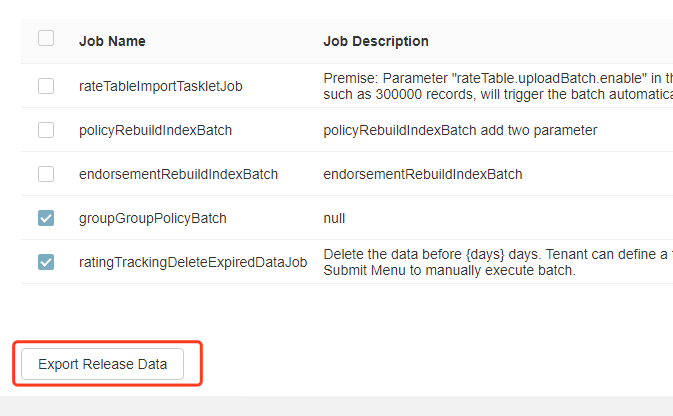
Select the job to be imported into the runtime environment and click Export Release Data.
-
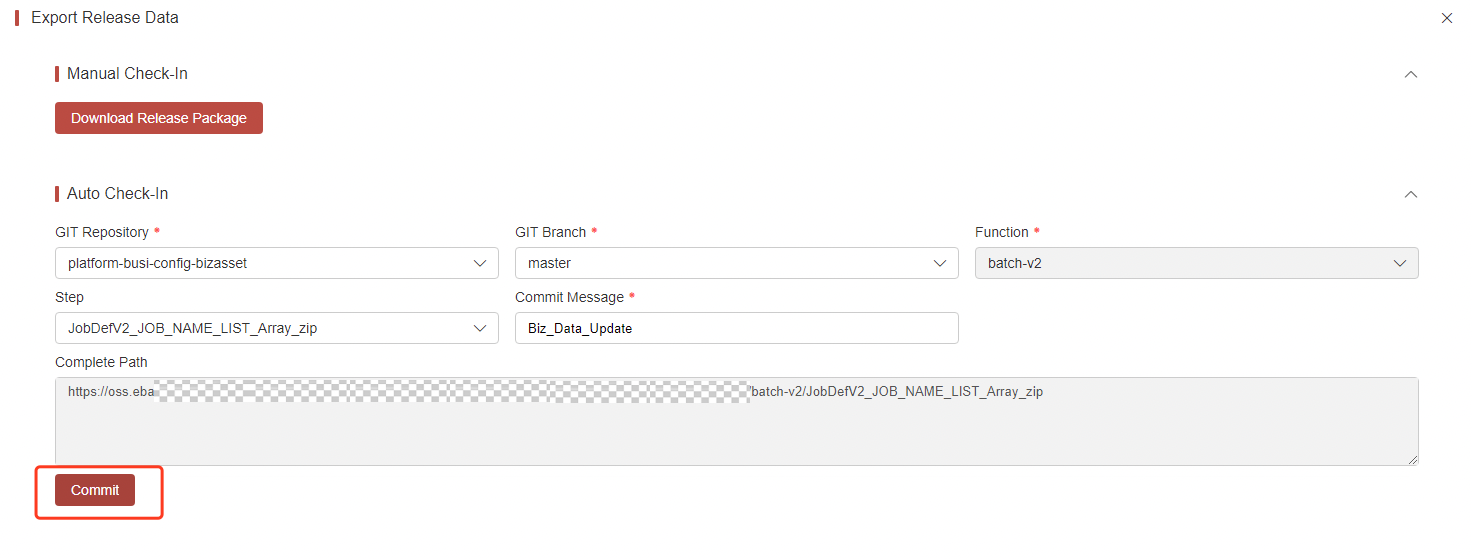
Select the GIT repository and git the branch to upload. Then, click Commit.
-
Deploy the repository in the runtime environment.
Question and Answer
BatchWindow
-
How to define
Please configure the Batch Window in the global parameters. The parameter table is
SystemConfigTable, and the parameter items arebatchWindow.startandbatchWindow.end.First of all, clarify the concept that a day of the Batch Window refers to 12:00 noon on the first day to 12:00 noon on the following day.
If the Batch Window is not specified, it is considered unlimited, equivalent to configuring
start=12:00(noon on the first day) andend=12:00(noon on the second day).Examples of cross-day configurations:
start=12:00(noon on the first day),end=7:00(7:00 am on the second day);
start=23:00(11:00 pm on the first day),end=11:00(11:00 am on the second day)Examples of non-cross-day configurations:
start=13:00(1:00 pm on the first day),end=0:00(midnight on the second day);start=0:00(midnight on the next day),end=11:00(11:00 am the next day) -
Executed in Batch Window
If a batch is defined as executed only in the Batch Window, only job instance records will be generated but not be triggered outside the window. The status will be marked as timeout skip .
How to Manage Date?
-
FirstDueTime, LastDueTime, ProcessDate
Batch-v2 is a scheduling application with a primary focus on DueTime. It cannot effectively infer ProcessDate from business attributes, and forcing this concept can cause compatibility problems. For life insurance needs, you can develop a common method by yourself, and convert it to ProcessDate according to the Batch Window definition and the incoming DueDate information.
When generating each scheduled job instance, two default parameters will be generated: FirstDueTime (the first DueTime that should be executed), and LastDueTime (the last DueTime that should be executed). These allows the job to extract the data to be processed based on the time point, particularly in case of instance execution failures.
-
How are these two parameters determined?
-
They are determined based on the execution of all job instances from the same batch. The system will record two fields: LastSuccessDueTime (DueTime of the last successful instance) and LastFailedDueTime (DueTime of the last failed instance).
-
If LastSuccessDueTime is later than LastFailedDueTime, indicating that the last instance was successful, then FirstDueTime and LastDueTime will be calculated based on LastSuccessDueTime and the current time.
-
If LastSuccessDueTime is earlier than LastFailedDueTime, indicating that the last instance failed, then FirstDueTime and LastDueTime will be calculated based on LastFailedDueTime and the current time.
-
In normal job executions, FirstDueTime and LastDueTime are typically set equal to the current instance’s DueTime.
-
-
How to use batch parameters in code?
The parameters on the previous page are modifiable and customizable, all of which are of string type.
FirstDueTime and LastDueTime are the default parameters which have been specially formatted with a ’#’ prefix. Such formatting is not necessary for customized parameters.
-
How to manage if the scheduling time is over to next day?
Although it’s possible for batch execution to span into the next day, it still usually occurs at night rather than morning. So in the batch program, users can account for such scenario and subtract one day from DueTime if there is a crossover.
-
-
To obtain parameters in the code, please refer to the following two way:
-
Define a corresponding bean with
@StepScopeand inject it directly with@Value. TakeItemReaderas an example.@Configurationpublic class WorkflowIndexRebuildConfig {@Bean@StepScopepublic WorkflowIndexRebuildReader workflowIndexRebuildReader() {return new WorkflowIndexRebuildReader();}}public class WorkflowIndexRebuildReader implements ItemReader<CloudTask> {@Value("#{jobParameters['("#FirstDueTime']}")private String firstDueTimeStr;@Value("#{jobParameters['("#LastDueTime']}")private String lastDueTimeStr;} -
Use
@BeforeStep. TakeItemReaderas an example.public class WorkflowIndexRebuildReader implements ItemReader<CloudTask> {JobParameters jobParameters=null;String firstDueTimeStr="";String lastDueTimeStr="";@BeforeSteppublic void getJobParameters(final StepExecution stepExecution){jobParameters=stepExecution.getJobParameters();firstDueTimeStr=jobParameters.getString("#FirstDueTime");lastDueTimeStr=jobParameters.getString("#LastDueTime");}}
-
How to manage job dependency?
-
Dependency transitivity
In the actual scheduling process, dependency is transitive.
The DueTime of a scheduled task will always be updated according to the CRON expression. Each DueTime has an instance record.
Suppose that there are three jobs: A depends on B, B depends on C, and C has no dependencies. If DueTime of Task A’s activity instance is 18:30, DueTime of Task B’s activity instance will also be 18:30, and DueTime of C activity instance remains 18:30.
The execution order then follows:
-
Task C, without dependency, is triggered first. Task B waits for Task C to complete, and Task A waits for Task B.
-
Once Task C is completed, Task B is triggered. A depends on B continues to wait.
-
After Task B is completed, Task A is triggered. The task chain completes once Task A finishes.
-
-
Batch Disable
Suppose there are three batches: C depends on B and B depends on A.
If B is disabled, the dependent link will be broken, and there will be no running instance of B in the actual scheduling; Meanwhile, C will be triggered directly.
If you want to keep C triggered after A completes, you need to add A to C’s dependency.
How to Define the Batch User?
The trigger user for manual tasks is the currently logged in user maintained in urp.
The trigger user for scheduled tasks can be customized. The user maintained in urp is required to have the following two configurations under the batch-v2 node in the Config Center.
-
${ tenantCode }.scheduler.user.name -
${ tenantCode }. scheduler.user.token
If not, use the system user VIRTUAL (earlier than Version 23.05 is ADMIN).
How to Conduct Better Future Timing Testing?
To support users to test business batches in real business scenarios and schedule scenarios, batch-v2 supports time offset. Users can adjust the system time of the scheduled batch by modifying the time offset of their affiliated organization.
Although the use of batch offset can facilitate batch testing, it can also lead to confusions of normal business data in the testing environment due to batch testing behaviors.
It is required that the batch-v2 server version is no less than 23.03.188.
Here’s a simple example:
A batch of policies will be issued today. 10 years later, we will renew these policies in batches.
The offset is not supported and needs to be tested in this way:
Manually submit a renewal batch and fill in the parameters to control the batch processing logic. Meanwhile, make the batch processing simulate the renewal process 10 years later for renewal.
Post offset testing is supported:
-
Tenant environment batch framework activation time offsets.
(
tenant.batch.offsetdays.enableis set to true in the global parameter tableSystemConfigTable; all other values are invalid.)

-
Set the time offset for the corresponding test user to 10 years later.
(In the global parameter table
OrgOffsetDays, by the organization configuration offset, where key is the organization code, value is the offset unit in days. Negative numbers represent the number of days time moved forward, and positive numbers represent the number of days time moved backward. The maximum absolute value supported is one hundred years.)Specifically, users who automatically schedule batch processing and their affiliations must be confirmed clearly. If the tenant has not been specifically specified in the Config Center, it is the user ADMIN and affiliation. If specified, it is the specified user and the affiliation; manually submitted jobs are the logged in user and their affiliation.
For specific instructions on users, see Batch-V2 Framework.
Take ADMIN users as an example:
-
Confirm the user and affiliation.

-
Adjust the time offset.


-
-
Verify the execution of the automatic scheduling renewal batch processing is complete.
-
After verification, disable the time offset of the tenant environment batch framework.
(Set
tenant.batch.offsetdays.enableto false in the global parameter tableSystemConfigTable, or directly delete this configuration.)

-
To prevent the round-trip adjustments of time offsets from messing up system data and functional disorder, the following script needs to be executed in the pub library of the testing environment.
delete from t_pub_batch_def_ext;delete from t_pub_batch_exec_his;delete from t_pub_batch_exec;
Why I cannot find batch in job monitoring?
Depending on authorities, each batch job submission will be found in the job monitoring.
If you cannot find the batch in the job monitoring, you must first ensure that the job has actually been submitted previously.
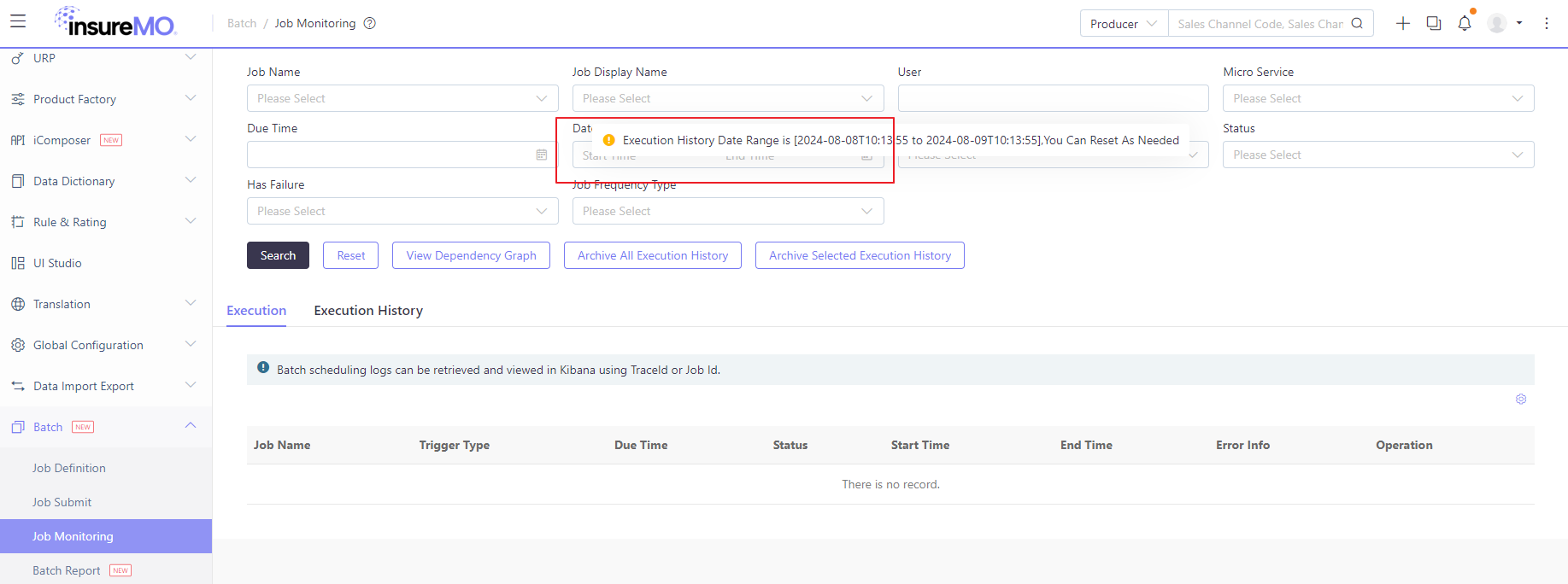
Then you can check the timezone settings that whether you are in the same timezone as the business or not. It’s possible that the business timezone is earlier than yours. Then, when you check the job monitoring, since our job monitoring has a default date range of the past 24 hours for the business timezone, you cannot search by the default search criteria. In this situation, you can expand the date range to include future dates.
In addition, not only the timezone difference, but you need to check the time offset setting to calculate the correct search timing.
Exception Handling Mechanism
In the batch-v2 framework, we fully follow Spring Batch’s native exception handling mechanism without introducing additional custom exception handling logic to ensure consistency and stability with the Spring ecosystem.
Exception Handling Strategy Configuration
The framework supports flexible configuration of exception handling strategies at the batch processing task definition level:
- Exception Skip Mechanism: Each batch processing task can explicitly specify the exception types to skip, defining specific exception class lists through the skippable-exception-classes configuration item
- Skip Count Limitation: Supports setting maximum exception skip count (skip-limit), when the number of exceptions exceeds the threshold, the batch processing task will terminate normally
- Retry Mechanism: Inherits Spring Batch’s retry mechanism, allowing configuration of retry counts and retry intervals for specific exception types
Multi-level Error Handling Mechanism
Our batch scheduling system employs a comprehensive multi-level error handling mechanism to ensure accurate tracking of task status and timely alerts:
- Scheduling Failure: If a schedule initiation fails, the system immediately records the error status and logs, and triggers an alert. Users can view details and manually retry via the UI through the ScheduleExecutionListener and SchedulingErrorHandler components.
- Execution Timeout: After successful scheduling, if the batch task does not report its status within the specified time, the system judges it as a timeout and initiates an alert. The timeout monitoring is handled by the TaskTimeoutMonitor service which periodically checks task execution status.
- Execution Result Feedback: Upon completion, the tenant’s batch task actively pushes its success/failure status and related information to the scheduling system through the StatusCallbackHandler. The scheduling system also proactively pulls the task status every 15 minutes via the StatusPollingService. The final result is updated in the scheduling log for users to view on the UI through the ExecutionResultUpdater component.
Exception Information Collection and Tracking
When exceptions occur during batch processing task execution:
- Unified Log Collection: All exception-related information (including exception stack traces, occurrence time, exception type, etc.) will be collected together with normal AppLog to the Elasticsearch server
- Structured Storage: Exception information is stored in a structured manner, facilitating subsequent querying, analysis, and monitoring alerts
- Complete Execution Context: Exception logs contain complete batch processing execution context information, including job parameters, step status, and other key data
Log Enhancement and Context Association
batch-v2 extends and optimizes the Spring Batch listener mechanism:
- JobExecutionID/TraceId Binding: By extending JobExecutionListener and StepExecutionListener, the batch processing task JobExecutionId/TraceId is bound as log context information
- Traceability Support: Each log entry contains a unique execution identifier, supporting traceability from individual logs to complete batch processing execution chains
- Enhanced Diagnostic Capability: Through the MDC (Mapped Diagnostic Context) mechanism, ensuring log traceability and locatability in distributed environments
This design enables operations personnel to quickly locate execution logs for specific batches, significantly improving troubleshooting efficiency and system observability while ensuring comprehensive error detection and handling across all phases of the batch processing lifecycle.
Job Stopping Mechanism and Asynchronous Behavior
The simpleJobOperator.stop(springBatchJobExecutionId) method does not immediately stop the job execution because of how Spring Batch’s job stopping mechanism works internally. Here are the detailed reasons:
- Asynchronous Nature of Stop Operation: The stop() method in JobOperator does not forcefully terminate a running job. Instead, it sets a stop flag on the JobExecution and relies on the job’s steps to periodically check for this flag and gracefully terminate themselves.
- Polling-Based Stop Mechanism: The actual stopping of a job depends on the job’s steps checking for the stop signal during their execution. This check typically happens:
- Between item processing in chunk-oriented steps
- At certain checkpoints in the step execution
- When the step completes its current operation
- Timing Dependencies: The success of the stop operation depends on when the stop request is issued relative to the job’s execution state:
- If the job is currently in a processing phase that checks for stop signals, it may stop successfully
- If the job is in a phase that doesn’t check for stop signals (like a long-running database query or external API call), it will continue until that operation completes
- Job Implementation Specifics: The responsiveness to stop signals depends on how the job and its steps are implemented:
- Custom steps need to explicitly check for stop signals
- Long-running operations that don’t yield control back to the Spring Batch framework won’t respond to stop requests until they complete
- Race Conditions: There might be race conditions between the job execution completing naturally and the stop request being processed, leading to inconsistent behavior.
The method returns a boolean indicating whether the stop signal was successfully sent, but this doesn’t guarantee immediate job termination. The actual stopping depends on the job’s cooperation with the stop mechanism.
Why batch processing scheduling frequency limited to a maximum of 5 minutes
- Spring Batch is better suited for big data processing:
Design Goal: Specifically designed for automated batch processing jobs that handle large volumes of data Core Concept: Uses a chunk-based processing mechanism to break down large datasets into manageable small batches Applicable Scenarios: Data migration, report generation, file processing, and other tasks that require long-running operations
- Reasons not suitable for high-frequency scheduling:
Heavyweight Framework: Each startup requires initialization of the complete job context environment Metadata Management: The design assumes sufficient intervals between job executions to record and analyze execution results High Resource Overhead: The framework itself has high startup and runtime costs, making it unsuitable for high-frequency triggering
-
Recommended Alternative:
For tasks requiring higher frequency execution, Spring Scheduled is more appropriate
Why can’t receive the alert email
-
Troubleshooting the reasons for not receiving timeout or failure alarm emails
- Confirm that timeout or failure alarms are set in the batch definition

-
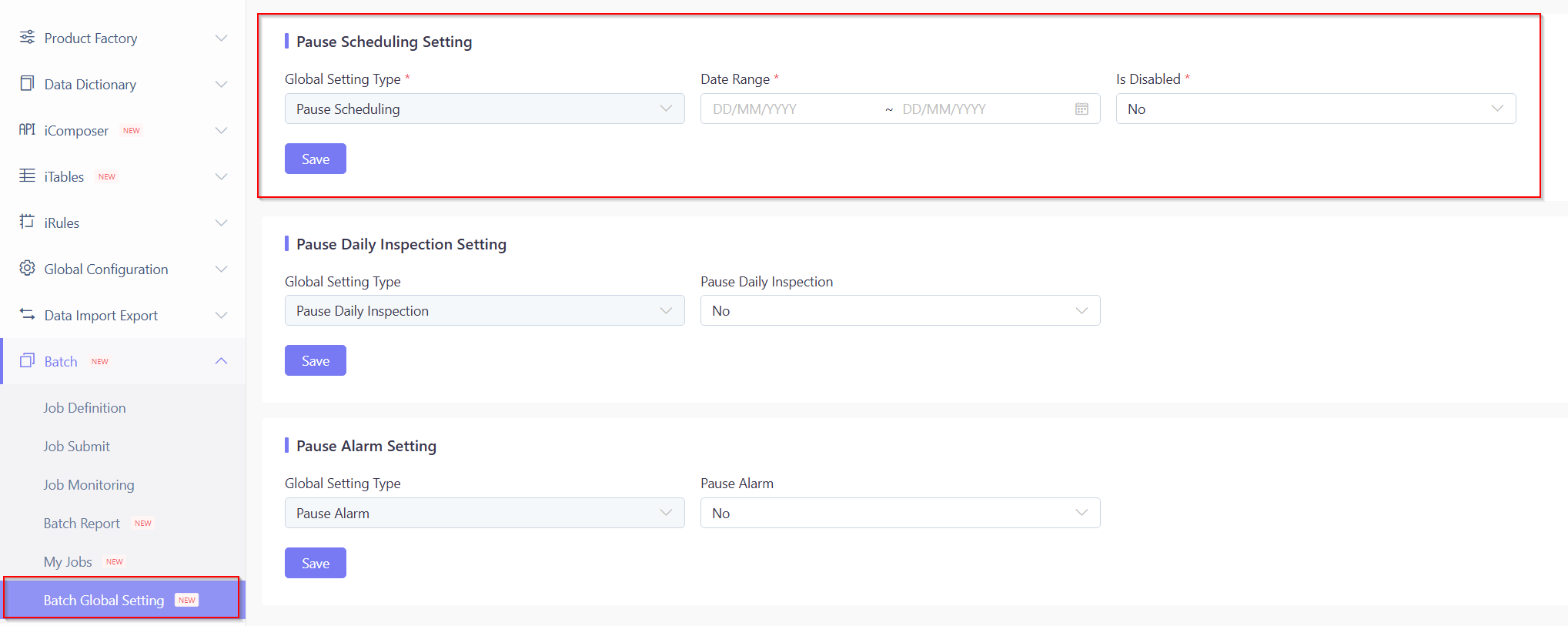
Confirm that the current environment is not set to pause scheduling
-
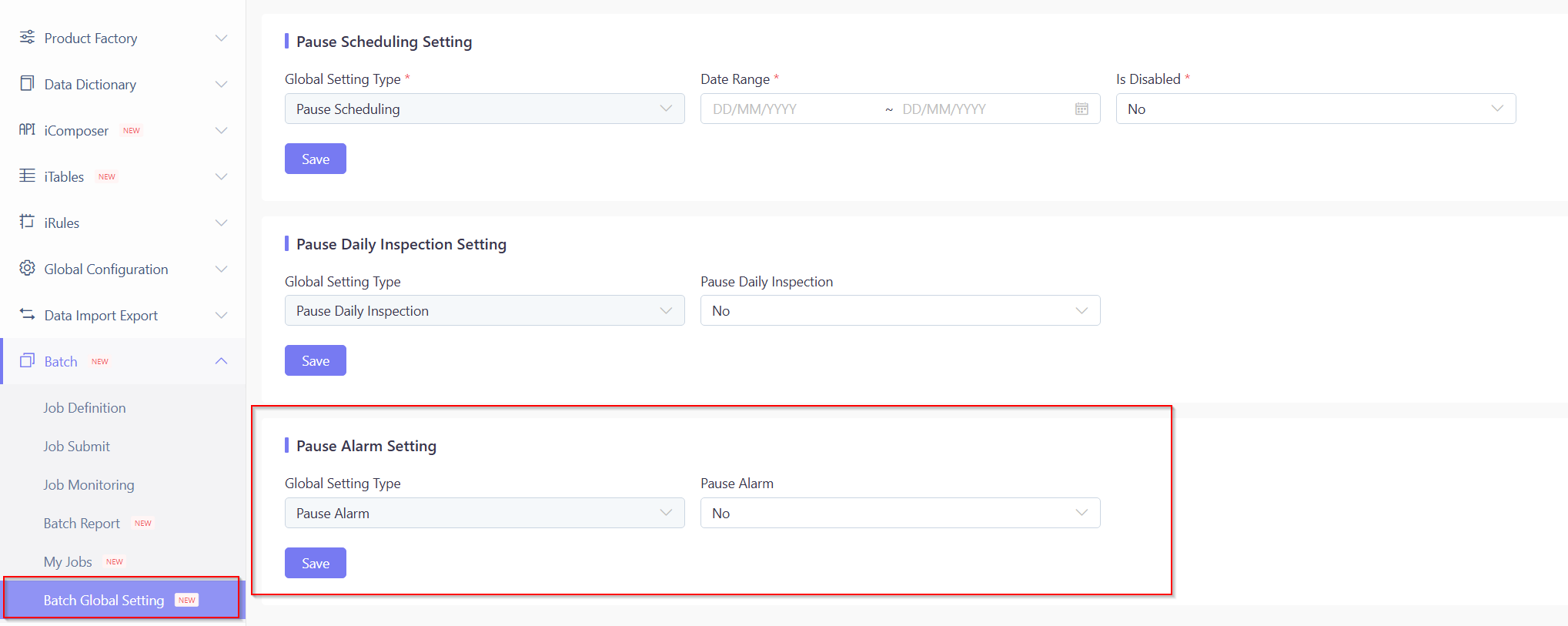
Confirm that the current environment is not set to pause alarms
-
Confirm that the alarm email settings are correct
-
If all of the above are confirmed to be correct, it is necessary to use JobExecutionId or TraceId to check the logs and confirm the reason for the ERROR information

-
Troubleshooting the reasons for not receiving for not receiving daily inspection emails
- Confirm that the daily inspection function of the current environment is not set to pause
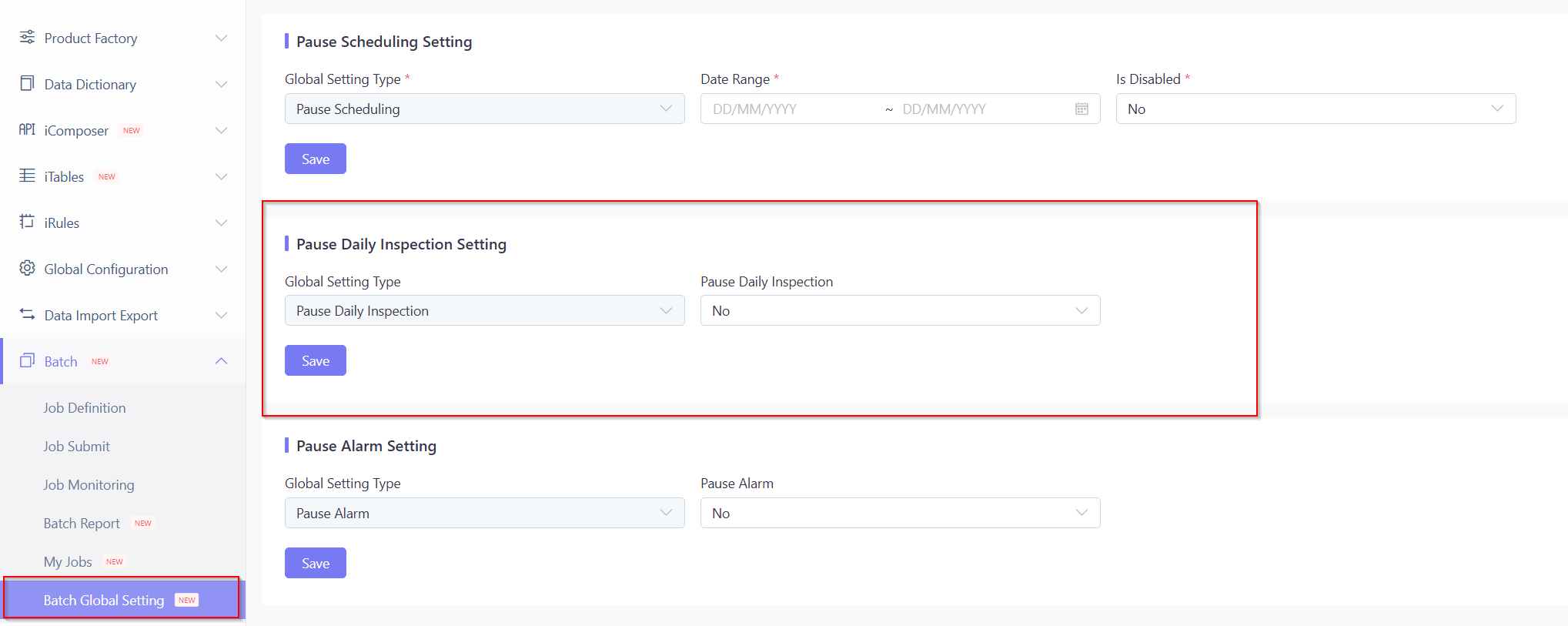
-
Confirm that the alarm email settings are correct
-
If all of the above are confirmed to be correct, it is necessary to combine the time range of the inspection function and the log keyword “Daily Inspection Loop For Tenant” to confirm the traceId, then query the log and confirm the reason with the ERROR information
Spring Batch Scheduling System Notification Modes
The Spring Batch scheduling system provides two complementary notification mechanisms to ensure both immediate response to critical failures and ongoing visibility into batch scheduling health.
1. Alert Notifications
-
Purpose: Alert and notify when batch scheduling execution does not meet expected conditions, requiring timely handling.
-
Alert Configuration:
- AlertName:
batchFail - Severity:
critical
- AlertName:
-
Trigger Scenarios:
Scenario Description Optimization Suggestions Execution Timeout Execution time exceeds estimated execution time Analyze batch processing for performance issues Execution Failure Batch execution failed Check for logical errors in batch processing Partial Data Processing Failure Some data failed to process during batch execution Improve batch logic fault tolerance, fix or handle corrupted data Timeout Failure Execution time exceeds preset maximum execution time Analyze batch for performance issues
2. Inspection Report
-
Purpose: Provide regular health check reports on batch scheduling status.
-
Report Scenarios:
Scenario Severity BatchExecutionResult Description All Successful informationBatch scheduling with no exceptionsAll automatically scheduled batches executed with expected frequency and all succeeded Frequency Issues errorSome batch scheduling frequency not meeting expectationsSome automatically scheduled batches have execution frequency that does not meet expectations Execution Failures errorSome batch running failedSome batch executions failed Partial Data Failures warningSome business data processing failedSome business data processing failed during batch execution
Summary:
This dual approach ensures:
- Critical Alerts (
batchFail) - For immediate attention when batch execution encounters critical issues - Inspection Reports - For periodic health monitoring with varying severity levels based on the overall system status
Common Error Solutions
No job configuration was registered.
org.springframework.batch.core.launch.NoSuchJobException: No job configuration with the name [statementBatchJob] was registered.The error is obvious that job named [statementBatchJob] can not be loaded in the target application.
There are two common reasons for this:
- The microservice name is incorrect for batch definition. The actual batch implementation does not reside in this application.
- The code development is not standardized. Please check the development details according to the development documentation.
Batch is stuck at Started stage and cannot stop.
How to resolve this? Firstly, if a batch is stuck, it usually means that the service is still running but encounters an issue. As a result, stopping the batch will release the service. Basically, there are two options:
-
If the batch code is written in the standard trunk mode, try to go to the batch edit screen and click Stop to stop.
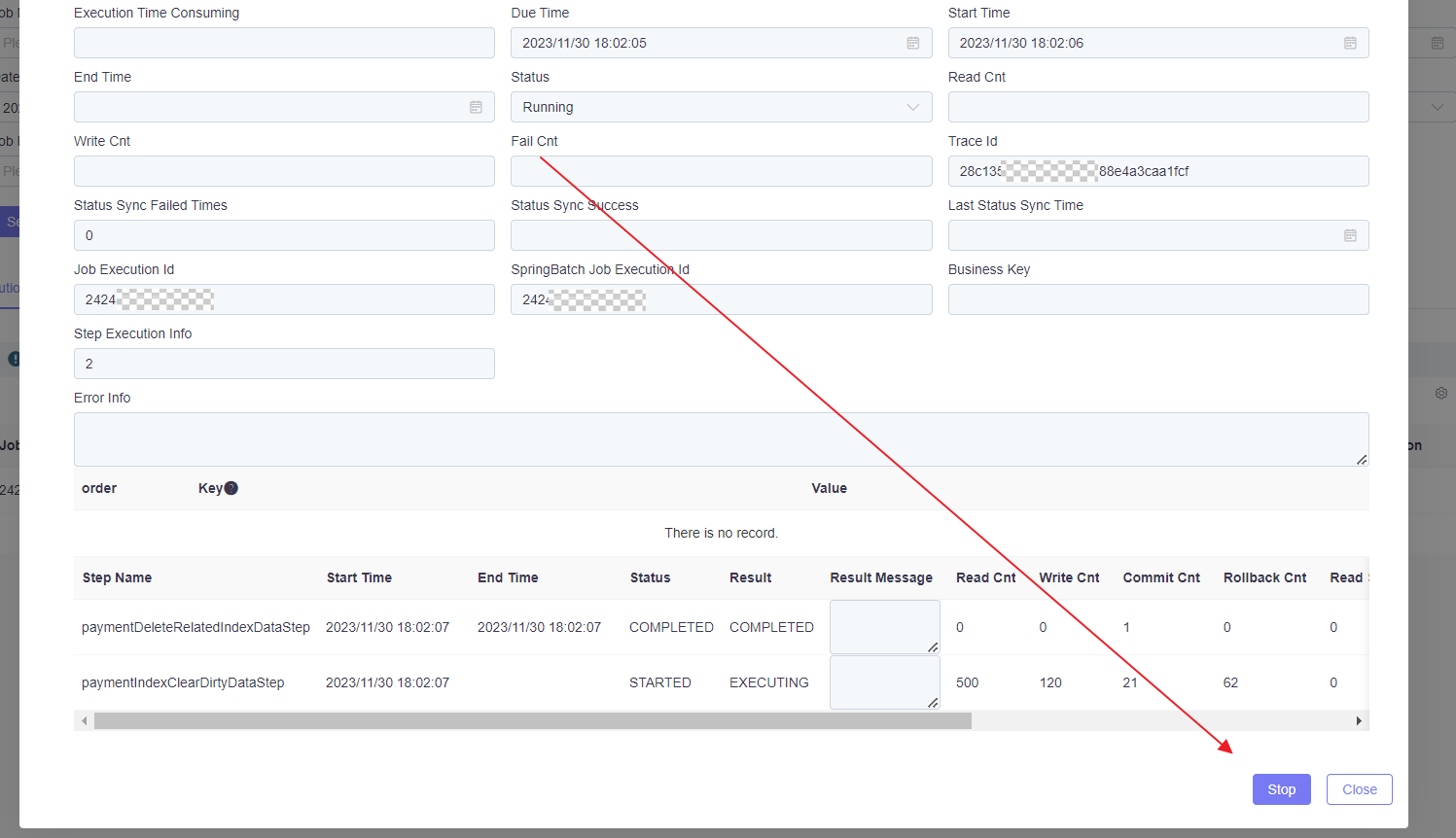
-
If the batch code does not follow the trunk mode, there must be some batch program errors causing the batch lockup. Please restart your BFF service in order to release the stuck batch service program. Afterward, wait for our batch scheduler to auto-stop it.