Basic Concept
By default, upon login, users will land in the administration UI of ICS, which is designed to facilitate global business operations. The UI consists of two main parts:
- Common Part:
- UI Header: This section provides global business operation controls and links.
- UI Menu: This menu links to other each business or technical UI via menu jump.
- Detailed Operational UIs:
- These UIs are embedded in the menu via Iframes and provide detailed operational controls for specific tasks.
For the common part, some default behaviors might not be applicable for certain business requirements. Therefore, UI behavior extension via configuration is necessary to make the required changes.
User Scenario
For users who want to change the platform’s default UI behavior to better align with their specific business needs.
User Operation Guide
All operations described in this guide should be performed in the portal MC environment. Operations in other environments are not allowed unless for troubleshooting purposes.
Overall Tailored UI Theme and Style
System style changes can be made by adjusting global parameters. Below are some examples of changes that can be made through global parameter configuration.
UI Default Style Change
From the platform level, a list of default styles is provided for users to choose from.
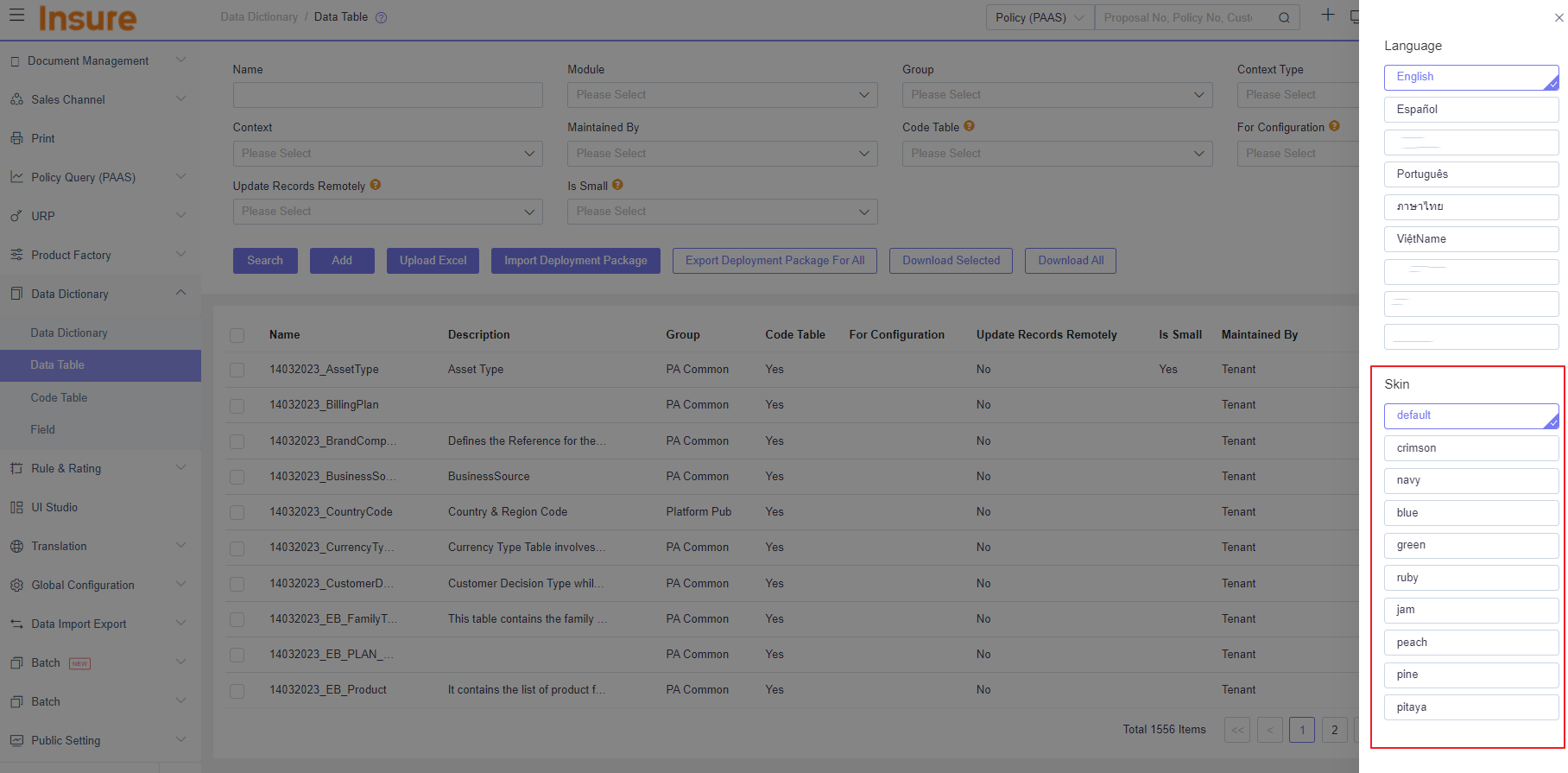
To change the default style, navigate to Global Parameter > UIConfig and select the available theme:
-
UI_SKIN_GROUP: Default the range of theme selection.
-
Skin: Default the specific theme.
Dark Mode
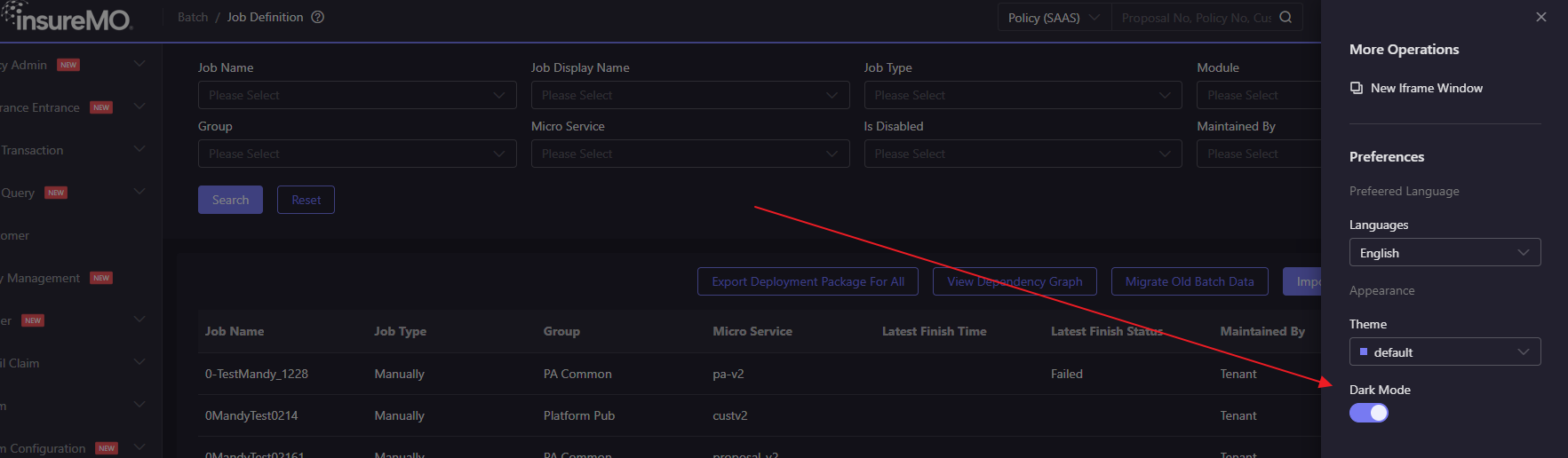
To help user to reduce eye strain and improve comfort, a dark mode switch option is available.
If you do not want this option to be available, navigate to Global Parameter > UIConfig and set topBarNeedDarkMode to false.
UI Homepage Change
By default, if no configuration is set, the GI policy statistics page will be displayed as the homepage.
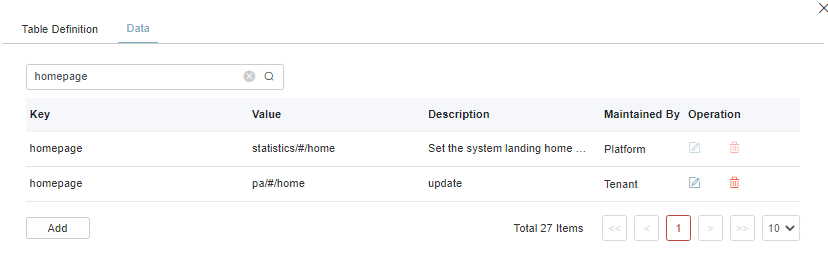
To change the homepage, navigate to Global Parameter > UIConfig > Key homepage.
-
If the user sets the value such as “pa/#/home” (consult the UI developer for the specific URL of the tenant UI), policy administration page will be displayed as the home page.
-
If the user does not have permission for this page or the URL is wrong, the first menu that the user has permission to access will be displayed as the home page.
Side Menu Default Expand
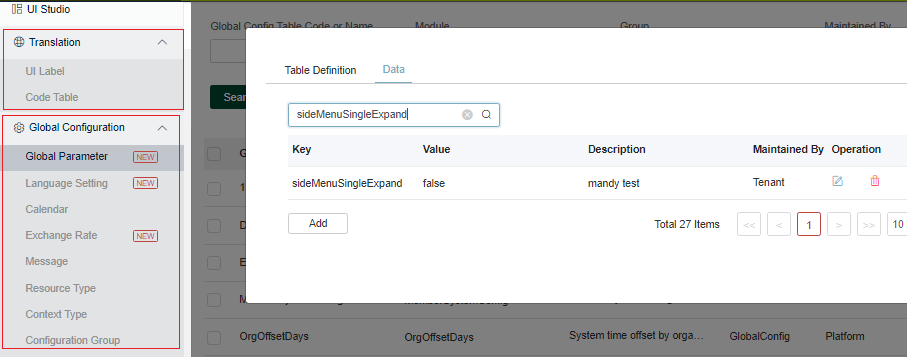
To control the default expansion of the side menu, navigate to Global Parameter > UIConfig > sideMenuSingleExpand.
The sideMenuSingleExpand is set to ‘true’ by default and only one menu can be opened at a time. If set to ‘false’, multiple menus can be displayed simultaneously without cascading.
Multi-region UI Component Settings
The platform provides default values for multilingual parameters. Tenants can add these parameters according to their own requirements.
-
Core Configuration Rules
- Key-specific type: Type defined in component key (e.g.
number_integer_v5) takes effect only for the corresponding component type, no duplicatetypein Value. - Global type: Type defined in Value of
number_v5takes effect for all Number Picker instances, unifies default type for all uncustomized number components. - Cross-type configuration: Independent keys (e.g.
number_positive_v5) apply to all number types (integer/decimal/currency/percent) when bound.
- Key-specific type: Type defined in component key (e.g.
-
Component Configuration Details
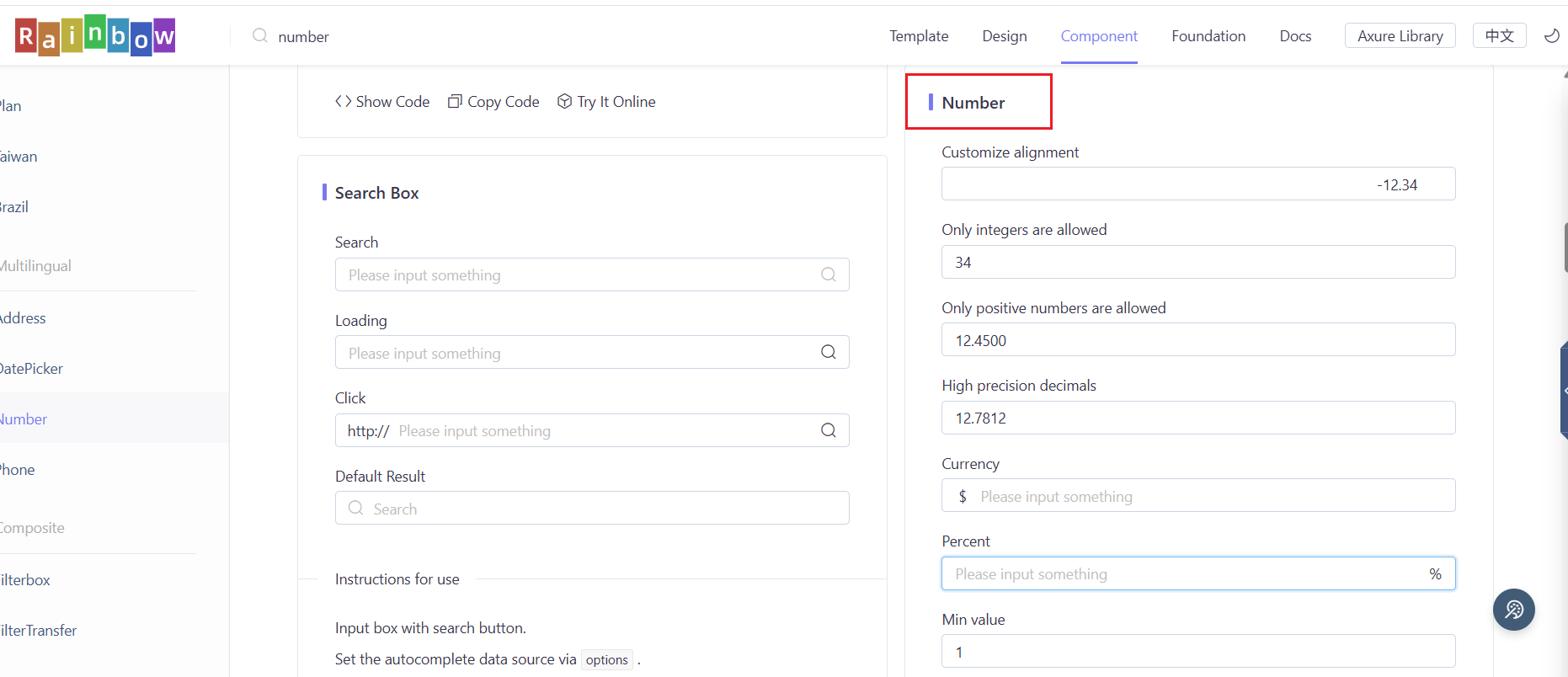
Component Name Key Value Description 4.0 DateTime mltdatetimepicker {"temp":"universal","format":"YYYY-MM-DD HH:mm:ss"}Universal date-time format, includes hour/minute/second 5.0 DateTime datepicker_v5 {"format":"YYYY-MM-DD HH:mm:ss"}Custom full date-time format; default is YYYY-MM-DD(no time) if unconfigured5.0 Number number_integer_v5 {"format":"###,###", "min":1, "max":100}Integer type only: thousand separator formatting, configurable input range 5.0 Number number_decimal_v5 {"decimalLength":4, "format":"#,###.#[#]"}Decimal type only: exact 4 decimal places (configurable), flexible number formatting 5.0 Number number_currency_v5 {"unit":"$"}Currency type only: displays specified currency sign (e.g. $/¥/€) 5.0 Number number_percent_v5 {"rate":100}Percentage type only: 100x conversion rate for percentage display 5.0 Number number_positive_v5 {"positiveNumber":true}Cross-type restriction: blocks all negative number input (rejects ”-” sign) 5.0 Number number_v5 {"type":"integer", "format":"###,###"}Global config: unifies all number components to integer type with thousand separator 5.0 Number number_v5 {"positiveNumber":true, "decimalLength":2}Global config: unifies positive restriction and 2 default decimal places for all number components -
Number Picker Additional Attrs
decimalLength: Exact number of decimal places to display (configurable, takes effect for decimal/currency type).min/max: Restricts input to a specified numeric range (applies to integer/decimal type).format: Custom number display rule (supports###,#,###,#,###.##,#,###.#[#]).rate: Percentage conversion rate (default 100 fornumber_percent_v5).unit: Custom currency symbol (supports all common currency signs fornumber_currency_v5).positiveNumber: Boolean,true= disable negative value input (cross-type available).
For more information, see rainbow-number and rainbow-date.
Login Page Customization
By default, all InsureMO tenant login pages are standardized.
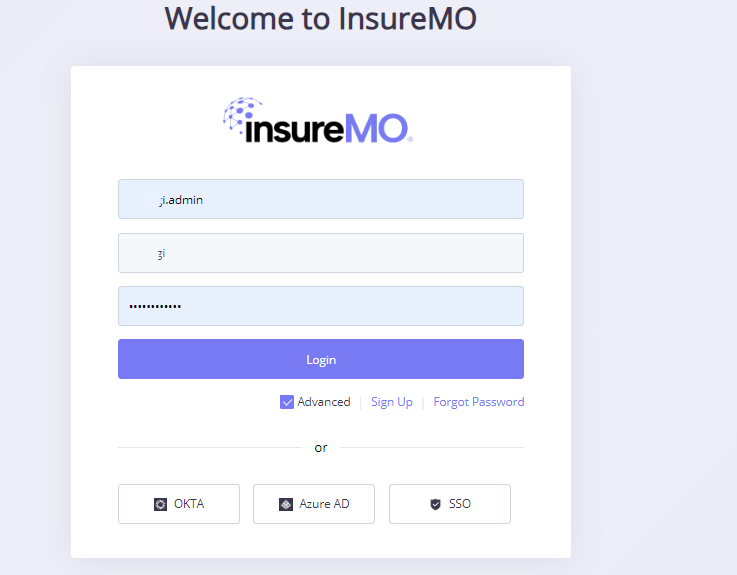
If some clients want to have a more personalized login page, such as support for multi-language or the addition of a specific tenant logo, the project team can contact InsureMO support team to implement these customizations.
Upon receiving the request, InsureMO support team will provide the project team with a sample tenant login UI project and set up the related CICD job. Then the project delivery team can customize that project to meet the client’s requirements and use that CICD to conduct the deployment.
After the deployment is complete, the project team needs to contact the InsureMO team to change the following environment parameters to complete the switch:
-
{tenant}.customLoginUrl
-
{tenant}.customResetPasswordUrl
-
custom.login.tenant.active
Document Center
Once any menu is located, the system allows for a quick jump to the document center, enabling end-users to quickly view the user guide for operations.
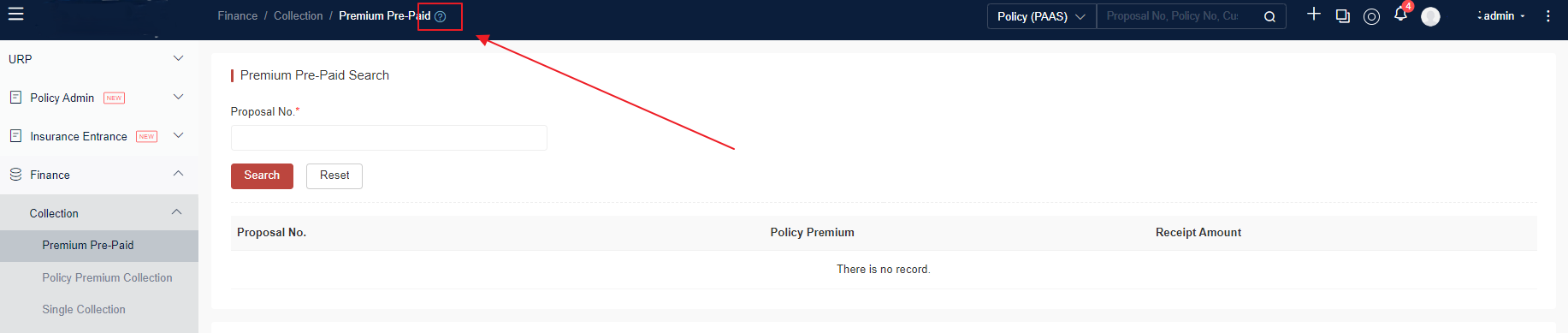
There are two levels of documents involved:
-
InsureMO platform document: These are maintained in the InsureMO doc site and require portal user authentication.
-
Application specific document: These can be maintained in the application repo itself and just require runtime login user authentication.
If your end-users have requests for specific application document, you can contact the InsureMO support team. We will create a special GIT Repo and CICD for you (CICD Name = common-doc), then you can manage and edit your documents in markdown format within your repo.
NOTE
If there are any folder-related changes in the mentioned doc repo, ensure that the file in the config folder is also updated; otherwise, the system may encounter errors during deployment.
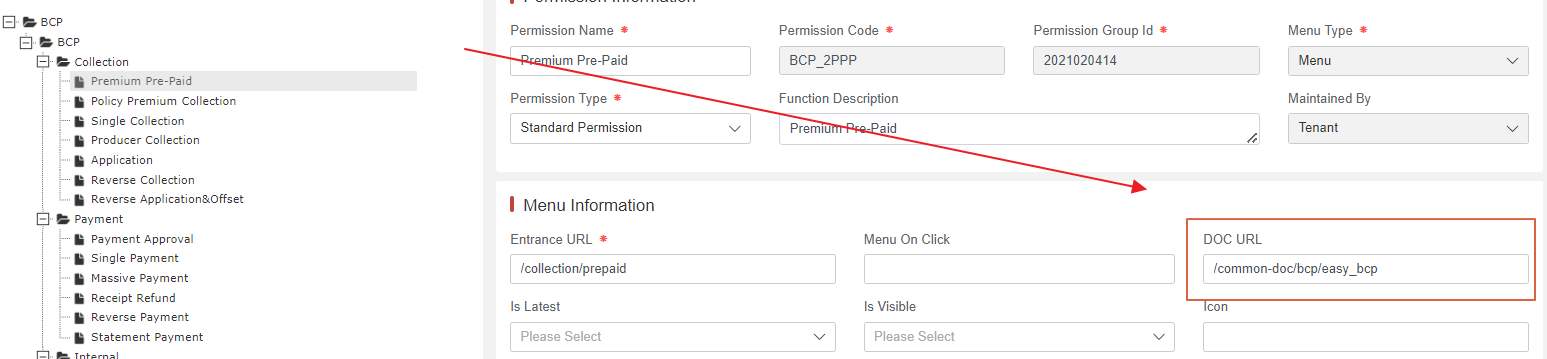
After the document is completed, you can use CICD job to deploy, and you will be able to access the document via your tenant URL path plus /common-doc/ as shown in the example below:

Finally, if the hyperlink works well, you can go to the URP module to configure the menu permission to associate the menu with the doc URL. This follows the same rule as configuring the entry URL for quick navigation.
Message Notification Center
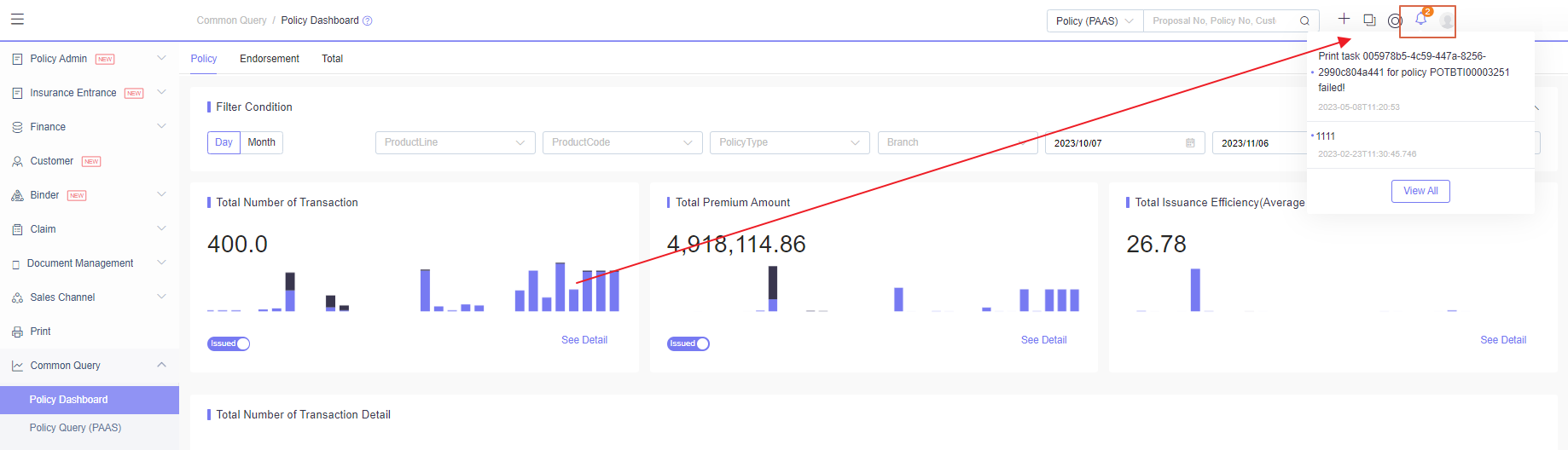
On the top of right, user can receive instant message to be alerted of the latest business change status.
To understand how message center is achieved, see Message Center Guide.
Quick Business Launch and Search
Now we support quick business launch and search on the top of the page, which can be customized via data table configuration.
For detailed operational steps, see Data Dictionary Guide.
Quick New Business Launch
After the tenant logs in, there will be a ”+” icon for user to quickly jump to new business menus.

Platform and tenant provide basic samples:
| Quick Jump Menu | Maintained As | Need Display | Is Default |
|---|---|---|---|
| New Market Product | Platform Data | Y | Y |
| New Producer | Platform Data | Y | Y |
| New Proposal | tenant Data | Y | Y |
| New Claim | tenant Data | Y | Y |
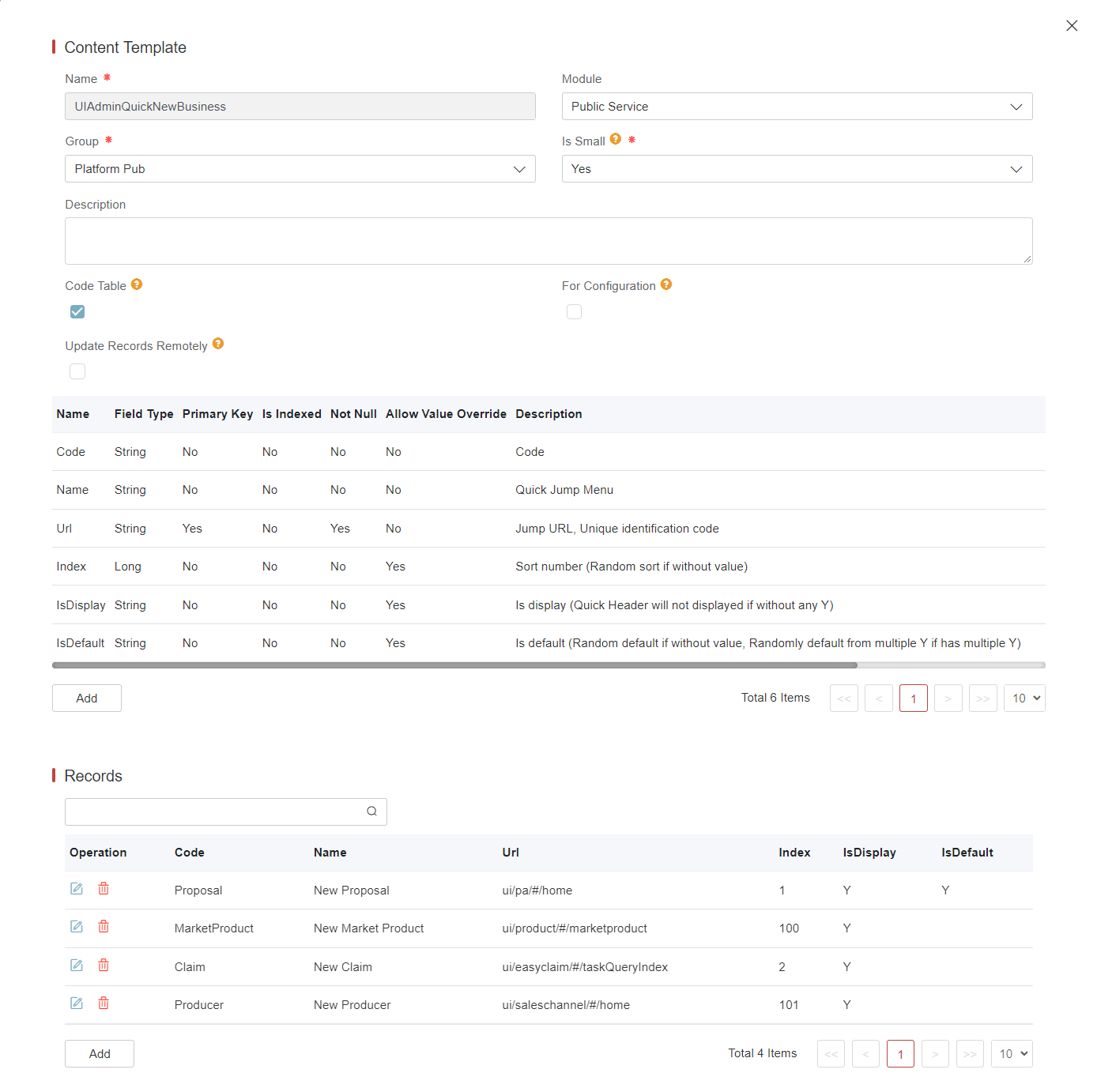
- For platform data table “UIAdminQuickNewBusiness”, tenant can override and adjust the value of Need Display, Index, Is Default.
-
For platform code table “UIAdminQuickNewBusiness” tenant can modify the translation.
-
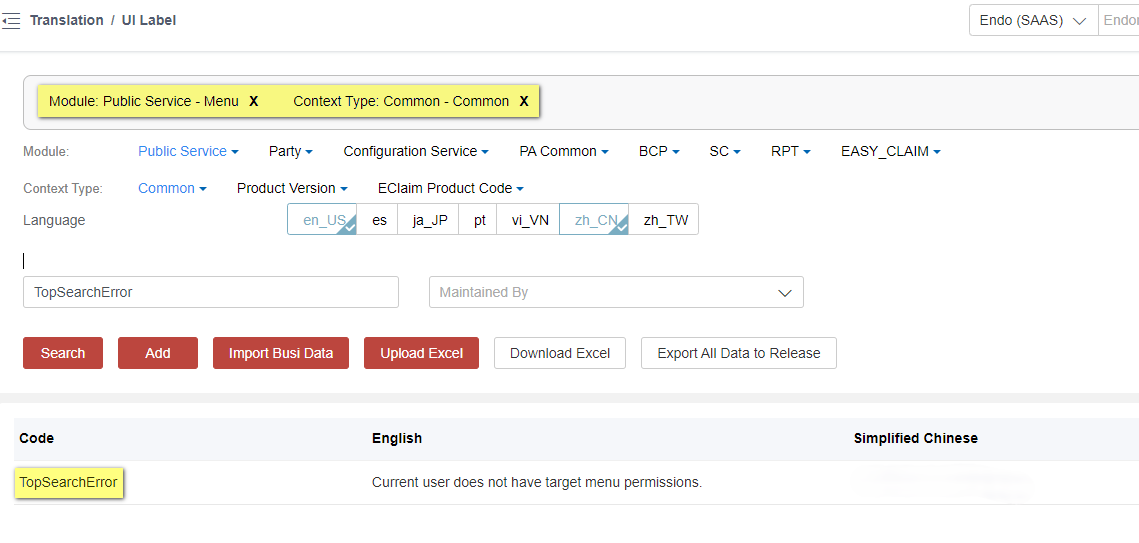
If user does not have permission for the target page, the system will pop up the message “Current user does not have target menu permissions.” This message supports tenant customization through Translation > Menu Module > key: TopSearchError.
Quick Existing Business Search
After the tenant logs in, there will be a search box for user to perform quick business searches.
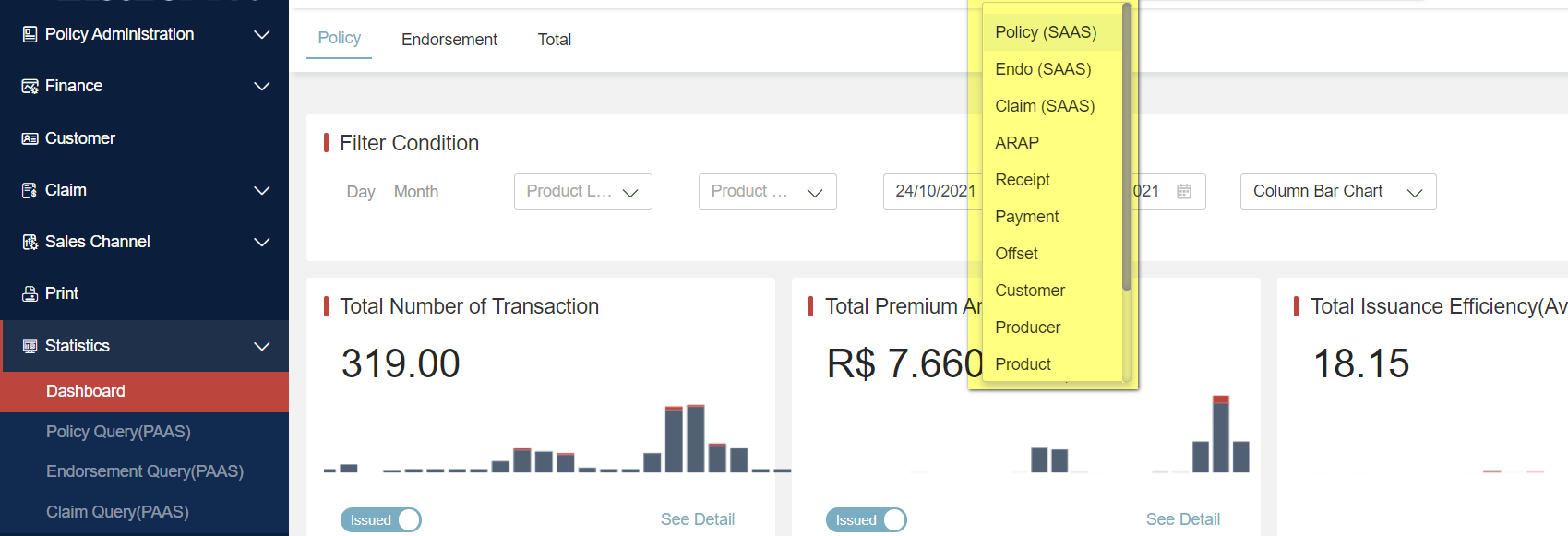
Platform and tenant provide basic samples:
| Quick Search Domain | Maintained As | Need Display | Is Default | Keyword |
|---|---|---|---|---|
| Market Product | Platform Data | Y | Y | Product Code,Product Name |
| Policy (PAAS) | Platform Data | Y | Y | Proposal No,Policy No,Customer Name,Customer ID Number |
| Endorsement (PAAS) | Platform Data | Y | Y | Endorsement No,Customer Name,Customer ID Number |
| Claim (PAAS) | Platform Data | Y | Y | Policy No,Claim No |
| Producer | Platform Data | Y | Y | Sales Channel Code,Sales Channel Name |
| Policy (SAAS) | tenant Data | Y | Y | Proposal No,Policy No,Customer Name,Customer ID Number |
| Endorsement (SAAS) | tenant Data | Y | Y | Endorsement No,Customer Name,Customer ID Number |
| Claim (SAAS) | tenant Data | Y | Y | Policy No,Claim No |
| Customer | tenant Data | Y | Y | Customer Name,Customer ID Number |
| ARAP | tenant Data | Y | Y | ARAP No |
| Receipt | tenant Data | Y | Y | Receipt No |
| Payment | tenant Data | Y | Y | Payment No |
| Offset | tenant Data | Y | Y | Offset No |
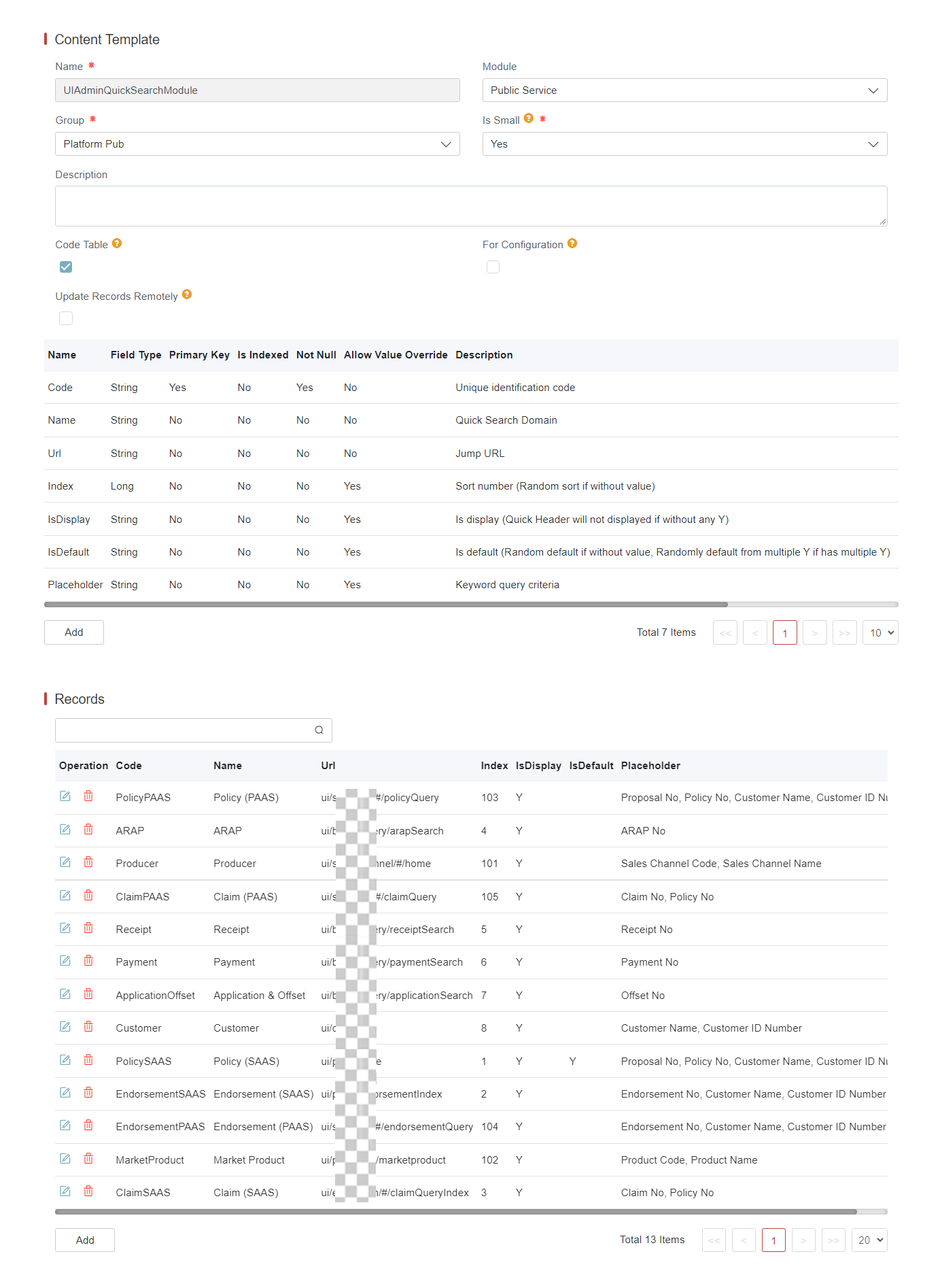
- For platform data table “UIAdminQuickSearchModule”, tenant can override and adjust the value of Need Display, Index, Is Default, Placeholder.
-
Unlike the code-table approach, this section uses a front-end DataTable due to URL redirection; to update display text or translations, simply edit the Name columns directly in UIAdminQuickSearchModule’s DataTable.
-
For the default values shown in the search box, the UI pulls the placeholder text from the Placeholder column of data table UIAdminQuickSearchModule.
Internationalization of this text is driven by code table UIAdminQuickKeyword. If a tenant override UIAdminQuickSearchModule with new rows but does not override code table UIAdminQuickKeyword, the code table still contains only the platform-supplied codes.
At runtime the application first looks for a matching code in UIAdminQuickKeyword; when it fails to find one for the tenant-added rows, it falls back to the raw Placeholder value stored in UIAdminQuickSearchModule. -
If user does not have permission for the target page, the system will pop up the message “Current user does not have target menu permissions.” This message supports tenant customization through Translation > Menu Module > key: TopSearchError.
If the user does not want this feature, it can be hidden by setting the global parameter UIConfig-topBarNeedSearch to ‘false’.
User Retrospect
In some cases, the user retrospect feature might be available to use. This feature allows users to review and analyze past actions and data within the system.
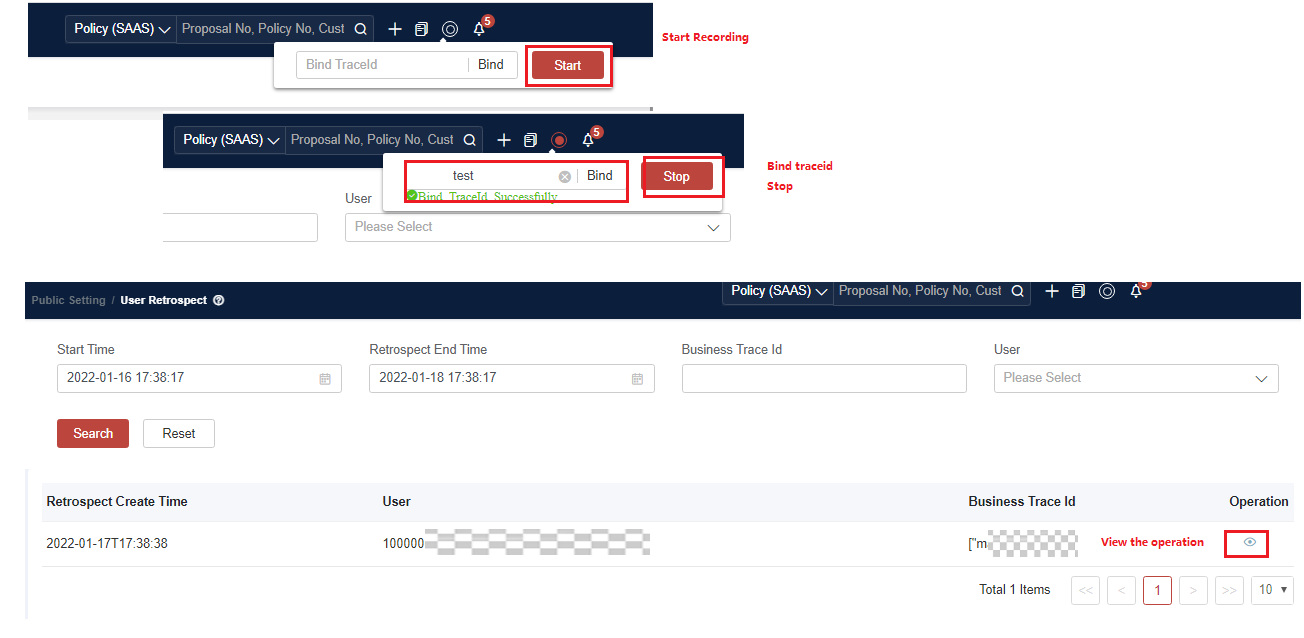
To understand how retrospect is achieved, see User Retrospect Guide.
Branch Level Adjustment
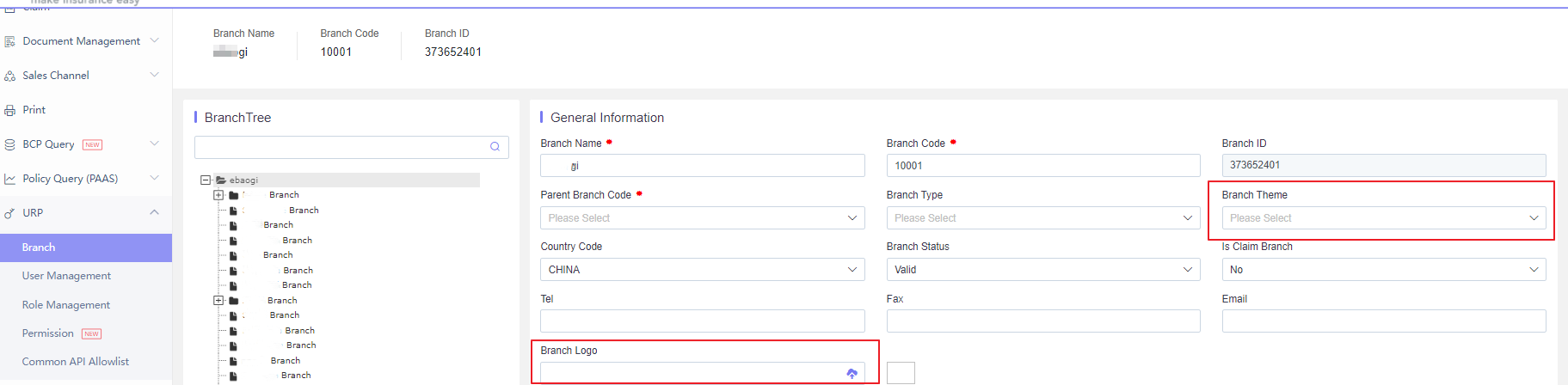
Some clients might create branches for external parties and have requirements for maintaining their own theme or logo at the branch level.
Logo Configuration
We allow logo configuration at the branch level. The UI ADMIN will first check the current branch level. If it is blank, it will check the parent branch level, and so on, until it finds a setting. If no setting is found, it will use the tenant-level setting.
When uploading a logo, ensure that it aligns with or is smaller than 250×56.
Theme Configuration
We allow theme configuration at the branch level. The UI ADMIN will first check the current branch level. If it is blank, it will check the parent branch level, and so on, until it finds a setting. If no setting is found, it will use the tenant-level setting.
However there will be two constraints for branch level theme:
-
If a branch level theme is defined, user will be restricted to only that single theme and cannot change it.
-
Themes will be cached in the UI, which means changes to the branch-level theme will only take effect once the user clears the browser cache.
Font Setting
By default, we take each user’s browser font setting as the primary font to provide the best user experience for each individual user.
If you want to have a uniform font experience for all login users, you can contact the InsureMO support team for further evaluation.
AI Chat (Beta)
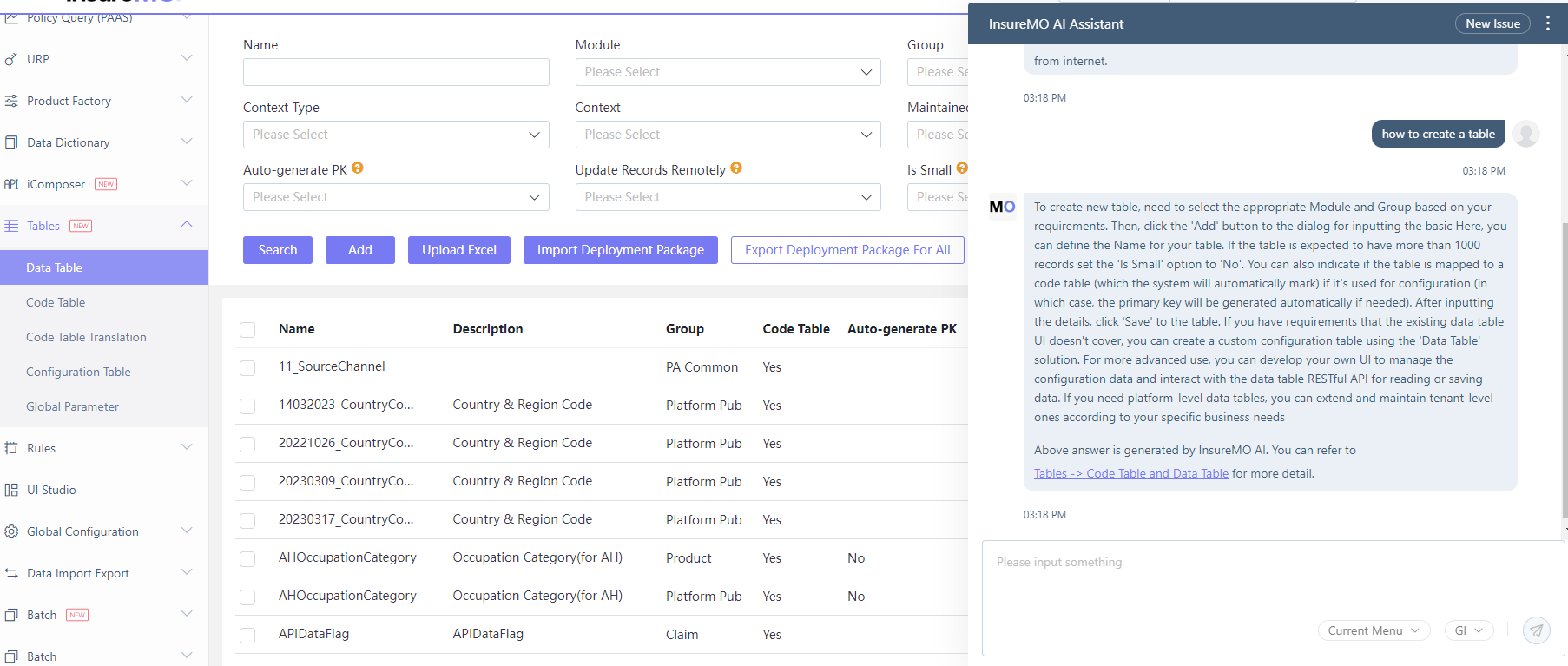
Starting with 24.03 version, when users access the portal MC environment, there will be a new AI assistant chat menu popping up, powered by InsureMO AI. Now the AI assistant can assist you in the following ways:
-
Quick Navigation
Type keywords and AI will give you quick links to all related menus or systems for navigation.
-
Current Menu
Type a question and AI will answer it based on specific document related to this menu from the InsureMO document center. You will get no response if no associated document is defined for the menu.
-
All Docs
Type a question and AI will answer it based on all related documents from the InsureMO document center.
-
Free Dialog
Type a question and AI will give a response based on the search result from Internet.
It is expected that with AI capabilities, when any user has any question on InsureMO, they can first check with the AI to get a high-level answer and a link to the InsureMO document center for further information, before contacting the InsureMO team directly.
FAQ
Suppose I have my company theme, how can I achieve it in InsureMO?
We understand that each company has its own culture and corresponding theme related to it. From InsureMO perspective, there is a set of available themes provided which covers most of the different colors.
We recommend that users first try our default theme and adjust the global parameter to see whether it can match the requirement. If no suitable match is found, you can contact InsureMO support team for further analysis to determine whether to add a new common theme from InsureMO or develop a customized one.