To tailor system behavior to individual preferences, such as adding personalized search criteria or columns to the query screen, users can utilize our User Preference component. This component is made up of two elements:
- User Preference API
This API supports to save and fetch preferences based on specific users or tenants. - Dynamic Section
As an UI component, it achieves personalized interface display by calling the User Preference API.
By integrating these two components, the platform enables users to customize specific default UI elements without development efforts.
User Preference to Drive Query UI
User Preference is widely used in couple of our query UI. Taking GI for example, it has already been widely applied:
- GIMO default policy UI
- GIMO default bcp query UI
For business users, User Preference enables:
- View the default search criteria and input search criteria to query.
- View the default search results.
- Add/Remove default search criteria.
- Add/Remove default search results.
- Change both search criteria and result field sequence.
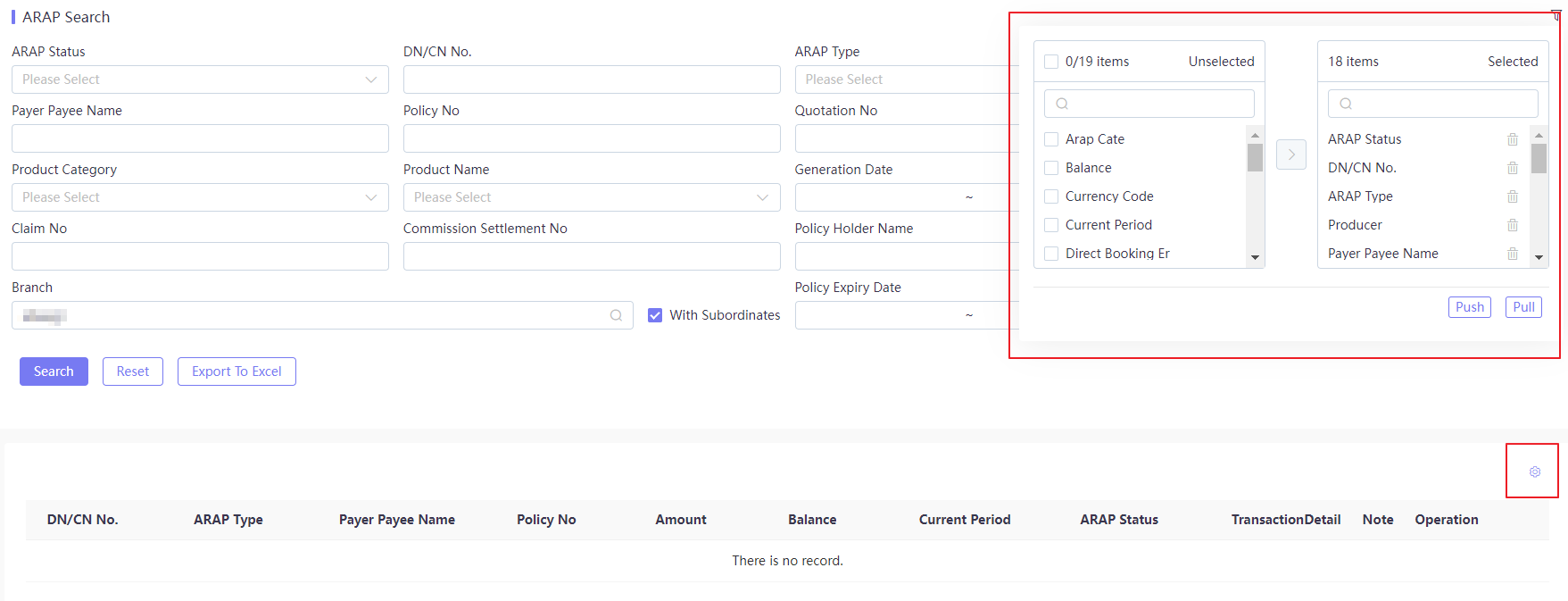
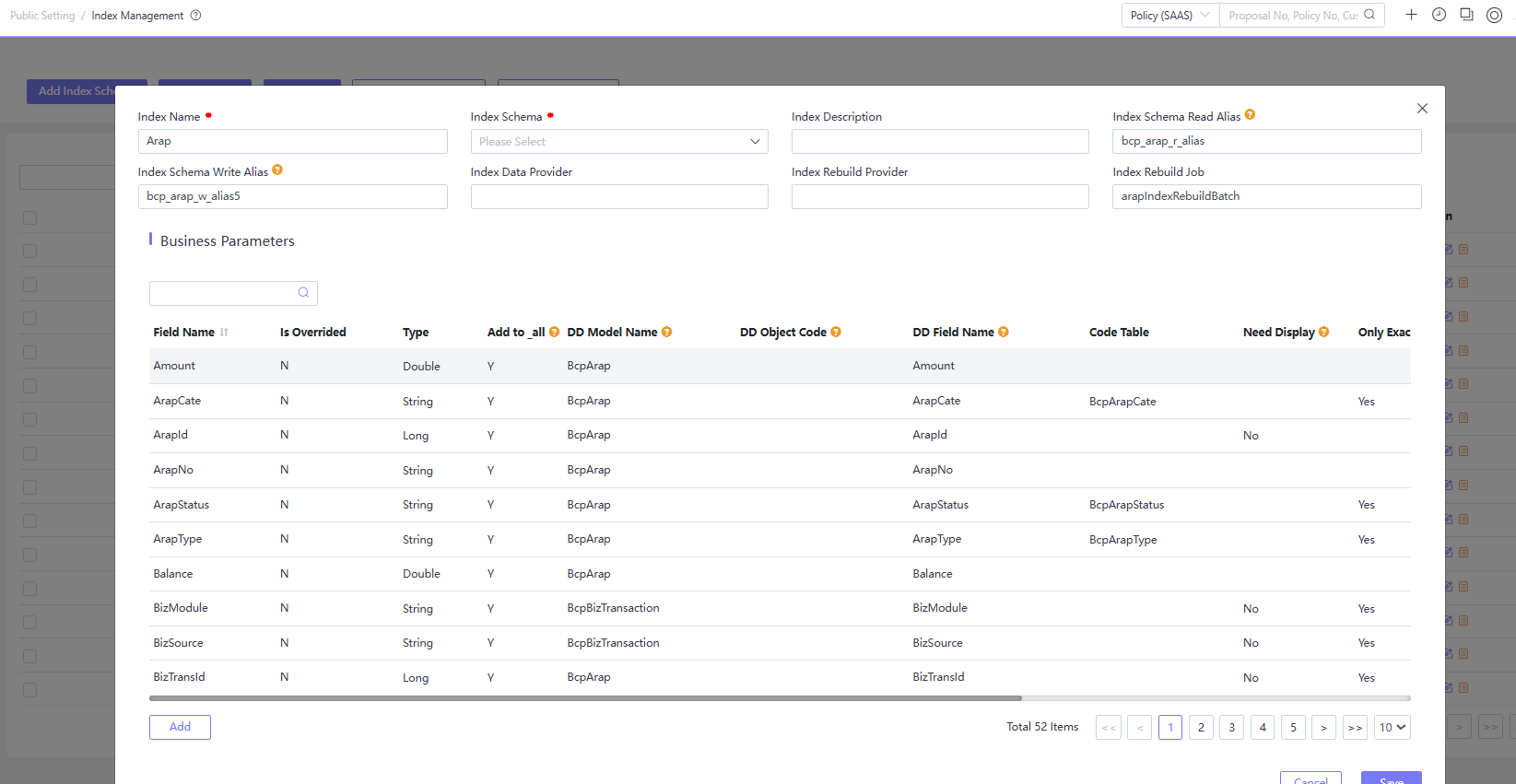
For tenant administrators, the display of query fields is driven by Index Configuration and User Preference. Therefore, the tenant administrator can modify the index definition or configure User Preference to:
- Add/hide search fields (User Preference or Need Display via Index Configuration).
- Change field display sequence (User Preference).
- Bind code table to search field (Code Table via Index Configuration).
- Display different inputs based on the data type (Description via Index Configuration).
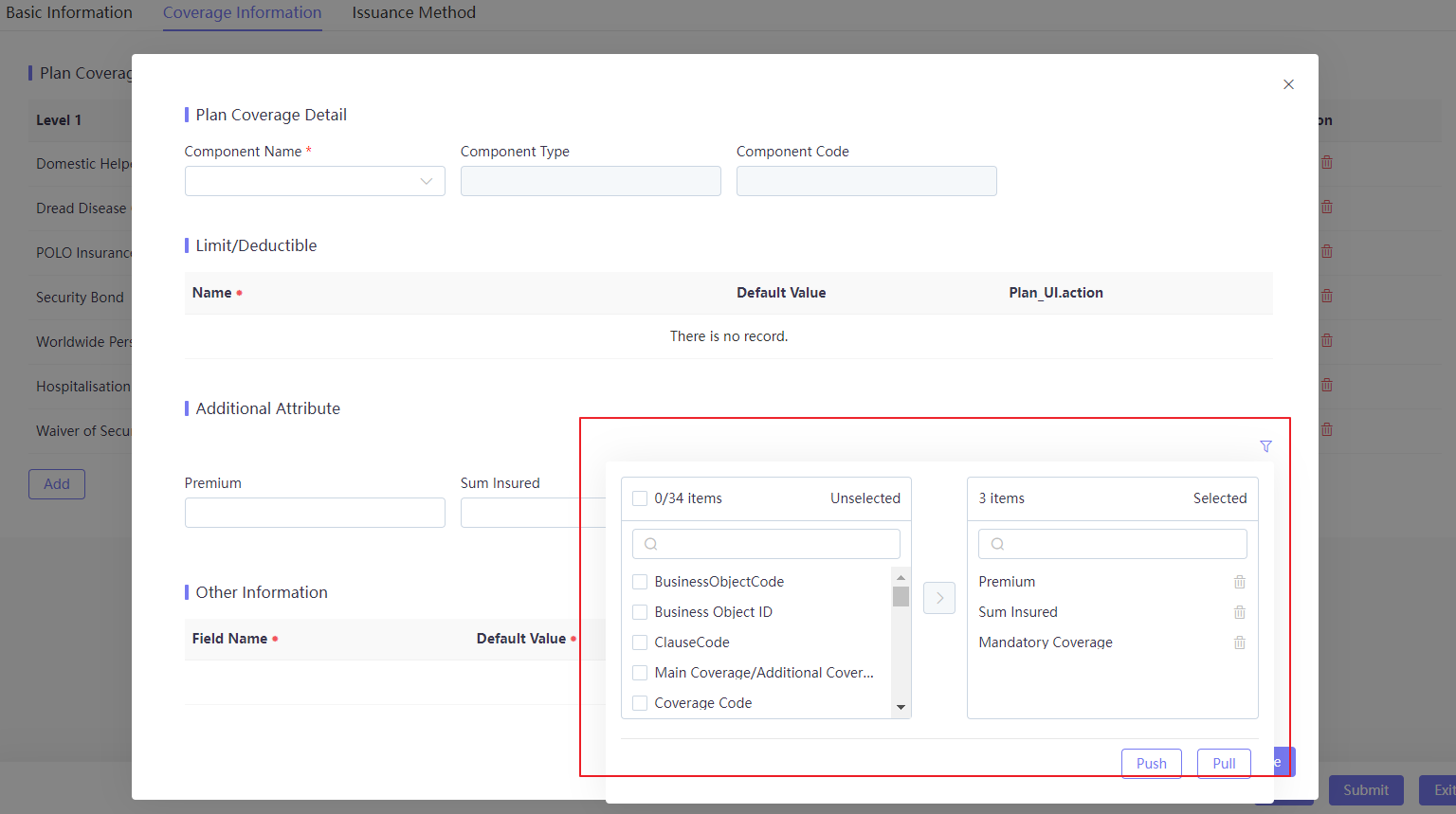
User Preference to Drive Operation UI
There are some UIs driven by DD configuration. Taking GI for example, User Preference is already widely used in:
- Sample policy entry in product factory UI - Policy Object.
- Product attribute in product factory UI - Product and Respective Component Object.
- Plan attribute in plan definition UI - Plan Object.
- Customer attribute in customer maintenance UI - Customer Object.
Business users, who work with operational UIs that may involve data persistence, will not have access to this preference. The preference component is exclusively available to super administrators.
Tenant administrators can adjust DD definition or User Preference to achieve:
- DD model and object configuration -> section/table display
- DD field binding configuration -> field display
- Code table -> display dropdown
- Field Label -> display UI label
- Field Type -> display string, number or date
- Input -> whether allow to display
- Mandatory -> whether mandatory to input
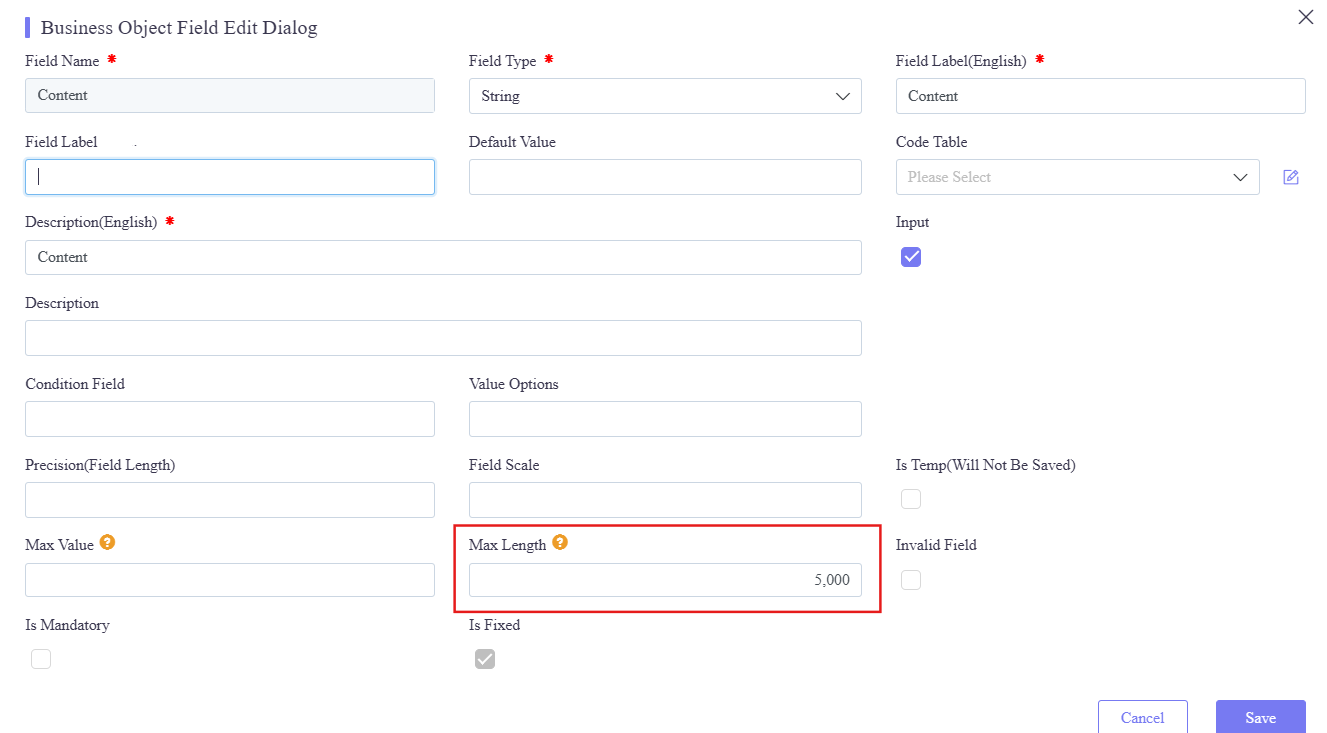
- Max Length -> display a rich text box if the length exceeds 100, otherwise show a single-line input box
- User preference -> control visibility or display sequence
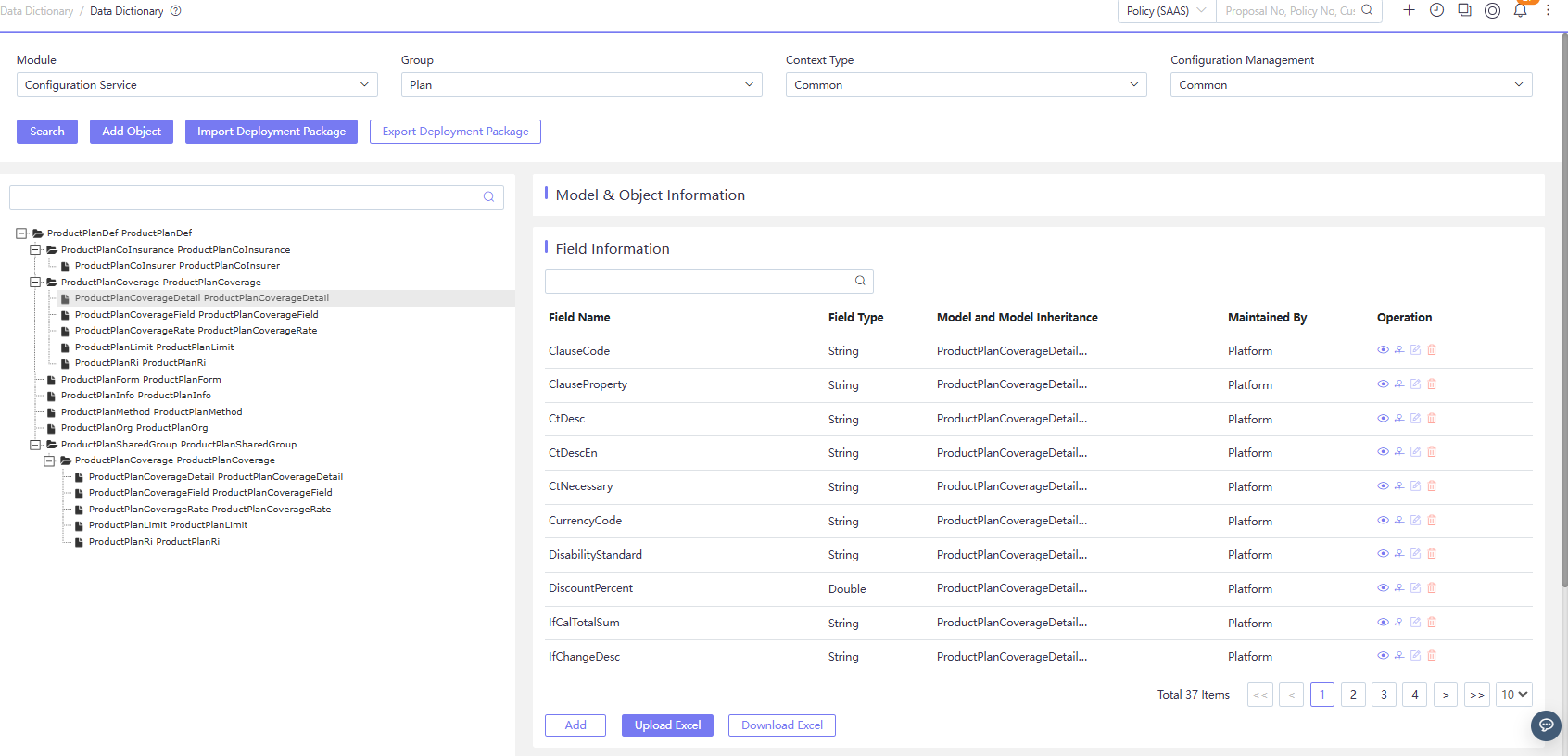
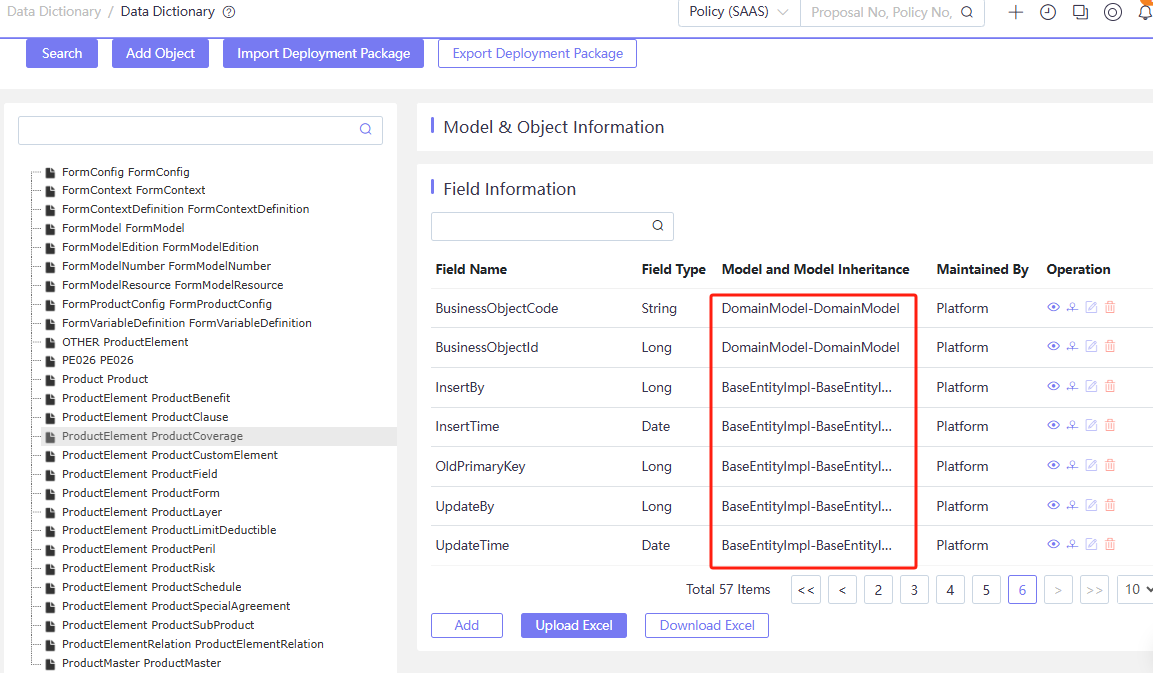
In the Data Dictionary, each object model field contains DomainModel and BaseElementImpl fields. These fields serve technical purposes and are not recommended for business use. If similar fields are necessary, it is advised to add them at the tenant level.
User and Tenant Level
User preference can exist at two levels:
- User-Level Preference
This preference applies only to operator users and is not applicable to other users.
- Tenant-Level Preference
This preference applies to all users within the tenant. When a tenant user first interacts with the UI, Tenant-Level Preference is set as the default. Only by changing the preference setting will users make it their own.
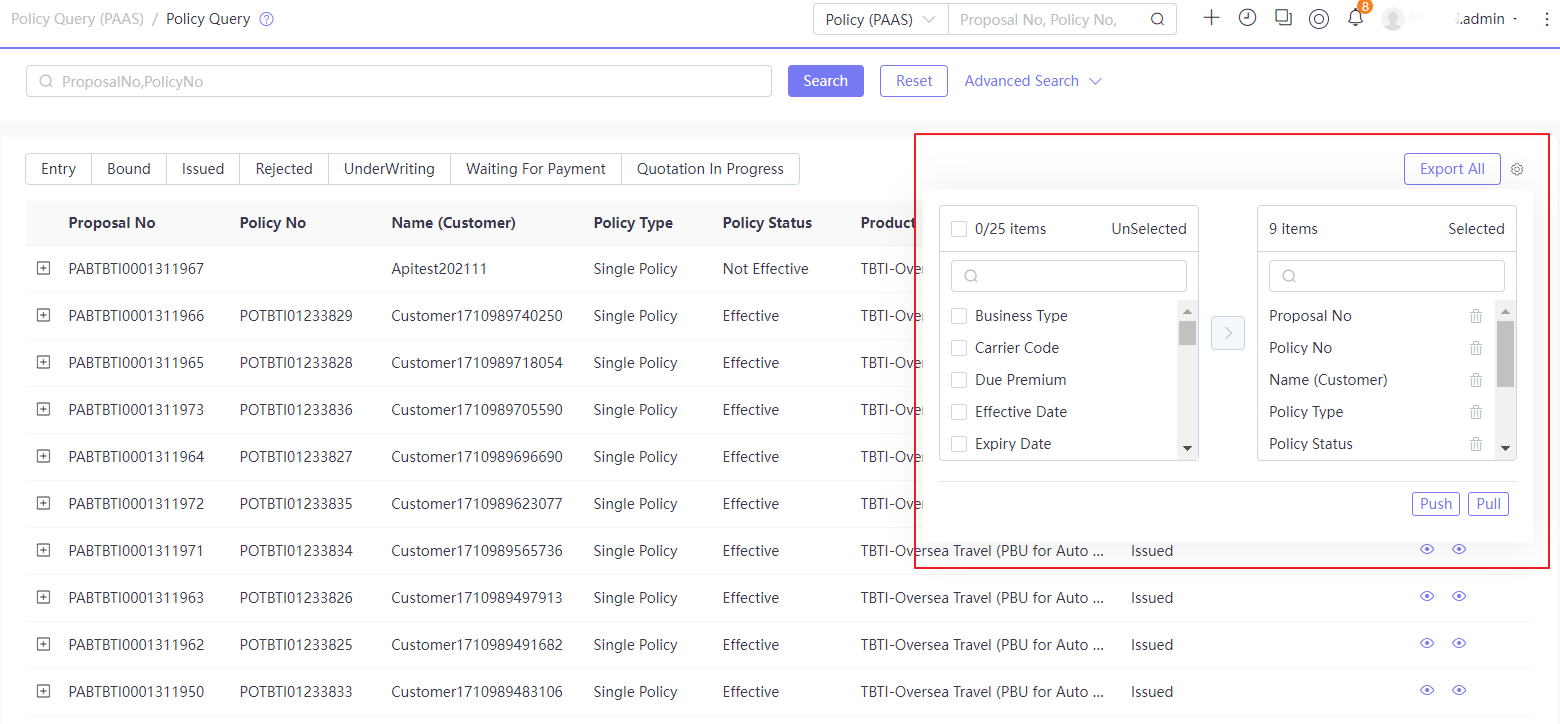
Tenant-Level Preference is set when users click Push to promote the system setting to a global level, transforming them into Tenant-Level Preferences. Given that this Push action can alter the experience for all users, it is restricted to Super Administrators.
Conversely, users who customize their preferences can click Pull to revert to the Tenant-Level Preference.
Deployment
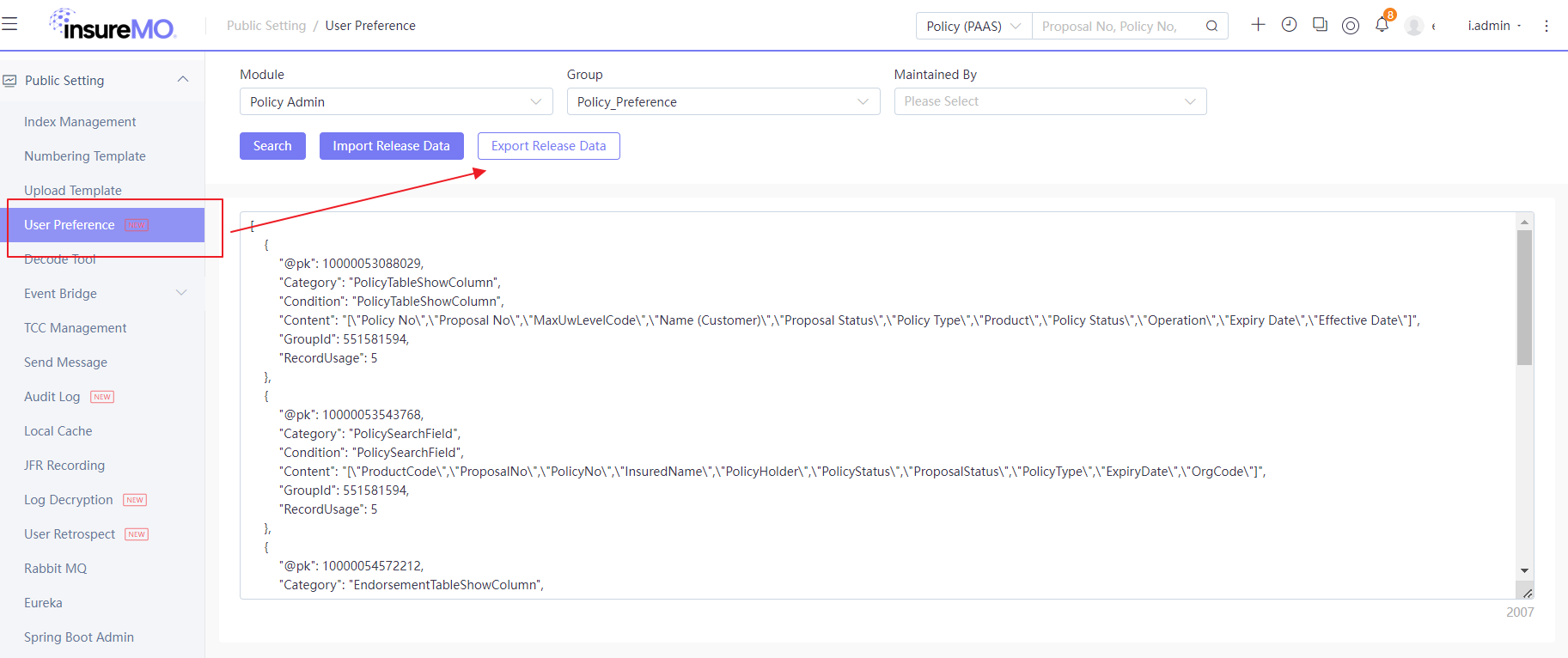
For Tenant-Level Preference, if the client requires consistent behavior across all environments, users can define preferences in the MC environment and export them as a deployment package. This package can then be applied to all other environments.
FAQ
1. Rich-Text Display
Question: How do I make a platform field in Clause appear as a rich-text box?
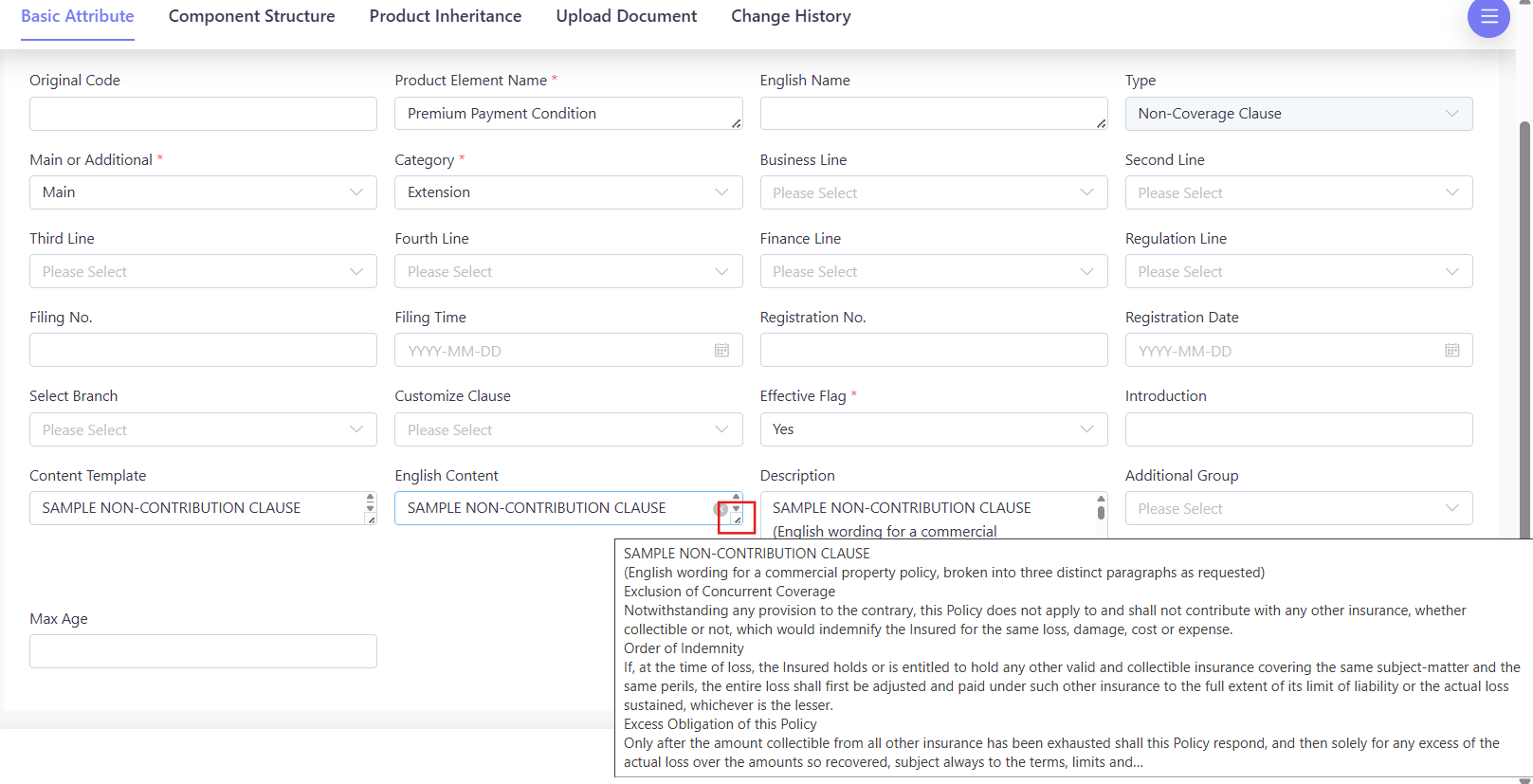
Answer: The control type is determined by the field’s Max Length in the Data Dictionary (DD): • Max Length ≥ 100 → rich-text box • Max Length < 100 → single-line input
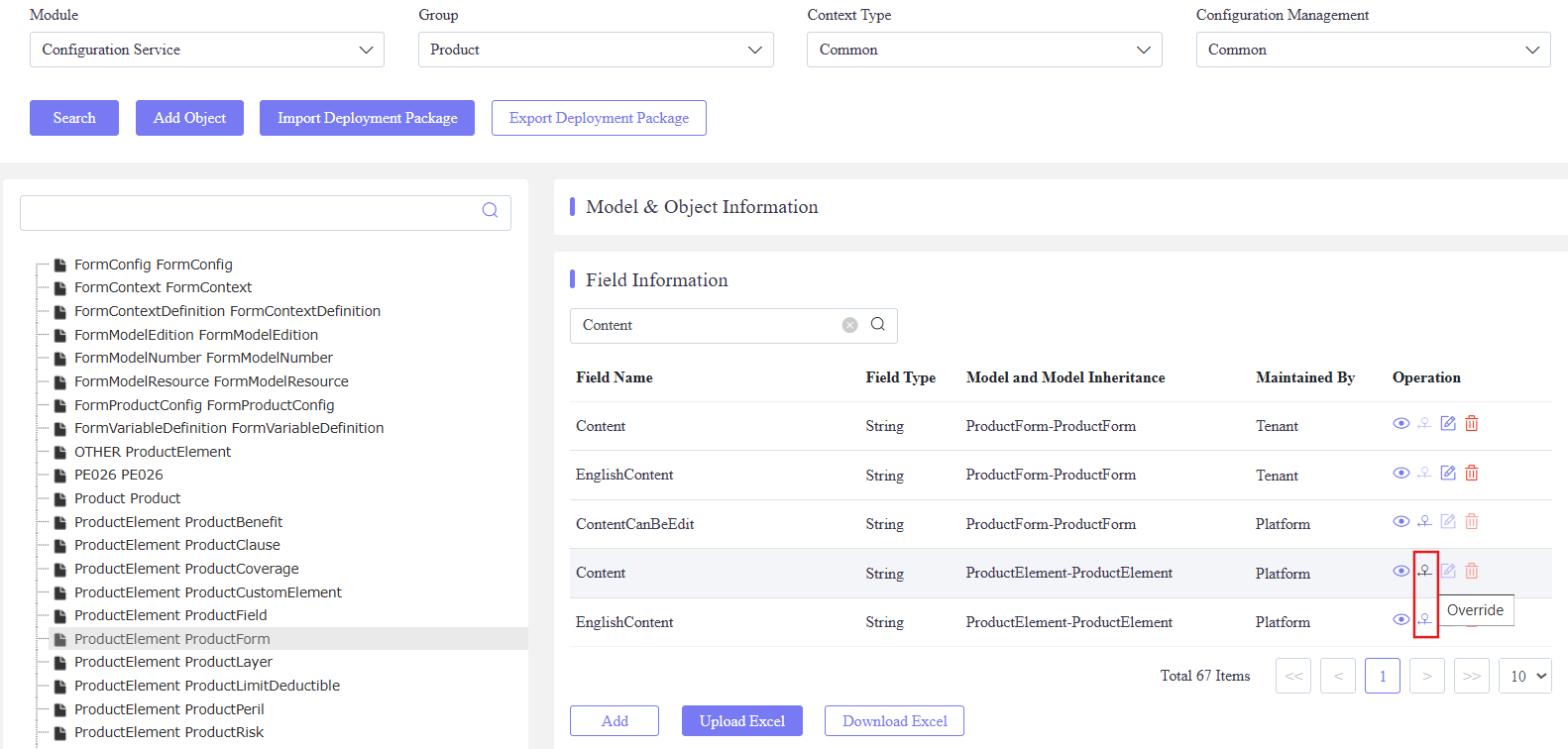
In DD, locate the model and field name. For tenant-defined fields, edit Max Length directly; for platform fields, Override first, then set the desired Max Length. The system always uses the overridden tenant definition. Save the change and reload the Clause page—the field will now render as a rich-text box. Drag the handle in the bottom-right corner to resize the rich-text box.
For explanations of the terminologies used in this document, see InsureMO Terminology