Basic Concept
Context module maintains module and context type grouping and message translation. It allows dynamic grouping of configuration data for better management and deployment into other environments. All these configuration data need to be added and exported from the Master Configuration (MC) environment before being deployed to other environments.
User Scenario
For anybody who wants to use our platform to categorize the configuration data for better management.
Context Component
The following is a typical display of context components for configuration group.

- Context is more of a global tag, which is mostly used to differentiate whether it’s product-related or common configurations.
- Module is important as per the business module definition. Configuration group is a further segmentation of modules, allowing for more specific management.
- Resource is the system configuration type. For example, a report module can have an I18n configuration but not rating configuration.
- Resource relationship is what we are using to control whether the module can use I18n or rating.
A Number of context, modules, and resources are pre-embedded in the platform while tenants can extend their own configuration groups.
Context Operation Guide
- All operations described in this guide need to be performed in the portal MC environment, and are not allowed in other environments unless for troubleshooting purposes.
- Please make sure you possess read and write authorities to make the operation beforehand.
Configuration Module
The system (from Version23.04.X.) supports adding modules.
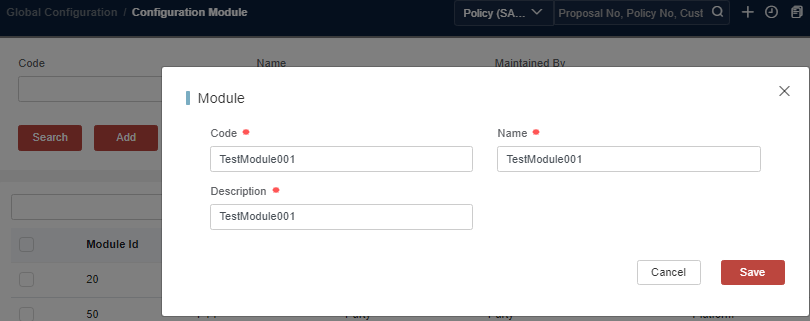
After a module is added, you can find it when you add or edit Configuration Group.

Configuration Group
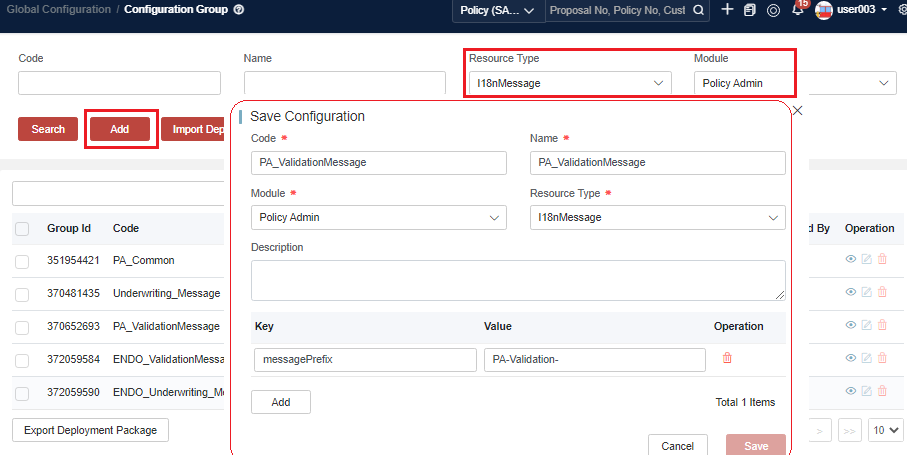
To view existing data, select Resource Type.
Here are two examples:
-
Adding a claim message module:
- Select Resource Type I18nMessage;
- Add a data named ClaimMessage and a messagePrefix key;
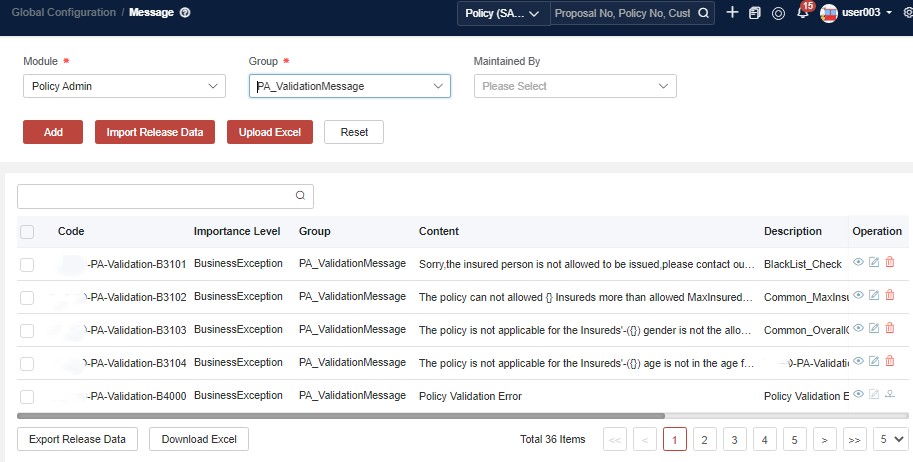
- Navigate to the Message;
- You will see CLM in Module, and Claim Message in Group.
-
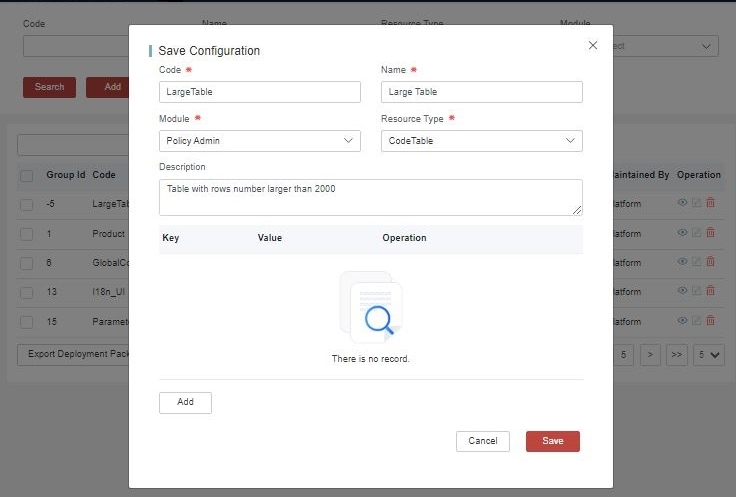
Adding an I18n module:
- Select Resource Type I18nUI;
- Add a data entry named Customer_UI;
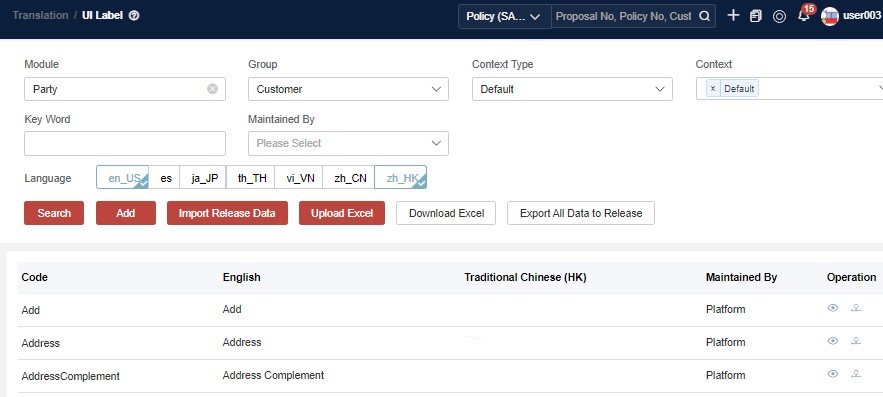
- Navigate to Translation UI Label;
- You will see Customer_UI in Party Module.
Translation for Module/Group
Once the module or configuration group is newly added, you can find it in the target module condition. Sometimes, after we name the module/group technically, it should be necessary to display a more user-friendly name in dropdown.
Take the configuration group ”TestDataFromTennant” for example.
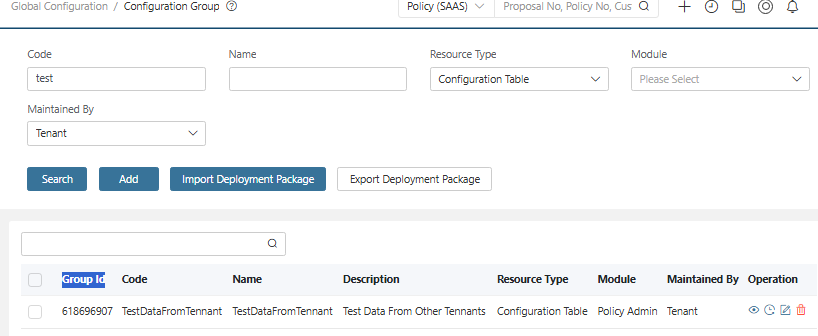
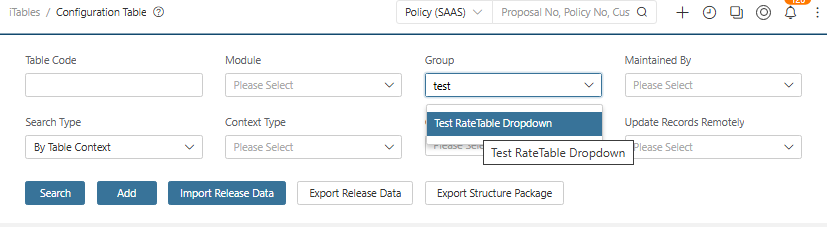
After the group is added, we can find it as a group condition in the rate table.
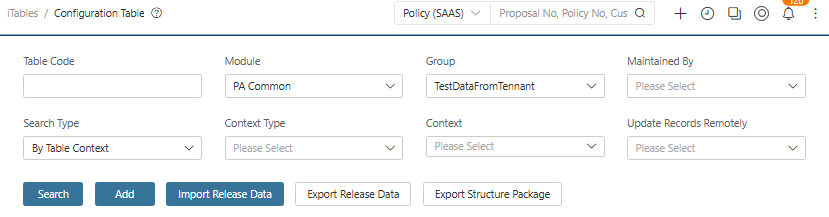
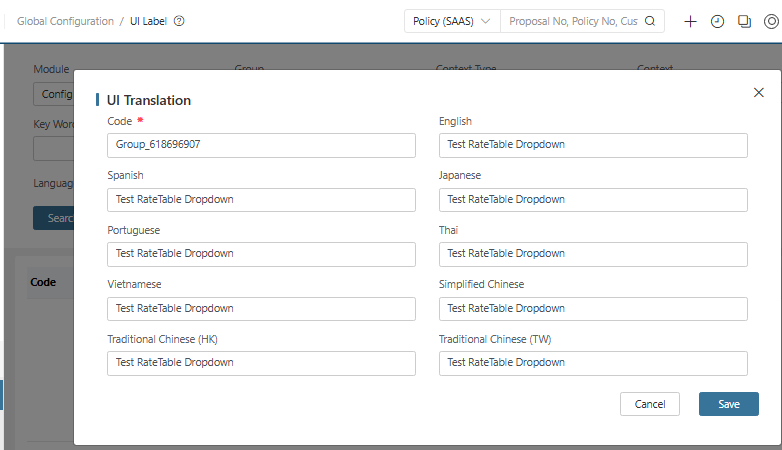
If we add the translation for configuration group ”TestDataFromTennant” under menu Global Configuration > UI Label, choose Group as MultiSelect and set the i18n Code to be Module_{{ModuleId}} or Group_{{GroupId}}.
For example, 618696907 of Group_618696907 is the group ID of the configuration group TestDataFromTennant, and the target language translation is ”Test RateTable Dropdown“.
After the translation is added, the condition in the rate table will be updated from TestDataFromTennant to the translation ”Test RateTable Dropdown“.
Export and Check in
-
To export the translation data, see i18n translation.
-
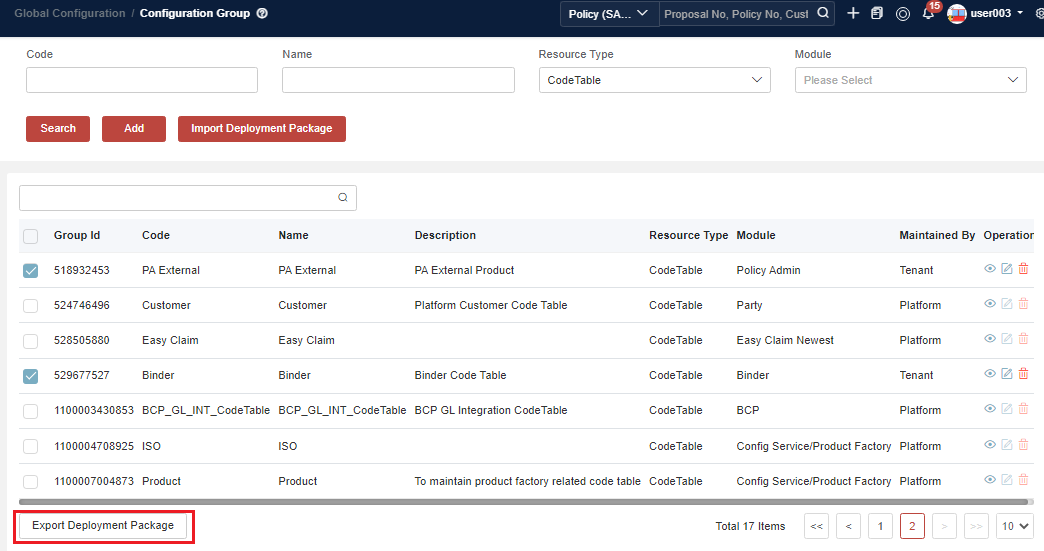
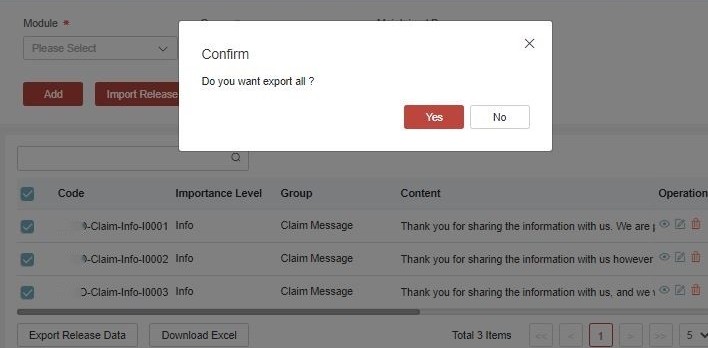
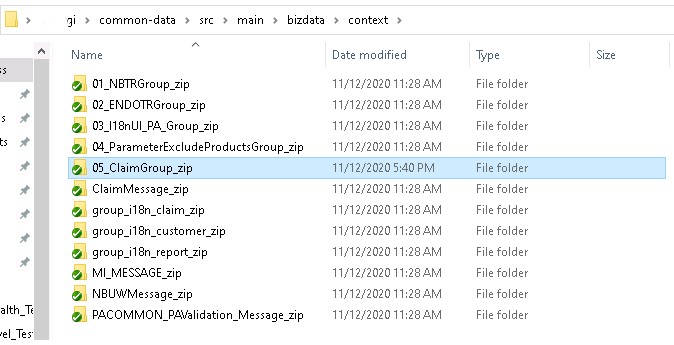
To export context data, please follow below steps.
- Click Export in the lower left corner of the interface.
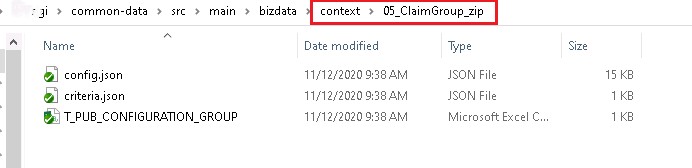
- The exported data will be checked in to the context folder.
Resource Lock
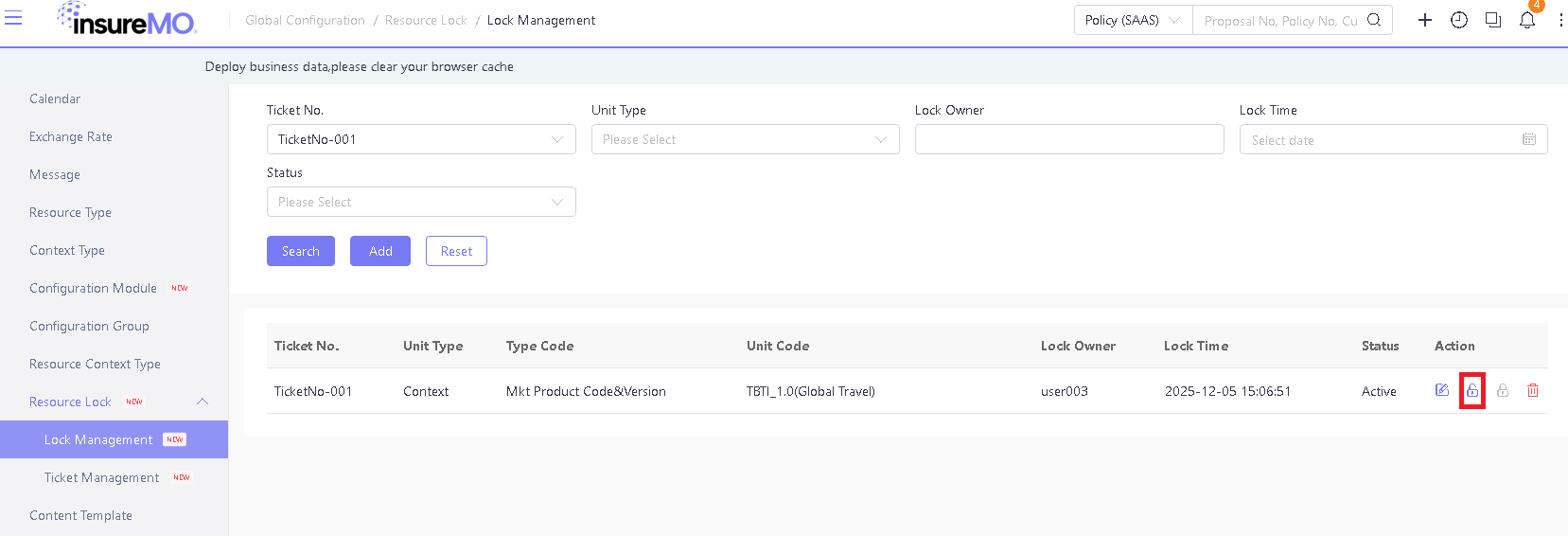
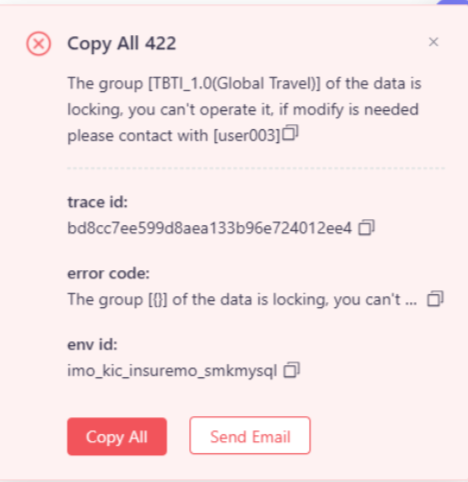
In the MC environment, when multiple users edit the same data at the same time, concurrent operations may lead to accidental overwriting or updating of the data to an inconsistent state. To ensure the integrity and consistency of configuration data, the system can implement a data locking mechanism: when User A starts editing, the data will be locked, allowing only User A to make modifications; if User B attempts to update the same data locked, the system will automatically reject the request and pop up a warning prompt, clearly informing that the data is locked and cannot be edited. This mechanism effectively avoids concurrency conflicts and ensures the atomicity and accuracy of data operations.
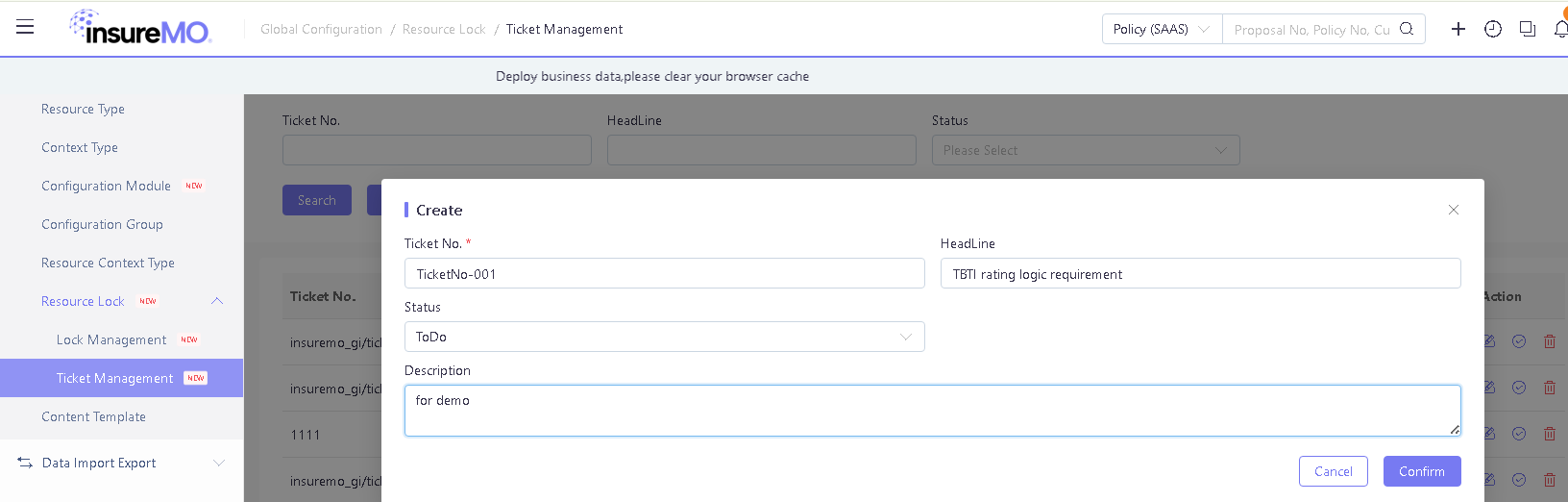
Here are the userA and userB for example.There is an requirement that the product TBTI rating logic need change, the requierement ticketNo is TicketNo-001(for example). UserA take the task.
- Login as userA.
- Create a ticket under the menu “Global Configuration > Resource Lock >Ticket Management”.
-
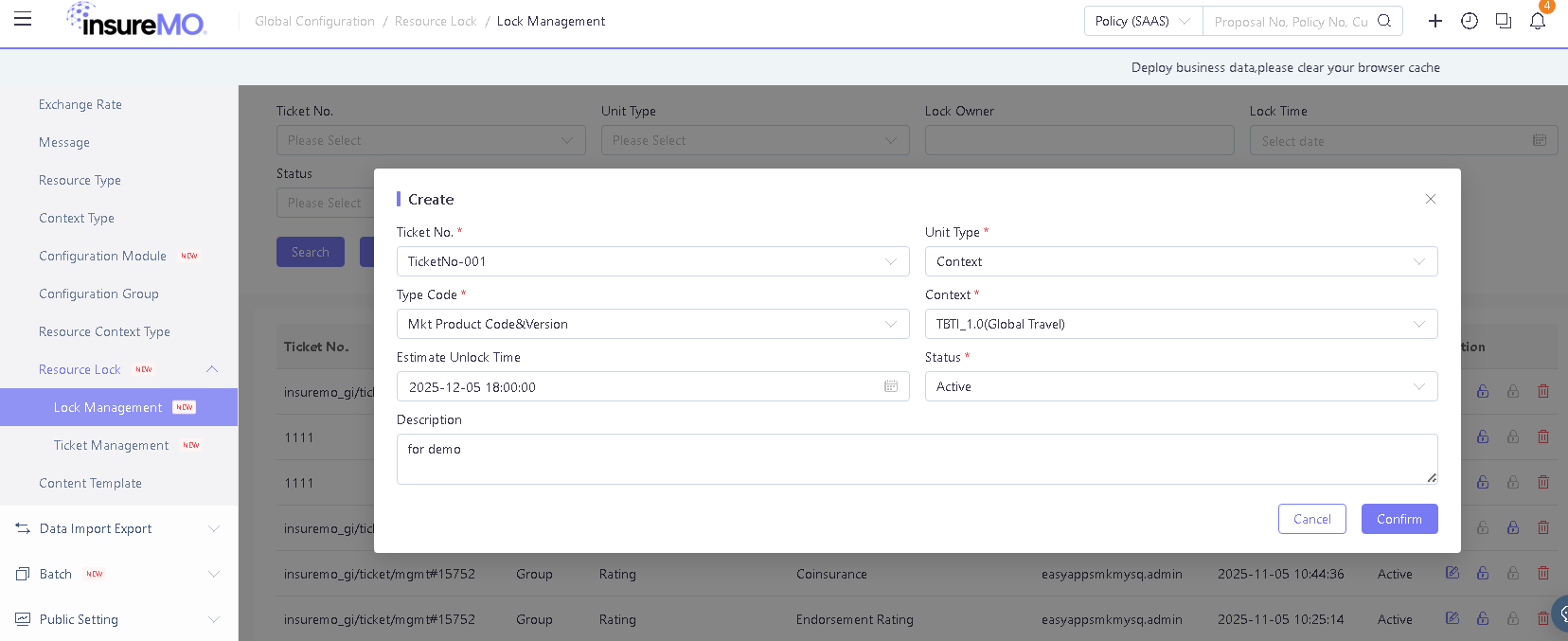
Create a lock under the menu “Global Configuration > Resource Lock >Lock Management”. Set the lock to be Active.
-
Then userA start to edit the TBTI rating, all product TBTIrelated configuaretion data can be added/updated/deleted.
-
The userB start edit the TBTI related configuration data, then the warning message will pop.
| Unit Type | Type Code | Unit Code | Locked resources | Remark |
|---|---|---|---|---|
| Context | Mkt Product Code&Version | TBTI | Product/Plan/DataTable/CodeTable | |
| Context | Product Code | TBTI | ConfigurationTable/Rulev1/Rulev2 | |
| Context | Default | Common | DataTable/CodeTable/Rulev1/Rulev2 |
- After userA’s work done, click Release Lock, then userB can edit the TBTI related configuration data.