Basic Concept
Our platform can work in a multi-lingual environment, with English set as the default language. Users can use the module to add more languages or, if required, remove English.
User Scenario
For anybody who wants to set languages from the platform option list.
Operation Guide for Language Setting UI
There are two ways to maintain languages: UI configuration and database (DB).
For new tenants, the platform will only initialize English. If tenants need to add new languages, see the following steps:
UI Configuration
- All operations in this text need to be performed in the portal master configuration environment (MC env). They are not allowed in other environments unless for troubleshooting purposes.
- Please make sure you have all read and write authority to make the operation beforehand.
1. Configure Data
-
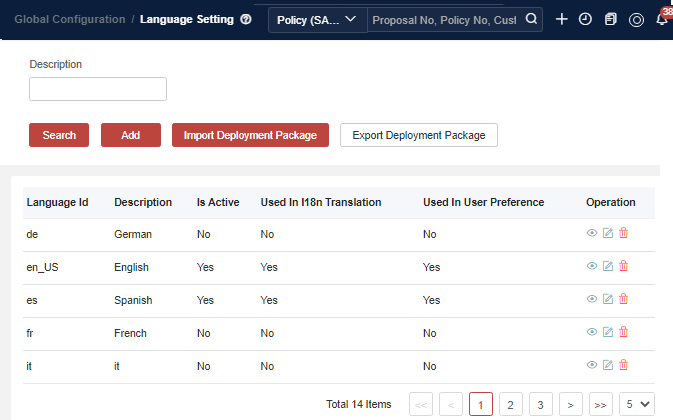
Language/Language Id: The Language Id is the international general language Id. The options are set in the data table Language under the Group Platform Pub. If you require a language that is not predefined by the platform, please override it to add a new language. After the language is added or activated, please make sure the language Id is added as UI Label under the Translation > UI Label under the group Menu.
-
Is Active: Flag to activate this language for use. Yes means this record takes effect; No means this record will not take effect regardless of the following parameters.
-
Used In User Preference: Yes means the language will show under the top right corner settings; No means the language will not be displayed.
-
Used In I18n Translation: Yes means the language will show in the I18n UI as a language tag; No means the language will not be displayed.
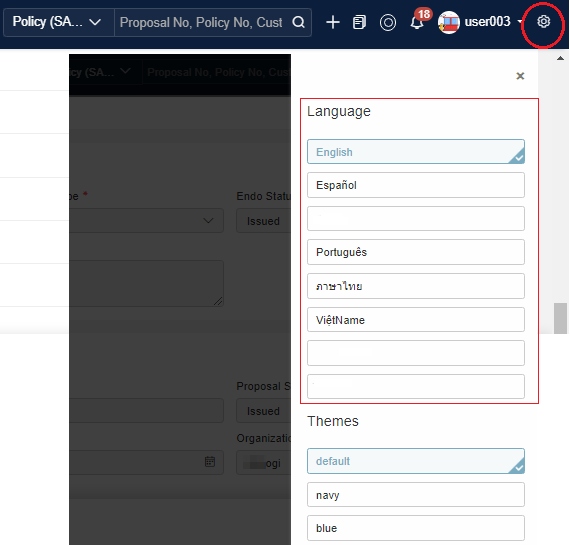
Used In User Preference
If the language’s Used In User Preference is set to be Yes, the language will show under the top right corner of user preference settings.
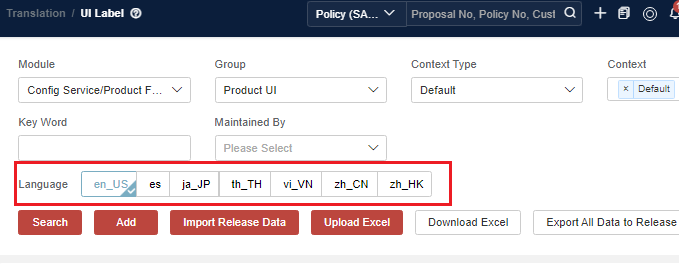
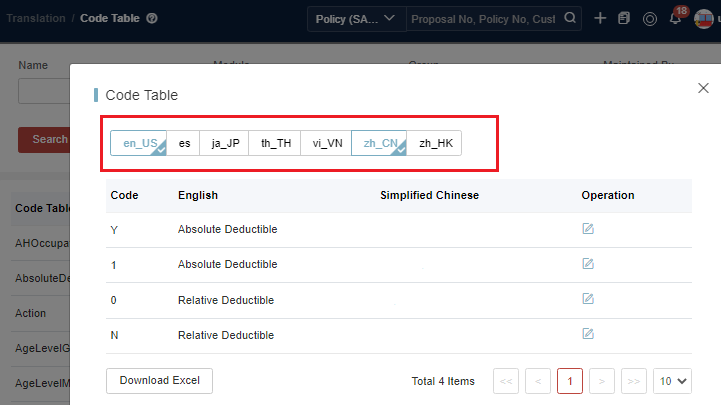
Used In I18n Translation
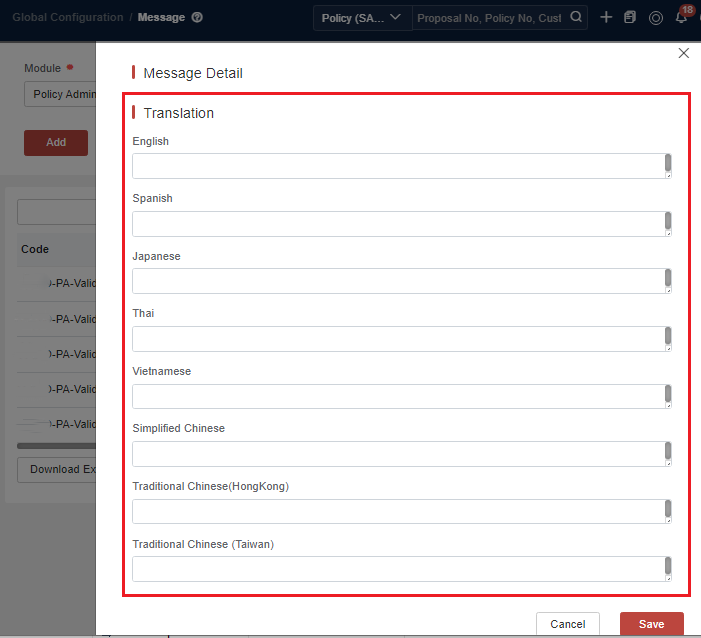
If the language’s Used In I18n Translation is set to be Yes, the language will show under the Translation related UI.
- UI Label Translation under Translation > UI Label
- Code Table Translation under Translation > Code Table
- Message Translation under Global Configuration > Message
Related Local Cache
-
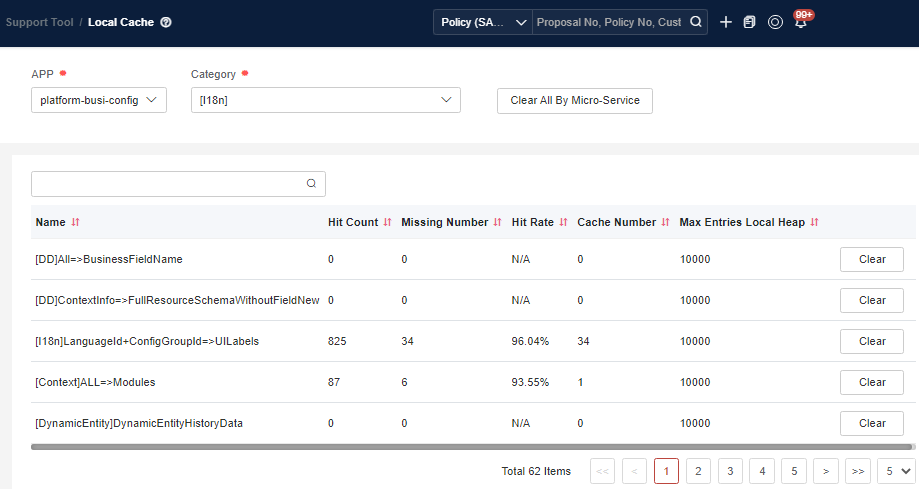
If the configuration does not take effect, please try to clear the cache. We will continue to optimize the internal automatic cache clearing.
Enter Support Tool > Local Cache to clear platform-busi-config/I18n and log in again to see the UI effect.
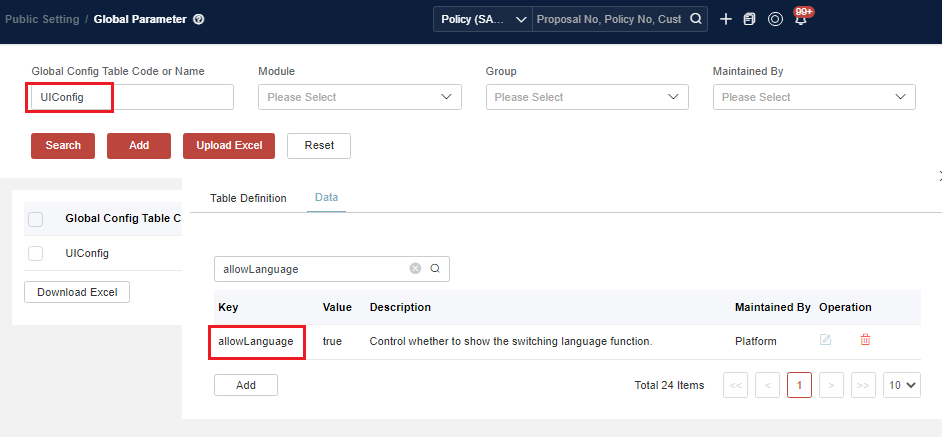
If multiple languages are configured but are not visible in the upper right corner, check the configuration.
Navigate to Public Setting > Global Parameter > UIConfig/Data > allowLanguage to set the value to true. (This value is platform data, and is true by default.)
After the data is changed, enter Support Tool > Local Cache to clear the cache of platform-busi-config > CONFIG and RATETABLE, and then clear the browser cache.
2. Export Business Data
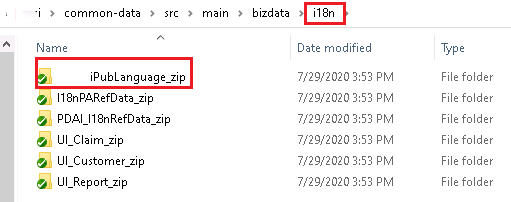
Click Export Deployment Package to export multi-lingual business data.
3. Check in Business Data
For the addition of a new language, tenants should not only make the above tenant-level changes but also need to contact the support team. This is because translations need to be added for components, platform menus, and UI.