Basic Concept
Intermediary or producer plays an important role in facilitating insurance business with end user. It is a very important capability for any insurance related operation to be able to maintain such producer information and search out them.
User Scenario
For anybody who wants to use our platform to maintain sales channel.
Sales Channel Concept
Sales channel refers to the way through which the insurance products are conducted from insurance company to the insured.
According to whether there are middlemen, insurance sales channels can be divided into direct sales channels and indirect sales channels.
- Direct Sales Channel
Direct sales channel, also known as direct selling system, means that insurance companies employ the business personnel who receive salaries to directly provide insurance consumers with various types of insurance sales and services.
- Indirect Sales Channel
Indirect sales channel, also known as intermediary system, refers to the way that insurance companies promote insurance products through intermediary agencies such as insurance agents and insurance brokers. The insurance intermediary can’t really take the insurance responsibility on behalf of the insurer, but can only participate in, handle, promote or provide specialized technical services and other insurance activities, so as to promote the sales of insurance products.
Usually, we only need to configure one dummy channel for direct sales channel, while for indirect sales channel, we need to configure all of them in order to be able to calculate commission and conduct performance evaluation.
Sales Channel Management
Search
Log in to the home page of InsureMO and click Sales Channel on the left menu bar. Then click Maintain Producer.
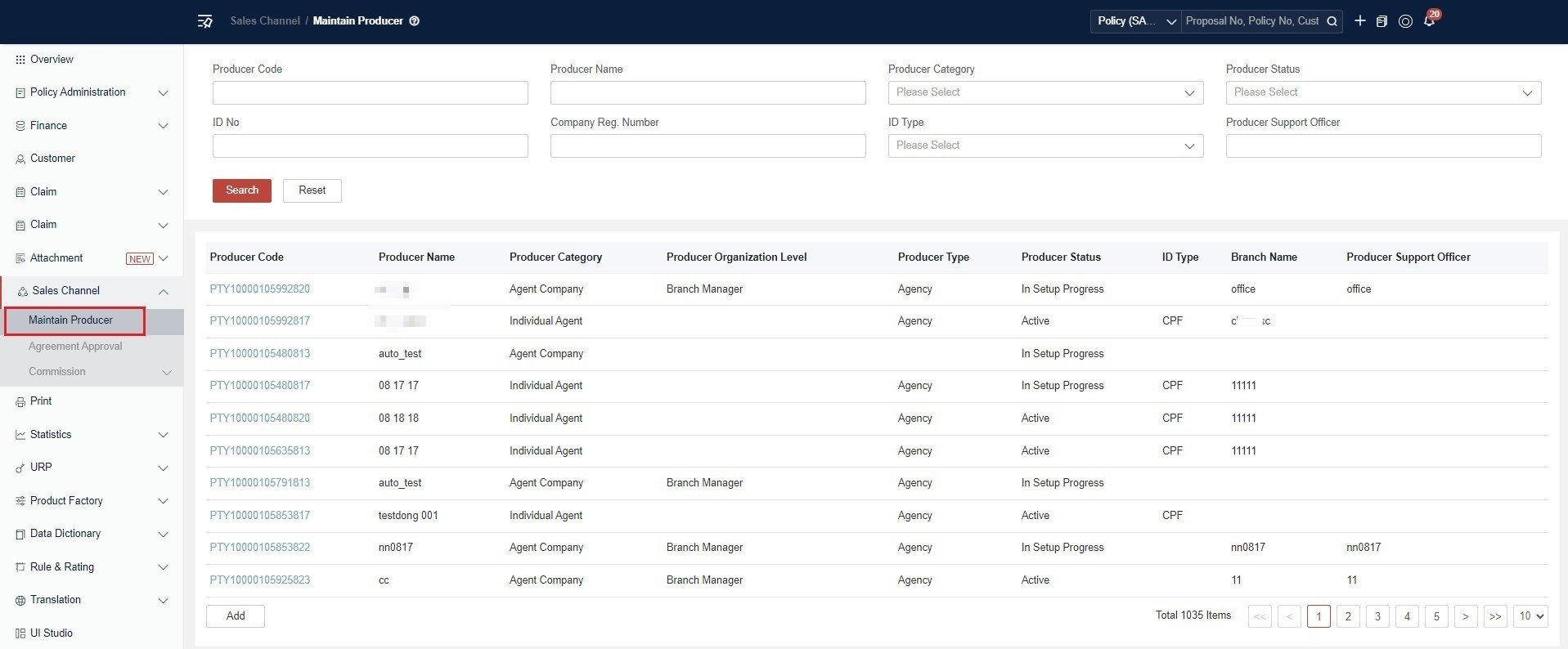
Search Filters:
| Field | Description |
|---|---|
| Producer Code | Unique producer identifier |
| Producer Name | Producer name |
| Producer Category | Individual Agent / Agent Company |
| Producer Status | Current status filter |
| ID No | Identity document number |
| Company Reg. Number | Company registration number |
| ID Type | Type of identity document |
| Producer Support Officer | Assigned support officer |
Result Columns:
| Column | Description |
|---|---|
| Producer Code | Clickable link to detail view |
| Producer Name | — |
| Producer Category | Individual Agent / Agent Company |
| Producer Organization Level | e.g. Branch Manager |
| Producer Type | e.g. Agency |
| Producer Status | In Setup Progress / Active |
| ID Type | e.g. CPF |
| Branch Name | — |
| Producer Support Officer | — |
User can search for and view any sales channel. Producer Code in the search results is a clickable link that navigates to the detail view.
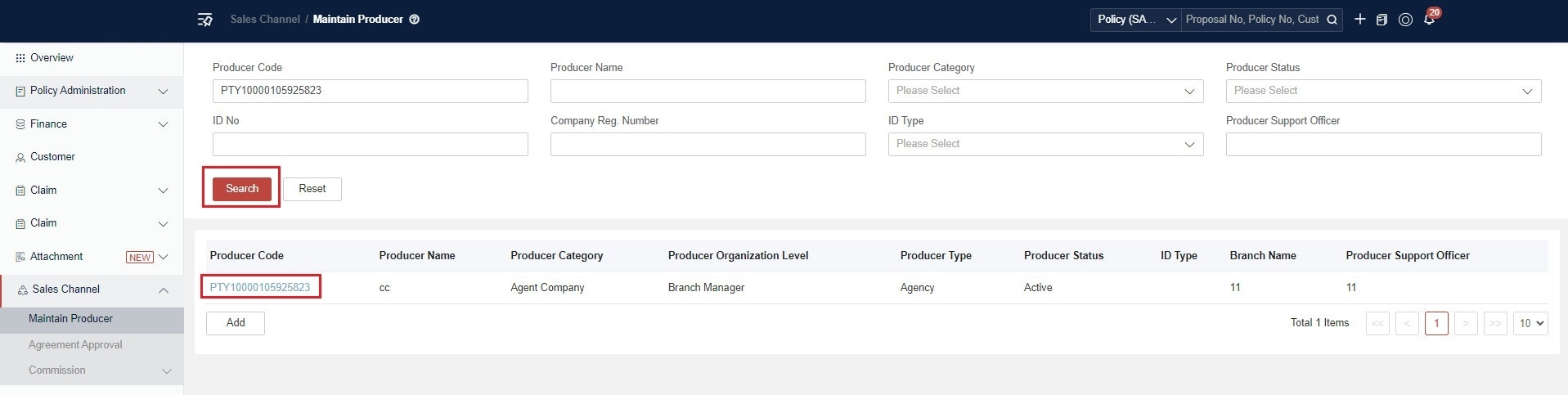
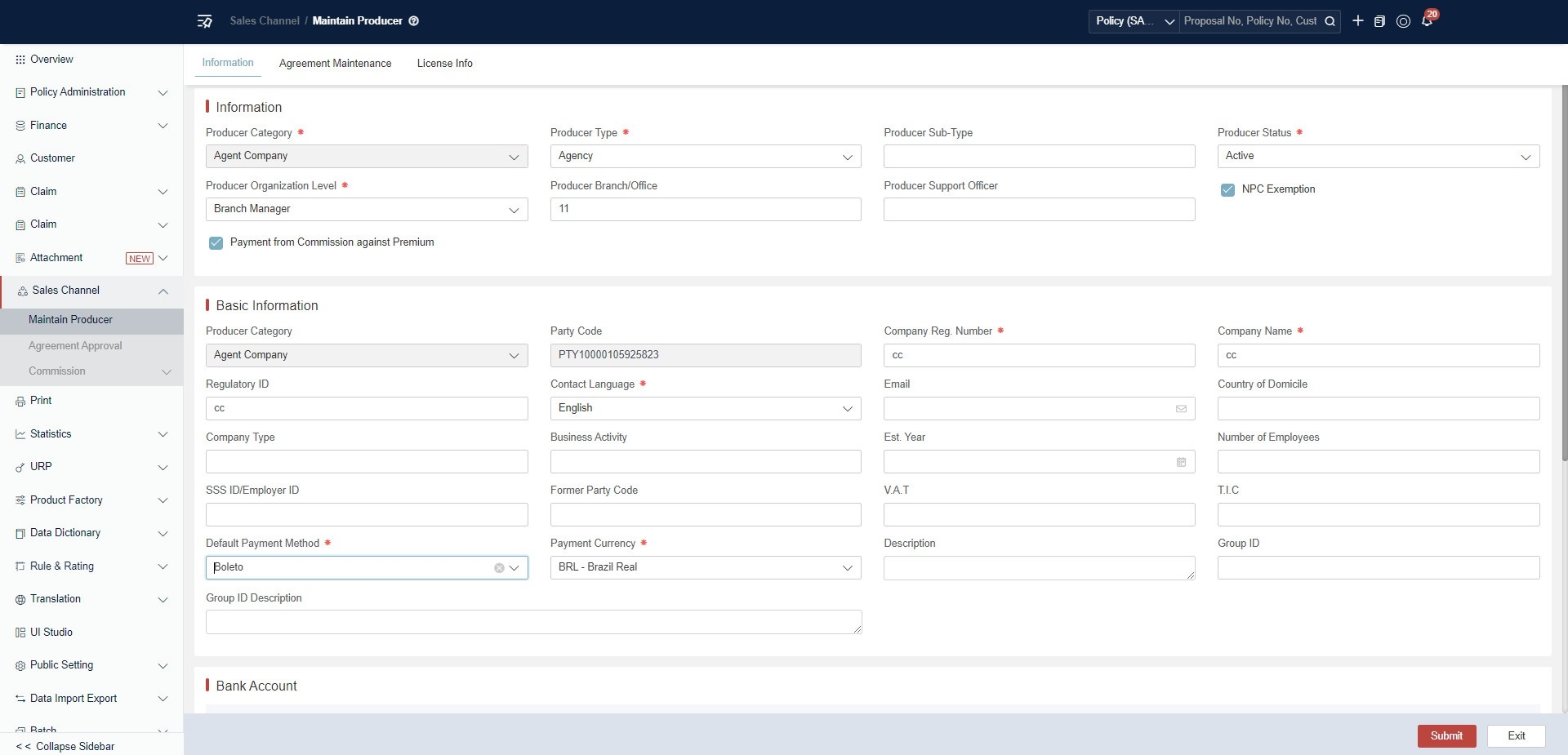
The detail page has three tabs: Information, Agreement Maintenance, License Info. Field details vary by Producer Category (Individual Agent vs Agent Company) — see the Add Sales Channel section below.
Add Sales Channel
Click Add to add a sales channel. User can choose Individual Agent or Agent Company. Take Individual Agent for example.
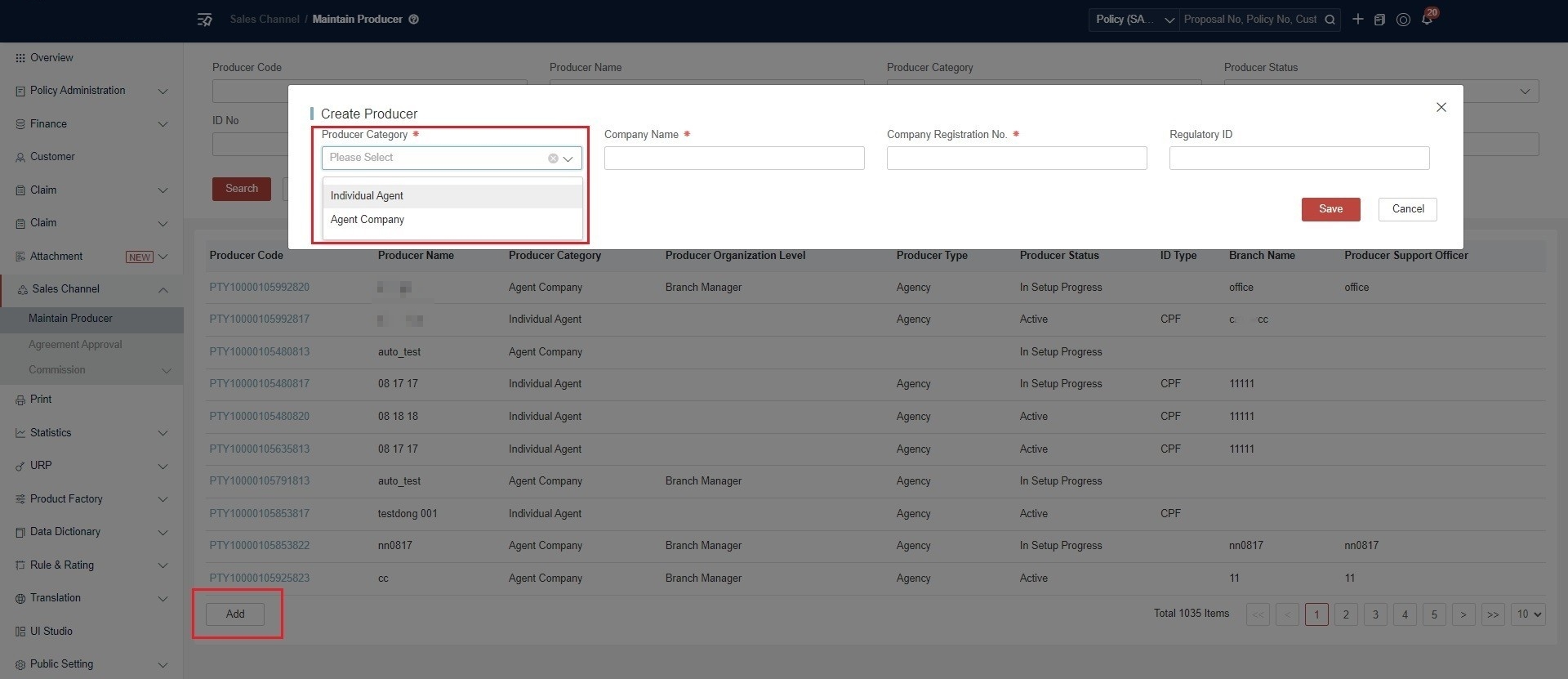
Create Producer Modal:
| Field | Required | Description |
|---|---|---|
| Producer Category | Yes | Individual Agent / Agent Company |
| Company Name | Yes | For Agent Company type |
| Company Registration No. | Yes | For Agent Company type |
| Regulatory ID | No | Regulatory identifier |
Basic Information
In Information, user can fill in the basic information of sales channel including contact and account information.
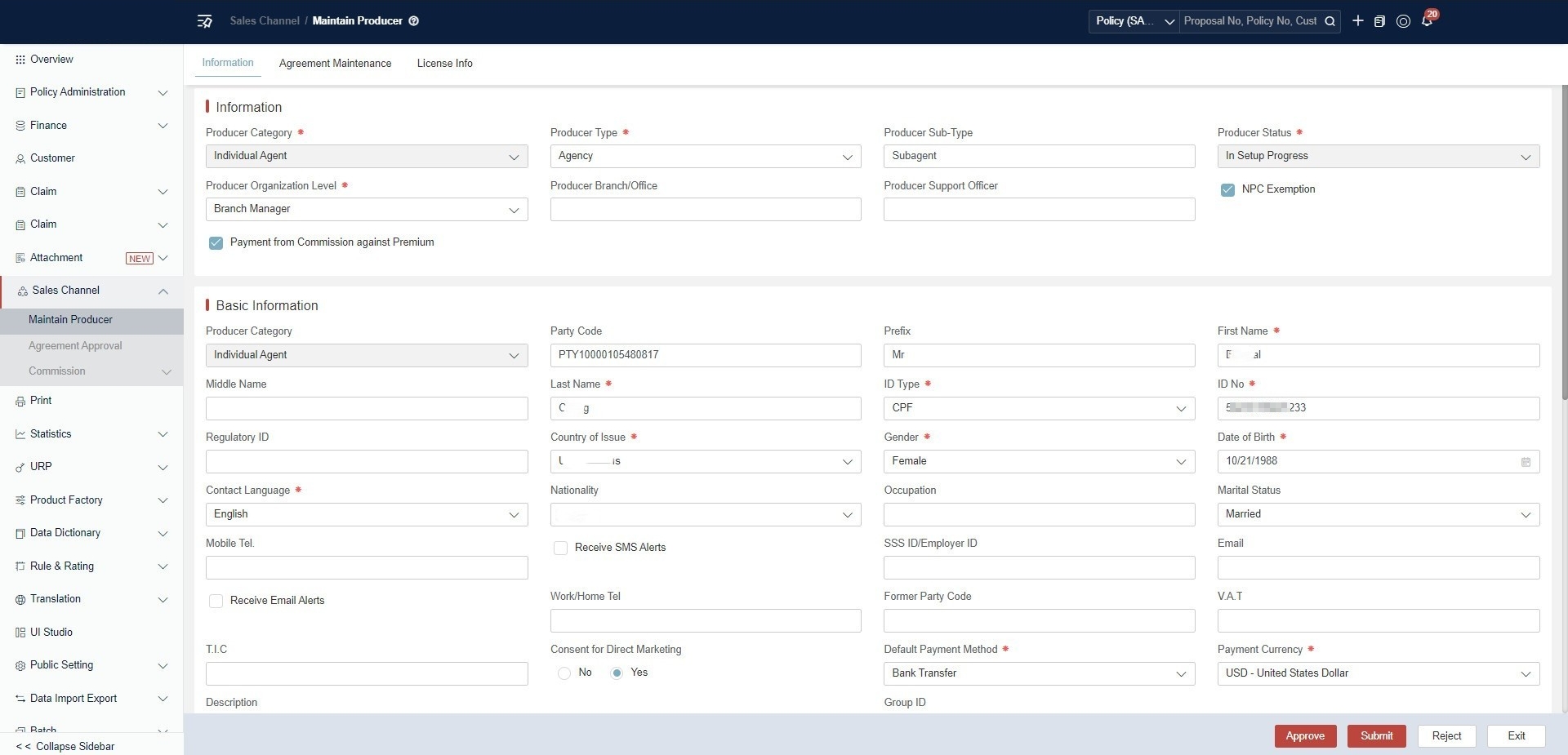
Individual Agent - Information Tab Fields:
Producer Category Info:
| Field | Description |
|---|---|
| Producer Category | Fixed as Individual Agent |
| Producer Type | e.g. Agency |
| Producer Sub-Type | e.g. Subagent |
| Producer Status | Current lifecycle status |
| Producer Organization Level | e.g. Branch Manager |
| Producer Branch/Office | Assigned branch or office |
| Producer Support Officer | Assigned support officer |
| NPC Exemption | Whether exempt from NPC requirements |
| Payment from Commission against Premium | Whether commission can offset premium |
Personal Information:
| Field | Description |
|---|---|
| Party Code | System-generated unique ID (read-only) |
| Prefix | Name prefix (Mr/Ms/Mrs) |
| First Name | Agent’s first name |
| Last Name | Agent’s last name |
| ID Type | Identity document type (e.g. CPF) |
| ID Number | Identity document number |
| Regulatory ID | Regulatory identifier |
| Country of Issue | Country where ID was issued |
| Gender | Male / Female |
| Date of Birth | Agent’s date of birth |
| Contact Language | Preferred language (e.g. English) |
| Marital Status | Marital status |
| Mobile Tel | Mobile phone number (with SMS opt-in) |
| Email address (with notification opt-in) | |
| SSS ID / Employer ID | Social security or employer identifier |
| V.A.T | VAT registration number |
| T.I.C | Tax identification code |
| Consent for Direct Marketing | Yes / No |
| Default Payment Method | e.g. Bank Transfer, Boleto |
| Payment Currency | e.g. USD, BRL |
Agent Company - differs in Basic Information section:
| Field | Description |
|---|---|
| Party Code | System-generated unique ID (read-only) |
| Company Reg. Number | Company registration number |
| Company Name | Legal company name |
| Regulatory ID | Regulatory identifier |
| Contact Language | Preferred language (e.g. English) |
| Contact email | |
| Country of Domicile | Country of incorporation |
| Company Type | Legal entity type |
| Business Activity | Primary business activity |
| Est. Year | Year of establishment |
| Number of Employees | Employee count |
| V.A.T | VAT registration number |
| T.I.C | Tax identification code |
| Default Payment Method | e.g. Boleto, Bank Transfer |
| Payment Currency | e.g. BRL, USD |
Both types share the same Producer Category Info fields, Bank Account section, and footer actions (Approve, Submit, Reject, Exit).
License Information
Click License Info to add license information.
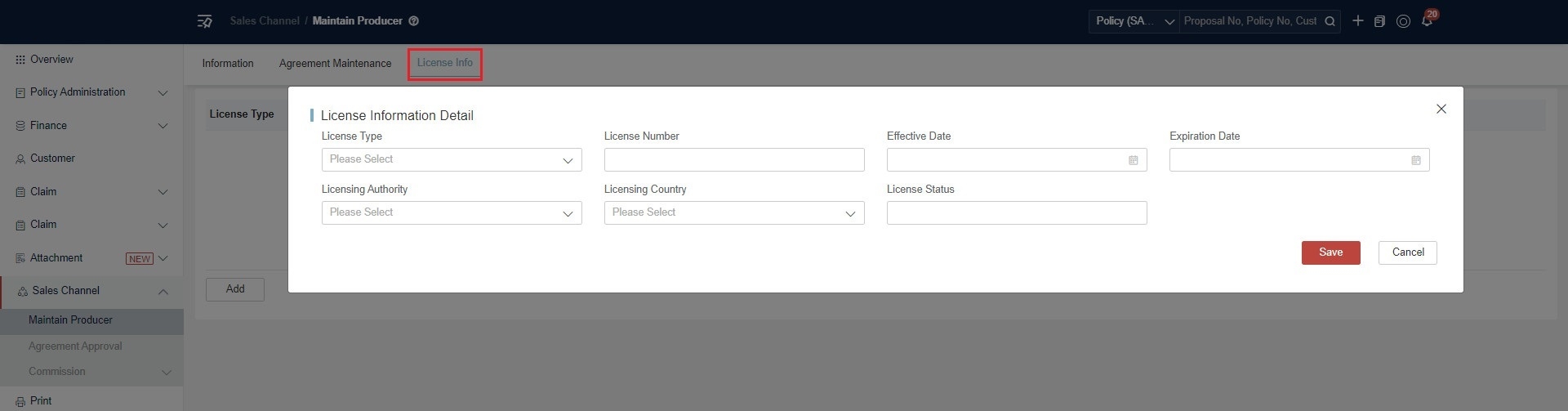
License Info Tab Fields:
| Field | Description |
|---|---|
| License Type | Dropdown selection |
| License Number | Text input |
| Effective Date | License start date |
| Expiration Date | License end date |
| Licensing Authority | Issuing authority |
| Licensing Country | Country of issuance |
| License Status | Auto-calculated: Active / Expired |
Add Agreement
Click Agreement Maintenance to add agreement code.
Complete the required items and click Send to Approval.
Check whether Agreement Status is Waiting for Approval.
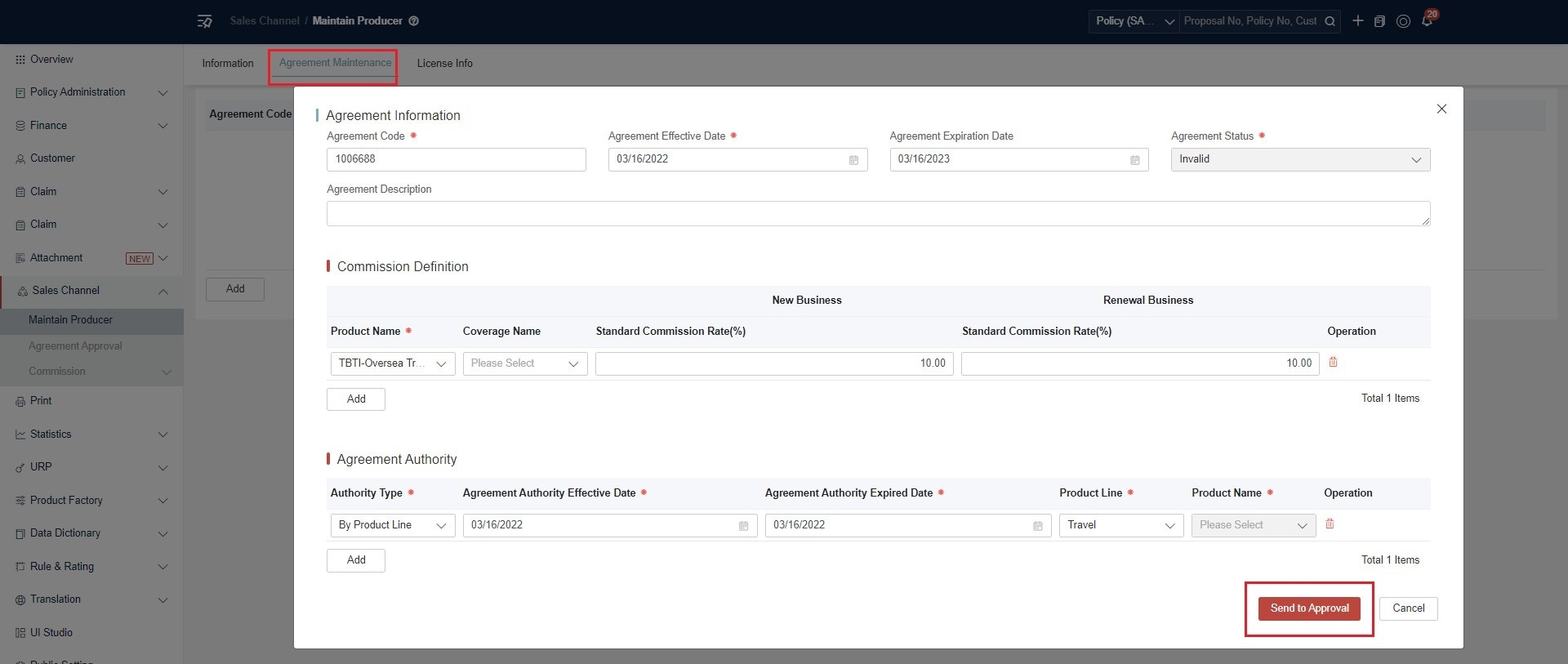
Agreement Information:
| Field | Required | Description |
|---|---|---|
| Agreement Code | Yes | Unique agreement identifier |
| Agreement Effective Date | Yes | Agreement start date |
| Agreement Expiration Date | No | Agreement end date |
| Agreement Status | Yes | Current status |
| Agreement Description | No | Free text description |
Commission Definition:
| Field | Description |
|---|---|
| Product Name | Linked product (e.g. TBTI-Oversea Travel) |
| Coverage Name | Coverage selection |
| Standard Commission Rate - New Business | NB commission rate (e.g. 10.00%) |
| Standard Commission Rate - Renewal | Renewal commission rate (e.g. 10.00%) |
Agreement Authority:
| Field | Description |
|---|---|
| Authority Type | e.g. By Product Line |
| Authority Effective/Expired Date | Authority validity period |
| Product Line | e.g. Travel |
| Product Name | Specific product selection |
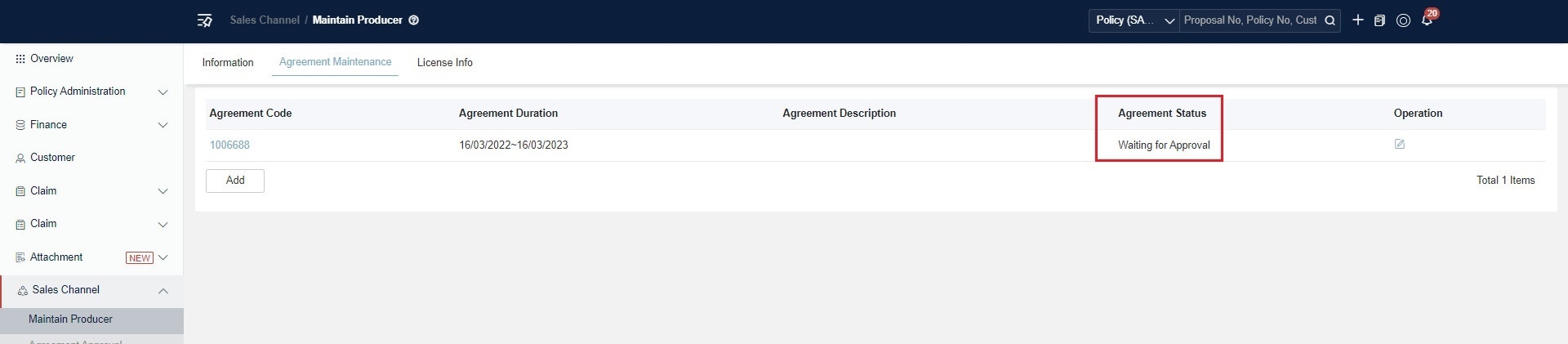
After sending to approval, the agreement status changes to Waiting for Approval in the list view.
Agreement Approval
Click Agreement Approval menu, search for the agreement code, and user can reject or approve it.
- Click Cancel: Close the page.
- Click Reject: Reject the agreement code.
- Click Approve: Approve the agreement code.
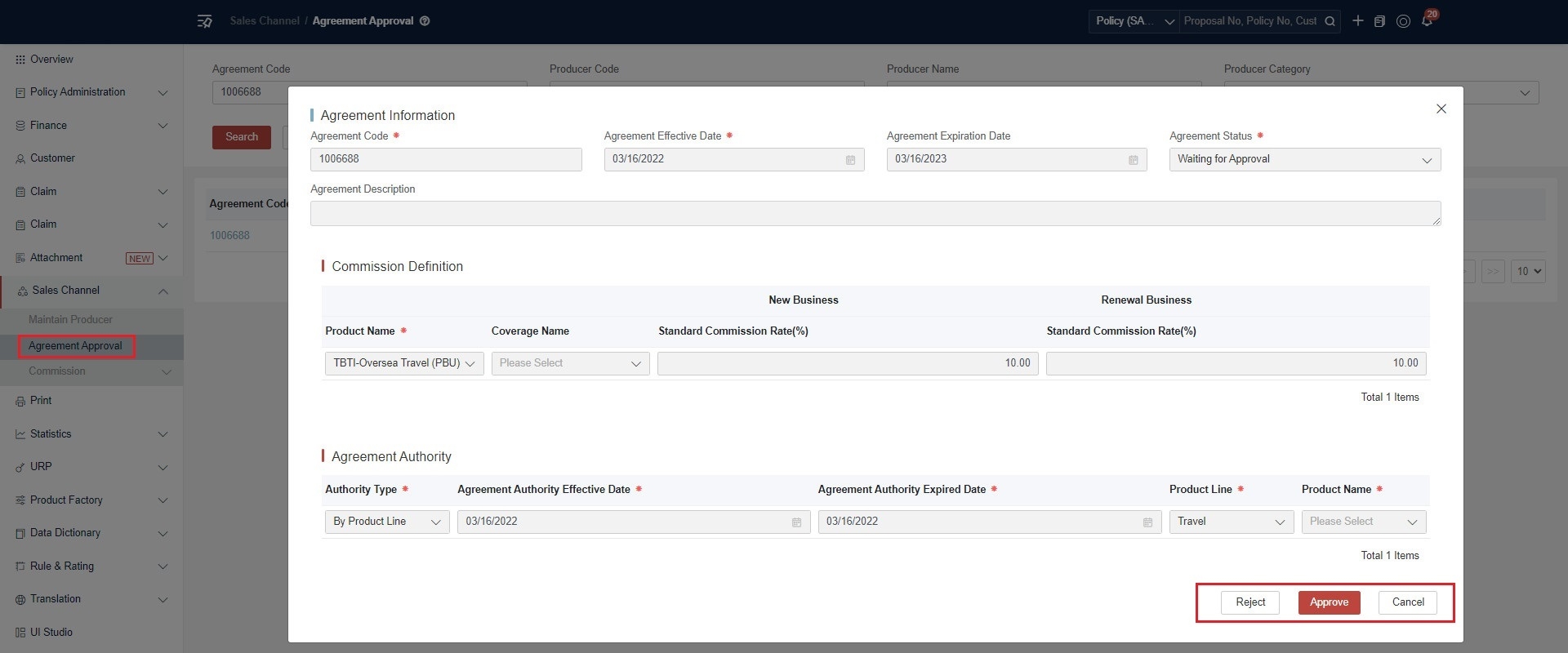
The Agreement Approval page is accessible via Sales Channel > Agreement Approval menu. The approval modal shows the same agreement details (read-only) with actions: Reject, Approve, Cancel.
Check Agreement Status
Back to Maintain Producer, search for the sales channel and check the Agreement Status in Agreement Maintenance.
- To reject the agreement code, check whether the Agreement Status has changed to Rejection.
- To approve the agreement code, check whether the Agreement Status has changed to Valid.
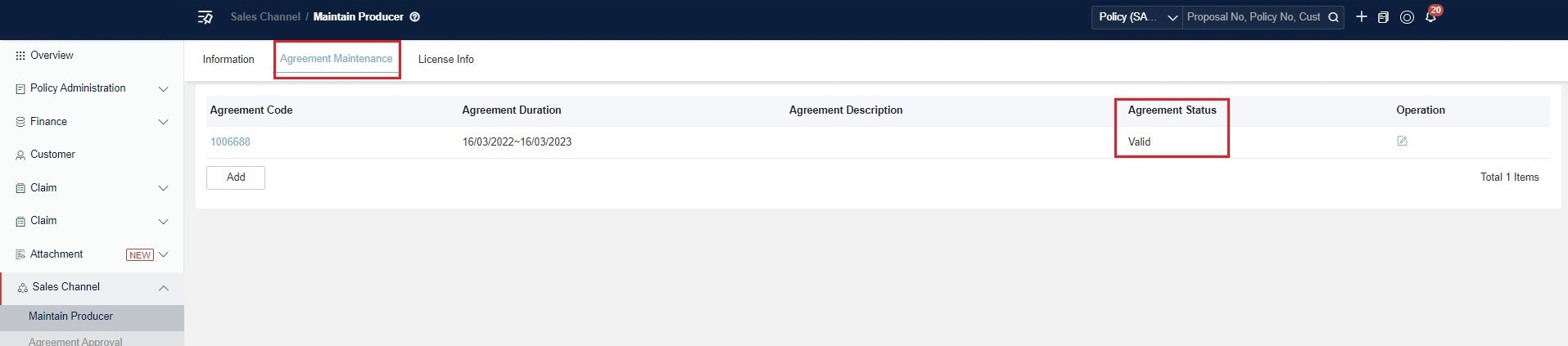
After approval, the agreement status changes to Valid.
Check Producer Status
Click the button in the lower right corner.
In Information, user can check the Producer Status.
- Click Exit: Return to Sales Channel homepage.
- Click Submit: Save the information. Producer Status is still In Setup Process.
- Click Reject: Reject the sales channel. Producer Status changes to Rejected.
User can modify the information according to the Reject Reason in Internal Information, and change the Producer Status to In Setup Process.
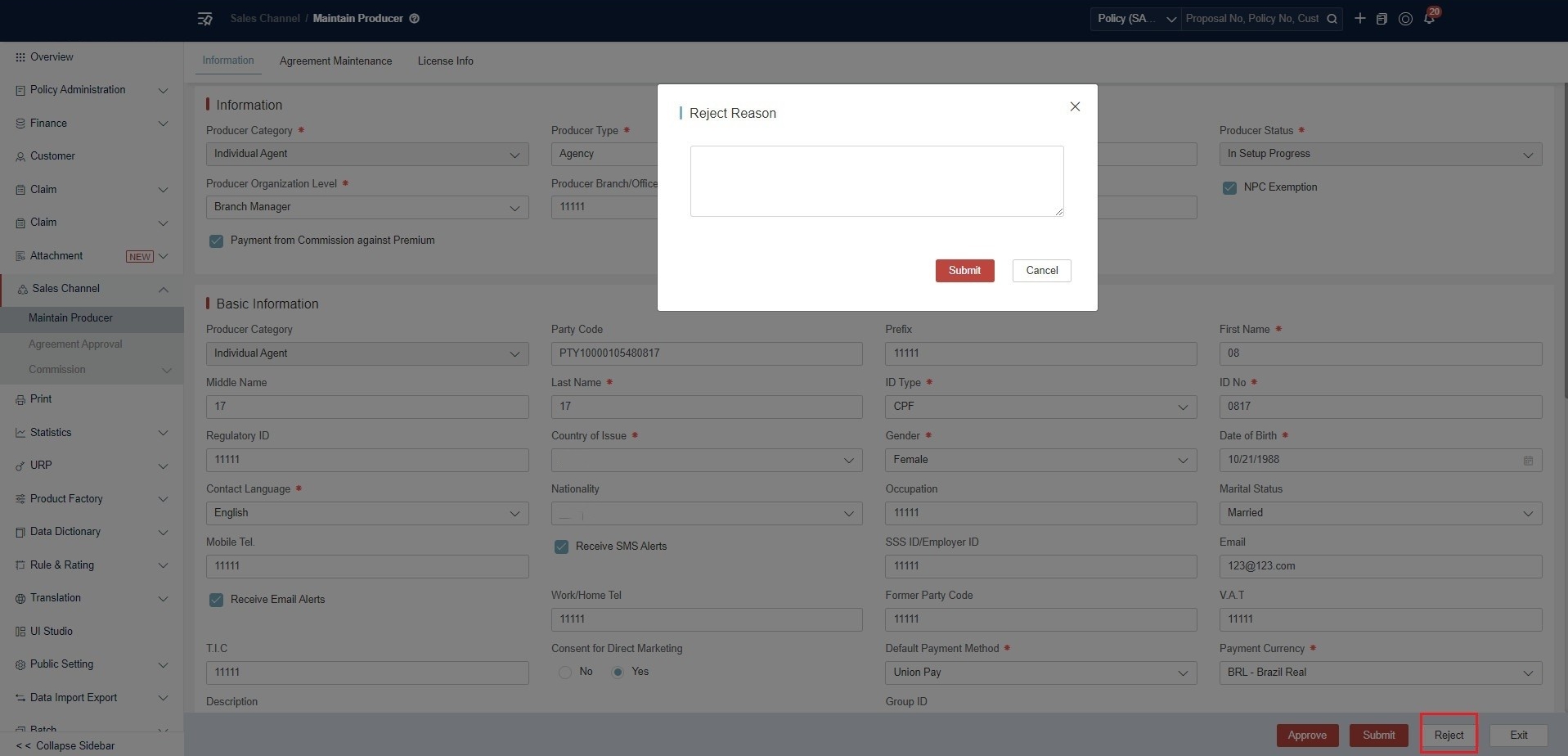
Clicking Reject opens a Reject Reason modal requiring a reason to be entered before submission.

Producer Status changes to Rejected after rejection.
- Click Approve: Approve the agreement code. Change Producer Status to Active.
There is a prerequisite for clicking Approve that a valid agreement code is compulsory. There will be corresponding system message.
If the producer leaves later or other situation happens, user can change the Producer Status accordingly.

Prerequisite for approval: a valid agreement code is required. After approval, Producer Status changes to Active.

Producer Status Values:
| Status | Description |
|---|---|
| In Setup Progress | Initial status after creation |
| Active | Approved and operational |
| Rejected | Rejected during setup |
| Terminated | Permanently deactivated |
| Suspended | Temporarily halted |
| Legal | Under legal/compliance hold |
Status Lifecycle
Producer Status Lifecycle
[Created] → In Setup Progress ──→ Active ──→ Terminated
                             ↘ Rejected     ↘ Suspended
                                            ↘ Legal
Agreement Status Lifecycle
[Created] → Invalid/Editing → Waiting for Approval ──→ Valid
                                                    ↘ Rejected
Commission Management
Commission management has been moved to a dedicated document: Commission Management.
FAQ
- If I want to search for sales channel from my application, how can I do it?
At platform level, we provide an API “/saleschannel/channel/searchSCList” for the runtime application to search for sales channel. There usually can be two scenarios to search for sales channel from runtime:
-
If it’s for the policy query screen, it needs to capture all sales channel except those still pending for creation.
Below is a sample JSON request to capture:
{
    "relatedConditionMap": {
        "pageNo": 1,
        "pageSize": 1000
    },
    "searchCondition": {
        "Conditions": {},
        "FuzzyConditions": {},
        "OrFuzzyConditions": {
            "PartyName": "abc",
            "PartyCode": "abc"
        },
        "FromRangeConditions": {},
        "ToRangeConditions": {},
        "orInConditions": {
            "ScStatus": [
                1,
                3,
                4,
                5
            ]
        },
        "PageNo": 1,
        "PageSize": 1000,
        "SortField": "index_time",
        "SortType": "desc",
        "Module": "SalesChannel"
    }
}- If it’s for the policy entry screen, it’s necessary to only search for effective sales channel but not all that might include conditions such as:
- Whether sales channel status is effective.
- Whether sales channel has the agreement whose status is effective.
- Whether the agreement is within the effective period.
- Whether the agreement has valid product authority.
Below is a sample JSON request to capture:
{
    "relatedConditionMap": {
        "pageNo": 1,
        "pageSize": 1000,
        "productCode": "PRPCON",
        "productLineCode": -9,
        "effectiveDate": "2023-03-24T00:00:00"
    },
    "searchCondition": {
        "Conditions": {},
        "FuzzyConditions": {},
        "OrFuzzyConditions": {
            "PartyName": "abc",
            "PartyCode": "abc"
        },
        "FromRangeConditions": {},
        "ToRangeConditions": {},
        "orInConditions": {
            "ScStatus": [
                1
            ]
        },
        "PageNo": 1,
        "PageSize": 1000,
        "SortField": "index_time",
        "SortType": "desc",
        "Module": "SalesChannel"
    }
}