Introduction
OCR (Optical Character Recognition) is a service that extracts information from various types of images, such as photos, PDFs, and handwritten files, and then converts them into machine-encoded text. This eliminates the need for manual data entry in certain business applications.
Many cloud vendors like Google, offer original OCR services. However, insureMO OCR service acts as an adapter that connects various OCR vendors like Google, and provides a unified interface to consumer applications.
Basic UI Operations
Entrance
-
Click Sign in to log in to insureMO Portal with your personal account.
infoIf you do not have a personal insureMO account, click Sign up to register one.
-
Select Catalog at the top of the home page.
-
In the left pane of Catalog page, navigate to Non Insurance Services > OCR to find the OCR Service v2 service card.
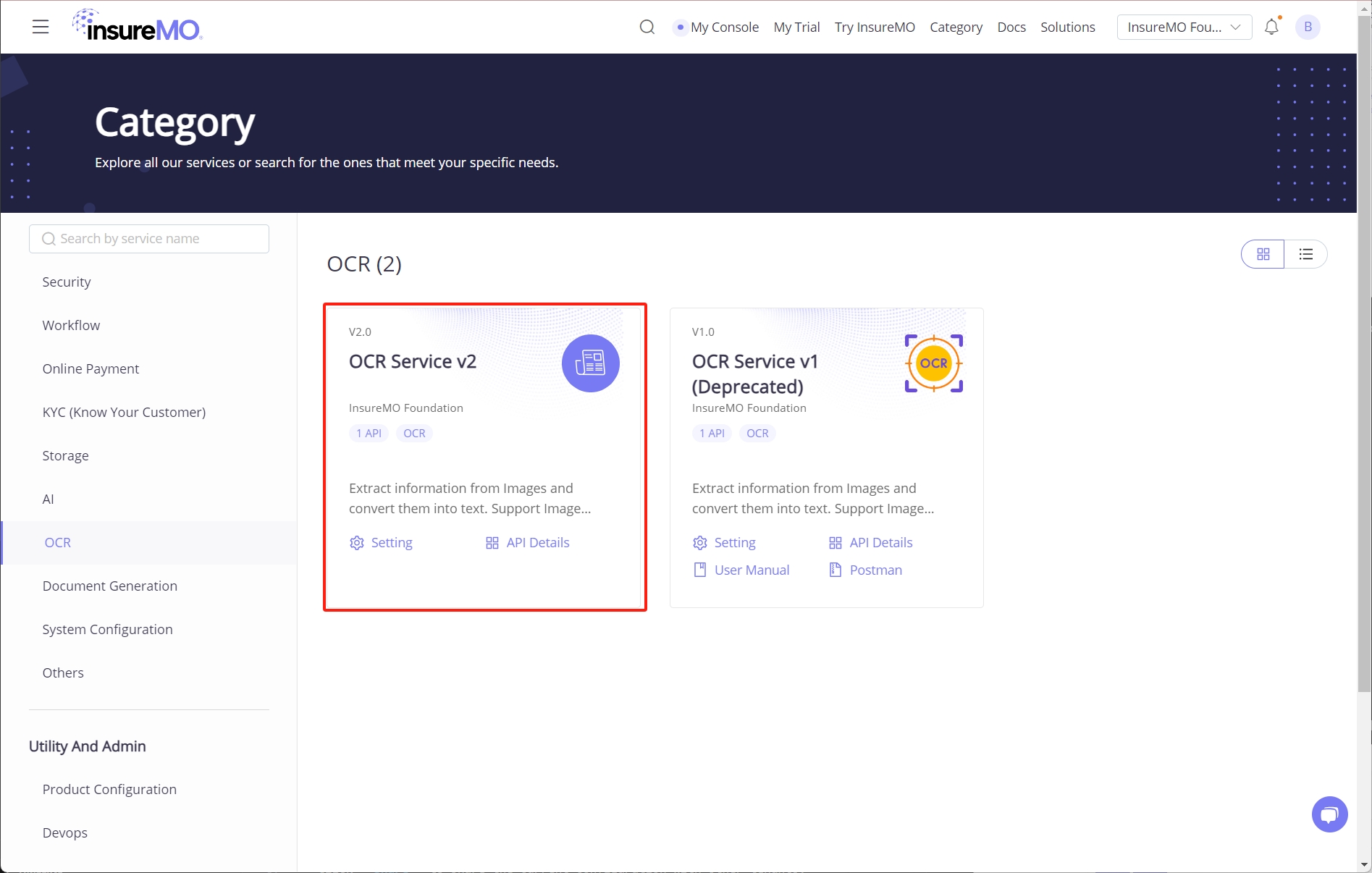
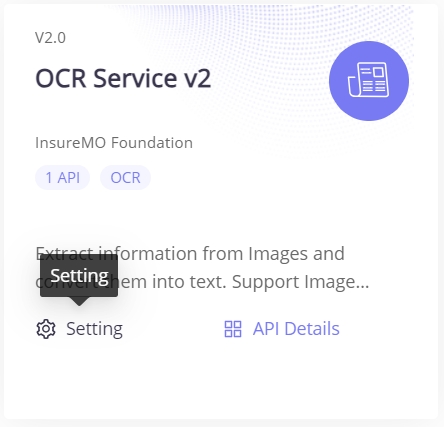
- For creation and other actions, click Setting to go to the OCR Management page.
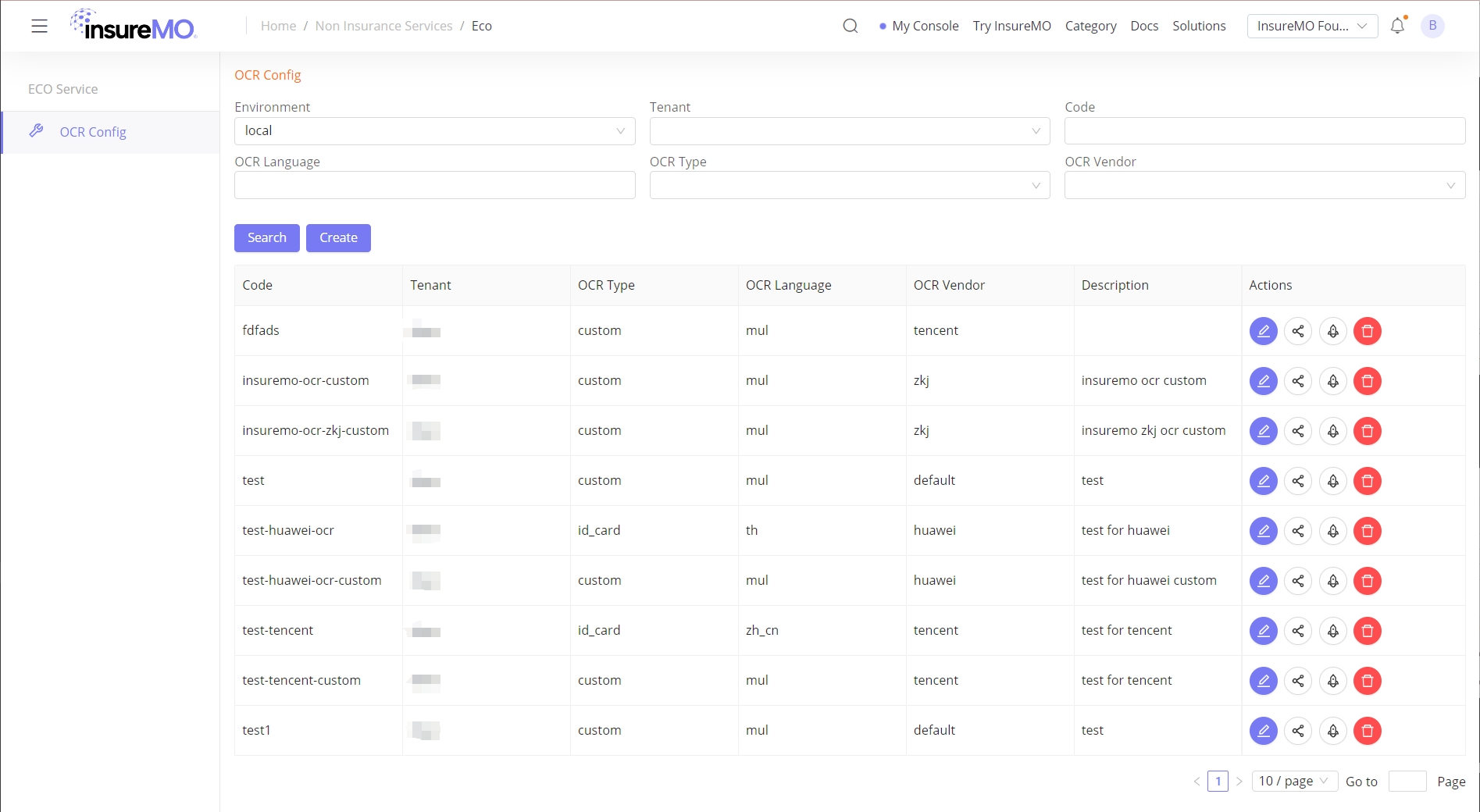
- This will navigate you to the main OCR configuration page where you can manage the service.
Configuration Management
Create
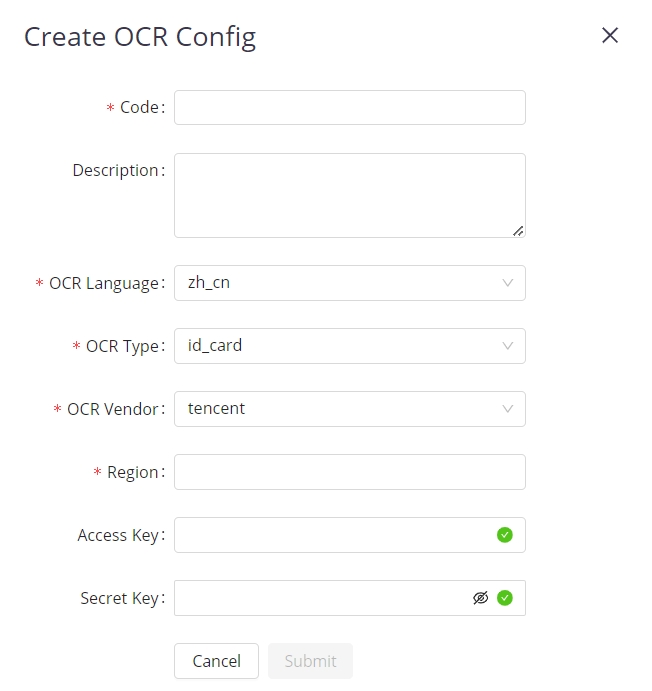
- Click Create on the OCR service console.
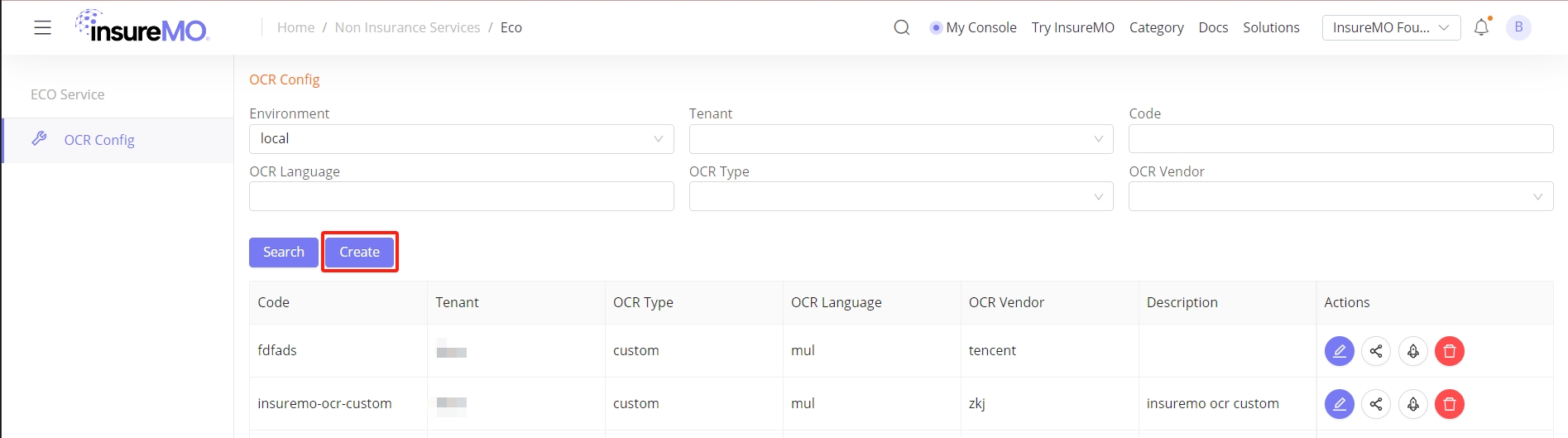
- Fill in the configuration details and click Submit.
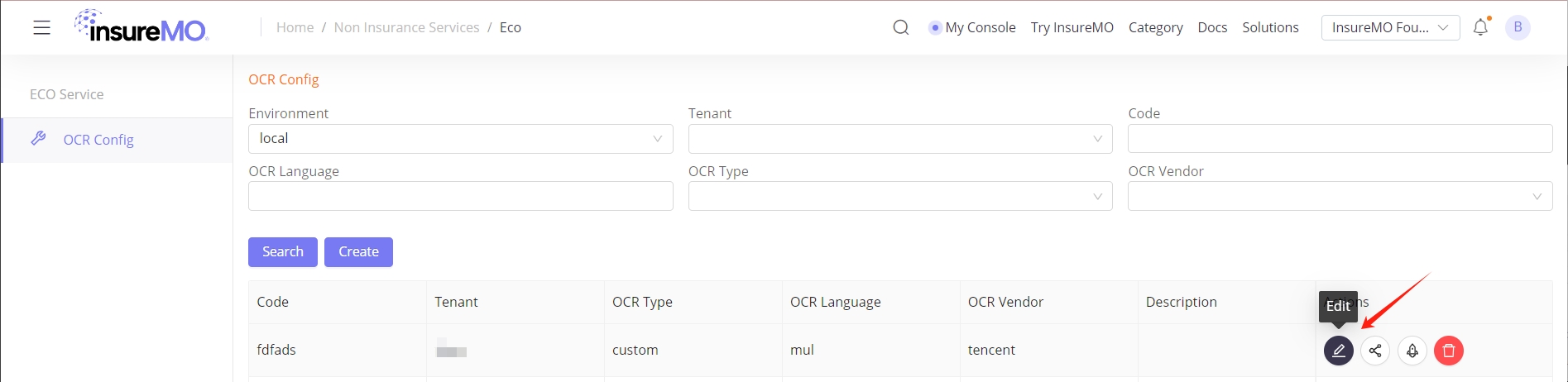
Edit
- Click Edit on the OCR service console to update the configuration.
Delete
- Click Delete against a particular record to delete the configuration.
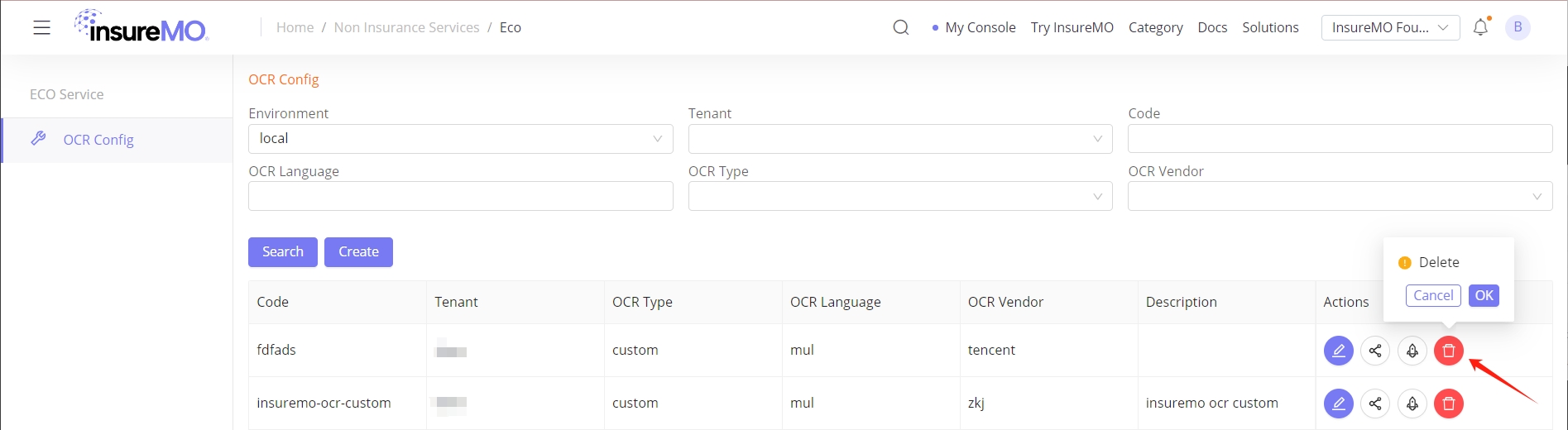
After being deleted, the configuration will no longer be used. Therefore, before deleting the configuration, please make sure that no application is using it.
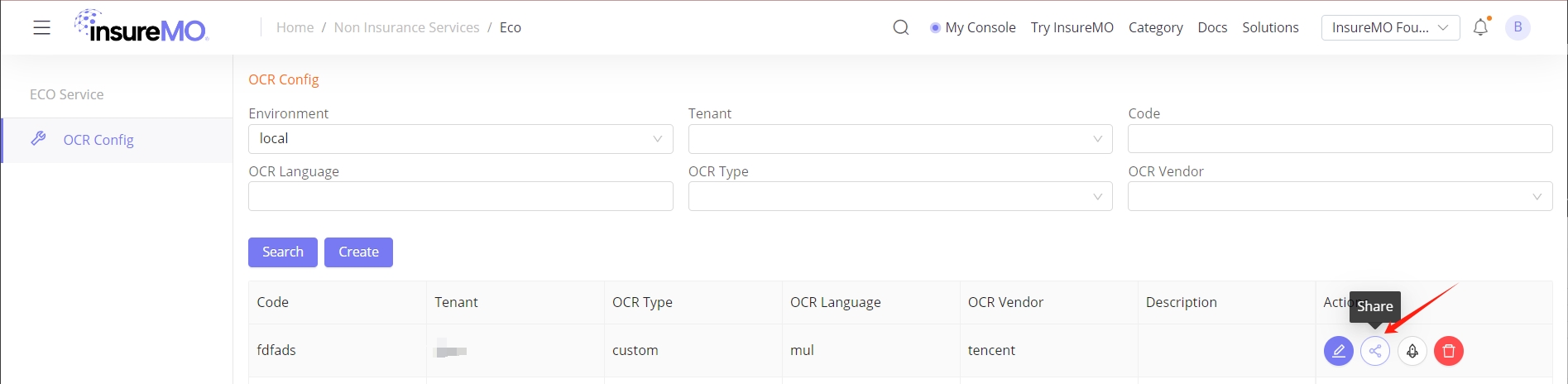
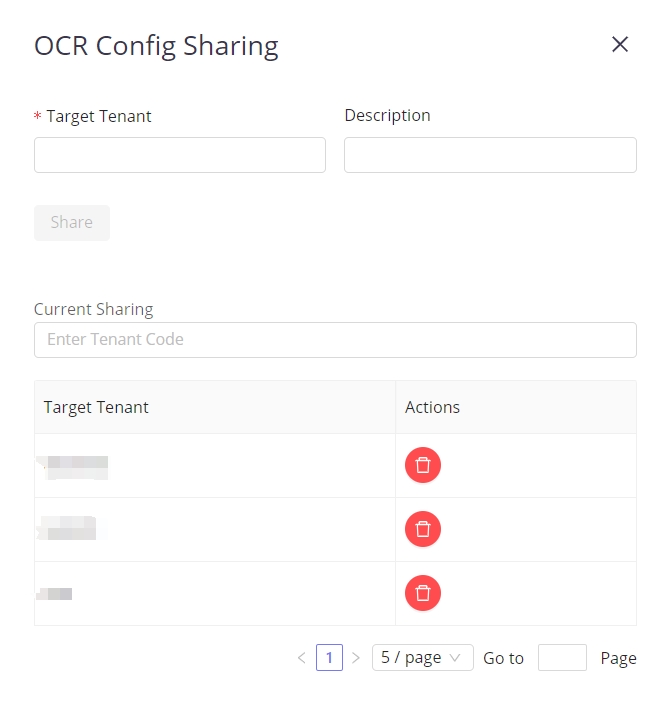
Share
- Click Share to share the current configuration with other tenants.
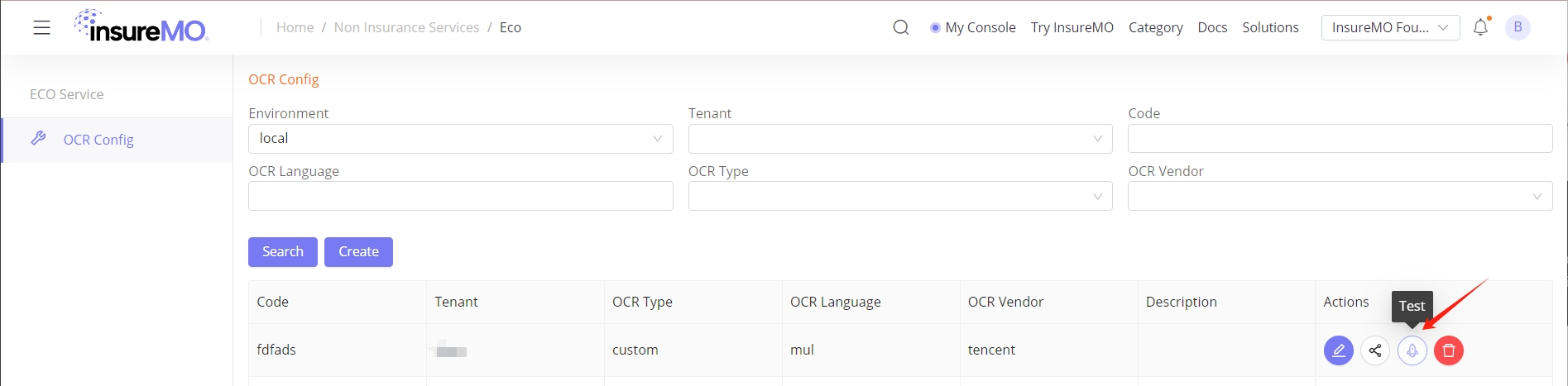
Test
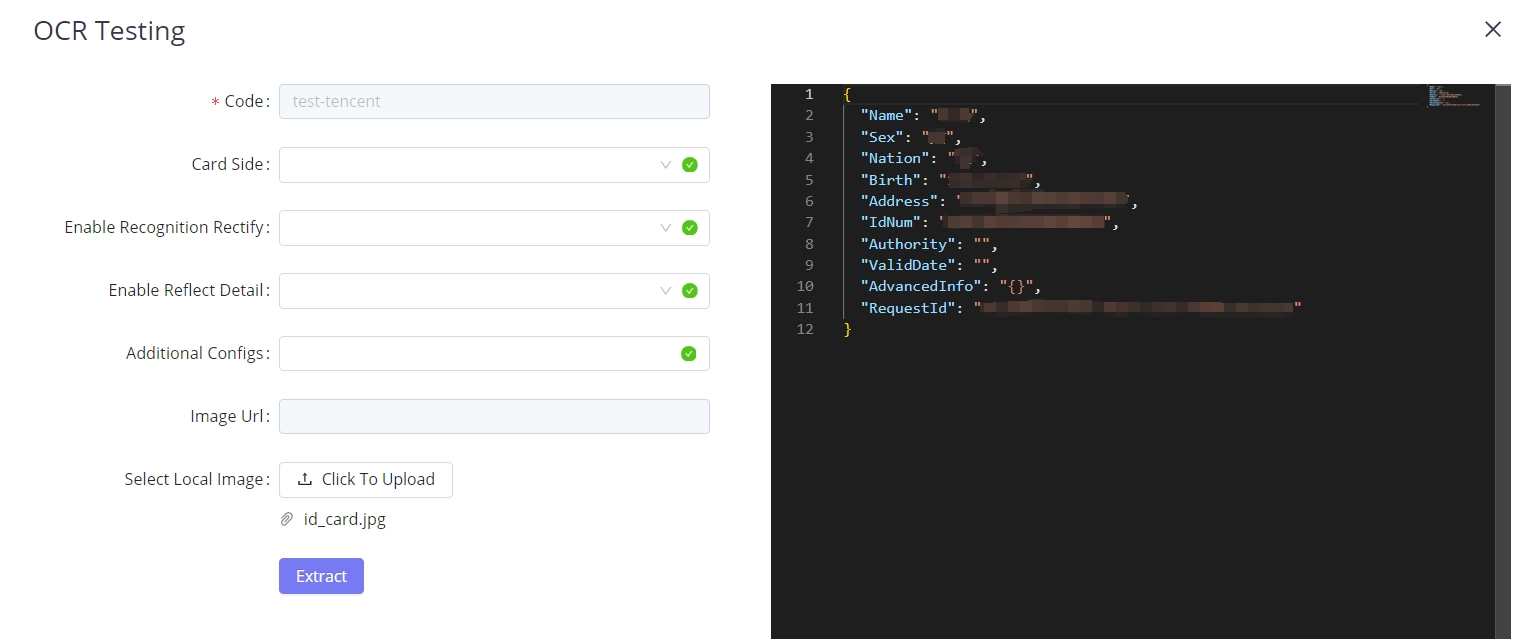
- After the configuration is created, you can verify whether the current configuration is available through a test.
- Upload the file you want to identify with OCR and fill in the required information. Then click Extract. If the configuration is available, you will see the result of OCR recognition on the right side of the test panel.
Authentication
- HTTP Authentication, scheme: bearer
POST ProcessOCRBinary
| API URL | Method |
|---|---|
| https://[HOST]/foundation/1.0/eco/ocr/process/binary | POST |
Header
| Parameter | Value |
|---|---|
| Authorization | Bearer XXXXXXXXXXXXXXXXXXXXXXXXXXXXX |
Body Parameters
{
  "code": "config-code-sample",
  "vendor_action": "string",
  "template_id": "string",
  "vendor_params_json": {},
  "vendor_param_xxx": "string",
  "body": "string",
}
Response Examples
{
  "code": "string",
  "data": {
    "process_id": "string",
    "result": "string"
  },
  "message": "string",
  "message_params": [
    "string"
  ],
  "trace_id": "string"
}
POST ProcessOCRJSON
| API URL | Method |
|---|---|
| https://[HOST]/foundation/1.0/eco/ocr/process/json | POST |
Header
| Parameter | Value |
|---|---|
| Authorization | Bearer XXXXXXXXXXXXXXXXXXXXXXXXXXXXX |
Body Parameters
{
  "code": "config-code-sample",
  "content": "string",
  "template_id": "string",
  "url": "string",
  "vendor_action": "string",
  "vendor_params": {
    "property1": "string",
    "property2": "string"
  },
  "vendor_params_json": {}
}
Response Examples
{
  "code": "string",
  "data": {
    "process_id": "string",
    "result": "string"
  },
  "message": "string",
  "message_params": [
    "string"
  ],
  "trace_id": "string"
}-
If you want to use the SDK, see Welcome to insureMO SDK for Java.
-
For more API documentation, see ECO Service.